# 1. Start Your Journey with ACC

The very first step in this Quick Start journey is to **create a new project in** [**ACC**](https://apidocs.akinon.com/products/acc). This project will serve as the foundation for all other services and configurations that follow. Here’s how to set up your project:

{% stepper %}
{% step %}

### Log in to ACC

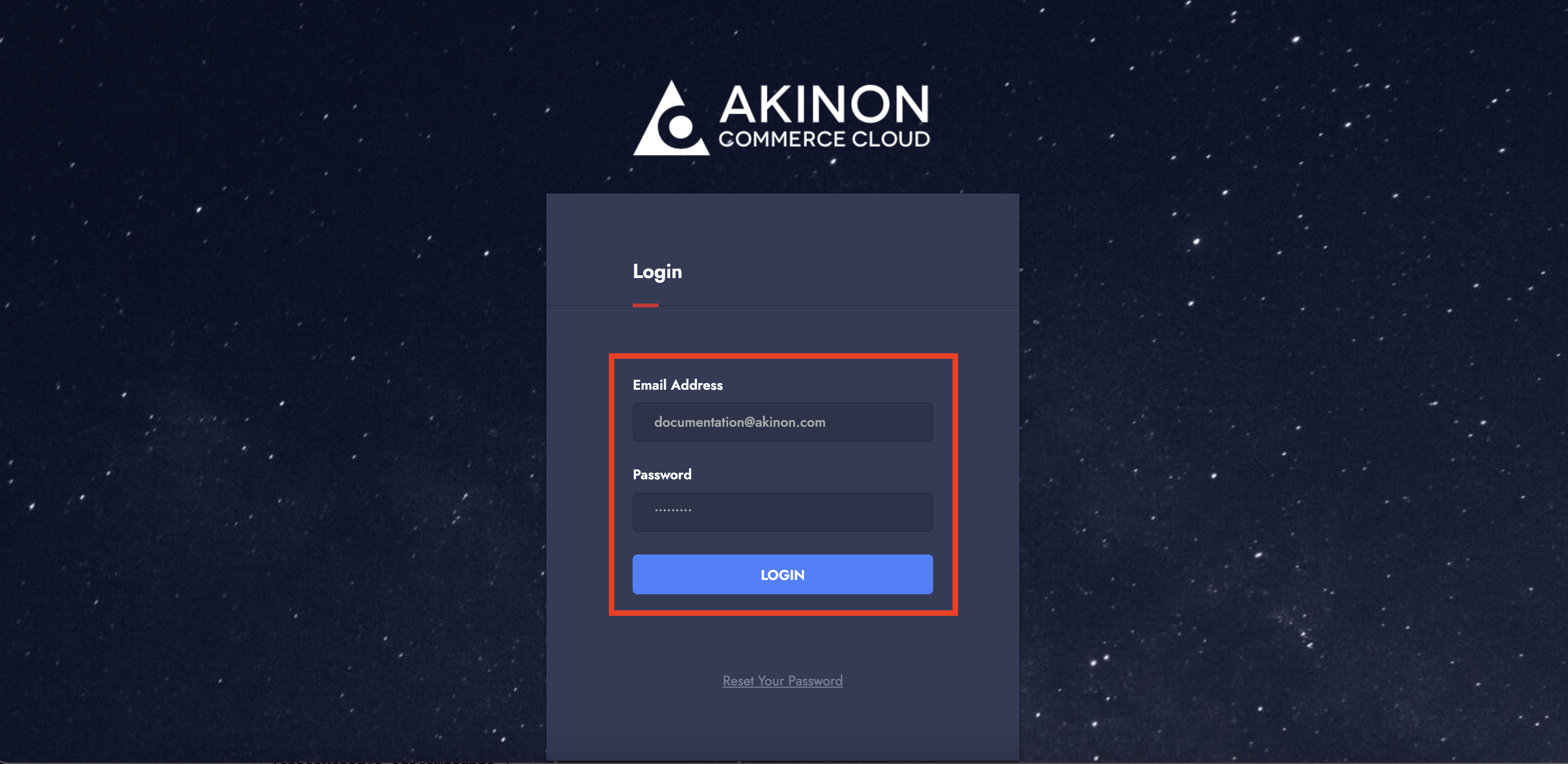
* Visit <https://console.akinoncloud.com/>
* Use the credentials provided to you by Akinon.

{% hint style="warning" %}
To kick-start your project, your ACC account must already be set up.\
If you haven’t received your login info yet, please reach out to Akinon.\
Alternatively, you can try the **Reset Password** option on the login page using your registered email.
{% endhint %}

* ACC uses email-based One-Time Password (OTP) for authentication. An OTP will be sent to your authorized email address—use it to log in securely.

<figure><img src="https://164766933-files.gitbook.io/~/files/v0/b/gitbook-x-prod.appspot.com/o/spaces%2FszVHHD4skw8SftKawRsw%2Fuploads%2FkRiDi3cOSyxgMQbSyHLE%2FScreenshot%202025-04-08%20at%2012.34.40.png?alt=media&#x26;token=f39140b7-3a53-481f-8a50-2cda09e1a1f3" alt=""><figcaption></figcaption></figure>
{% endstep %}

{% step %}

### Create a New Project

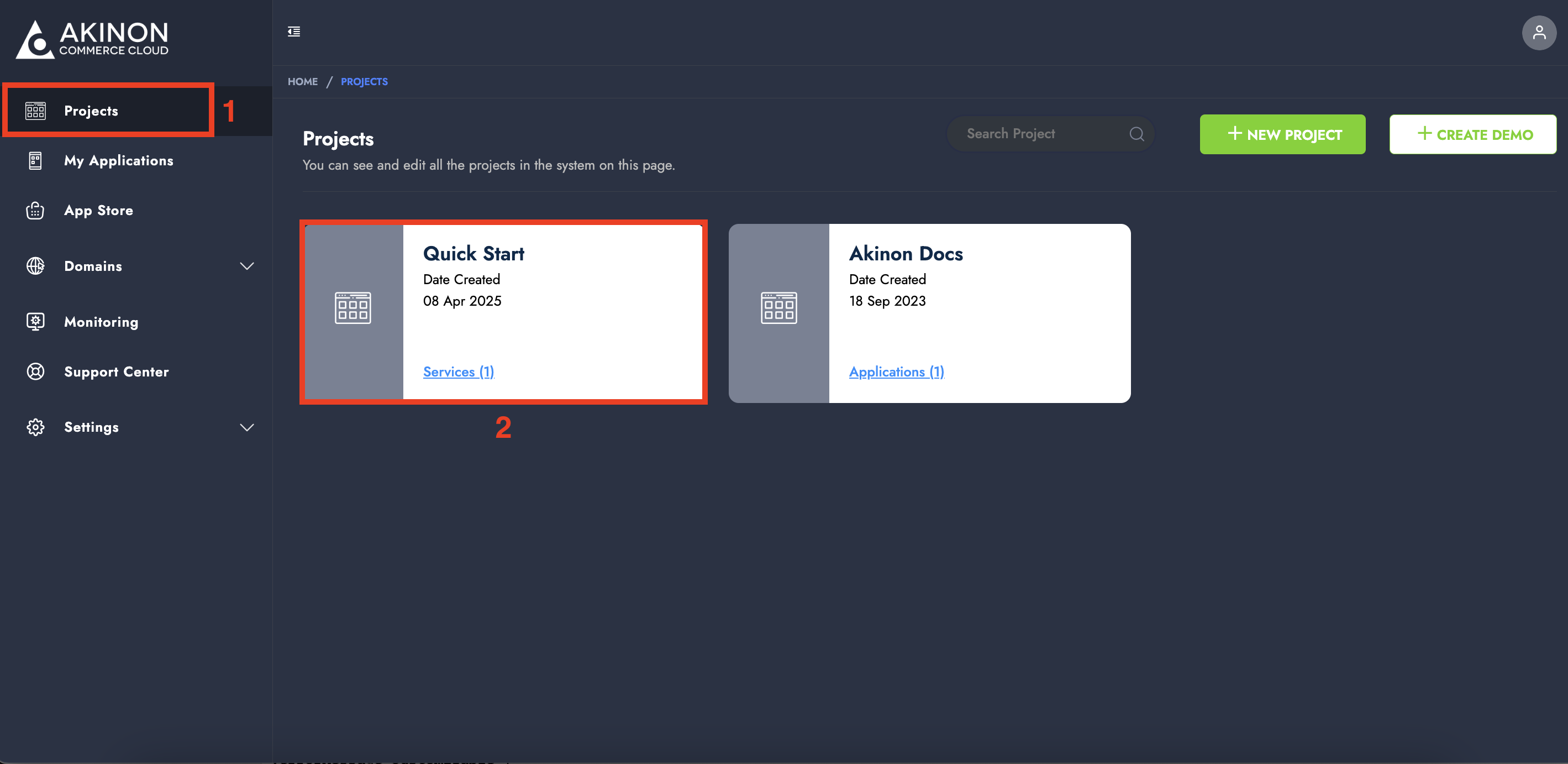
* Once logged in, navigate to the **"Projects"** page.
* Click the **+ NEW PROJECT** button to start creating a new project.

<figure><img src="https://164766933-files.gitbook.io/~/files/v0/b/gitbook-x-prod.appspot.com/o/spaces%2FszVHHD4skw8SftKawRsw%2Fuploads%2FwJ5ql8bEJtx6Gr1DNUc3%2FScreenshot%202025-04-08%20at%2012.22.18.png?alt=media&#x26;token=9885a755-36c9-4e82-9fb7-508e70e11992" alt=""><figcaption></figcaption></figure>
{% endstep %}

{% step %}

### Fill in the Project Information

* A form will appear asking for the project details.
  * **Project Name**: Enter a clear and descriptive name (e.g., your brand name).
  * **Project Slug**: This is a unique identifier used internally and across services. For example, the slug is required when creating a dedicated Sentry account for monitoring.
* After filling out the information, click the **APPLY** button. You will then be redirected to the plan selection screen.

<figure><img src="https://164766933-files.gitbook.io/~/files/v0/b/gitbook-x-prod.appspot.com/o/spaces%2FszVHHD4skw8SftKawRsw%2Fuploads%2Fimt42yTY2p2nRoux1qII%2FScreenshot%202025-04-08%20at%2012.24.29.png?alt=media&#x26;token=a4681c47-1ffc-4ea4-ad65-e304c96ac334" alt=""><figcaption></figcaption></figure>
{% endstep %}

{% step %}

### Choose a Plan&#x20;

* The “Choose a Plan” screen is currently under development.
* Simply click **CHOOSE PLAN** to proceed.

<figure><img src="https://164766933-files.gitbook.io/~/files/v0/b/gitbook-x-prod.appspot.com/o/spaces%2FszVHHD4skw8SftKawRsw%2Fuploads%2Fk0EUTkMKqXOyUaVOeEKE%2FScreenshot%202025-04-08%20at%2012.40.39.png?alt=media&#x26;token=db371659-33d4-4ce2-929a-1a2c1dbce518" alt=""><figcaption></figcaption></figure>
{% endstep %}

{% step %}

### Accept the Licence Agreement

* The “License” step is also under development.
* Just click **ACCEPT & COMPLETE** to finalize the license agreement and complete your project setup.

<figure><img src="https://164766933-files.gitbook.io/~/files/v0/b/gitbook-x-prod.appspot.com/o/spaces%2FszVHHD4skw8SftKawRsw%2Fuploads%2F9jzCQxGLr50NRliVfcFl%2FScreenshot%202025-04-08%20at%2012.26.47.png?alt=media&#x26;token=937714d4-192c-48f8-b318-7a4bc19185fd" alt=""><figcaption></figcaption></figure>
{% endstep %}

{% step %}

### Welcome Page

* Once the project is successfully created, you will be greeted with a **Welcome Page**.
* From here, you can follow provided links to visit the project overview or view its applications.

<figure><img src="https://164766933-files.gitbook.io/~/files/v0/b/gitbook-x-prod.appspot.com/o/spaces%2FszVHHD4skw8SftKawRsw%2Fuploads%2FbNrN9iAuvXNPa4wsIR9W%2FScreenshot%202025-04-08%20at%2012.45.43.png?alt=media&#x26;token=c219d46b-4500-4475-9e93-bc3b311c5408" alt=""><figcaption></figcaption></figure>
{% endstep %}

{% step %}

### Access Your Project Detail Page&#x20;

* You can either: use the shortcut on the welcome page, or find your project in the left-hand navigation menu and click on it to open its detail page.

<figure><img src="https://164766933-files.gitbook.io/~/files/v0/b/gitbook-x-prod.appspot.com/o/spaces%2FszVHHD4skw8SftKawRsw%2Fuploads%2FhL1itBeNOFgrNQeKhwXe%2FScreenshot%202025-04-08%20at%2012.55.32.png?alt=media&#x26;token=c59e92cd-45ce-44e3-9f46-b8e33ebd933f" alt=""><figcaption></figcaption></figure>
{% endstep %}

{% step %}

### Omnitron Deployment Begin Automatically

* As noted on the welcome page, the **Omnitron and Omnitron Frontend** services will automatically start deploying as soon as the project is created.

  > * &#x20;**Omnitron** is the core backend service used for managing product data, catalogs, and essential commerce configurations.
  > * **Omnitron Frontend (FE)** provides the admin interface where you can interact with this data through a user-friendly UI.

  There’s no manual action needed at this stage—just give it a moment to finish deploying in the background.

<figure><img src="https://164766933-files.gitbook.io/~/files/v0/b/gitbook-x-prod.appspot.com/o/spaces%2FszVHHD4skw8SftKawRsw%2Fuploads%2FXW2ZGHXFyL3omkHIa3da%2FScreenshot%202025-04-08%20at%2012.48.14.png?alt=media&#x26;token=173ac353-697e-4087-8328-cc23b15574bd" alt=""><figcaption></figcaption></figure>
{% endstep %}

{% step %}

### Check Deployment Status

* When the installations are complete, both services will show their setup deployment status as **Deployed**.

<figure><img src="https://164766933-files.gitbook.io/~/files/v0/b/gitbook-x-prod.appspot.com/o/spaces%2FszVHHD4skw8SftKawRsw%2Fuploads%2FhuvrLnIVk6beyQIlZdlz%2FScreenshot%202025-04-08%20at%2015.23.23.png?alt=media&#x26;token=c327f753-64aa-4245-9ca5-8d77311b2ba7" alt=""><figcaption></figcaption></figure>

Different deployment statuses may be displayed depending on the current state of the deployment process. Below is a list of possible statuses and the actions that need to be taken for each:

<table><thead><tr><th width="151.76171875">Status</th><th width="284.390625">Description</th><th>Action Required</th></tr></thead><tbody><tr><td><strong>Deploy Needed</strong></td><td>The service has been added, but a version has not been deployed yet.</td><td>A new deployment must be initiated.</td></tr><tr><td><strong>Pending</strong></td><td>The deployment is queued and waiting to be processed.</td><td>No action required. Wait for it to progress.</td></tr><tr><td><strong>Initializing Setup</strong></td><td>Add-ons are currently being installed.</td><td>No action required. Wait for initialization to complete.</td></tr><tr><td><strong>Addon Failed</strong></td><td>An error occurred during the installation of one or more add-ons.</td><td>Akinon support must investigate and resolve the issue.</td></tr><tr><td><strong>Deploying</strong></td><td>A version is currently being deployed.</td><td>No action required. Wait for the deployment to complete.</td></tr><tr><td><strong>Failed</strong></td><td>The deployment process failed.</td><td>Review the Deployment Logs to identify and fix the issue, then redeploy.</td></tr><tr><td><strong>Deployed</strong></td><td>The deployment was successful and the service is up and running.</td><td>No action needed.</td></tr></tbody></table>

> * If the status is **Addon Failed**, Akinon needs to take action to resolve the issue.
> * If the status is **Failed**, review the **Deployment Logs**, fix the root cause, and trigger a new deployment.
>   {% endstep %}

{% step %}

### Accessing Omnitron

* After the deployment is successful, you will receive an email with:
  * The **URL** to access Omnitron Frontend, and
  * A link to **set your password** via "Update Password".
* Use these credentials to log into Omnitron.

<figure><img src="https://164766933-files.gitbook.io/~/files/v0/b/gitbook-x-prod.appspot.com/o/spaces%2FszVHHD4skw8SftKawRsw%2Fuploads%2FD3bCzNhRJBQDaiTYi3zL%2FScreenshot%202025-04-08%20at%2015.31.59.png?alt=media&#x26;token=3959e859-c7a6-41a8-b605-e4d8883436cd" alt=""><figcaption></figcaption></figure>
{% endstep %}

{% step %}

### Add Additional Services to Your Project

* Depending on your contract, you may need to add additional services.
* Common services within the Akinon ecosystem include:
  * Seller Center
  * Instore
  * OMS
  * Commerce
    {% endstep %}

{% step %}

### Adding the Commerce Service

* One of the most commonly used services is **Commerce**.
* To add it:

  * Go to your project’s detail page.
  * Click the **+ NEW SERVICE** button in the upper-right corner.
  * Select **Commerce** from the list.

  <figure><img src="https://164766933-files.gitbook.io/~/files/v0/b/gitbook-x-prod.appspot.com/o/spaces%2FszVHHD4skw8SftKawRsw%2Fuploads%2FYakHmEvxAqdNqOjUAggd%2FScreenshot%202025-04-08%20at%2014.23.44.png?alt=media&#x26;token=7c94c401-5ea9-4169-bc05-ac10578a78de" alt=""><figcaption></figcaption></figure>

{% endstep %}

{% step %}

### Confirm the Deployment&#x20;

* A validation popup will appear.
* Click **YES, PROCEED** to begin the deployment.

<figure><img src="https://164766933-files.gitbook.io/~/files/v0/b/gitbook-x-prod.appspot.com/o/spaces%2FszVHHD4skw8SftKawRsw%2Fuploads%2FJK2Dczl6eeTqSq0Br1M2%2FScreenshot%202025-04-08%20at%2014.28.17.png?alt=media&#x26;token=8060cac3-cf52-42d4-a5fa-78625bdd8dff" alt=""><figcaption></figcaption></figure>

{% hint style="danger" %}
If the Omnitron deployment is not yet complete, you will see a warning message.\
You must wait for Omnitron to be deployed before you can add any new services.
{% endhint %}

<figure><img src="https://164766933-files.gitbook.io/~/files/v0/b/gitbook-x-prod.appspot.com/o/spaces%2FszVHHD4skw8SftKawRsw%2Fuploads%2FsiKYeKcUjhPvH5OLT2mT%2FScreenshot%202025-04-08%20at%2014.32.32.png?alt=media&#x26;token=b0aa1007-1d6a-48cd-890f-b95e2902ba47" alt=""><figcaption></figcaption></figure>
{% endstep %}

{% step %}

### Deployment of Commerce Service

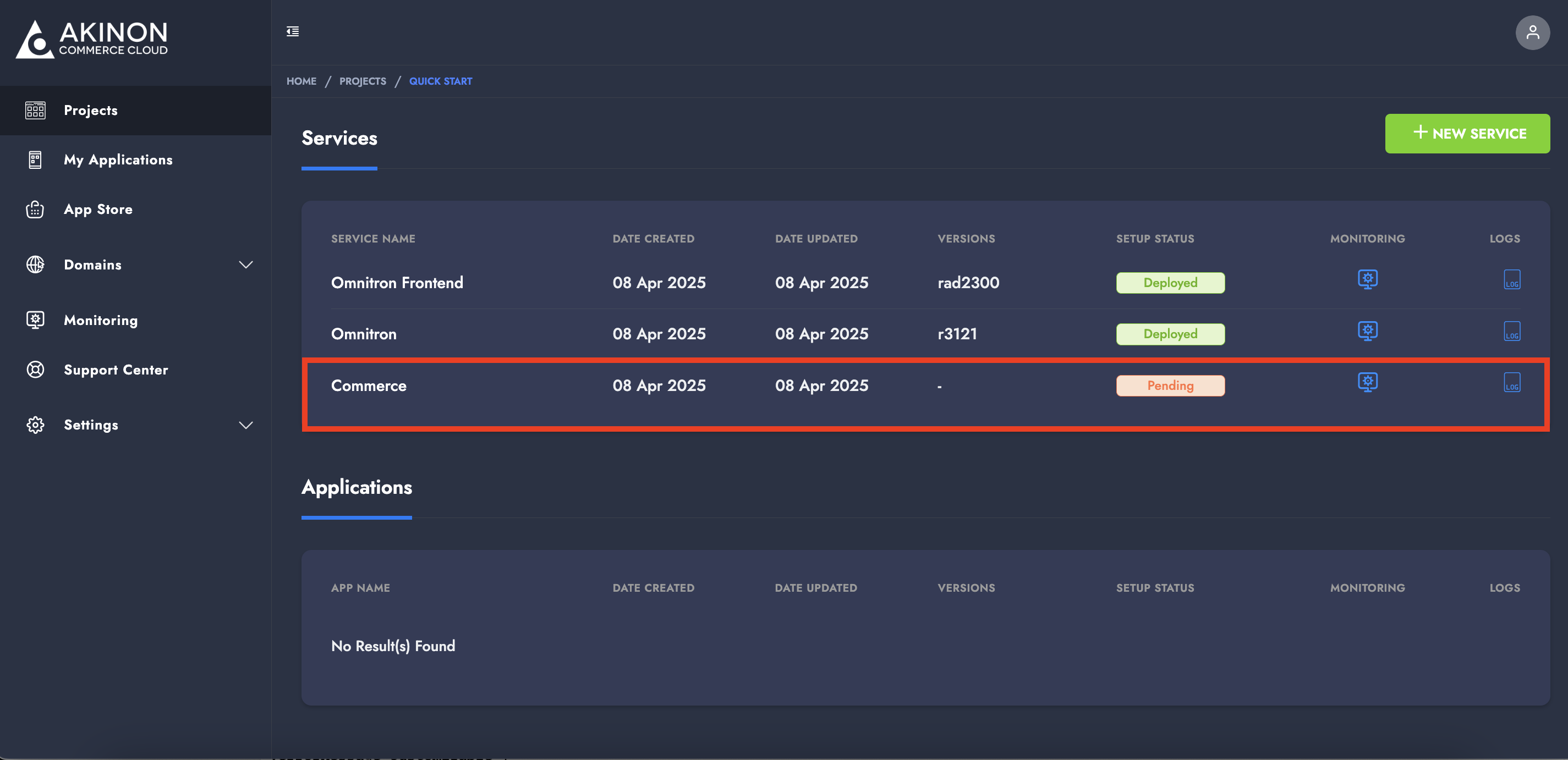
* The Commerce service will begin deploying immediately after confirmation.

<figure><img src="https://164766933-files.gitbook.io/~/files/v0/b/gitbook-x-prod.appspot.com/o/spaces%2FszVHHD4skw8SftKawRsw%2Fuploads%2FYS9Qx4GCW4o9Tif5B1ot%2FScreenshot%202025-04-08%20at%2015.27.35.png?alt=media&#x26;token=fcd0a23a-48e9-4da2-a1be-c7e786bcffeb" alt=""><figcaption></figcaption></figure>
{% endstep %}

{% step %}

### Deployment Status Update

* Once completed, the status will be updated to **Deployed**, indicating it is ready for use.

<figure><img src="https://164766933-files.gitbook.io/~/files/v0/b/gitbook-x-prod.appspot.com/o/spaces%2FszVHHD4skw8SftKawRsw%2Fuploads%2FdNblCP8lW8WOkqxsyoZS%2FScreenshot%202025-04-09%20at%2015.26.30.png?alt=media&#x26;token=495ec1ab-a623-42af-b457-459bafaac7d5" alt=""><figcaption></figcaption></figure>

Different deployment statuses may be displayed depending on the current state of the deployment process. Below is a list of possible statuses and the actions that need to be taken for each:

<table><thead><tr><th width="151.76171875">Status</th><th width="284.390625">Description</th><th>Action Required</th></tr></thead><tbody><tr><td><strong>Deploy Needed</strong></td><td>The service has been added, but a version has not been deployed yet.</td><td>A new deployment must be initiated.</td></tr><tr><td><strong>Pending</strong></td><td>The deployment is queued and waiting to be processed.</td><td>No action required. Wait for it to progress.</td></tr><tr><td><strong>Initializing Setup</strong></td><td>Add-ons are currently being installed.</td><td>No action required. Wait for initialization to complete.</td></tr><tr><td><strong>Addon Failed</strong></td><td>An error occurred during the installation of one or more add-ons.</td><td>Akinon support must investigate and resolve the issue.</td></tr><tr><td><strong>Deploying</strong></td><td>A version is currently being deployed.</td><td>No action required. Wait for the deployment to complete.</td></tr><tr><td><strong>Failed</strong></td><td>The deployment process failed.</td><td>Review the Deployment Logs to identify and fix the issue, then redeploy.</td></tr><tr><td><strong>Deployed</strong></td><td>The deployment was successful and the service is up and running.</td><td>No action needed.</td></tr></tbody></table>

> * If the status is **Addon Failed**, Akinon needs to take action to resolve the issue.
> * If the status is **Failed**, review the **Deployment Logs**, fix the root cause, and trigger a new deployment.
>   {% endstep %}
>   {% endstepper %}