> For the complete documentation index, see [llms.txt](https://docs.akinon.com/llms.txt). Markdown versions of documentation pages are available by appending `.md` to page URLs; this page is available as [Markdown](https://docs.akinon.com/quick-start/readme/5.-integrate-omnitron-and-integrator.md).
# 5. Integrate Omnitron & Integrator
Before products can appear on your live site, you must first configure the catalog, product details, prices, stock information, payment, and shipping options in **Omnitron**. These configurations also enable data exchange between your ERP and Omnitron via **Integrator Flows**, ensuring real-time updates.
This section outlines the complete setup process—starting from catalog creation to address mapping—to ensure your products are ready for storefront.
### 1. Creating a Catalog
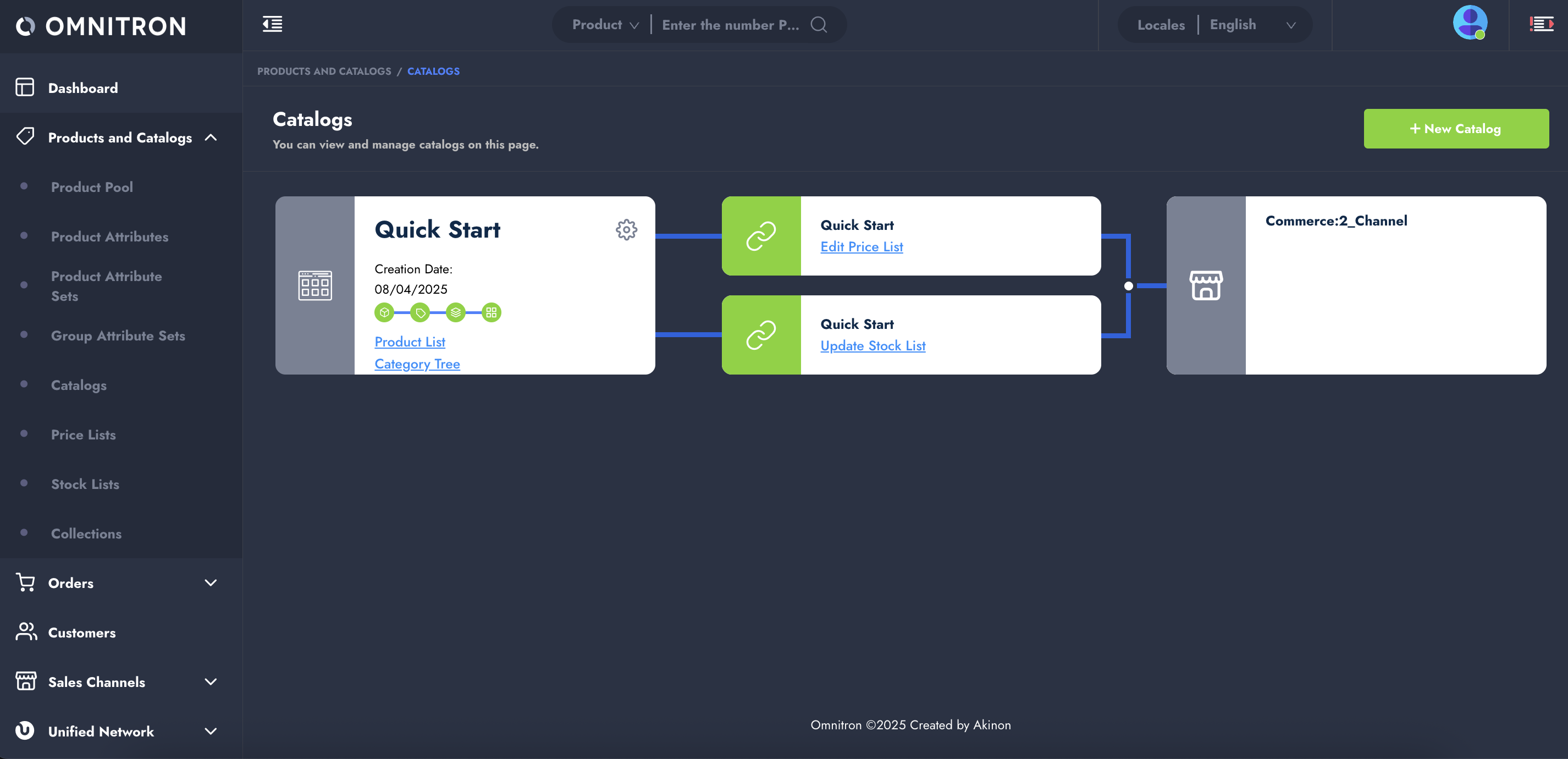
A **Catalog** is the foundational structure for managing products in Omnitron. It acts as a container that groups together product data, stock and price lists, and channel assignments. Every product you create, as well as its related configurations, must be assigned to a catalog to be published to the storefront.
Once the catalog is created:
* Products should be linked to this catalog.
* Price and stock lists should be associated.
* Sales channels should be assigned to this catalog to ensure proper product visibility.
{% hint style="success" %}
For step-by-step instructions on creating and configuring a catalog, refer to the [Catalogs](/tutorials/omnitron/products-and-catalogs/how-to-manage-catalogs-in-omnitron.md) tutorial.
{% endhint %}
Once the catalog is created, you can proceed with defining **Attributes** and **Attribute Sets** to describe your products in detail.
***
### 2. Creating Attributes and Attribute Sets
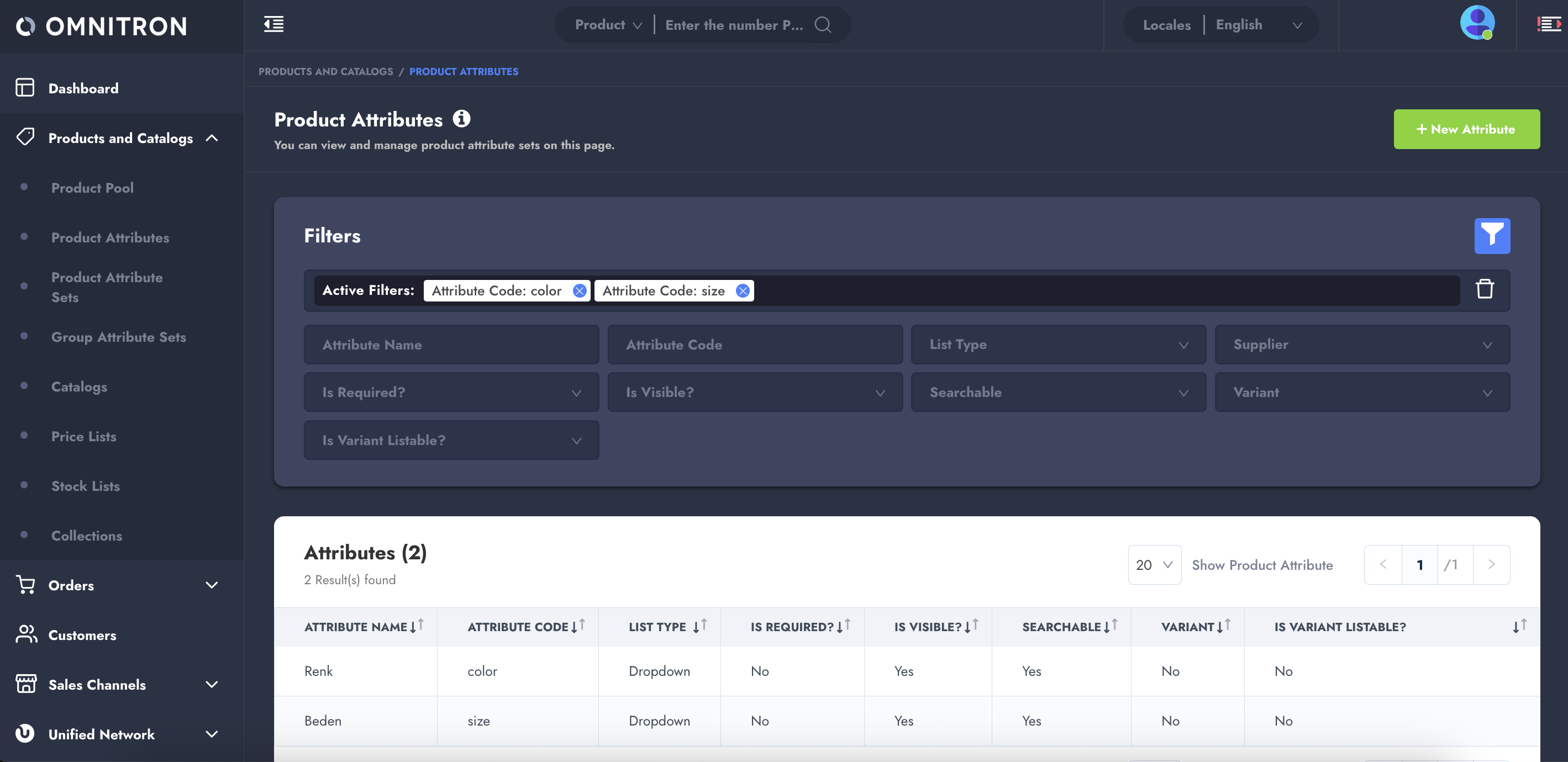
Before creating products, you need to define their characteristics. This is done through **Attributes**, which are specific properties like color, size, or material.
Once you have several attributes that logically belong together (e.g., size and color for clothing), you can bundle them into an **Attribute Set**. Attribute Sets make it easier to manage product structures and apply them consistently across similar product types or categories.
These elements not only help define your products clearly but also enable filtering and categorization in your storefront.
{% hint style="success" %}
For step-by-step instructions on creating and configuring attributes and attribute sets, refer to the [Attributes and Attribute Sets](/tutorials/omnitron/products-and-catalogs/how-to-create-product-attributes-and-attribute-sets-in-omnitron.md) tutorial.
{% endhint %}
***
### 3. Creating Products
With your catalog and attributes and attribute sets in place, you can now begin creating products. Each product must be associated with a catalog and assigned an attribute set that reflects its characteristics.
To get started quickly, creating a **Simple** product type is enough for now. For detailed, step-by-step instructions on how to create and configure all product types, refer to the [**Product Types**](/technical-guides/omnitron/product-types.md) tutorial.
When creating a product, you will:
* Enter basic product information (name, SKU, base code, etc.).
* Select the appropriate attribute set.
* After entering basic product details and saving, a **Product Pictures** section will appear—upload at least one image. Images are mandatory for product visibility in storefront.
* **Image Requirements & Limitations**
To ensure proper display and performance across all devices and channels, product images must meet the following requirements:
* **Accepted file formats:** `jpeg`, `jpg`, `png`, `gif`, `webp`
* **Minimum requirement:** At least one image must be uploaded per product.
* **Maximum dimensions:**\
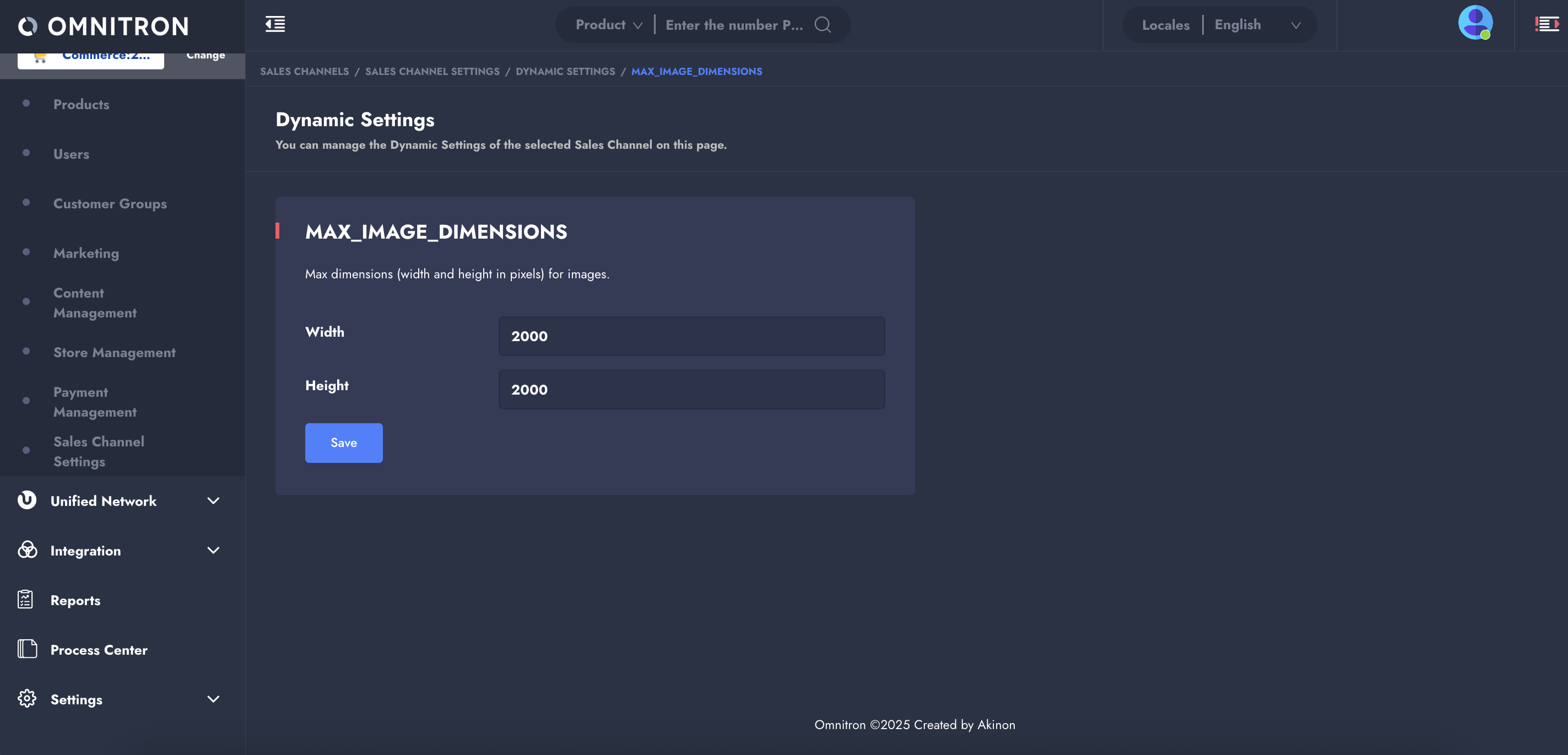
Image size is controlled by a dynamic configuration setting called `MAX_IMAGE_DIMENSIONS`, which ensures uploaded images do not exceed certain dimensions for performance and quality purposes.
**Default limits:**
```json
MAX_IMAGE_DIMENSIONS = {
"WIDTH": 2000,
"HEIGHT": 2000
}
```
If an uploaded image exceeds these dimensions, it may be automatically rejected or resized depending on system behavior and configuration.\\
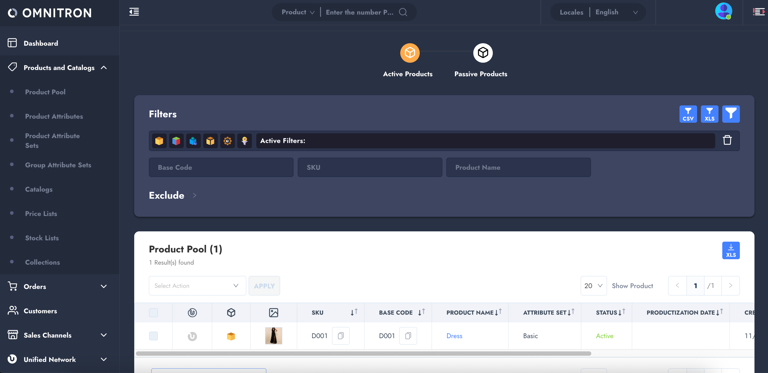
* This way, the product you created will be listed in the Product Pool.
{% hint style="info" %}
**Alternative: Using Integrator Product Flow**
While it’s possible to create and manage products manually, it’s strongly recommended to automate the process using the **Integrator** [**Product Flow**](/tutorials/integrator/flows/product-flow.md). This ensures real-time synchronization between your ERP system and Omnitron.
{% endhint %}
***
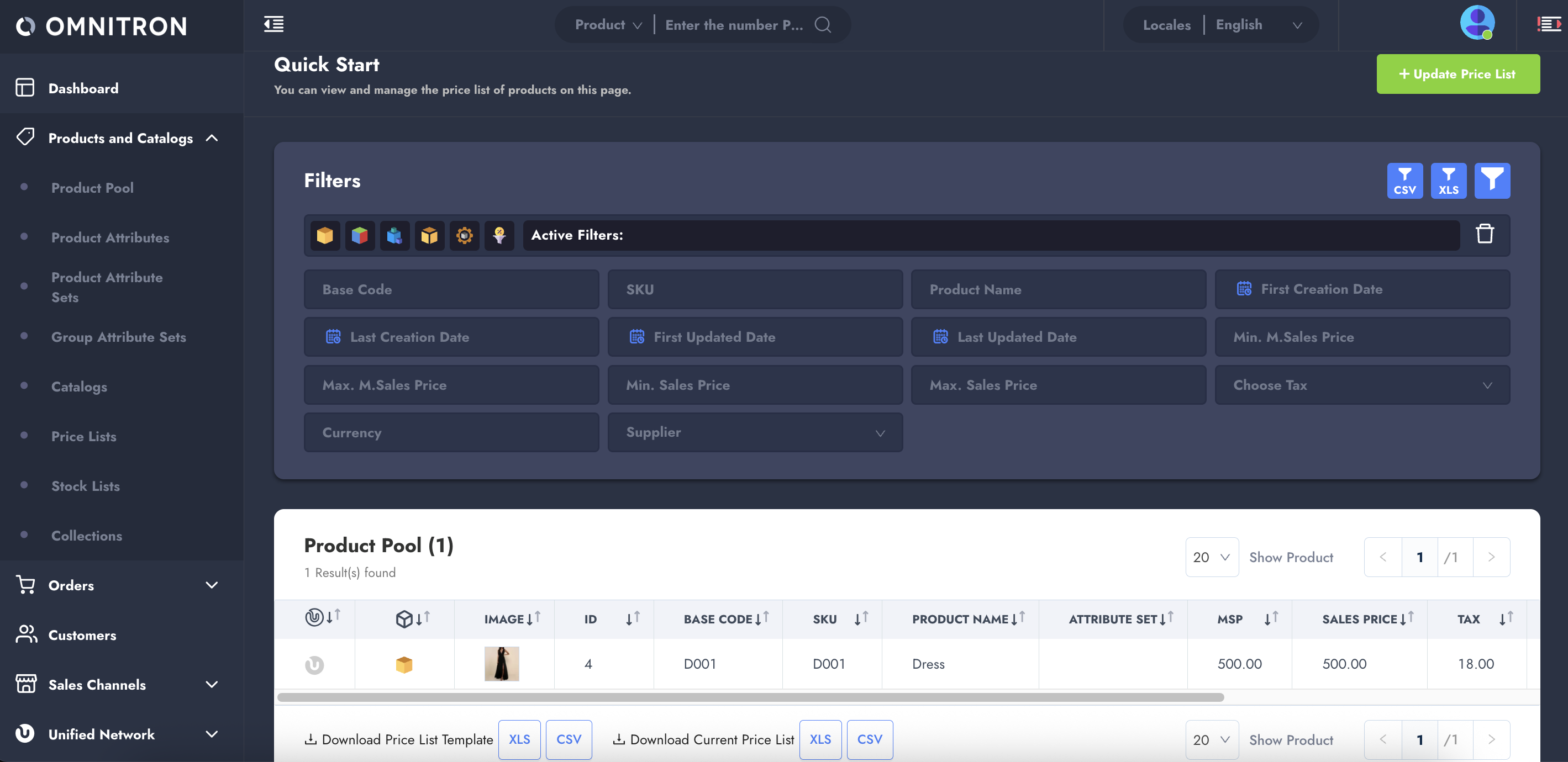
### 4. Creating a Price List
Every product must be assigned a price. To manage this, you first need to create a **Price List** in Omnitron. A price list can include multiple products, and each can have its own price within that list.
Key steps:
* Create a price list.
* Add product entries and define the selling price for each product.
{% hint style="success" %}
For step-by-step instructions on creating and configuring price lists, refer to the [**Price Lists**](/tutorials/omnitron/products-and-catalogs/how-to-create-and-update-price-lists-in-omnitron.md) tutorial.
{% endhint %}
{% hint style="info" %}
**Alternative: Using Integrator Price Flow**
While this can be done manually, it's more efficient to use the **Integrator** [**Price Flow**](/tutorials/integrator/flows/price-flow.md), which pulls pricing information directly from your ERP.
{% endhint %}
***
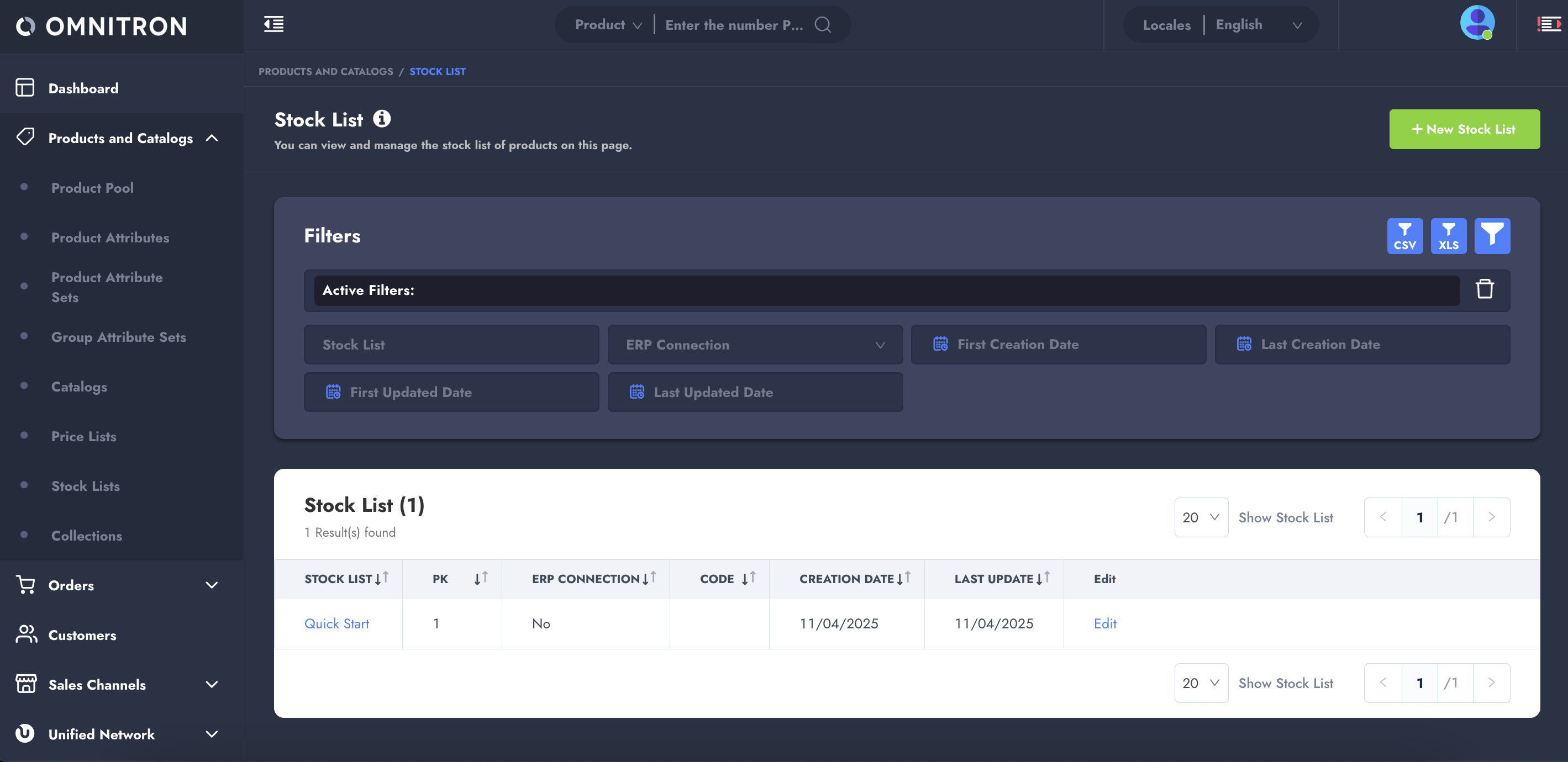
### 5. Creating a Stock List
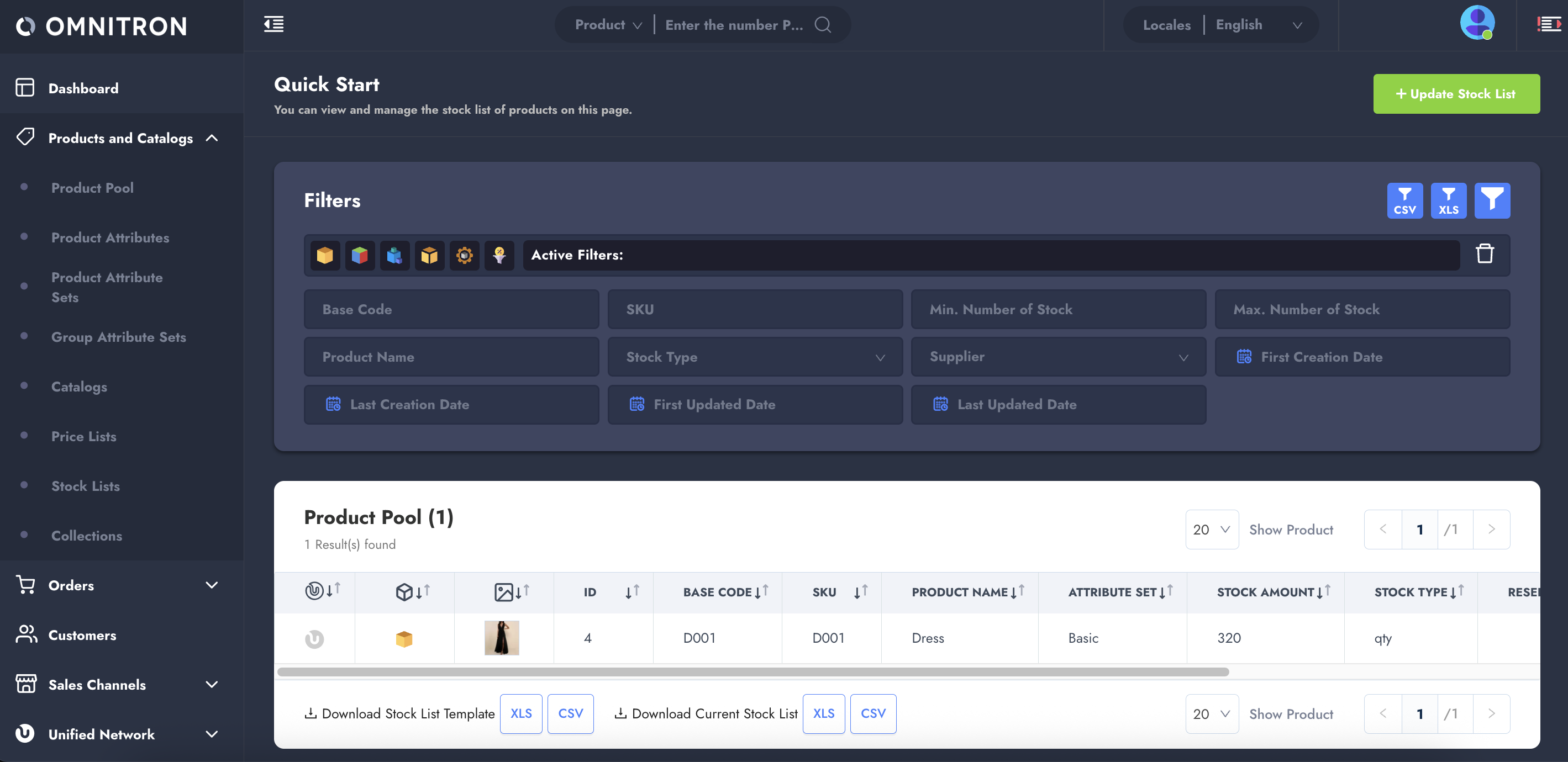
Just like pricing, stock availability is essential for product visibility and order processing. A **Stock List** defines the stock quantity of products and links them to a specific catalog and sales channel.
Key steps:
* Create a stock list.
* Add product entries and their available stock quantities.
{% hint style="success" %}
For step-by-step instructions on creating and configuring stock lists, refer to the [**Stock Lists**](/tutorials/omnitron/products-and-catalogs/how-to-create-and-update-stock-lists-in-omnitron.md) tutorial.
{% endhint %}
{% hint style="info" %}
**Alternative: Using Integrator Stock Flow**
Use the **Integrator** [**Stock Flow**](/tutorials/integrator/flows/stock-flow.md) to automate stock updates based on your ERP system. This avoids inconsistencies and ensures up-to-date inventory data.
{% endhint %}
***
### 6. Catalog Control and Assignments
The catalog configuration process includes multiple detailed steps—**each of which must be followed carefully to ensure your products are correctly displayed in the storefront**. From assigning products to catalogs, linking price and stock lists, setting categories, to final catalog validation and sorting—each task plays a critical role and must be completed carefully and thoroughly. Otherwise, even if your product configurations are technically correct, they may not be visible in the storefront.
{% stepper %}
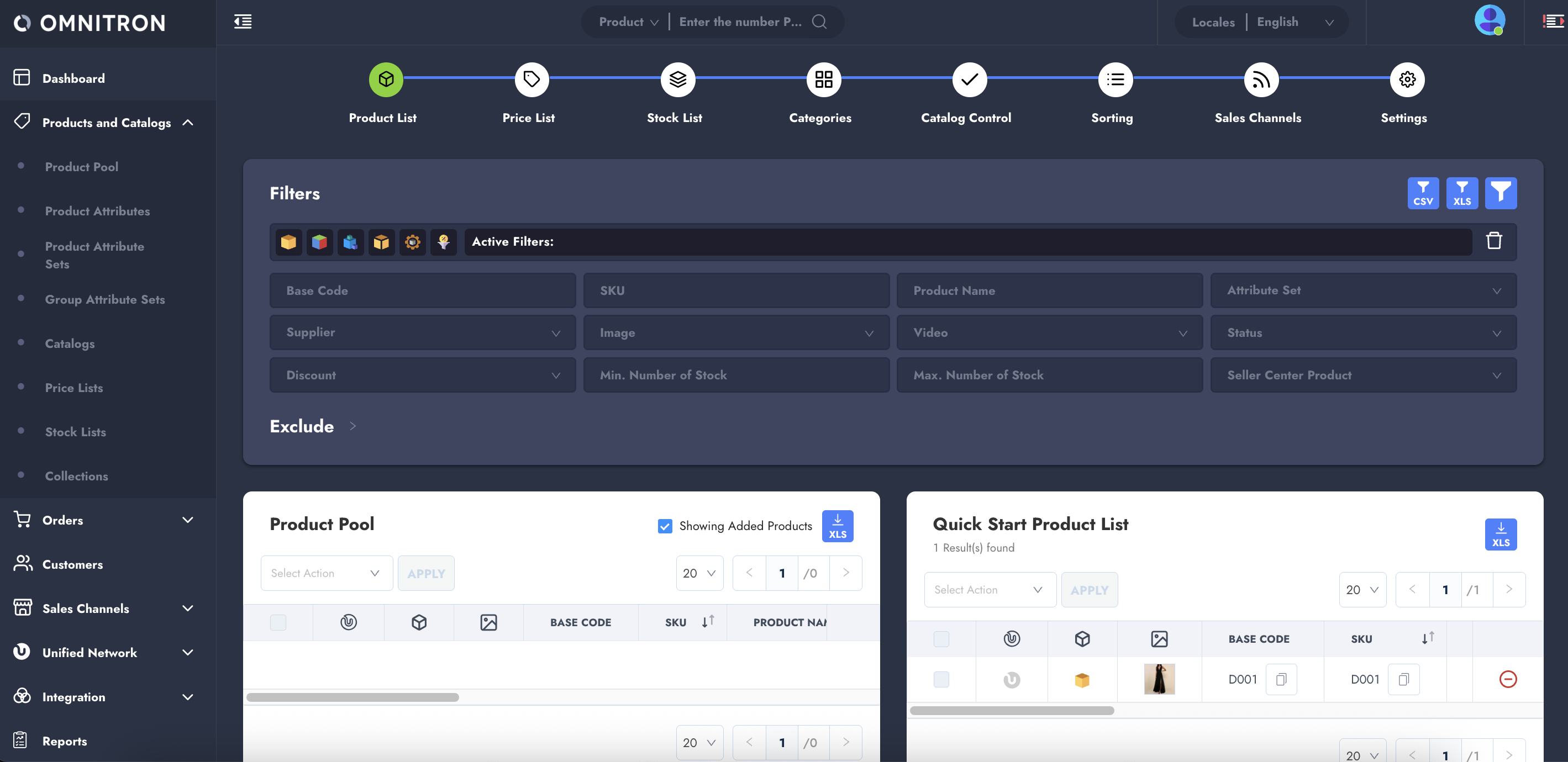
{% step %}
#### **Add Products to Catalog**
On the **Product List** step, products are added to the catalog from the product pool.
* Products can be added individually or in bulk.
* If the **Showing Added Products** checkbox is selected, only unassigned products will be displayed.
* This step links products with the catalog.
{% endstep %}
{% step %}
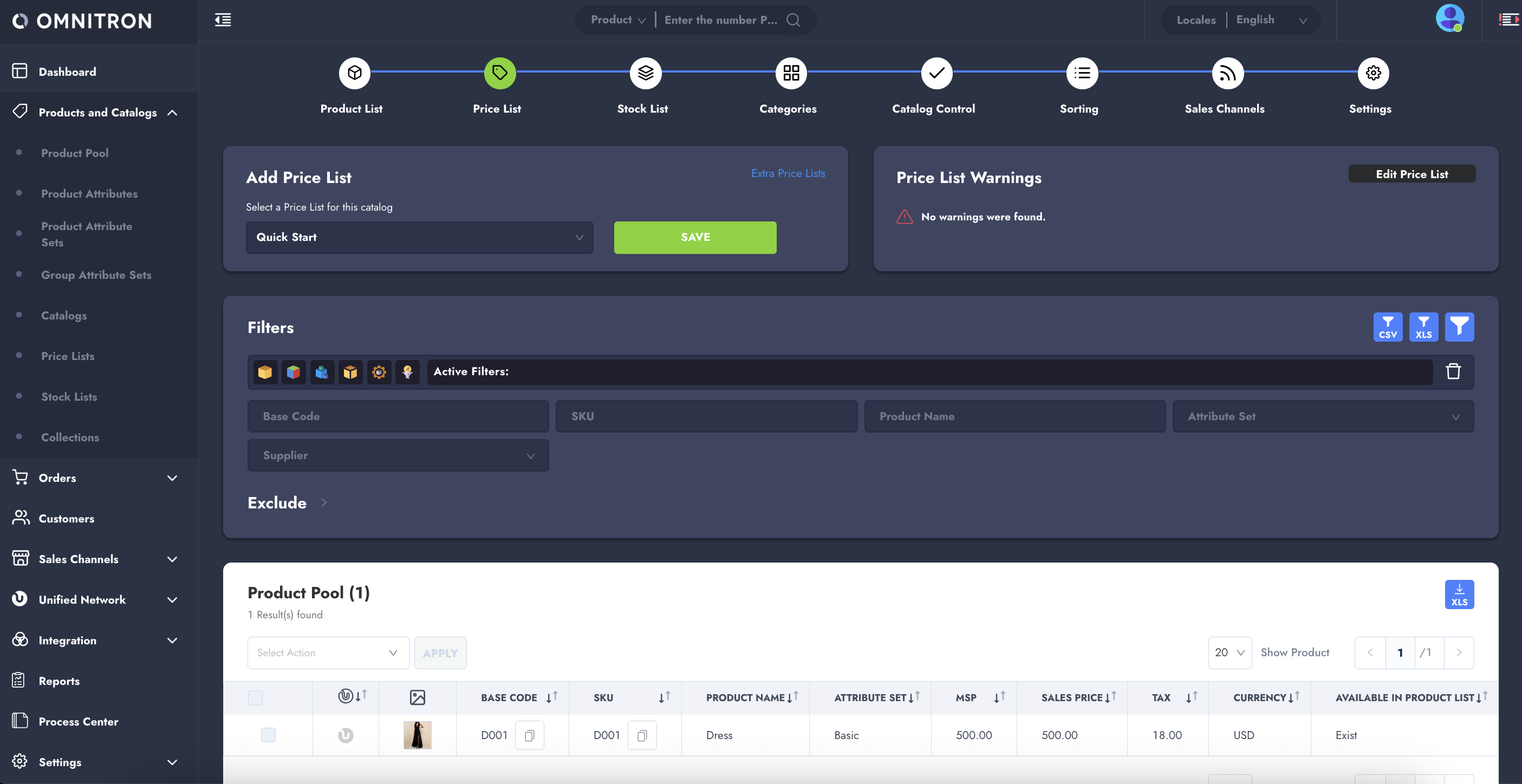
#### Assign a Price List
From the **Price List** step, a relevant price list must be assigned.
* Without a price list, products won’t have pricing information and cannot be sold.
{% endstep %}
{% step %}
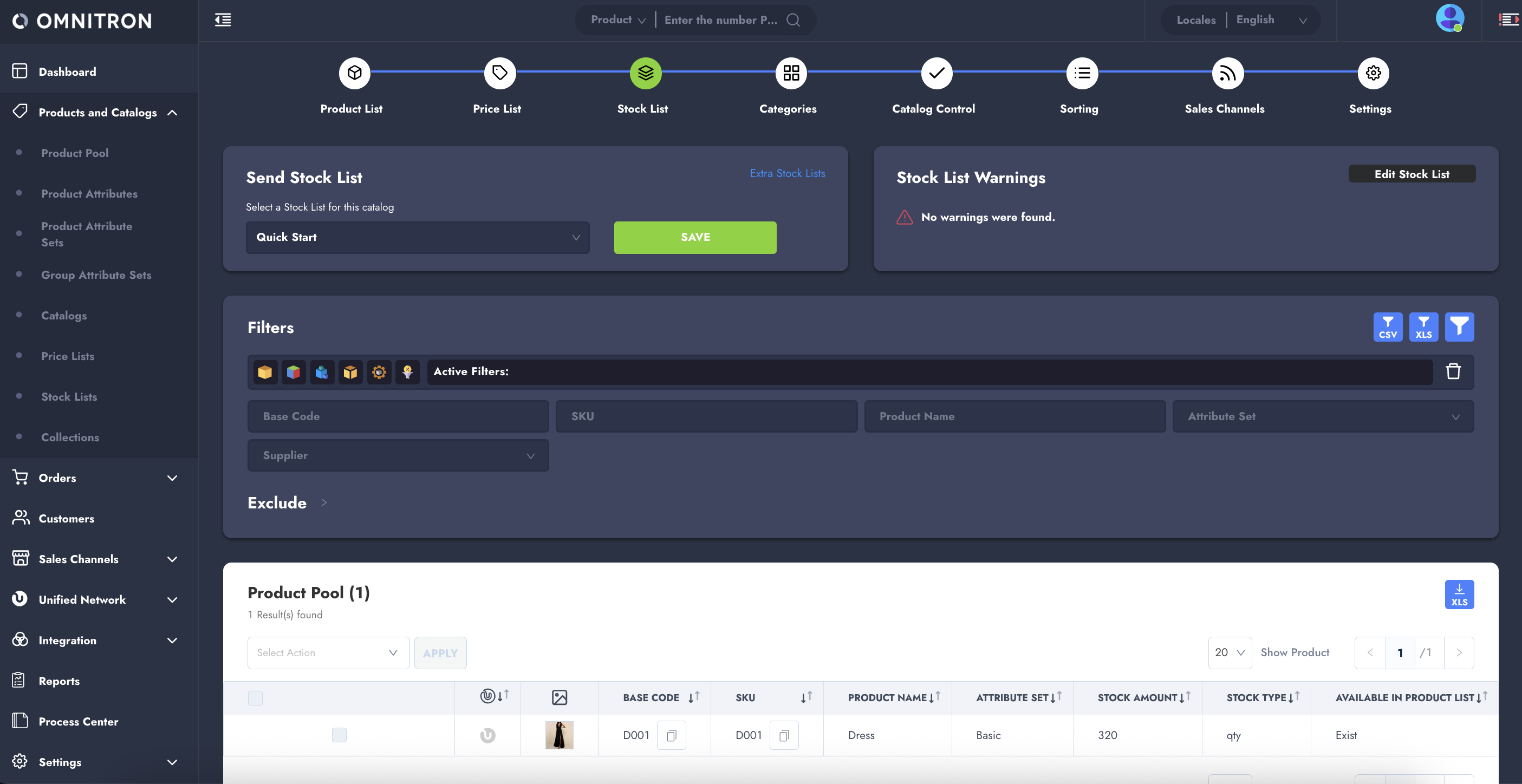
#### Assign a Stock List
Navigate to the **Stock List** step to assign a stock list to the catalog.
* Without stock data, products are considered unavailable.
{% endstep %}
{% step %}
#### Categorize Products
On the **Categories** step, the category tree is created, and products are assigned to categories.
* Category structure improves product discoverability and enhances product organization.
* For additional flexibility, product categorization can be done automatically using **Auto Assign Rules**, which allow bulk category assignments based on defined conditions. Explore more in the [**Product Categorization**](/technical-guides/omnitron/product-categorization.md) documentation.
{% endstep %}
{% step %}
#### Catalog Control (💡 The Most Critical Step)
The **Catalog Control** page is your final checkpoint to verify that all assignments are correctly made.
* After all assignments are made, apply the following filters on the product list section.
* ***Catalog View: Only products with Catalog***\
Filters and displays only the products that are linked to a catalog. This ensures that the product is part of a defined catalog structure and can be routed through sales channels.
* ***Category View: Only products with Category***\
Filters products that are assigned to a category. Products must belong to at least one category to be properly browsed and displayed on the storefront.
* ***Price List View: Only products with Price List***\
Displays products with a price defined via a price list. Without pricing, products cannot be purchased or shown with their price details.
* ***Stock List View: Only products with Stock List***\
Filters for products that have stock entries in the stock list. Products with no stock won’t be purchasable, even if visible.
* ***Image: Exist***\
Filters for products that have at least one image uploaded. As product images are mandatory for storefront visibility, this filter helps confirm visual completeness.
* After applying filters, if products do not appear in the product list, they will not show up in the storefront, even if all configurations are technically correct. It's essential to verify that everything is properly assigned to the correct catalog for products to be visible in the storefront.
{% endstep %}
{% step %}
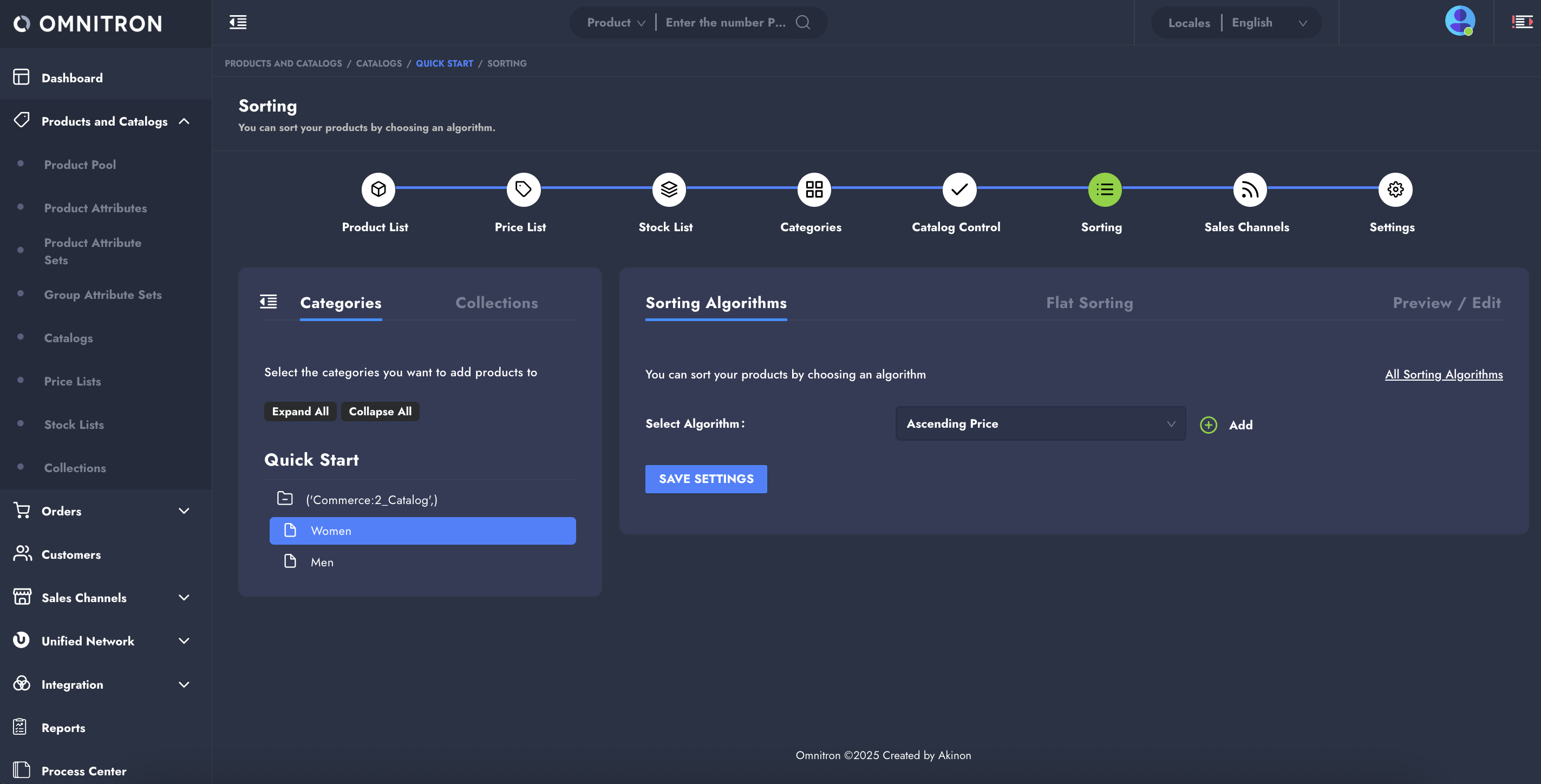
#### Sorting
From the **Sorting** step, define how products should appear in each category or collection.
{% endstep %}
{% step %}
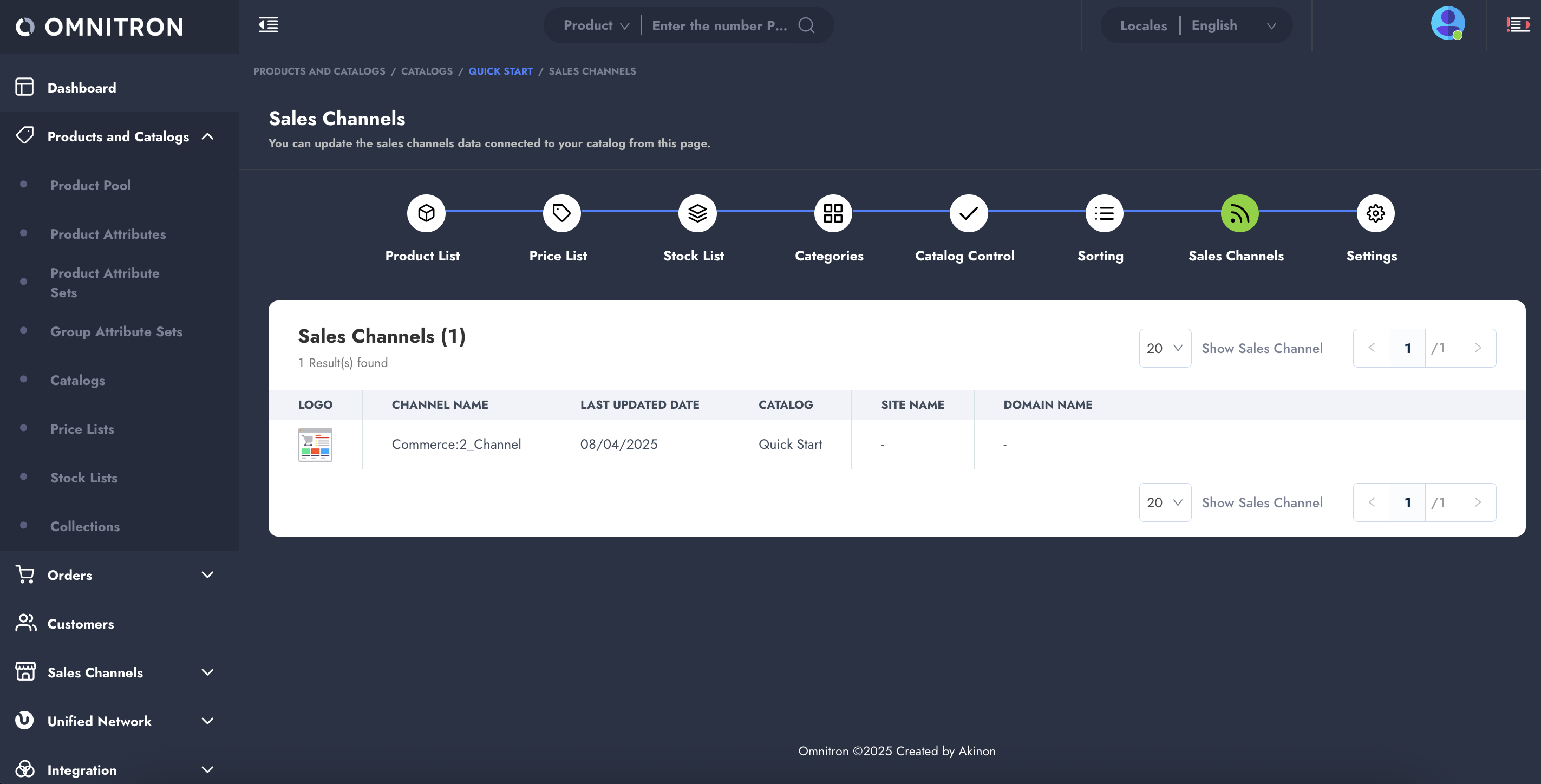
#### Assign Sales Channels
On the **Sales Channels** step, connect your catalog to the appropriate sales channels.
* Without a sales channel assignment, your catalog cannot go live in any store.
{% endstep %}
{% step %}
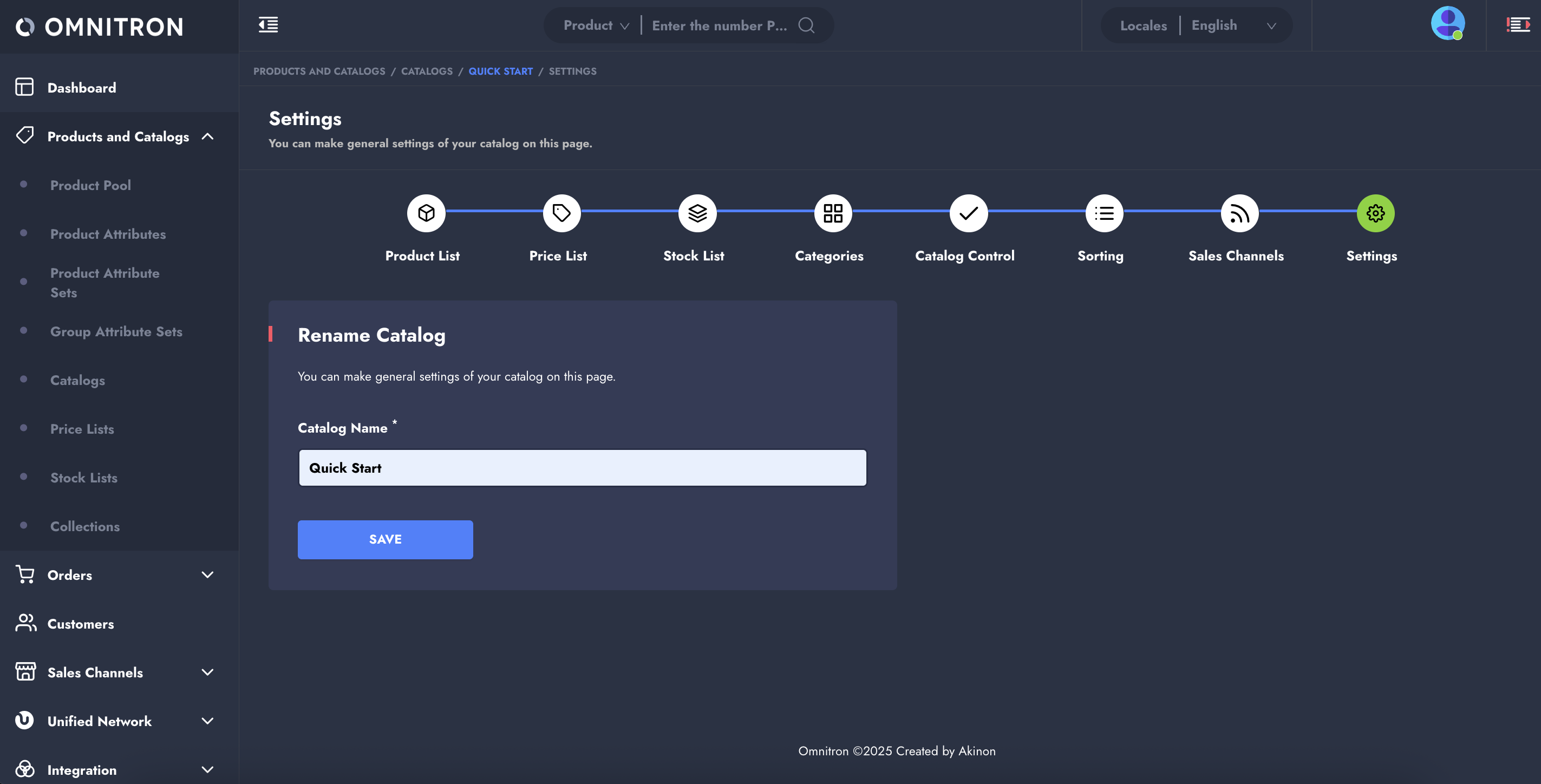
#### Configure Settings
In the **Settings** step, you can rename your catalog.
{% endstep %}
{% endstepper %}
**In summary**, your catalog setup is only complete once all steps have been carefully followed and verified—especially via the **Catalog Control** page. Each configuration depends on the others, and skipping even one can result in products not appearing on the live site.
***
### **7. Creating a Payment Option**
To enable order placement, at least one **Payment Option** must be configured in Omnitron. For a quick setup, we can define a **Funds Transfer** payment type.
{% hint style="success" %}
For step-by-step instructions on creating and configuring a payment option, refer to the [**Payment Options** ](/tutorials/omnitron/sales-channels/payment-management/how-to-manage-payment-options-in-omnitron.md)tutorial.
{% endhint %}
As part of the configuration, a JSON config must be provided:
```json
{"initial_order_status": "300"}
```
**What does `"initial_order_status": "300"` mean?**
This parameter defines the initial status the order will have **immediately after it is created** via this payment option.
* **300 → `payment_waiting`**:\
The order has been received, but payment is still pending. The order remains on hold until the customer completes the payment process.
{% hint style="success" %}
For a complete list of available order status codes and their meanings, please refer to the [**Order Status Codes documentation**](https://apidocs.akinon.com/omnitron/integration/order/order-status-codes-and-cancellation-statuses)**.**
{% endhint %}
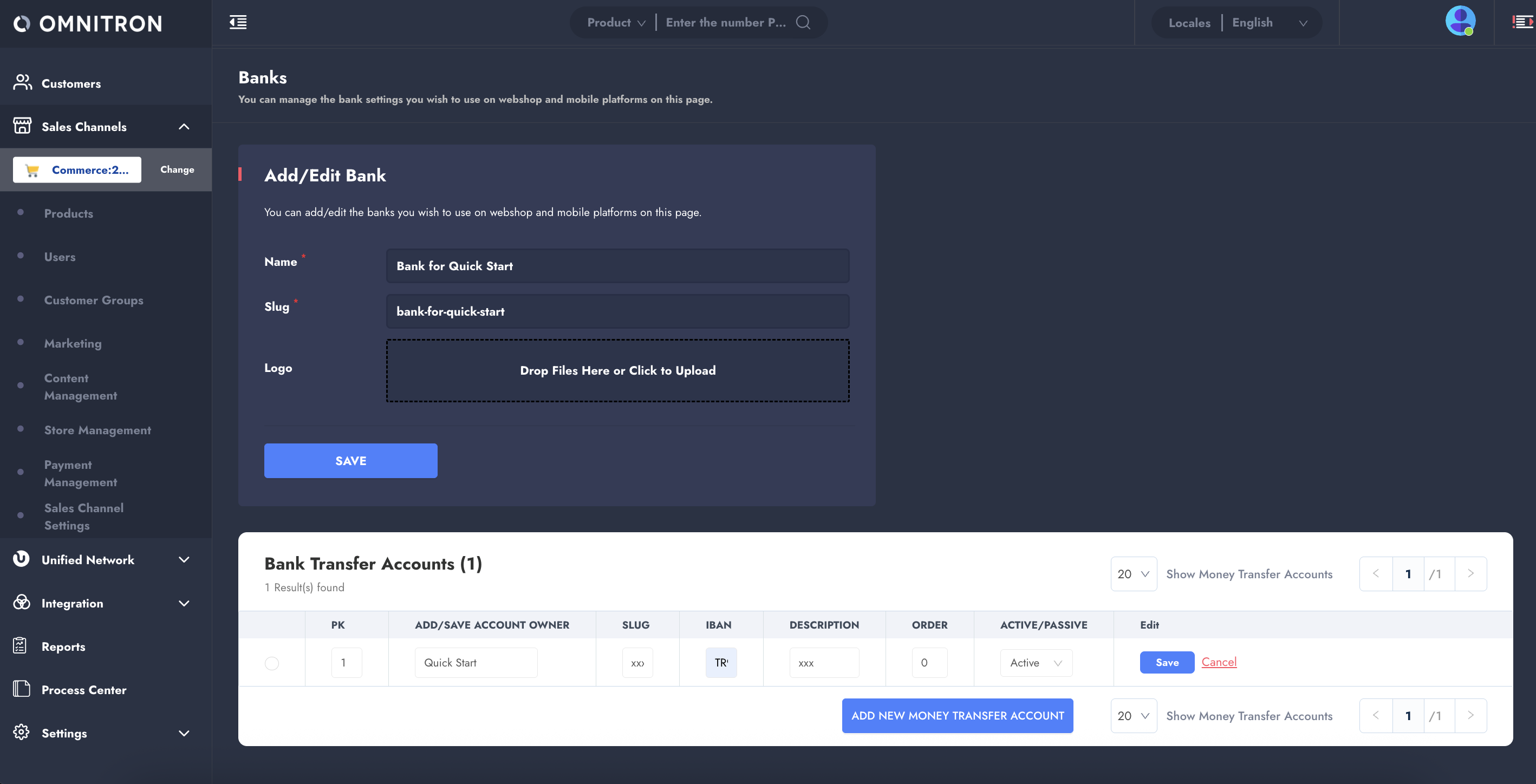
Then, define a bank account to be associated with Funds Transfer payment option:
* Create a bank
* Add an IBAN
This setup ensures that the payment method appears as an option during checkout.
{% hint style="success" %}
Detailed instructions are available in the [**Banks**](/tutorials/omnitron/sales-channels/payment-management/how-to-manage-banks-in-omnitron.md) documentation.
{% endhint %}
***
### **8. Creating a Shipping Option**
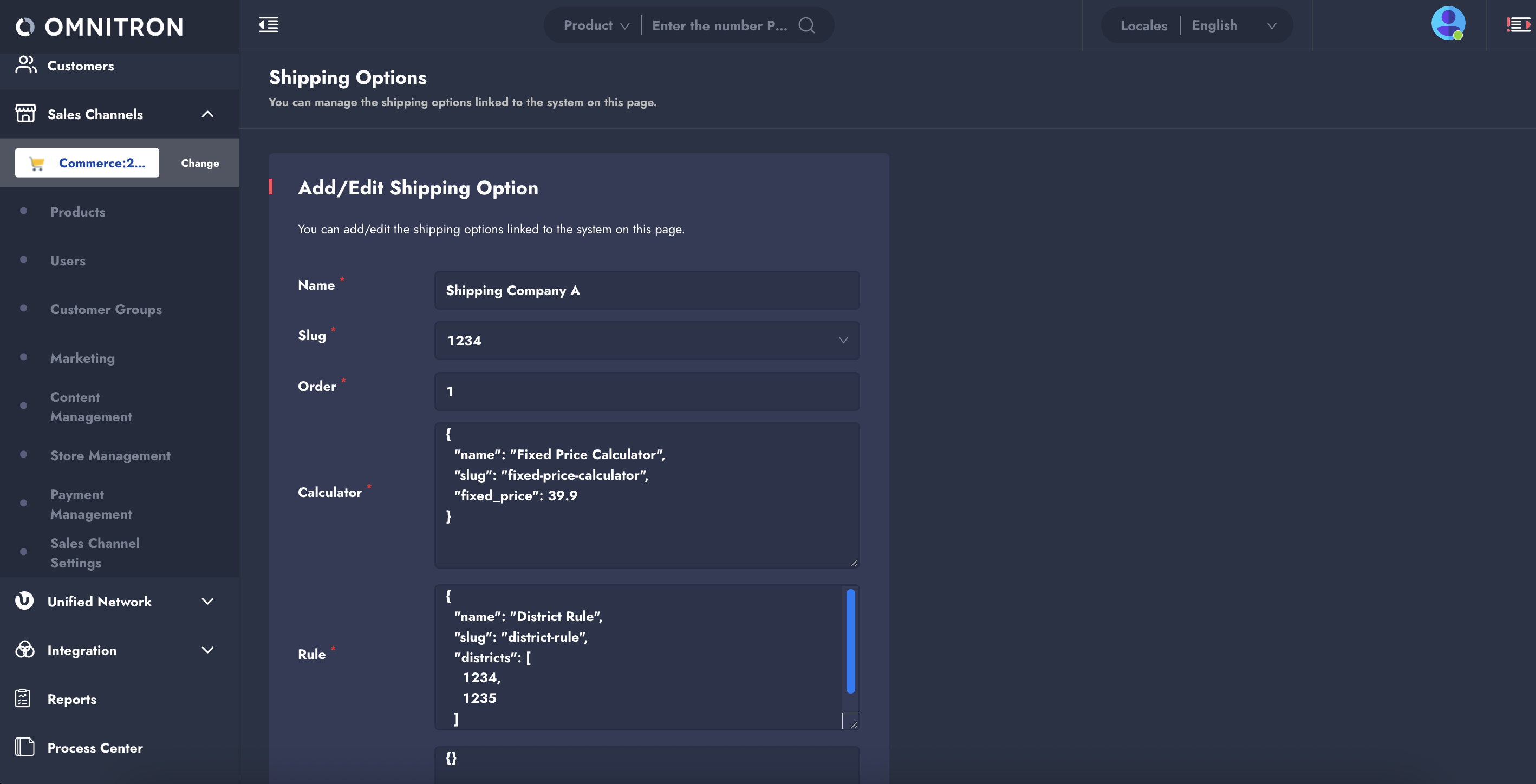
Shipping management requires defining both a **Shipping Company** and corresponding **Shipping Options**.
Steps include:
* Creating a shipping company with the correct ERP code (used as the slug in defining shipping option step).
* Defining a shipping option that references the company and includes calculator and rule, delivery time, etc.
These options determine how deliveries are calculated and presented to customers.
{% hint style="success" %}
See the [**Shipping Company**](/tutorials/omnitron/settings/how-to-add-and-configure-a-shipping-company-in-omnitron.md) and [**Shipping Options**](/tutorials/omnitron/sales-channels/sales-channel-settings/how-to-manage-shipping-options-in-omnitron.md) documentation for full setup guidance.
{% endhint %}
***
### **9. Creating a Delivery Option**
**Delivery Options** define where products will be delivered, based on the customer's address, a retail store, or a pickup location. These options are crucial for managing the logistics flow, ensuring products are delivered to the correct destination.
You can configure delivery rules for:
* Customer's address
* Retail store delivery
* Pickup locations
{% hint style="success" %}
Follow the steps in the [**Delivery Options**](/tutorials/omnitron/sales-channels/sales-channel-settings/how-to-manage-delivery-options-in-omnitron.md) documentation to set up these delivery options based on the type of destination chosen.
{% endhint %}
***
### **10. Address Mapping**
The final step before your products go live is configuring **Address Mapping**. This ensures that the geographical data from your ERP matches the address structure required by Omnitron.
By default, mappings for **Turkey** are preloaded. If you're operating in another country, you’ll need to manually map those addresses.
{% hint style="success" %}
Use the [**Address Mapping**](/tutorials/omnitron/sales-channels/sales-channel-settings/how-to-manage-address-mapping-in-omnitron.md) documentation to perform this task correctly.
{% endhint %}
With these essential setups in place, you can now proceed with launching Project Zero to bring your products live and start selling.
---
# Agent Instructions
This documentation is published with GitBook. GitBook is the documentation platform designed so that both humans and AI agents can read, navigate, and reason over technical content effectively. Learn more at gitbook.com.
## Querying This Documentation
If you need additional information that is not directly available in this page, you can query the documentation by asking a question.
Perform an HTTP GET request on the following URL with the `ask` and `goal` query parameters:
```
GET https://docs.akinon.com/quick-start/readme/5.-integrate-omnitron-and-integrator.md?ask=&goal=
```
`ask` is the immediate question: it should be specific, self-contained, and written in natural language.
`goal` is what the user is ultimately trying to achieve, the reason they need the answer. Sharing it helps GitBook give you a better, more relevant answer. A goal is most helpful when it describes the outcome the user wants rather than restating the question. For example, with `ask=how do I create an API token`, a goal like `automate deployments from our CI pipeline` lets GitBook tailor the answer to that use case.
The response will contain a direct answer to the question and relevant excerpts and sources from the documentation.
Use this mechanism when the answer is not explicitly present in the current page, you need clarification or additional context, or you want to retrieve related documentation sections.