> For the complete documentation index, see [llms.txt](https://docs.akinon.com/llms.txt). Markdown versions of documentation pages are available by appending `.md` to page URLs; this page is available as [Markdown](https://docs.akinon.com/quick-start/readme/6.-set-up-project-zero.md).
# 6. Set Up Project Zero
Project Zero is Akinon's customizable frontend framework built on Next.js, designed to provide brands with a fast, modern, and flexible storefront experience. Once your products, prices, inventory, and channel settings are successfully configured in Omnitron, setting up Project Zero is the final step to bring your storefront to life.
This setup process connects your backend data to a fully functional frontend, enabling users to browse products, add them to cart, and complete orders using defined payment and shipping methods. Below is a step-by-step guide to setting up, configuring, and deploying your Project Zero application within the ACC platform.
Follow these instructions to:
* Create a new Project Zero app in ACC
* Configure environment variables and Git access
* Deploy your app and connect it to your project
* Go live with a fully integrated storefront experience
Let’s begin.
***
### 1. Creating a New Project Zero Application
To begin, you need to create a new Project Zero application in ACC:
{% stepper %}
{% step %}
Navigate to the **ACC Dashboard** and open the **My Applications** page.
{% endstep %}
{% step %}
Click on the **+ NEW APPLICATION** button.
{% endstep %}
{% step %}
Fill in the form for Project Zero:
* **Application Type**: Select `Zero NextJS`
* **Product Images**: Upload at least 4 images.
{% endstep %}
{% step %}
After completing the form, click **APPLY** to create your application. Your application will now appear on the **My Applications** page.
{% endstep %}
{% endstepper %}
***
### 2. CLI Setup and Project Initialization
To set up your Project Zero storefront, begin by installing the required package manager and initializing the project using the Project Zero CLI tool.
{% stepper %}
{% step %}
### Install Yarn
It is recommended to use **Yarn** as the package manager. Depending on your operating system, follow the appropriate installation method:
**For macOS users:**
```bash
brew install yarn
```
**For non-macOS users:**
```bash
npm i -g yarn
```
{% endstep %}
{% step %}
### Initialize the Project with CLI
Use the CLI to generate your storefront project:
```bash
npx @akinon/projectzero@latest --create
```
When prompted, provide the following information:
* **Brand name (required):** Enter the name of your storefront (e.g., `Project Zero`).
* **Project description (optional):** Add an optional description for your project.
* **Commerce URL (optional):** Provide the URL to connect to Omnitron. This value can also be edited later in the environment configuration file.
{% endstep %}
{% step %}
### Navigate the Project Directory
Once the setup is complete, move into the generated project directory:
```bash
cd project-path/project-name
```
{% endstep %}
{% endstepper %}
***
### 3. Adding Your SSH Key
To enable build and deploy operations via Git:
{% stepper %}
{% step %}
Generate your SSH public key and copy it to the clipboard:
```bash
cat ~/.ssh/id_rsa.pub | pbcopy
```
{% endstep %}
{% step %}
In ACC, navigate to **Settings > Public Keys**.
{% endstep %}
{% step %}
Click **+ NEW PUBLIC KEY**, enter a label and paste your copied key. Click **SAVE**.
{% endstep %}
{% endstepper %}
***
### **4. Add the Remote Repository**
Connect your local directory to the repository ACC generated for your app:
{% stepper %}
{% step %}
In **My Applications**, locate your app and copy the **Repository URL**.
{% endstep %}
{% step %}
In your local project directory:
```bash
git init
git remote add acc
git remote -v
```
{% endstep %}
{% endstepper %}
***
### **5. Commit and Tag the Application**
{% stepper %}
{% step %}
Ensure all changes are committed and tag your version for deployment:
```bash
git add .
git commit -m "Initial Project Zero commit"
git tag
git push acc
```
Use a meaningful tag name that reflects your build version.
{% endstep %}
{% endstepper %}
***
### **6. Build from ACC**
To build your application:
{% stepper %}
{% step %}
Go to **My Applications**, and click on your Project Zero app.
{% endstep %}
{% step %}
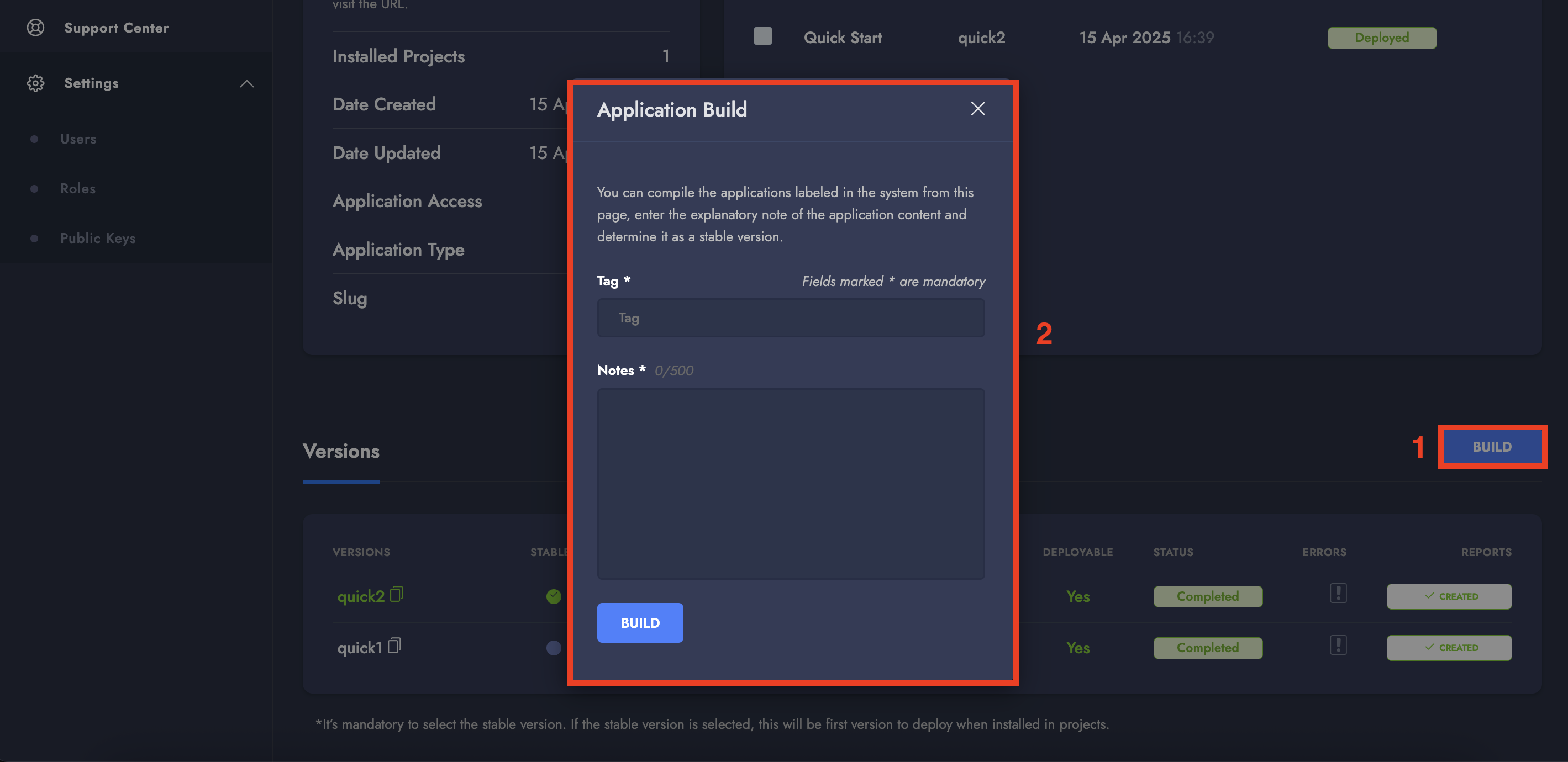
In the **Versions** section, click the **BUILD** button.
{% endstep %}
{% step %}
Enter:
* The **tag name** you pushed
* An optional **description**
{% endstep %}
{% step %}
Click **BUILD**.
{% endstep %}
{% step %}
Once the build status changes to **Completed**, mark it as the **Stable Version**.
{% endstep %}
{% endstepper %}
### **7. Add App to Project via App Store**
To link the application to your ACC project:
{% stepper %}
{% step %}
Open the **App Store** in ACC. Locate your Project Zero application and click on it.
{% endstep %}
{% step %}
Choose the project to install the app into. Select `Commerce` as the **Connected Service.** Click **NEXT.**
{% endstep %}
{% step %}
Then **INSTALL** on the approval page.
{% endstep %}
{% step %}
Once the installation is complete, you’ll see a success message.
{% endstep %}
{% step %}
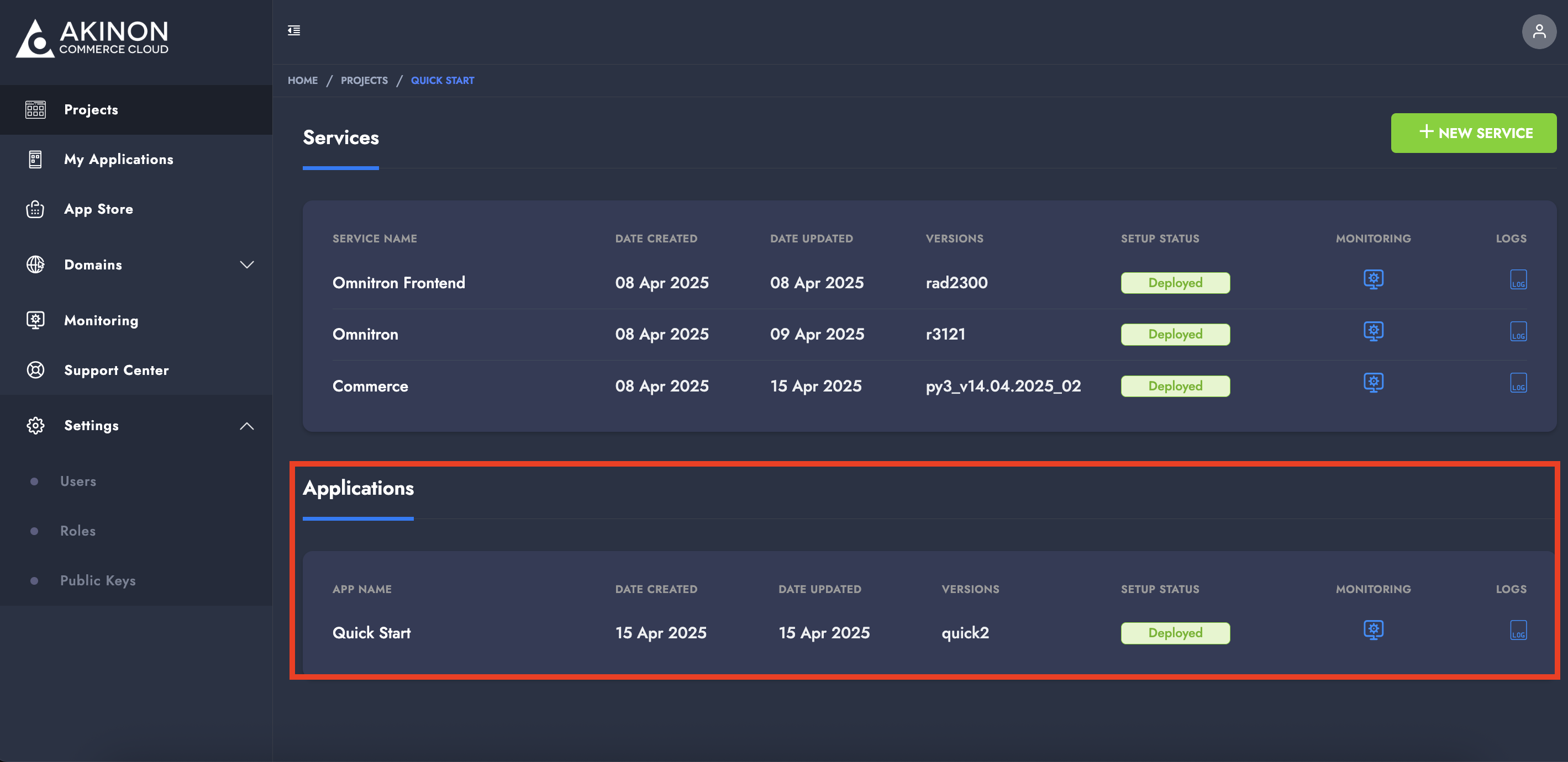
Your app is now listed under the **Applications** tab in your **Project Detail Page**.
{% endstep %}
{% endstepper %}
***
### 8. Add Environment Variables
In your application settings on ACC, add the following environment variables:
| Variable Name | Description | Example URL / Value |
| --------------------- | ---------------------------------------------------------------------------- | -------------------------------------------------- |
| `NEXTAUTH_URL` | Project Zero URL | `https://your-zero-app.lb.akinoncloud.com` |
| `NEXTAUTH_SECRET` |
Auth secret, run in terminal: openssl rand -base64 32
| `iHBeNJAOVWvFZL4PmyHVA7b6y28Tvc47NJi4zdX2sPI=` |
| `NEXT_PUBLIC_URL` | Same as `NEXTAUTH_URL` | `https://your-zero-app.lb.akinoncloud.com` |
| `SERVICE_BACKEND_URL` | Commerce service URL | `https://your-commerce-service.lb.akinoncloud.com` |
To add them:
{% stepper %}
{% step %}
Go to **Project Detail > Project Zero Application Detail** page.
{% endstep %}
{% step %}
Open the **Environment Variables** tab.
{% endstep %}
{% step %}
Click **+ NEW ENVIRONMENT VARIABLE** for each entry.
{% endstep %}
{% endstepper %}
### **9. Deploy to Project**
To apply your changes and reflect the Project Zero layout on the storefront:
{% stepper %}
{% step %}
In **My Applications**, open your Project Zero app.
{% endstep %}
{% step %}
In the **Installed Projects** section, choose your project. Click **DEPLOY SELECTED PROJECTS.**
{% endstep %}
{% step %}
In the pop-up:
* Enter the **tag name** of your last successful build.
* Start the deployment.
{% endstep %}
{% step %}
Once complete, the deployment status will update to `Deployed`.
{% endstep %}
{% endstepper %}
***
### **10. Access the Storefront**
You’re all set! To access your storefront:
{% stepper %}
{% step %}
Go to the **Project Detail** page. Click into the **Project Zero app details**.
{% endstep %}
{% step %}
Find the **Project Zero URL.**
{% endstep %}
{% step %}
Open the link in your browser with `/list` at the end, e.g.:
```
https://your-zero-app.lb.akinoncloud.com/list
```
{% endstep %}
{% step %}
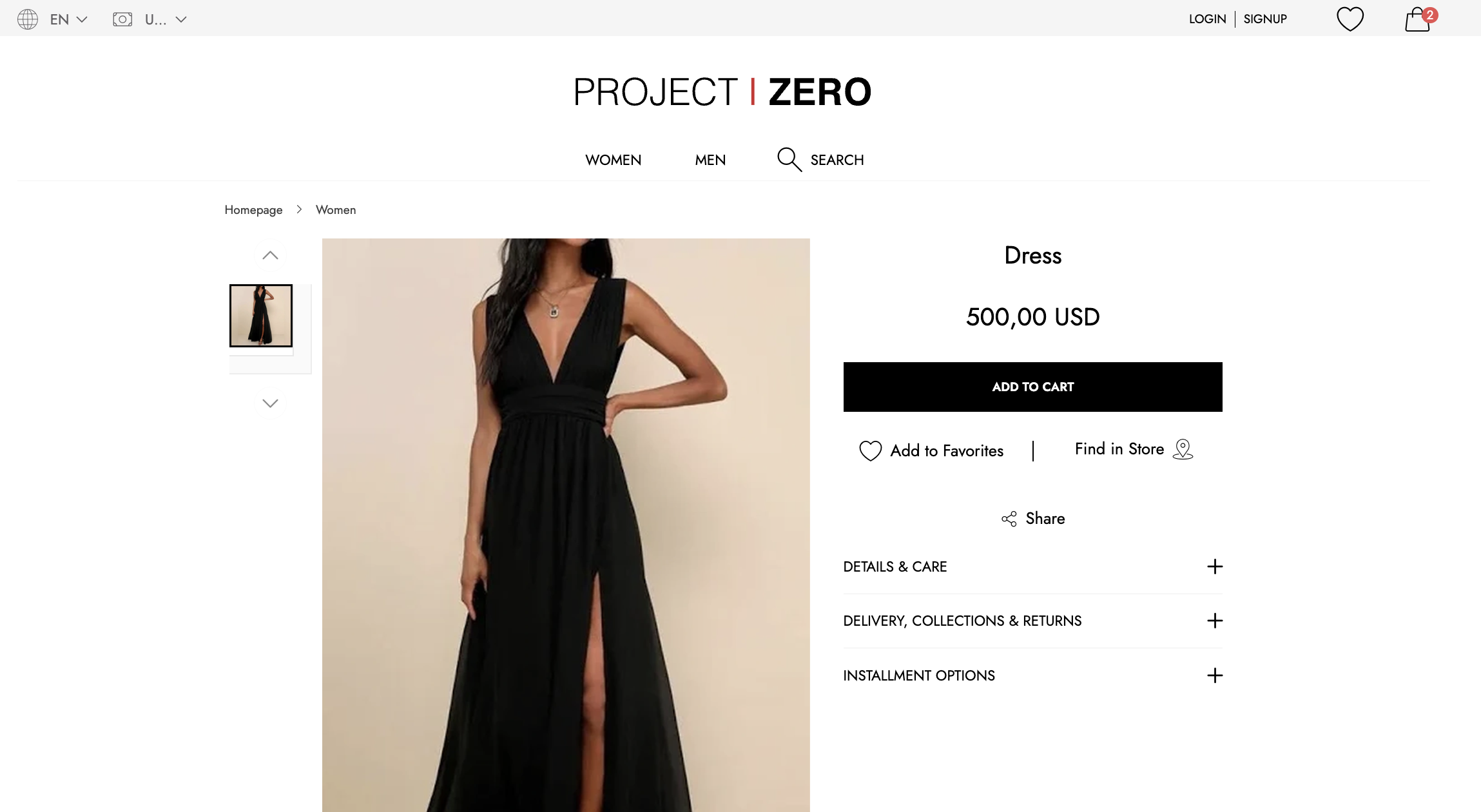
You should see your listed products, which means your setup was successful.
***
***
{% endstep %}
{% endstepper %}
With your Project Zero storefront live and fully integrated, your commerce environment is now ready for action.
Customers can browse your catalog, add products to their cart, choose from your configured shipping options, and complete their orders using the defined payment methods.
All backend configurations—from product data to pricing and logistics—are now perfectly aligned with the frontend experience.
Congratulations! Your shop is officially open for business. Time to welcome your first customers and start selling! :rocket:
---
# Agent Instructions
This documentation is published with GitBook. GitBook is the documentation platform designed so that both humans and AI agents can read, navigate, and reason over technical content effectively. Learn more at gitbook.com.
## Querying This Documentation
If you need additional information that is not directly available in this page, you can query the documentation by asking a question.
Perform an HTTP GET request on the following URL with the `ask` and `goal` query parameters:
```
GET https://docs.akinon.com/quick-start/readme/6.-set-up-project-zero.md?ask=&goal=
```
`ask` is the immediate question: it should be specific, self-contained, and written in natural language.
`goal` is what the user is ultimately trying to achieve, the reason they need the answer. Sharing it helps GitBook give you a better, more relevant answer. A goal is most helpful when it describes the outcome the user wants rather than restating the question. For example, with `ask=how do I create an API token`, a goal like `automate deployments from our CI pipeline` lets GitBook tailor the answer to that use case.
The response will contain a direct answer to the question and relevant excerpts and sources from the documentation.
Use this mechanism when the answer is not explicitly present in the current page, you need clarification or additional context, or you want to retrieve related documentation sections.