> For the complete documentation index, see [llms.txt](https://docs.akinon.com/llms.txt). Markdown versions of documentation pages are available by appending `.md` to page URLs; this page is available as [Markdown](https://docs.akinon.com/technical-guides/app-maker/mobile/setup-your-environment.md).
# Setup Your Environment
This document provides an outline of the steps required to set up a development environment for mobile application development. It should be ensured that development machines are properly configured for mobile development before proceeding. All necessary tools needed for the development process will be installed by following the steps in this guide.
## Appmaker CLI Setup
The Appmaker CLI is a command-line interface tool required for mobile app development.
* Visit the [App maker CLI](/technical-guides/app-maker/cli.md) documentation.
* Follow the installation instructions provided there.
* Verify the installation by running the following command in your terminal:
```bash
appmaker -h
```
* If the installation is successful, this command will display help information for the CLI.
{% hint style="danger" %}
It is recommended to use `yarn` as the package manager when working with Appmaker.
{% endhint %}
## Android Development Setup
### Install Watchman and JDK
#### **macOS**
Use a package manager like [Homebrew](https://brew.sh/) to install the following dependencies:
* **Install Watchman** Use Homebrew to install Watchman:
```bash
brew install watchman
```
* **Install OpenJDK** Install the Zulu OpenJDK distribution, compatible with both Apple Silicon and Intel Macs:
```bash
brew install --cask zulu@17
```
* **Set JAVA\_HOME Environment Variable** Add the following to your shell profile file (`~/.bash_profile` or `~/.zshrc`):
```bash
export JAVA_HOME=/Library/Java/JavaVirtualMachines/zulu-17.jdk/Contents/Home
```
* Reload the shell configuration:
```bash
source ~/.bash_profile # or source ~/.zshrc
```
#### **Linux**
* Follow instructions from the [Watchman documentation](https://facebook.github.io/watchman/docs/install#linux) to compile and install from the source.
* Install Java SE Development Kit (JDK).
* Use your system package manager to install OpenJDK.
### Install Android Studio
* Download and install Android Studio from the official website: [Download Android Studio](https://developer.android.com/studio).
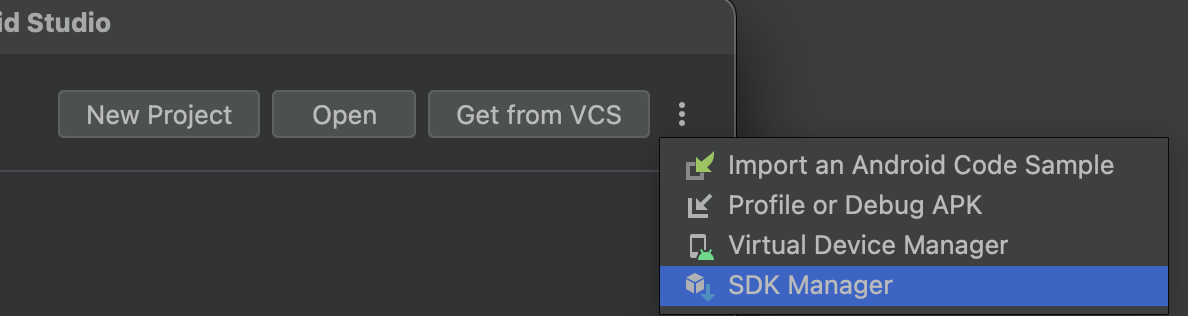
* After installation, launch the Android Studio application. Click on the "More Actions" (three dots) and select **SDK Manager**.\\
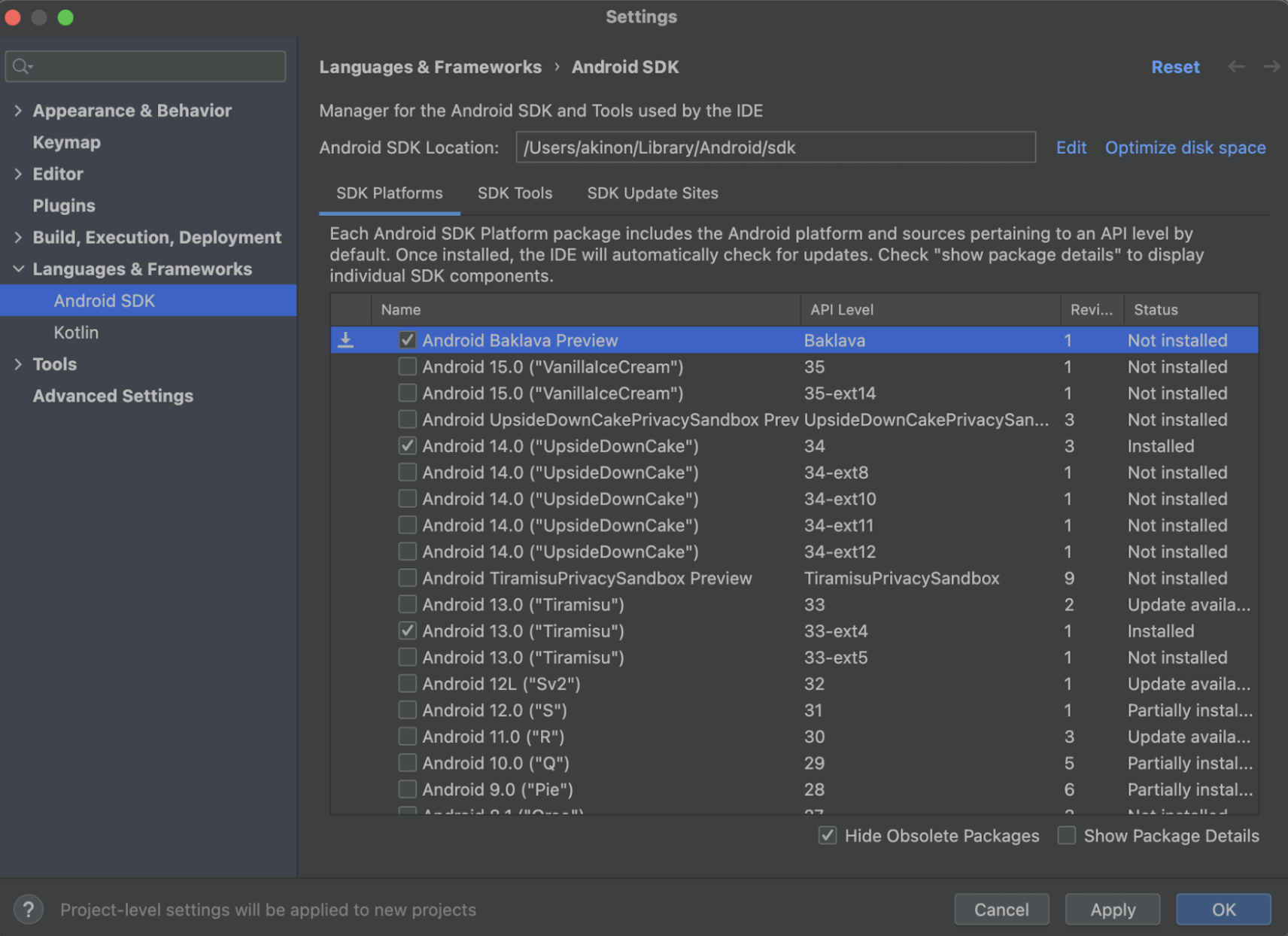
* Navigate to **Settings** > **Languages & Frameworks** > **Android SDK**.\\
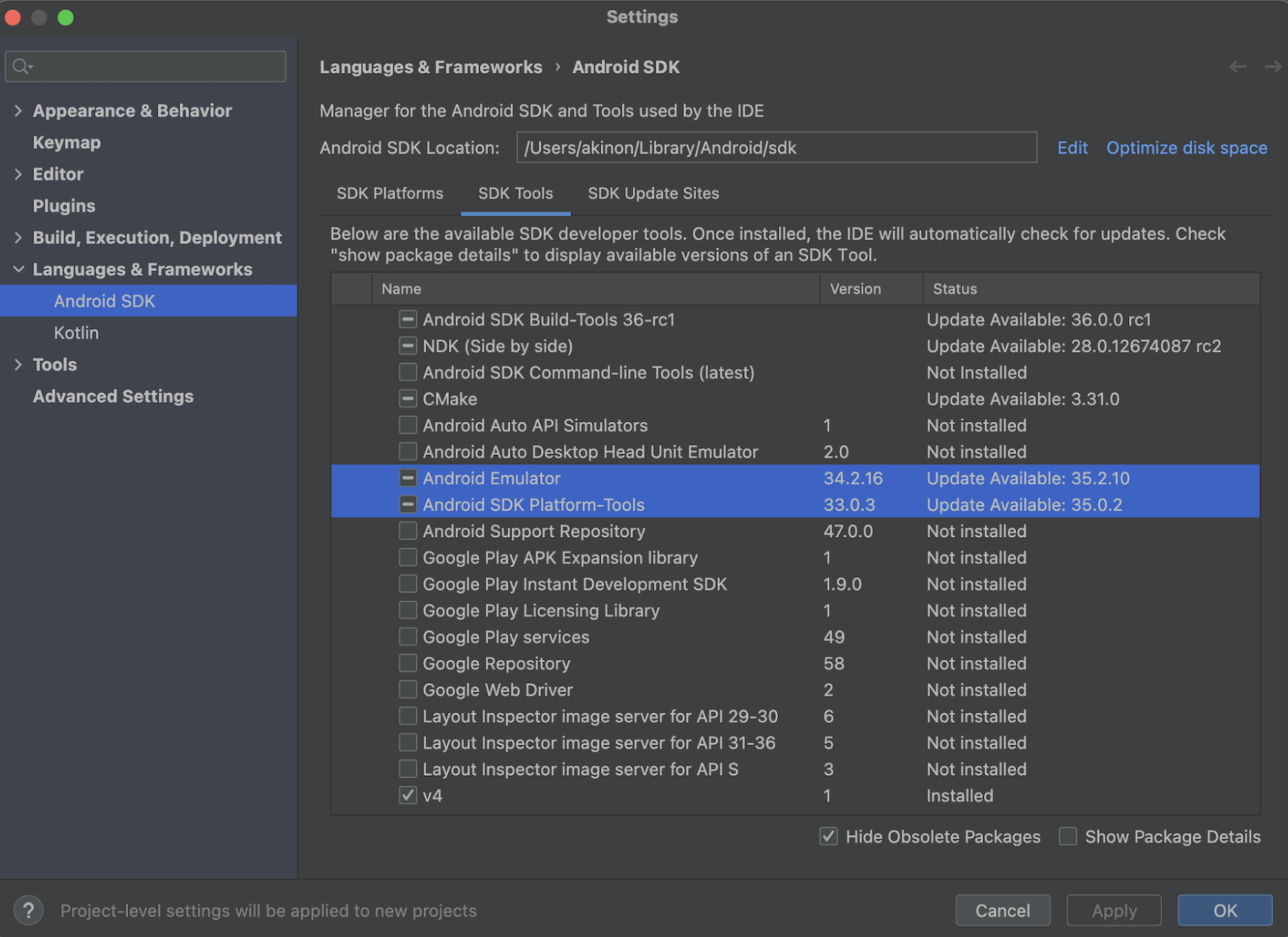
* Then, click on the **SDK Tools** tab and ensure that at least one version of **Android SDK Build-Tools** and **Android Emulator** is installed.\\
* Copy the **Android SDK Location** path. This path should be added as the **ANDROID\_HOME** environment variable.\\
* Click **OK** to install the Android SDK and the related build tools.
* If you are using macOS or Linux, add the following environment variables in your `~/.bash_profile` or `~/.zshrc` file, pointing to the Android SDK location:
```bash
export ANDROID_HOME=$HOME/Library/Android/sdk
export PATH=$PATH:$ANDROID_HOME/emulator
export PATH=$PATH:$ANDROID_HOME/platform-tools
```
* Reload shell by running one of the following commands:
```bash
source ~/.bash_profile # or source ~/.zshrc
```
* Verify the `adb` command works in the terminal.
## iOS Development Setup
### Install Xcode and Watchman
#### **Install Xcode**
* Launch the App Store, search for Xcode, and install (or update) it.
{% hint style="danger" %}
Ensure the installed version matches the one specified in the `Akinon.json` file.
{% endhint %}
#### **Install Xcode Command Line Tools**
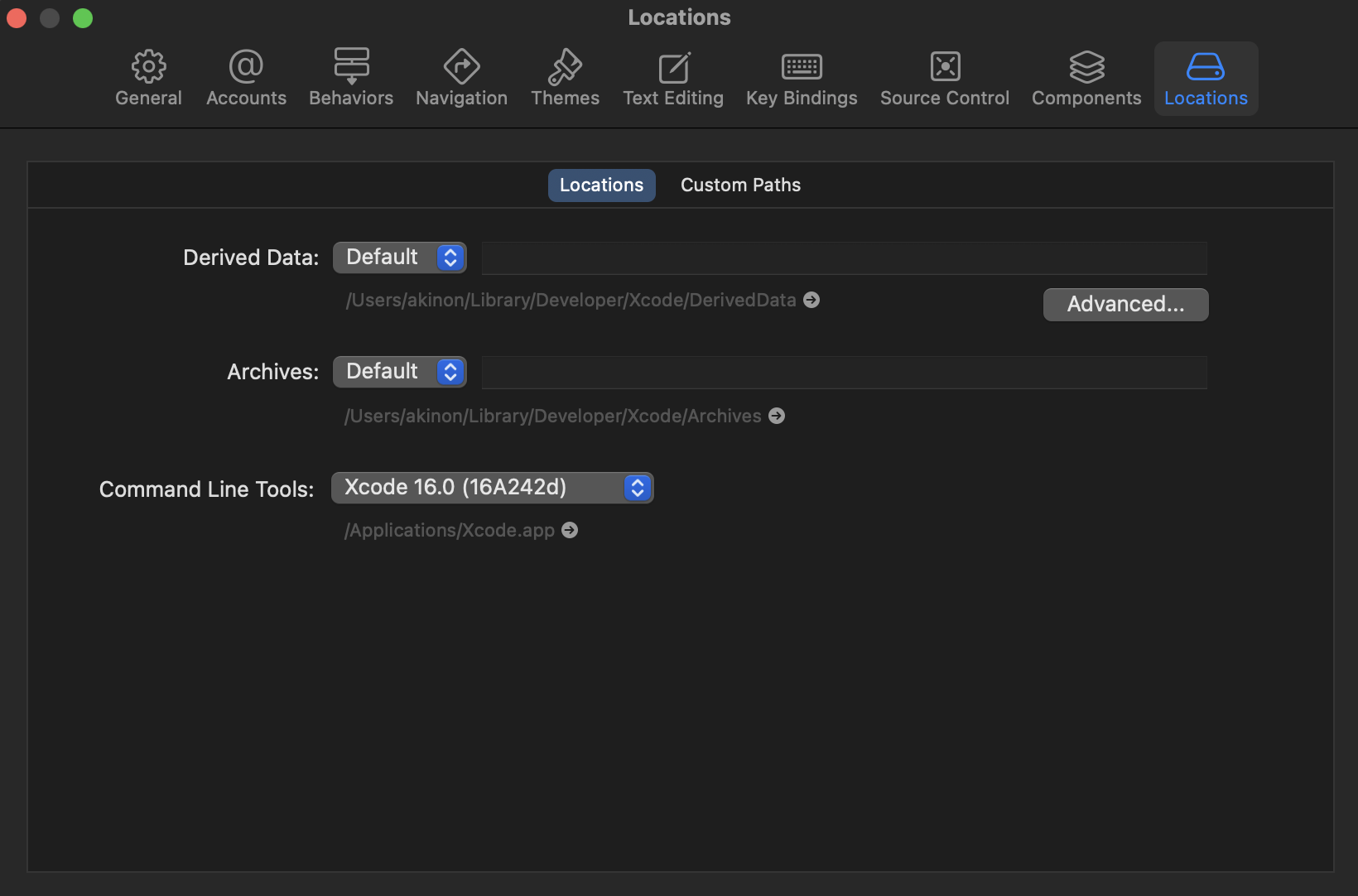
* Open Xcode. Go to Settings (⌘ + ,) > Locations.
* Select the latest version under Command Line Tools.\\
#### **Install Watchman**
* Use a package manager like **Homebrew** to install the following dependency.
* To install Watchman, run the following command in a terminal:
```bash
brew install watchman
```
---
# Agent Instructions
This documentation is published with GitBook. GitBook is the documentation platform designed so that both humans and AI agents can read, navigate, and reason over technical content effectively. Learn more at gitbook.com.
## Querying This Documentation
If you need additional information that is not directly available in this page, you can query the documentation dynamically by asking a question.
Perform an HTTP GET request on the current page URL with the `ask` query parameter, and the optional `goal` query parameter:
```
GET https://docs.akinon.com/technical-guides/app-maker/mobile/setup-your-environment.md?ask=&goal=
```
`ask` is the immediate question: it should be specific, self-contained, and written in natural language.
`goal` is optional and describes the broader end goal you are ultimately trying to accomplish on behalf of the user. GitBook uses it to tailor the answer towards what is most useful for that goal.
The response will contain a direct answer to the question and relevant excerpts and sources from the documentation.
Use this mechanism when the answer is not explicitly present in the current page, you need clarification or additional context, or you want to retrieve related documentation sections.