> For the complete documentation index, see [llms.txt](https://docs.akinon.com/llms.txt). Markdown versions of documentation pages are available by appending `.md` to page URLs; this page is available as [Markdown](https://docs.akinon.com/technical-guides/instore/c-and-c-widget-configuration.md).
# C\&C Widget Configuration
This document covers the configuration of two Instore checkout widgets that control the Click & Collect behavior based on product attributes: instore-cc-attribute-control, which hides the C\&C option entirely for products with specific attributes, and instore-cc-control, which filters the list of available stores when C\&C is selected. Both widgets are configured via Omnitron Widget Management and activated through Instore UI Settings.
### Hiding C\&C Option for Products with Specific Attributes
#### Overview
The Click & Collect (C\&C) option displayed on the Instore checkout screen can be dynamically hidden based on specific attribute key and value pairs of the products. This feature works by enabling the relevant setting in UI Settings and configuring the instore-cc-attribute-control widget in Omnitron.
#### Configuration Steps
**1. UI Settings Configuration**
Navigate to UI Settings from Instore and enable the “Enables displaying dynamic contracts(privacy policy, terms of use, consent texts) on the customer profile page” setting.
**2. Creating the Widget Schema**
Go to **Content Management > Widget Schema Management > New Widget Schema** in Omnitron and create a new widget schema with the following details:
• **Slug:** instore-cc-attribute-control
• **Schema (JSON):**
```json
{
"cc_attribute_control": {
"multi": true,
"data_type": "nested",
"label": "CC Attribute Control",
"is_localizable": true,
"key": "cc_attribute_control",
"schema": {
"attr_key": {
"data_type": "text",
"key": "attr_key",
"label": "Attribute Key"
},
"attr_value": {
"data_type": "text",
"key": "attr_value",
"label": "Attribute Value"
}
}
}
}
```
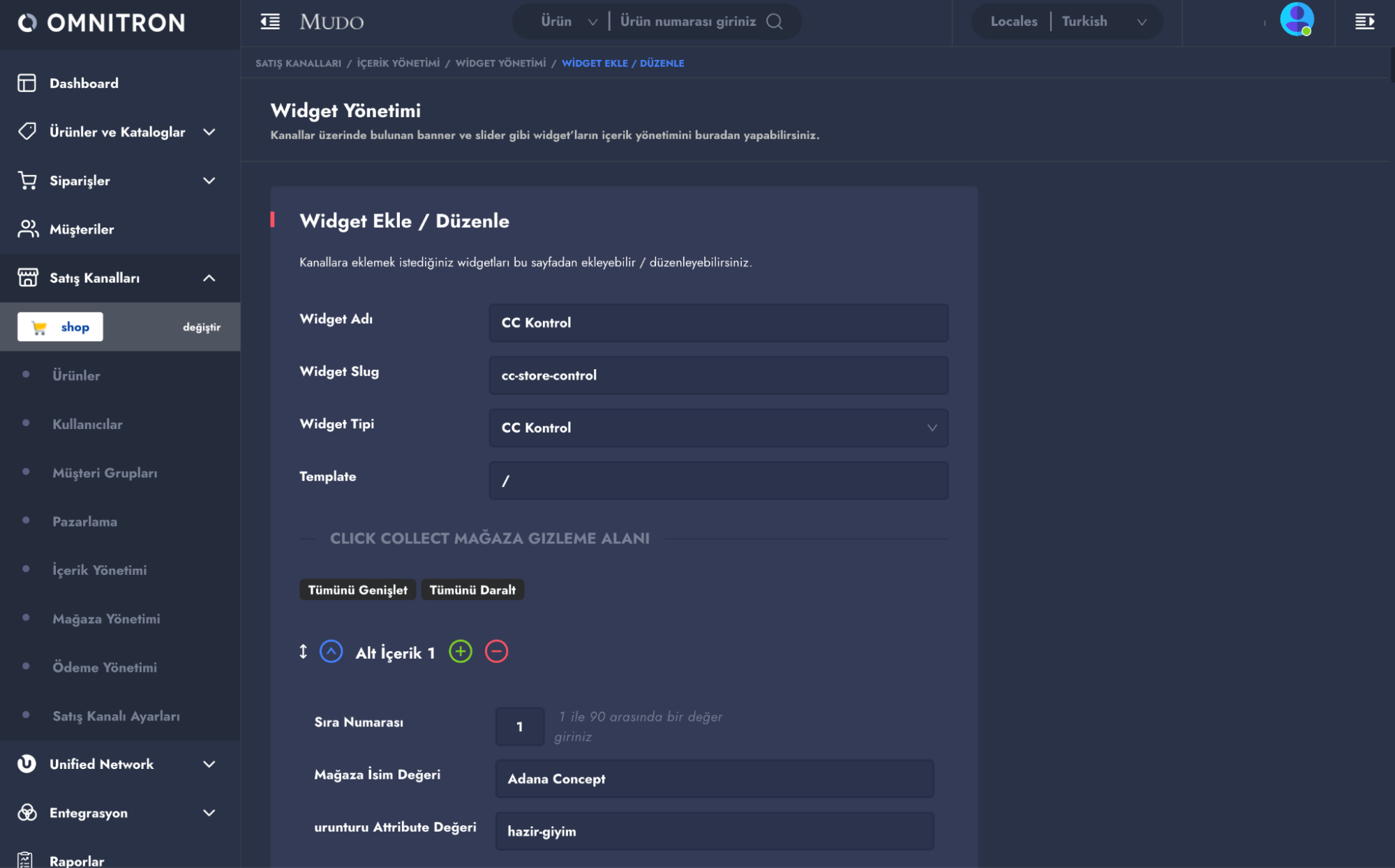
**3. Creating the Widget and Entering Values**
Once the widget schema is created, navigate to **Content Management > Widget Management > Add New Widget** in Omnitron.
• Select the instore-cc-attribute-control widget created above from the Widget Type field.
• Enter the Attribute Key and Attribute Value pairs corresponding to the product attributes for which the C\&C option should be hidden.
**Attribute Key and Value Usage**
The `attr_key` and `attr_value` fields determine which product attribute the C\&C option will be hidden based on. During the checkout flow, the system checks the attributes of each product in the basket (basket.basketitem\_set → product.attributes); if a match is found with the `attr_key` and `attr_value` pair entered in the widget, the C\&C option is hidden.
**Example usage:**
• Attribute Key: filterable\_color
• Attribute Value: Black
In this example, if the basket contains a product with the color Black, the C\&C option will not be displayed on the checkout screen. To define multiple rules, additional rows can be added in the widget with different `attr_key` / `attr_value` combinations.
### Store Filtering by Product Attribute in C\&C
#### Overview
When the **Click & Collect** option is selected on the Instore checkout screen, the list of stores can be dynamically filtered based on the attribute values of the products in the basket. If any product in the basket has a specific `attribute_key` / `attribute_value` combination, only the stores mapped to that combination via store\_name are displayed. This feature works by enabling the relevant setting in UI Settings and configuring the instore-cc-control widget in Omnitron.
{% hint style="info" %}
This widget is different from the instore-cc-attribute-control widget. While instore-cc-attribute-control completely hides the C\&C option for products with a specific attribute, instore-cc-control filters which stores are shown when C\&C is selected, based on the attributes of the products in the basket.
{% endhint %}
#### Configuration
**1. UI Settings Configuration**
Navigate to the UI Settings screen in Instore and enable the relevant C\&C control setting. Once enabled, the store filtering rules defined in the instore-cc-control widget are applied during the checkout flow.
**2. Creating the Widget Schema**
In Omnitron, go to **Content Management > Widget Schema Management > New Widget Schema** and create a new schema with the following details:
**Slug:** instore-cc-control
**Schema (JSON):**
```json
{
"instore_cc_store_control": {
"key": "instore_cc_store_control",
"label": "Click Collect Store Filtering",
"multi": true,
"data_type": "nested",
"schema": {
"store_name": {
"key": "store_name",
"label": "Store Name",
"required": false,
"data_type": "text"
},
"attribute_key": {
"key": "attribute_key",
"label": "Attribute Key",
"required": false,
"data_type": "text"
},
"attribute_value": {
"key": "attribute_value",
"label": "Attribute Value",
"required": false,
"data_type": "text"
}
}
}
}
```
**3. Creating the Widget and Entering Values**
After the widget schema is created, go to **Content Management > Widget Management > Add New Widget** in Omnitron.
* Select the **instore-cc-control** widget from the Widget Type field.
* For each row, enter the Attribute Key, Attribute Value, and the Store Name that should be displayed when the match condition is met.
* Since multi: true is set, multiple rows can be added to define different `attribute_key` / `attribute_value` / `store_name` combinations.
### Attribute Key, Value, and Store Name Usage
The `attribute_key` and `attribute_value` fields determine which product attribute the store filtering is based on when C\&C is selected. The `store_name` field specifies the store that should be shown when that match condition is met.
During the checkout flow, when **C\&C** is selected, the system checks the attributes of each product in the basket. If a product matches an `attribute_key` and `attribute_value` pair defined in the widget, the stores mapped to that row via `store_name` are filtered and displayed in the store list.
**Example**:
*Attribute KeyAttribute ValueStore NamebrandRLNDubaidivisionMENDubai*
In this example, if the basket contains a product with brand = RLN or division = MEN, the C\&C store list on the checkout screen is filtered to show only the store mapped to the matching store\_name (Dubai). Multiple rules can be defined by adding new rows to the widget.
#### API Endpoint and Example Response
Widget data is retrieved from the following endpoint:
`GET /api/v1/widgets/instore-cc-control/`
**Example response:**
```json
{
"name": "Instore CC Control",
"slug": "instore-cc-control",
"attributes": {
"instore_cc_store_control": [
{
"value": {
"store_name": "Dubai",
"attribute_key": "brand",
"attribute_value": "RLN"
},
"kwargs": {
"value": {},
"data_type": "nested"
}
},
{
"value": {
"store_name": "Dubai",
"attribute_key": "division",
"attribute_value": "MEN"
},
"kwargs": {
"value": {},
"data_type": "nested"
}
}
]
},
"template": "/"
}
```
{% hint style="info" %}
Changes made to the widget may take some time to be reflected in Instore due to caching. The updates will be visible once the cache has been cleared.
{% endhint %}
---
# Agent Instructions
This documentation is published with GitBook. GitBook is the documentation platform designed so that both humans and AI agents can read, navigate, and reason over technical content effectively. Learn more at gitbook.com.
## Querying This Documentation
If you need additional information that is not directly available in this page, you can query the documentation dynamically by asking a question.
Perform an HTTP GET request on the current page URL with the `ask` query parameter, and the optional `goal` query parameter:
```
GET https://docs.akinon.com/technical-guides/instore/c-and-c-widget-configuration.md?ask=&goal=
```
`ask` is the immediate question: it should be specific, self-contained, and written in natural language.
`goal` is optional and describes the broader end goal you are ultimately trying to accomplish on behalf of the user. GitBook uses it to tailor the answer towards what is most useful for that goal.
The response will contain a direct answer to the question and relevant excerpts and sources from the documentation.
Use this mechanism when the answer is not explicitly present in the current page, you need clarification or additional context, or you want to retrieve related documentation sections.

 **2. Creating the Widget Schema**
Go to **Content Management > Widget Schema Management > New Widget Schema** in Omnitron and create a new widget schema with the following details:
• **Slug:** instore-cc-attribute-control
• **Schema (JSON):**
```json
{
"cc_attribute_control": {
"multi": true,
"data_type": "nested",
"label": "CC Attribute Control",
"is_localizable": true,
"key": "cc_attribute_control",
"schema": {
"attr_key": {
"data_type": "text",
"key": "attr_key",
"label": "Attribute Key"
},
"attr_value": {
"data_type": "text",
"key": "attr_value",
"label": "Attribute Value"
}
}
}
}
```
**2. Creating the Widget Schema**
Go to **Content Management > Widget Schema Management > New Widget Schema** in Omnitron and create a new widget schema with the following details:
• **Slug:** instore-cc-attribute-control
• **Schema (JSON):**
```json
{
"cc_attribute_control": {
"multi": true,
"data_type": "nested",
"label": "CC Attribute Control",
"is_localizable": true,
"key": "cc_attribute_control",
"schema": {
"attr_key": {
"data_type": "text",
"key": "attr_key",
"label": "Attribute Key"
},
"attr_value": {
"data_type": "text",
"key": "attr_value",
"label": "Attribute Value"
}
}
}
}
```


 {% hint style="info" %}
Changes made to the widget may take some time to be reflected in Instore due to caching. The updates will be visible once the cache has been cleared.
{% endhint %}
---
# Agent Instructions
This documentation is published with GitBook. GitBook is the documentation platform designed so that both humans and AI agents can read, navigate, and reason over technical content effectively. Learn more at gitbook.com.
## Querying This Documentation
If you need additional information that is not directly available in this page, you can query the documentation dynamically by asking a question.
Perform an HTTP GET request on the current page URL with the `ask` query parameter, and the optional `goal` query parameter:
```
GET https://docs.akinon.com/technical-guides/instore/c-and-c-widget-configuration.md?ask=
{% hint style="info" %}
Changes made to the widget may take some time to be reflected in Instore due to caching. The updates will be visible once the cache has been cleared.
{% endhint %}
---
# Agent Instructions
This documentation is published with GitBook. GitBook is the documentation platform designed so that both humans and AI agents can read, navigate, and reason over technical content effectively. Learn more at gitbook.com.
## Querying This Documentation
If you need additional information that is not directly available in this page, you can query the documentation dynamically by asking a question.
Perform an HTTP GET request on the current page URL with the `ask` query parameter, and the optional `goal` query parameter:
```
GET https://docs.akinon.com/technical-guides/instore/c-and-c-widget-configuration.md?ask=