> For the complete documentation index, see [llms.txt](https://docs.akinon.com/llms.txt). Markdown versions of documentation pages are available by appending `.md` to page URLs; this page is available as [Markdown](https://docs.akinon.com/tutorials/akinon-ai-features/ai-powered-search.md).
# AI Powered Search
In modern e-commerce, search is no longer limited to simple keyword matching. Users expect a search experience that **understands intent**, **interprets context**, and **delivers relevant results even when queries are incomplete, ambiguous, or informal**. **AI Powered Search** is designed to elevate the in-shop search experience by leveraging artificial intelligence to meet these expectations.
With AI Powered Search, users can:
* Enter queries with **typos or misspellings**,
* Use **synonyms or alternative expressions** instead of exact product names,
* Describe their needs using **natural, free-form language**,\
for example: *“I’m looking for a birthday gift for my nephew”*,
and still receive **accurate and relevant product results**.\
The AI analyzes these inputs to understand the **underlying intent**, rather than relying solely on exact keyword matches.
By combining natural language understanding with product catalog data, category structures, and semantic relationships, AI Powered Search delivers results that are aligned with what the user actually wants to find.
#### Monitoring, Control, and Continuous Optimization
AI Powered Search is not a black-box solution. Through **Omnitron**, teams can:
* Monitor **search queries and user behavior**,
* Analyze **frequently searched terms and phrases**,
* Identify **zero-result or low-performance searches**,
* Track **conversion and engagement metrics**,
* Configure and manage **AI search plans** that influence how results are generated.
This level of visibility allows brands to:
* Measure search performance using clear metrics,
* Fine-tune AI behavior based on business goals,
* Continuously improve the overall search experience.
#### Scope of This Tutorial
In this tutorial, you will learn:
* How AI Powered Search works at a conceptual level,
* How user search inputs are interpreted and processed,
* Which search results are collected and how they can be analyzed,
* How AI Powered Search–related screens in Omnitron are structured,
* How to configure and manage search plans and related settings,
* How to handle common configuration scenarios and validation errors.
In the next section, we will walk through the **AI Powered Search in Omnitron**, explaining how each configuration and monitoring tool can be used to manage and optimize the search experience.
***
## AI Powered Search in Omnitron
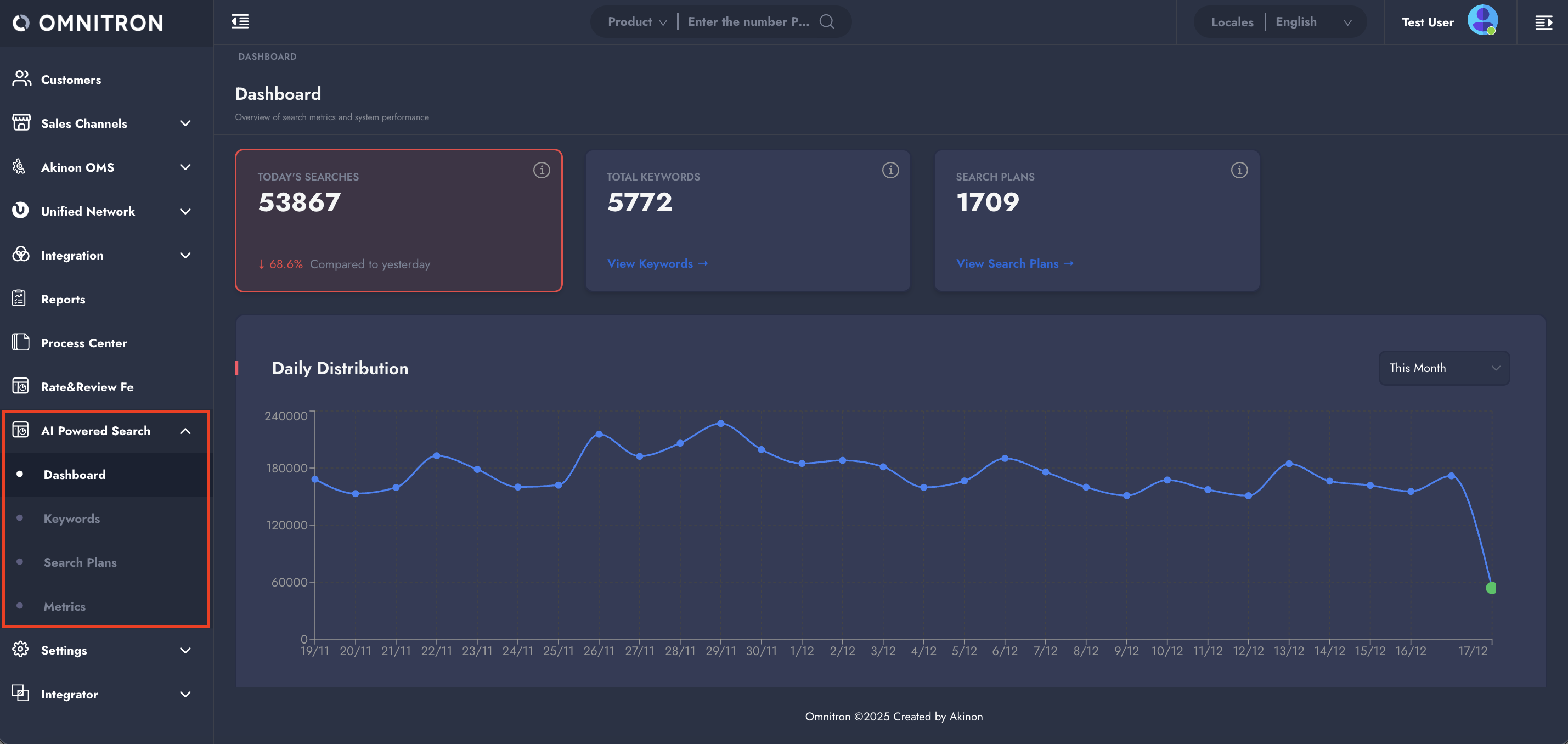
Omnitron provides a set of dedicated screens to **monitor, analyze, and configure** the AI Powered Search experience. These screens allow teams to understand how users search within the shop, evaluate search performance through search results, and fine-tune AI behavior using configurable search plans and keywords.
The AI Powered Search module in Omnitron consists of **four main screens**:
* **Dashboard**
* **Search Results**
* **Keywords**
* **Search Plans**
Each screen focuses on a different aspect of the search lifecycle—from high-level visibility to detailed configuration and performance analysis.
We will start with the **Dashboard**, which offers a comprehensive overview of search activity at a glance.
### 1. Dashboard
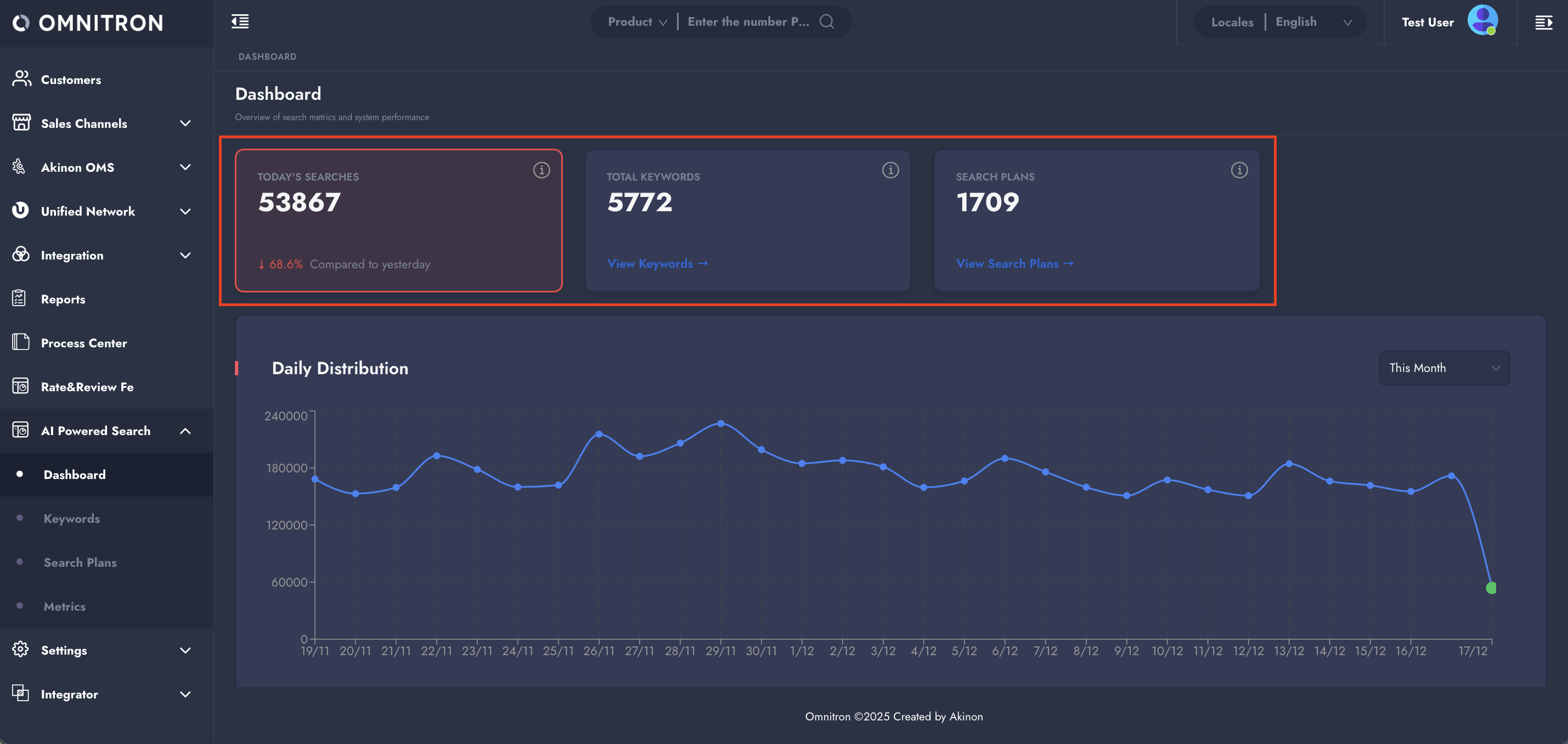
The **Dashboard** provides a high-level summary of how AI Powered Search is being used in the shop. It is designed to give quick insights into overall search activity, trends, and user behavior without requiring deep configuration or analysis.
#### Key Metrics
At the top of the Dashboard, three core metrics are displayed:
**Today’s Searches:** Shows the total number of searches performed in the shop today.\
This metric also includes a **percentage comparison with the previous day**, displayed as *“Compared to yesterday”*, allowing you to quickly assess daily search activity trends.
**Total Keywords:** Displays the total number of **defined Keywords** that are currently configured and used by the AI Powered Search engine.
**Search Plans:** Indicates the total number of **configured Search Plans**, which define how search queries are interpreted and how results are generated.
#### Search Distribution
Below the top metrics, the **Distribution** chart visualizes how search activity is spread over time.\
This chart allows you to analyze search behavior at different time granularities, including:
* Monthly
* Weekly
* Daily
* Hourly
By switching between these views, you can identify peak search periods, seasonal patterns, and user activity trends throughout the day.
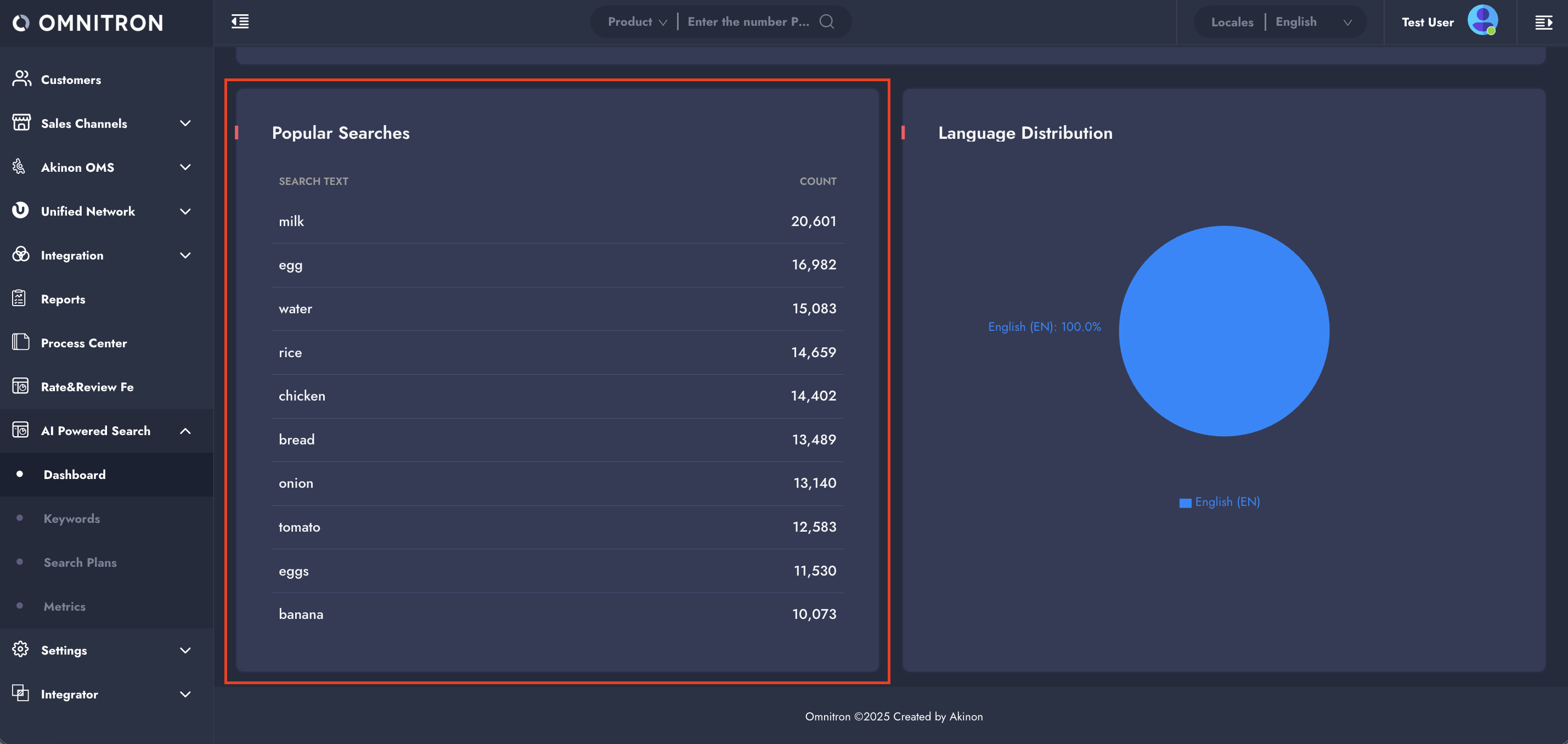
#### Popular Searches
The **Popular Searches** table lists the **top 10 most frequently searched text queries** across the shop.\
This section helps you understand what users are actively looking for and can be used to:
* Identify high-demand products or categories,
* Detect recurring search intents,
* Inform keyword definitions and search plan optimizations.
#### Language Distribution
The **Language Distribution** chart shows the languages in which users perform their searches.\
This visualization is particularly useful for multi-language shops, as it enables you to:
* Understand language-based search behavior,
* Evaluate whether search configurations are aligned with active languages,
* Identify opportunities for improving keyword coverage or AI understanding in specific languages.
***
### 2. Search Results
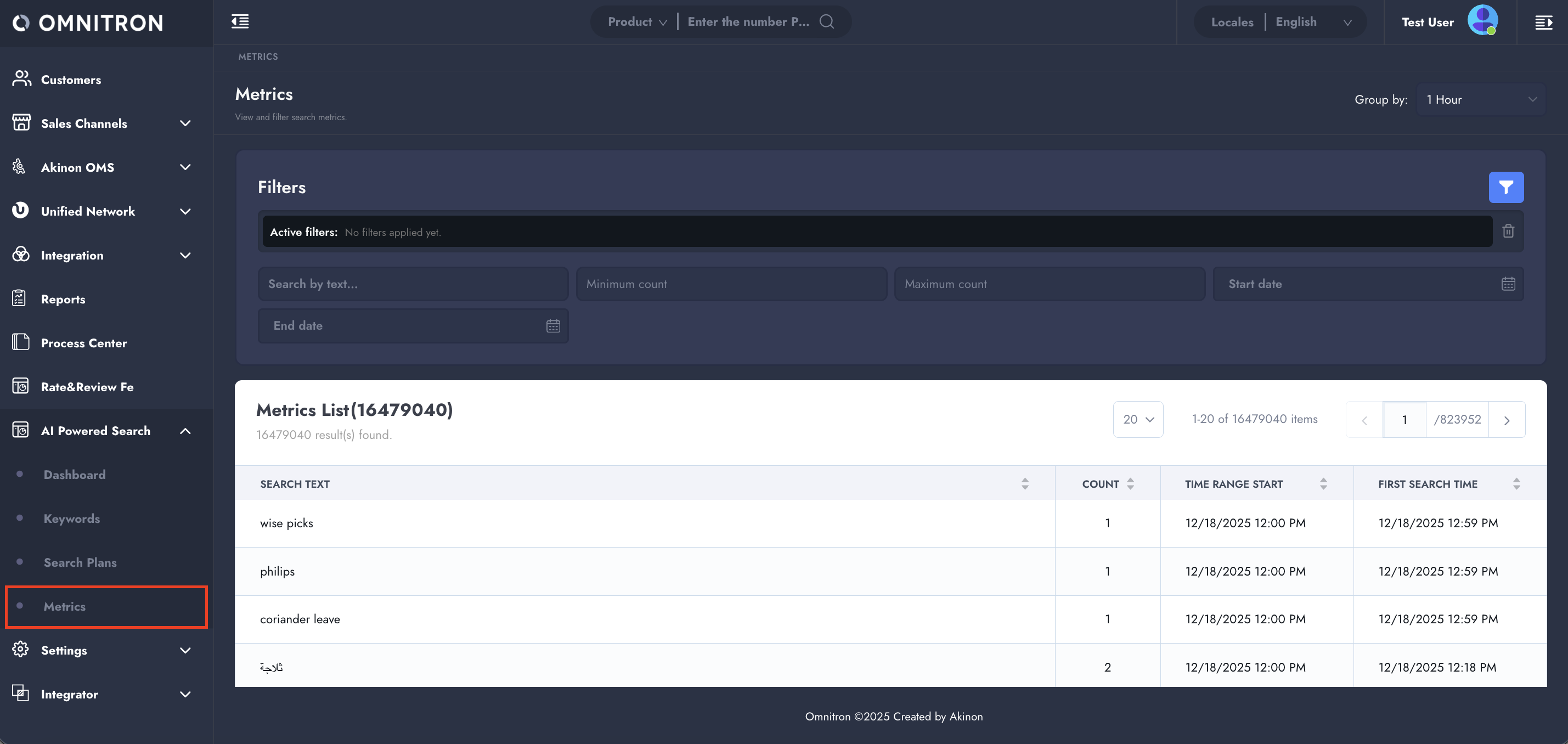
The **Search Results** page provides detailed visibility into **what users search for in the shop and how often**. Every search query entered by a user is recorded by a **scheduled task that runs once per minute**, ensuring that search activity is captured continuously and consistently.
This page is primarily used to **analyze search behavior over time**, identify high-frequency queries, and evaluate trends that can be used to improve search plans and keyword configurations.
#### Search Results Table
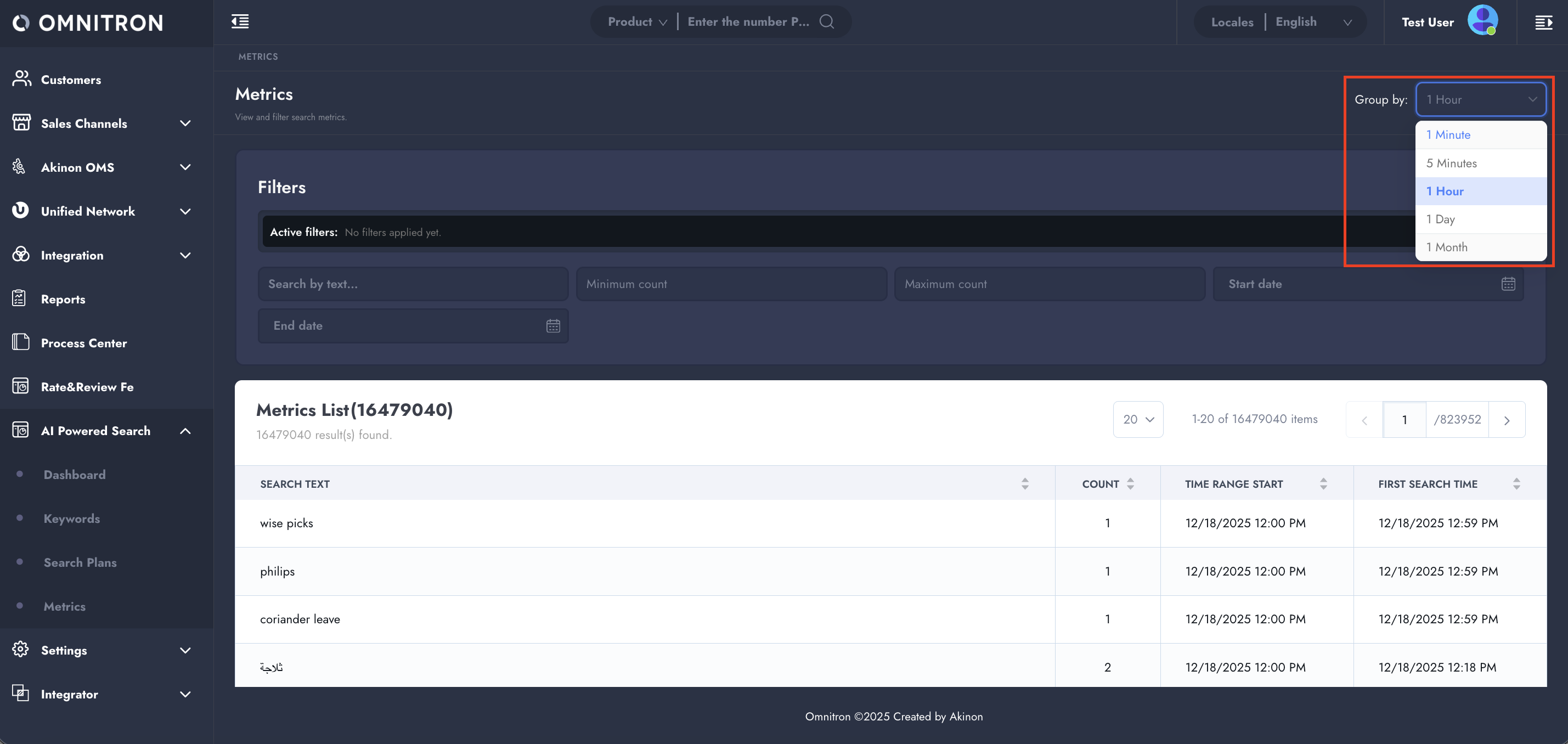
Each record in the Search Results table represents a **grouped view of searched text**, enriched with time-based information. The table includes the following columns:
**Search Text:** The exact text entered by the user in the shop search bar.
**Count:** The total number of times the search text was queried within the selected time grouping.
**Time Range Start:** Indicates the **starting point of the time range** from which the displayed count is calculated.
**First Search Time:** Shows the **earliest time** at which the search text was queried within the selected grouping.
#### Time-Based Grouping (Group by)
The values in the **Count**, **Time Range Start**, and **First Search Time** columns are directly affected by the **“Group by”** filter located in the top-right corner of the page.
The **Group by** option allows search queries to be grouped into different time intervals:
* 1 minute
* 5 minutes
* 1 hour
* 1 day
* 1 month
This grouping enables flexible analysis of search data at different time resolutions.
**Example:**
If the search text **“milk”** is grouped by **1 Hour**, the Search Results table will show:
* How many times *“milk”* was searched during that hour (**Count**),
* The first time it was searched within that hour (**First Search Time**),
* The start date of the month from which the count is calculated (**Time Range Start**).
By changing the grouping level, the same search text can be analyzed minute-by-minute, hourly, daily, or monthly.
#### Filtering and Sorting
The Search Results page also supports **advanced filtering and sorting** to help you focus on specific data points:
* **Filters** can be applied to narrow down search results based on search text and other available criteria.
* **Sorting options** in the table allow you to order records by:
* **Count** (ascending or descending),
* **Time-related fields** (ascending or descending).
***
### 3. Keywords
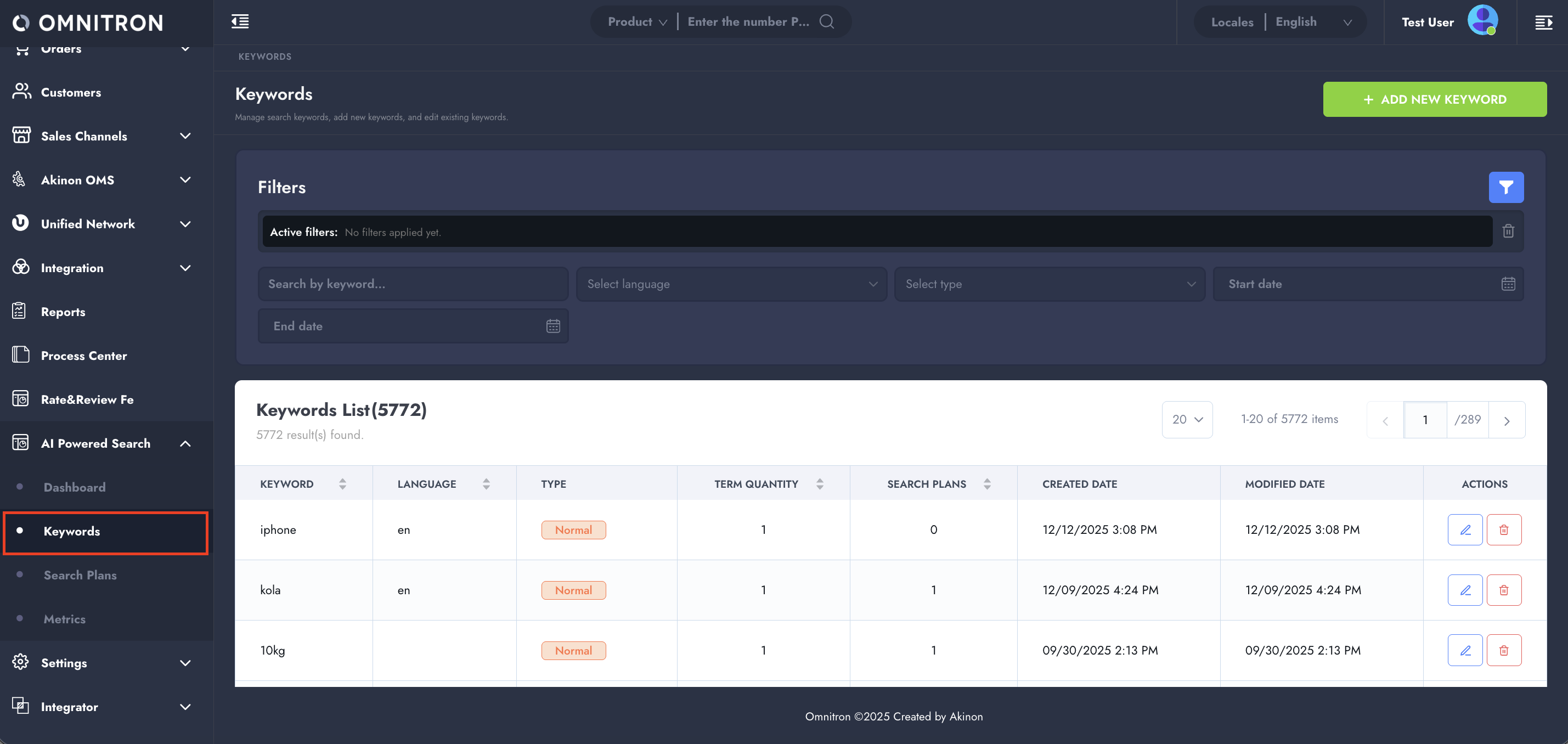
The **Keywords** page is used to **convert real user search behavior into structured search intelligence**. Its main purpose is to transform the **search texts collected on the Search Results page** into reusable and configurable **Keywords** that can be leveraged by AI Powered Search and Search Plans.
By defining keywords based on actual user searches—such as misspellings, alternative expressions, or commonly used phrases—you can guide the AI to better understand user intent and return more relevant results.
#### Creating a New Keyword
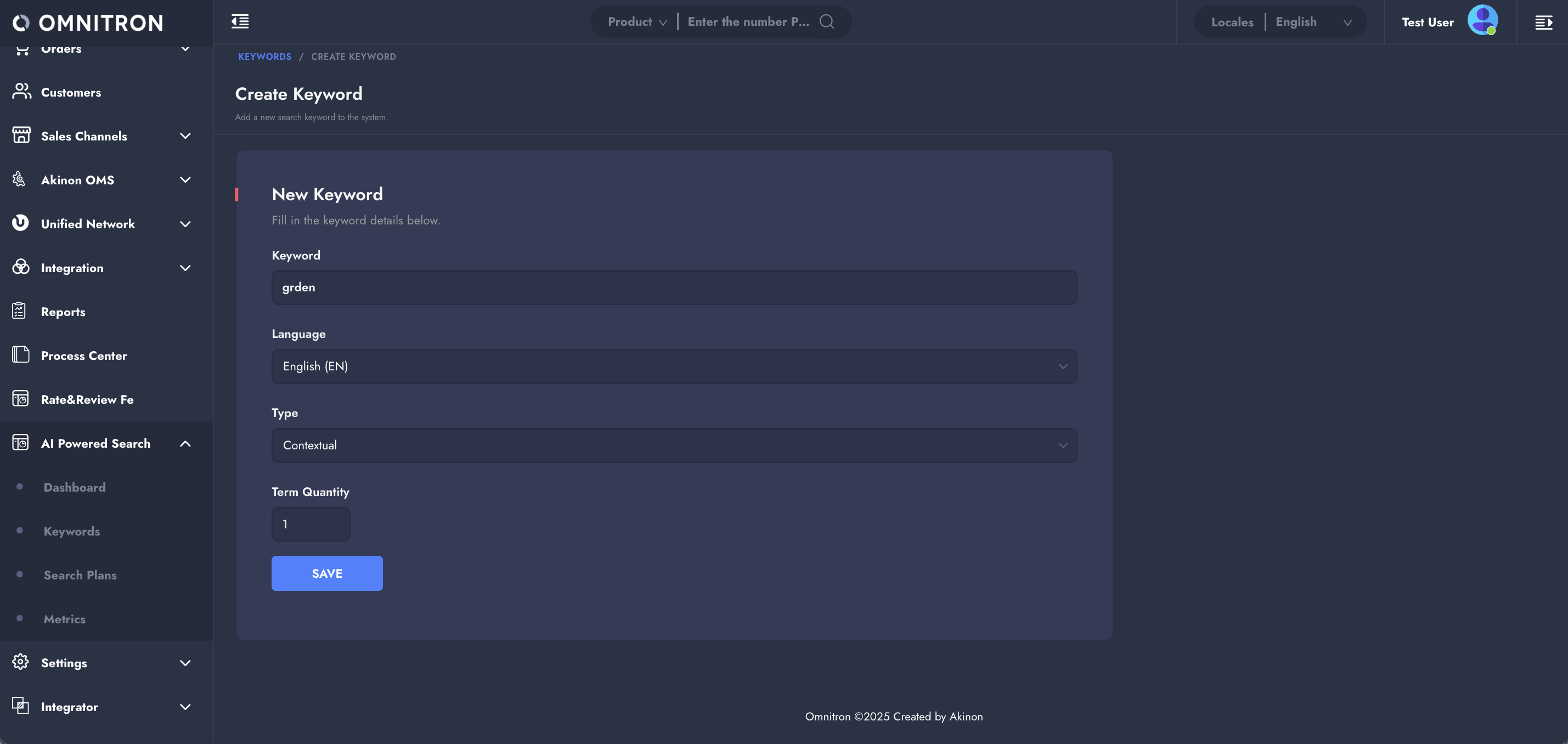
To create a new keyword, click the **+ Add New Keyword** button located in the top-right corner of the page. This action opens the keyword creation form.
**Keyword Form Fields:**
**Keyword:** This field contains the keyword text itself. Typically, this value is derived from the **Search Results** page and may represent:
* A frequently searched term,
* A misspelled word,
* A commonly used alternative expression.
**Example:** Users may search for *“garden furniture”*, *“garden chair”*, or similar variations. These frequently searched texts can be selected from the Search Results page and defined as keywords.
They may also enter misspelled queries such as *“gardan furnitre”* or *“garden furnitur”*, or use synonyms like *“outdoor furniture”* instead of *“garden furniture”*.
By defining these variations as keywords, AI Powered Search can return relevant results even when users use different wording or make spelling mistakes.
**Language:** Specifies the language in which the keyword is defined. This ensures that the keyword is evaluated correctly within multi-language search scenarios.
**Term Quantity:** Represents the number of terms (words) that make up the keyword.
For example:
* *“*furniture*”* → 1 term
* *“*garden furniture*”* → 2 terms
This information helps the AI better interpret keyword structure and relevance.
#### Keyword List
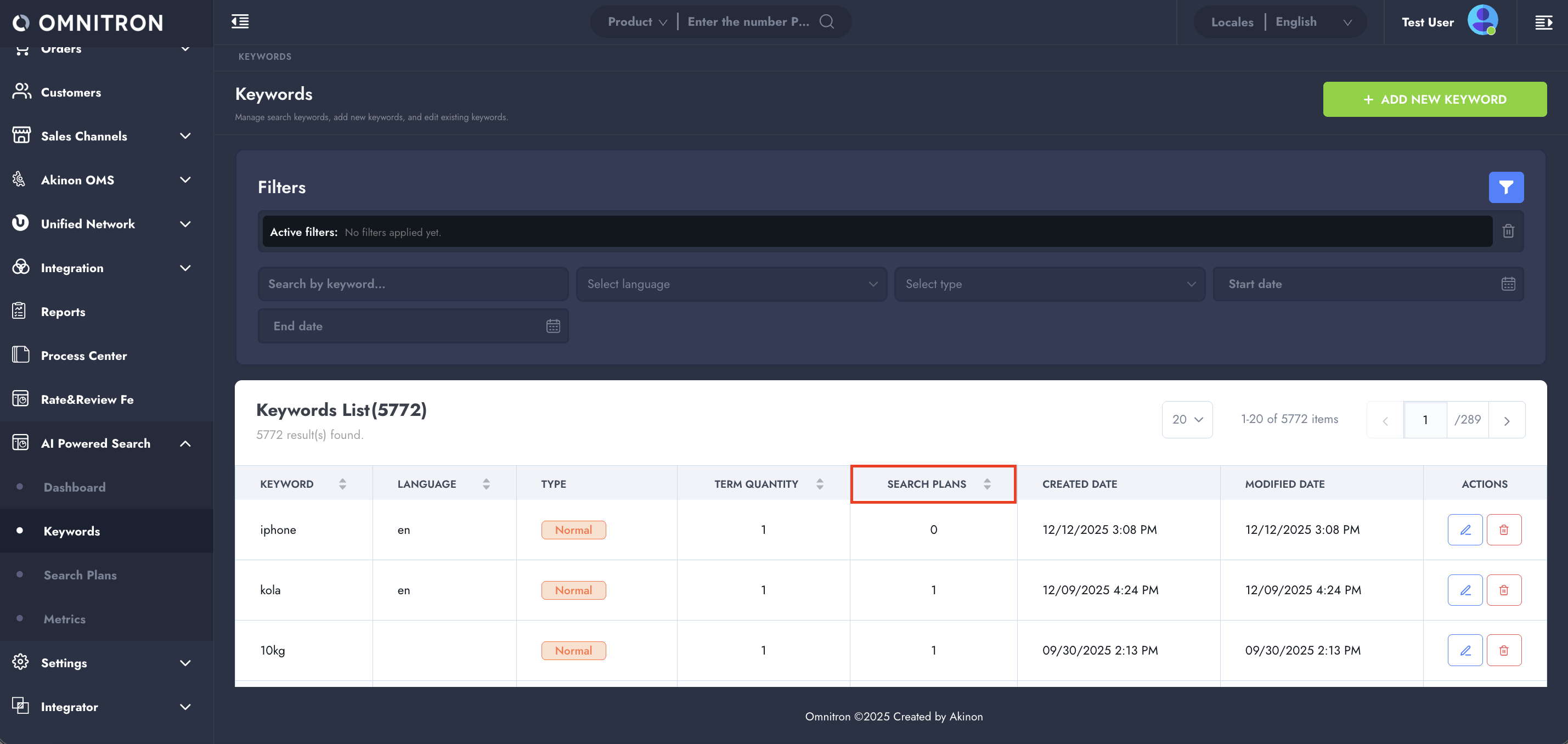
Once keywords are created, they are listed in the Keywords table. In addition to the properties defined during creation, the table includes an additional column:
* **Search Plans:** Indicates **how many Search Plans currently include this keyword**.
This column helps you understand:
* The impact scope of a keyword,
* How widely it is used across search configurations,
* Whether a keyword is actively contributing to search logic or still unused.
***
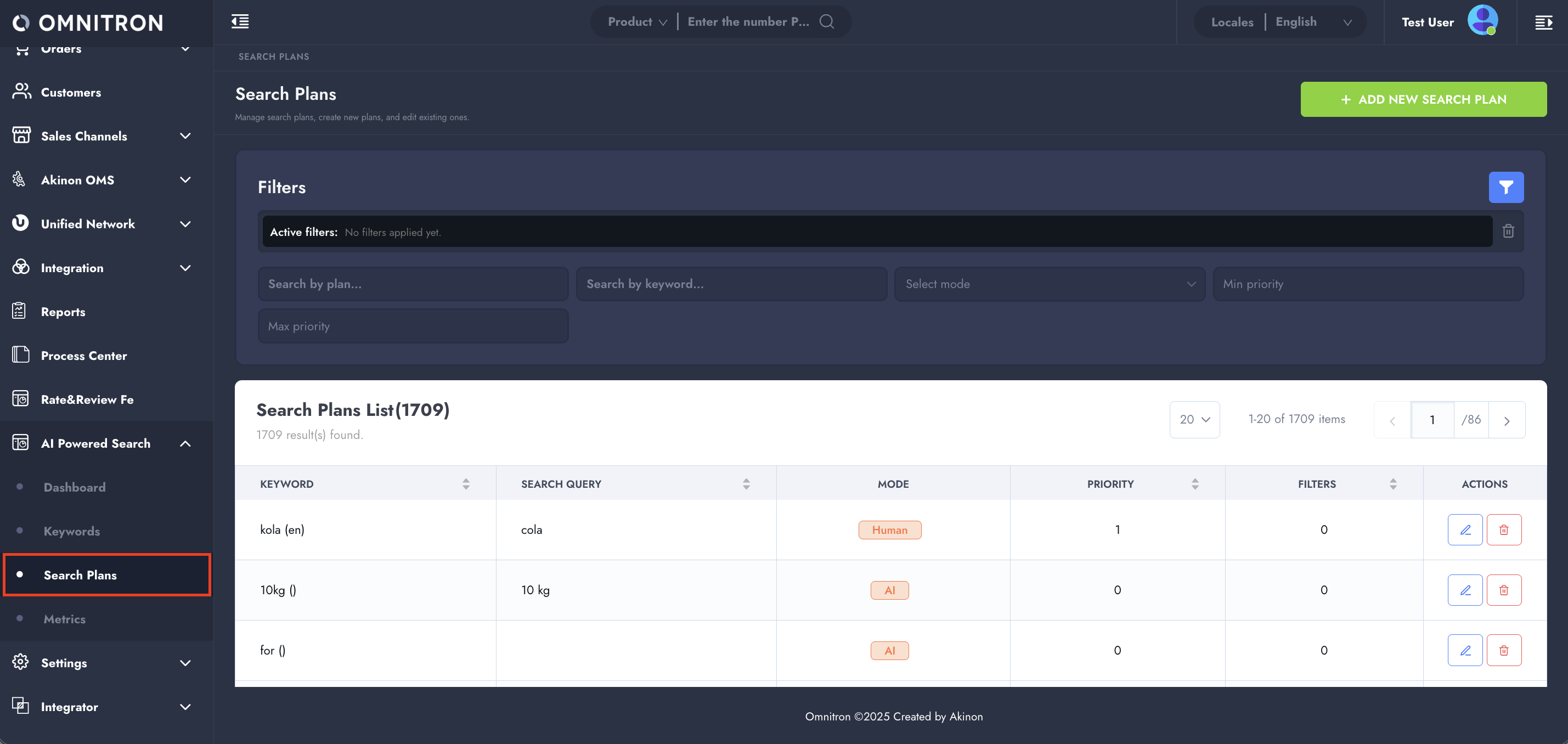
### 4. Search Plans
The **Search Plans** page is where **keywords are turned into actionable search logic**. Using the keywords defined on the **Keywords** page, Search Plans determine **how a user’s search input is interpreted**, which query is executed, and which filters are applied to generate the final product results.
In short:
* **Keywords** represent *what users type*,
* **Search Plans** define *how the system searches*.
Search Plans can be created **manually by users** or **automatically by AI** based on real search behavior.
#### Creating a Search Plan
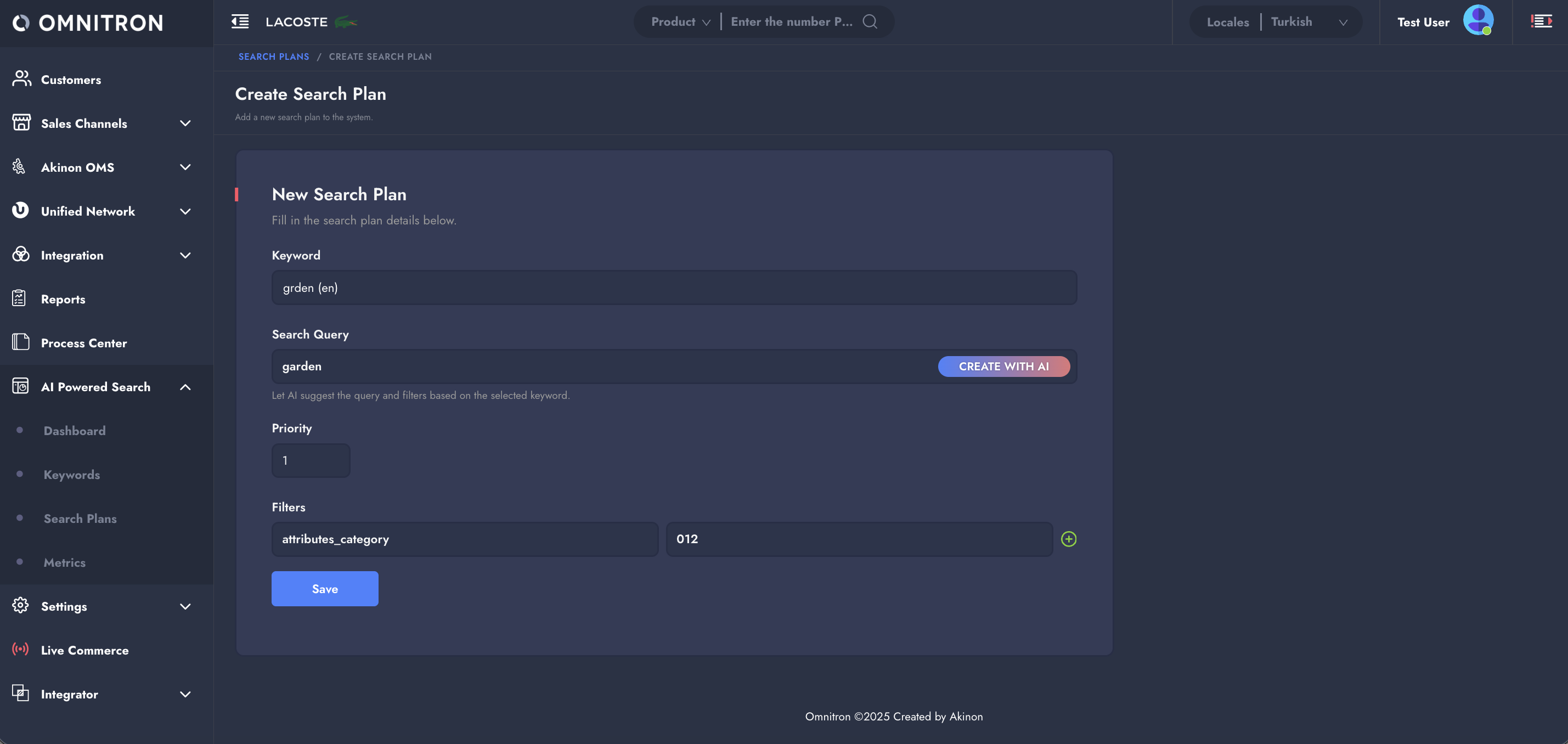
To create a new search plan, click the **+ Add Search Plan** button in the top-right corner of the page. This opens the Search Plan creation form.
**Search Plan Form Fields:**
**Keyword:** Select one of the keywords defined on the **Keywords** page. The keyword can be searched and selected from the list.
This keyword acts as the **trigger** for the search plan.
**Search Query:** Defines the **actual query** that will be executed when the selected keyword is detected.
This field can be populated in two different ways:
* **Manually**, by entering the desired search query directly.
* **Automatically using *****Create with AI***, which analyzes the selected keyword and generates:
* An appropriate **Search Query**, and
* Relevant **Filters** based on the detected intent.
The Search Query typically represents the **corrected, normalized, or intended version** of the keyword.
**Examples:**
* Keyword: *“gadrn”* → Search Query: *“garden”*
* Keyword: *“gardenfurniture”* → Search Query: *“garden furniture”*
* Keyword: *“hoodie”* → Search Query: *“sweatshirt”*
The goal is to ensure that variations, typos, or alternative expressions are mapped to a clean and meaningful search query.
***AI-Generated Search Plans (Create with AI):*** When **Create with AI** is used, the AI does more than generate the search query. It also **automatically adds filters** to the search plan by analyzing the structure and intent of the keyword.
**Example:** If a user searches for *“Black M T-Shirt”*, the AI may:
* Identify **“black”** as a color,
* Identify **“M”** as a size,
* Identify **“T-Shirt”** as a product category,
and automatically generate a search plan that includes:
* A filter for the **color attribute** with the value *“black”*,
* A filter for the **size attribute** with the value *“M”*,
* A filter for the **T-Shirt category**.
Search plans created using this method are listed with **Mode = AI** in the Search Plan List.
***Manually Created Search Plans:*** If the Search Query and filters are **entered manually via the form**, the search plan is considered user-defined and is listed with:
* **Mode = Human**
**Priority:** Determines the **execution priority** of the search plan.
When multiple search plans match the same user query, the plan with the **higher priority** is applied first. This allows you to control which logic takes precedence in overlapping scenarios.
**Type:** Determines when the search plan is applied to a user’s search.
There are two available types:
**1) Normal**
* The search plan is applied when its keyword is equal to the whole search query.
* It is also applied when its keyword appears as **part of a longer search query**. In that case, it can be **combined with the search plans of other keywords** in the same query: their filters are added together, and the search query is rewritten using the plans’ Search Query values.
* Suitable for **generic or commonly reused terms** that users combine with other words, such as colors, sizes, or product types.
**2) Contextual**
* The search plan is applied **only when its keyword is equal to the whole search query**.
* It is not applied when the keyword is only part of a longer search query, and it is not combined with other search plans.
* Suitable for terms whose meaning depends on the full phrase, where applying the plan to longer queries would return misleading results.
**Example:** Consider search plans for the keywords **“garden”** and **“furniture”**:
* If both are **Normal**, a search for *“garden furniture”* (with no search plan of its own) applies both plans together, combining the garden-related and furniture-related filters. Searches such as *“garden chair”* or *“kitchen furniture”* also apply the matching plan for *“garden”* or *“furniture”*.
* If the search plan for **“garden”** is **Contextual**, it is applied only when users search for exactly *“garden”*. Searches such as *“garden chair”* or *“garden lighting”* do not apply it.
If a search plan exists for the whole phrase (for example *“garden furniture”*), it is always applied on its own, regardless of its type, and the plans of the individual words are not used.
**Filters:** Filters allow you to **extend or refine search results** by applying additional constraints based on attributes or categories.
Each filter consists of:
* **Filter Key**
* **Filter Value**
These filters are applied alongside the search plan to produce more accurate results.
**Examples:**
* If the search query is *“garden”*, a filter can be added to search within the garden category by specifying the category key and value.
* If the Search Query is *“red shoes”*:
* A filter can be added for the color attribute with the value *“red”*,
* Another filter can target the shoes category.
***
## Configuration Guide and FAQ
This section answers the questions that most often come up after AI Powered Search is activated. It explains how keywords and search plans behave when a user searches, and how to set them up for common business needs.
### How a Search Query Is Matched
When a user searches in the shop, AI Powered Search processes the query in the following order:
1. **Normalization:** The query is converted to lowercase, leading and trailing spaces are removed, and repeated spaces are reduced to one. The Turkish capital letter *“İ”* is converted to *“i”*.
2. **Exact match:** If a keyword is exactly equal to the whole normalized query, the search plan of that keyword is applied, and only that plan is used.
3. **Word-based match:** If there is no exact match, the system checks every combination of the words in the query. For example, for the query *“black garden chair”* it checks *“black garden chair”*, *“black garden”*, *“black chair”*, *“garden chair”*, *“black”*, *“garden”* and *“chair”*. The search plans of all matching keywords are applied together if their **Type** is **Normal**; **Priority** determines the order in which they are applied. Search plans whose **Type** is **Contextual** are applied only through an exact match (step 2).
4. **Result:** The resulting search query, filters and sorting are sent to the shop’s product listing, which returns the products.
{% hint style="warning" %}
When several search plans are combined, their filters are added together, but only **one** sorting type is used. Avoid defining different sorting types on search plans whose keywords can appear together in the same search, and give such plans different priorities.
{% endhint %}
{% hint style="info" %}
Keywords are matched as **whole words**. Spelling variations and typos are not matched automatically; each variation that should trigger a search plan must be defined as its own keyword.
{% endhint %}
{% hint style="info" %}
Because search queries are converted to lowercase before matching, always enter keywords in **lowercase**. A keyword that contains uppercase letters (for example *“Garden”*) is never matched.
{% endhint %}
### Linking a Keyword to Multiple Queries or Categories
**Each keyword can have only one search plan**, and each search plan has a single **Search Query**. Trying to create a second search plan for a keyword that already has one fails with an error.
A search plan can, however, contain **multiple filters**, including **multiple values for the same filter key**. To show results from several categories for one keyword, add one filter row per category to the same search plan.
**Example:** To show products from both the *“Pots”* and *“Bowls”* categories when users search for *“ashura”*:
* Create a single search plan for the keyword *“ashura”*.
* Add a filter with the category key and the *“Pots”* category as the value.
* Add a second filter with the same category key and the *“Bowls”* category as the value.
Each filter key and value pair can be added to a search plan only once.
### Returning a Word’s Own Results Together with Another Search Plan’s Results
A search always produces **one product listing**: one search query plus its filters and sorting. AI Powered Search does not merge two separate result lists, so a single search cannot return both *“the results of the word itself”* and *“the results of another search plan”* side by side.
The following options can be used instead:
* **Widen a single search plan:** Define one search plan for the keyword and add the filters that cover all target product groups, as described in the previous section. For example, a search plan for *“cookie”* can include the filter values of both the cookie-related category and the *“storage containers”* category.
* **Redirect to the other search plan’s logic:** Set the keyword’s **Search Query** to the query of the other search plan and copy its filters, so the keyword returns the same results as that plan.
* **Combine plans through multi-word searches:** When a user searches for several words that each have a search plan with the **Normal** type, the plans are applied together. Their filters are combined, and the search query is rewritten using the **Search Query** values of the matched plans. For example, if *“black”* adds a color filter and *“t-shirt”* adds a category filter, the search *“black t-shirt”* applies both filters. This does not happen when there is a search plan whose keyword is exactly *“black t-shirt”*; in that case only that plan is applied.
### Excluding Words from Results (Negative Keywords)
AI Powered Search does **not** support negative or excluded keywords. There is no setting that removes products containing a specific word from the results.
Keep in mind the following when dealing with unwanted matches, such as *“massage”* products appearing in a *“table”* search:
* Keyword matching is word-based: a keyword such as *“masa”* (table) does not trigger its search plan when the user searches for *“masaj”* (massage), and vice versa.
* The final product results are returned by the shop’s product search. If that search returns unrelated products for a query, AI Powered Search cannot remove them.
* To narrow the results, define a search plan for the keyword and add **filters** (for example, a category filter for the tables category). Products outside the filtered category are then not listed for that search.
### Validation Errors When Saving
The table below explains the errors that may be shown when saving a keyword or a search plan.
| Screen | Message | Meaning and solution |
| ----------- | --------------------------------------------------------------------------------------------- | -------------------------------------------------------------------------------------------------------------------------------------------------------------------------------------------------------------------------------------------------------------------------------- |
| Keywords | *Keyword is required* / *Language is required* | A required field is empty. Fill in the field and save again. |
| Keywords | *This keyword already exists. Please enter a different keyword.* or a uniqueness error | A keyword with the same text already exists. Keyword texts are unique across **all languages**, so the same text cannot be defined once for Turkish and once for English. Use the existing keyword instead of creating a new one. |
| Search Plan | *Keyword is required* / *Priority is required* / *Type is required* | A required field is empty. Select a keyword, enter a priority and choose a type. |
| Search Plan | An error stating that at least one of *search\_query*, *sorter* or *filters* must be provided | A search plan must change the search in at least one way. Enter a **Search Query**, select a **Sorting Type**, or add at least one **Filter**. |
| Search Plan | *An error occurred* or a database constraint error | Most often, the selected keyword already has a search plan, or the same filter key and value pair was added twice. Edit the existing search plan of the keyword instead of creating a new one, and remove duplicate filter rows. If the error continues, contact Akinon support. |
| Search Plan | *Select a keyword before using AI.* | **Create with AI** needs a keyword. Select a keyword first. |
| Search Plan | *Could not generate AI suggestions.* or another AI error | The AI could not generate a search query or filters for the selected keyword. Try again later, or fill in the fields manually. |
### Scope of the Dashboard and Search Results Reports
The **Dashboard** and **Search Results** pages are built from the searches recorded by AI Powered Search. Each recorded search contains only:
* The normalized search text,
* The search language,
* The search time.
The reports therefore cover **all sales channels together**. There is **no separation by platform or channel** (for example, mobile app versus web), because this information is not recorded.
Additional details:
* Searches are collected continuously and processed by a scheduled task that runs **once per minute**, so a new search may take about a minute to appear in the reports.
* Search texts are shown in their normalized form (lowercase, without extra spaces), so *“Garden Chair”* and *“garden chair”* are reported as the same text.
* The **Language Distribution** chart on the Dashboard shows the distribution for **all recorded searches**, regardless of the selected period.
### Search Language and the Language Shown in Omnitron
The language of a search is taken from the **language that the storefront sends with the search request** (the `Accept-Language` header). For example, when the Turkish version of the shop sends its searches with the Turkish language, they are recorded as Turkish.
* If the storefront does not send a language, or sends a language that is not supported by AI Powered Search, the search is recorded under the **default language** of AI Powered Search, which is English unless configured otherwise. If searches made in Turkish appear as English in Omnitron, check that the storefront sends the Turkish language with the search request.
* The search language is used for reporting: it appears in the **Language Distribution** chart and in the language information on the **Search Results** page.
* The search language does **not** affect which search plan is applied. Keywords are matched by their text only, so a keyword defined with the Turkish language is also applied to a search with the same text made in English. The **Language** field of a keyword is used for listing and filtering keywords, and as the language used by **Create with AI** when generating filters.
## Conclusion
With the combination of **Search Results**, **Keywords**, and **Search Plans**, AI Powered Search in Omnitron provides a complete and controllable search optimization framework.
* **Search Results** enable you to observe real user behavior by tracking every search query over time.
* **Keywords** transform these raw search texts into structured signals that the AI can understand, including misspellings, synonyms, and alternative expressions.
* **Search Plans** convert keywords into actionable search logic, defining how queries are executed, which filters are applied, and which results are prioritized—either manually by users or automatically by AI.
This layered approach ensures that:
* Users receive relevant results even when they make spelling mistakes, use different wording, or express intent in natural language.
* Search behavior is measurable through clear metrics.
* AI-driven decisions remain transparent, configurable, and aligned with business goals.
By continuously monitoring metrics, refining keywords, and optimizing search plans, teams can **iteratively improve the shop’s search experience**, increase discoverability, and ultimately drive higher engagement and conversion rates.
AI Powered Search in Omnitron is not just a smarter search—it is a **search system that learns, adapts, and evolves** with your users.
---
# Agent Instructions
This documentation is published with GitBook. GitBook is the documentation platform designed so that both humans and AI agents can read, navigate, and reason over technical content effectively. Learn more at gitbook.com.
## Querying This Documentation
If you need additional information that is not directly available in this page, you can query the documentation by asking a question.
Perform an HTTP GET request on the following URL with the `ask` and `goal` query parameters:
```
GET https://docs.akinon.com/tutorials/akinon-ai-features/ai-powered-search.md?ask=&goal=
```
`ask` is the immediate question: it should be specific, self-contained, and written in natural language.
`goal` is what the user is ultimately trying to achieve, the reason they need the answer. Sharing it helps GitBook give you a better, more relevant answer. A goal is most helpful when it describes the outcome the user wants rather than restating the question. For example, with `ask=how do I create an API token`, a goal like `automate deployments from our CI pipeline` lets GitBook tailor the answer to that use case.
The response will contain a direct answer to the question and relevant excerpts and sources from the documentation.
Use this mechanism when the answer is not explicitly present in the current page, you need clarification or additional context, or you want to retrieve related documentation sections.