> For the complete documentation index, see [llms.txt](https://docs.akinon.com/llms.txt). Markdown versions of documentation pages are available by appending `.md` to page URLs; this page is available as [Markdown](https://docs.akinon.com/tutorials/akinon-ai-features/akinon-template-studio.md).
# Akinon Template Studio
When a customer places an order, a shipment leaves, or someone asks to reset their password, your store sends them an email or an SMS automatically. Template Studio is where those automatic messages are designed, edited and published.
Three kinds of content can be designed here:
* **Email templates**: Transactional emails such as order confirmations, shipping notices and password resets.
* **In-store SMS templates**: Short messages sent to the customer at the till in a physical store (a barcode, a checkout link).
* **Contracts**: Legal texts shown to the customer during checkout (sales contract, information notice).
The important difference: you build these from blocks, see them exactly as the customer will, and they go into effect when you publish. No HTML knowledge is required, and you don't need a developer to change a color, a sentence or a logo.
## The Two Screens
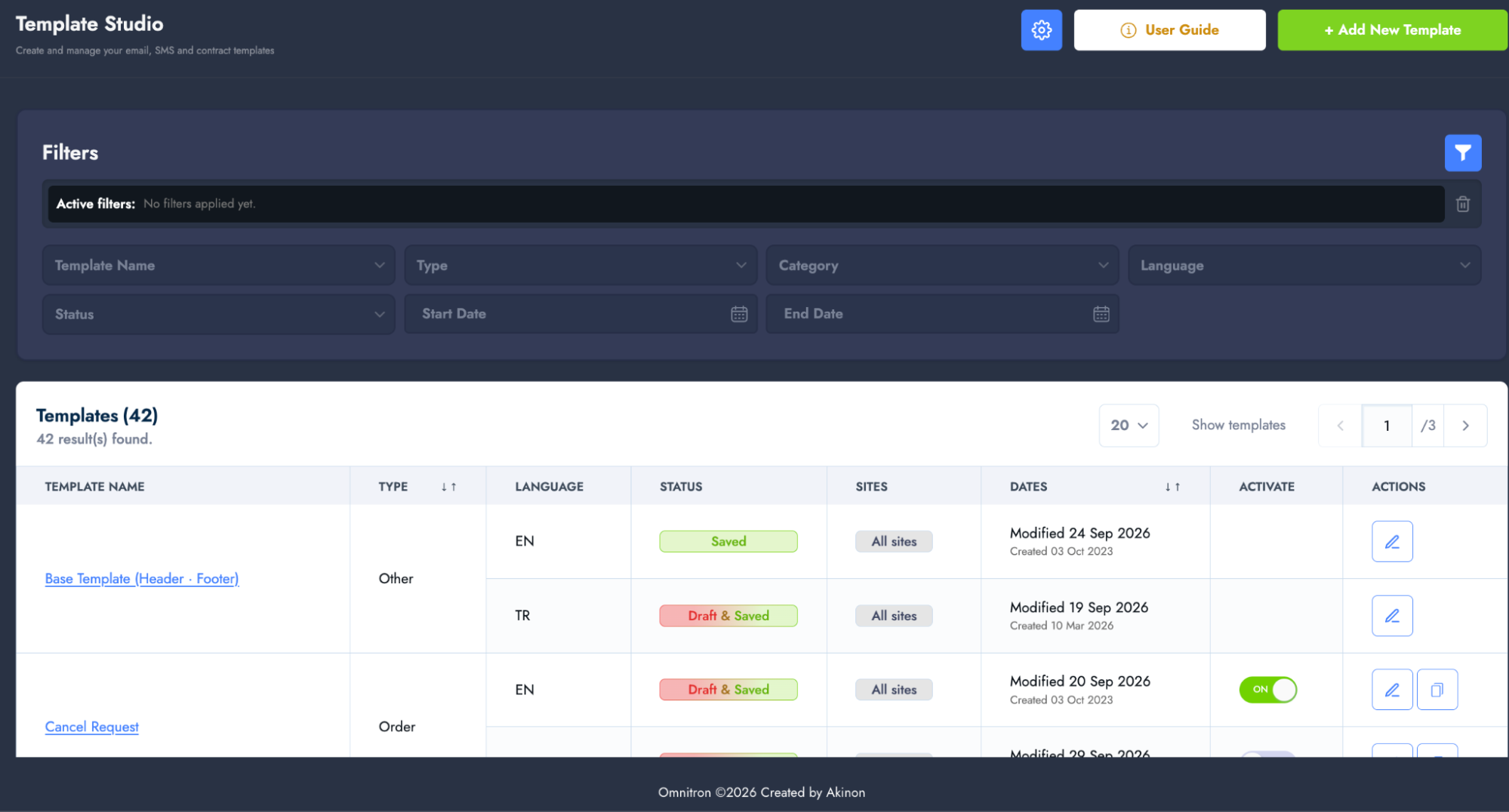
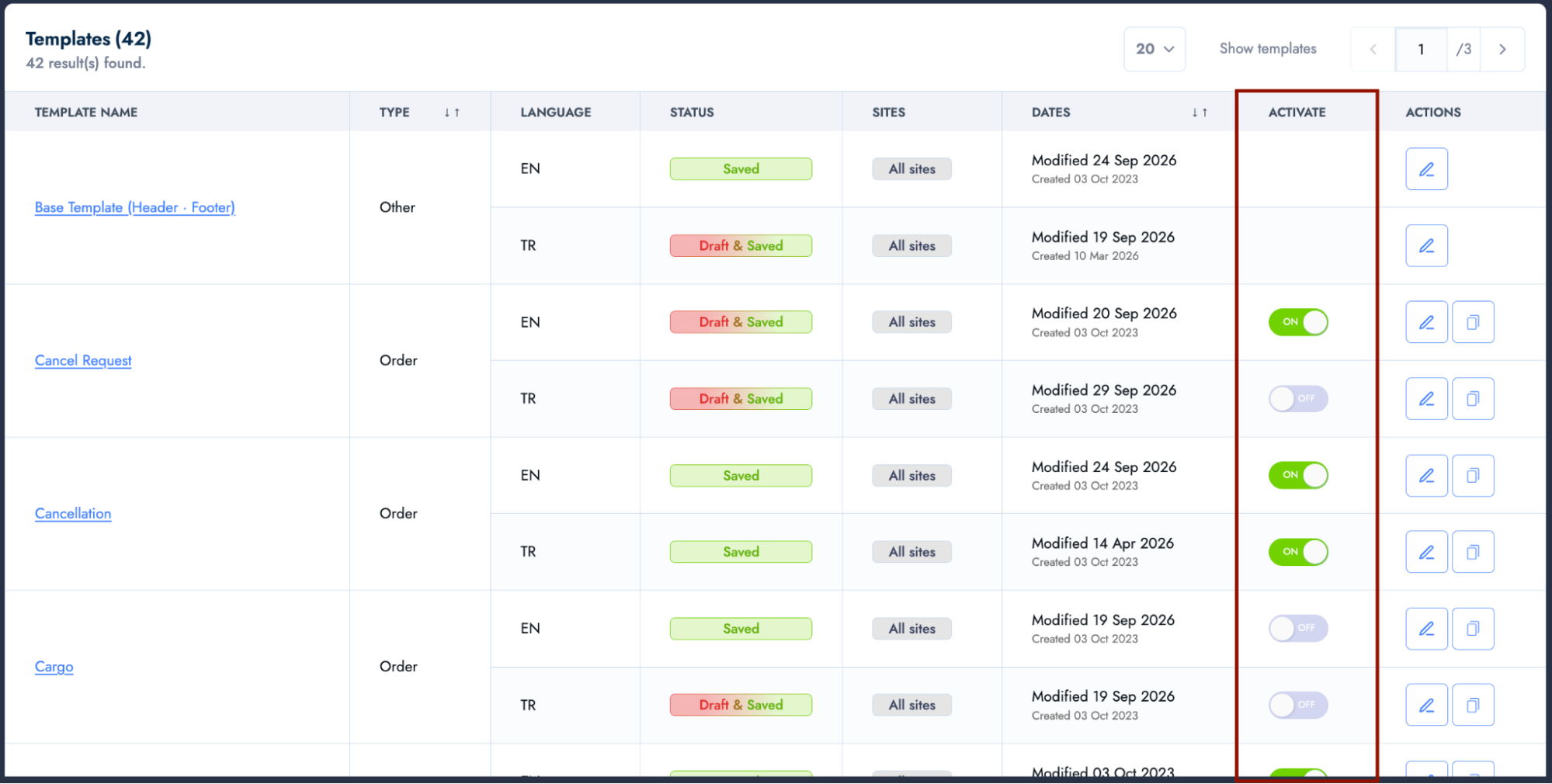
**Template list.** Every template your store can send is listed here, grouped under Email, Store SMS and Contracts. Creating a new template, opening an existing one, and activating or deactivating one are all done from here. The action buttons on each row also let you edit and duplicate a template.
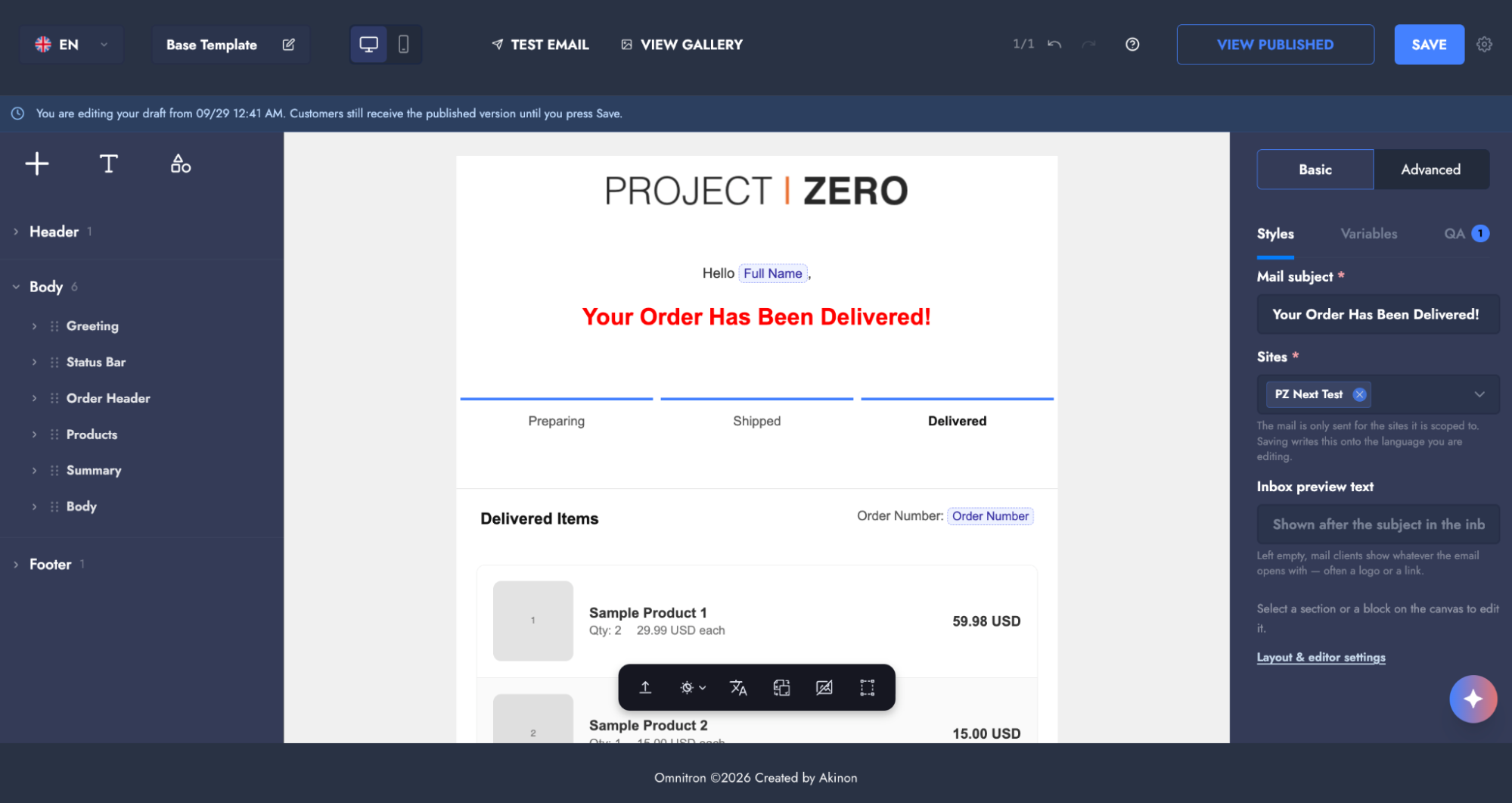
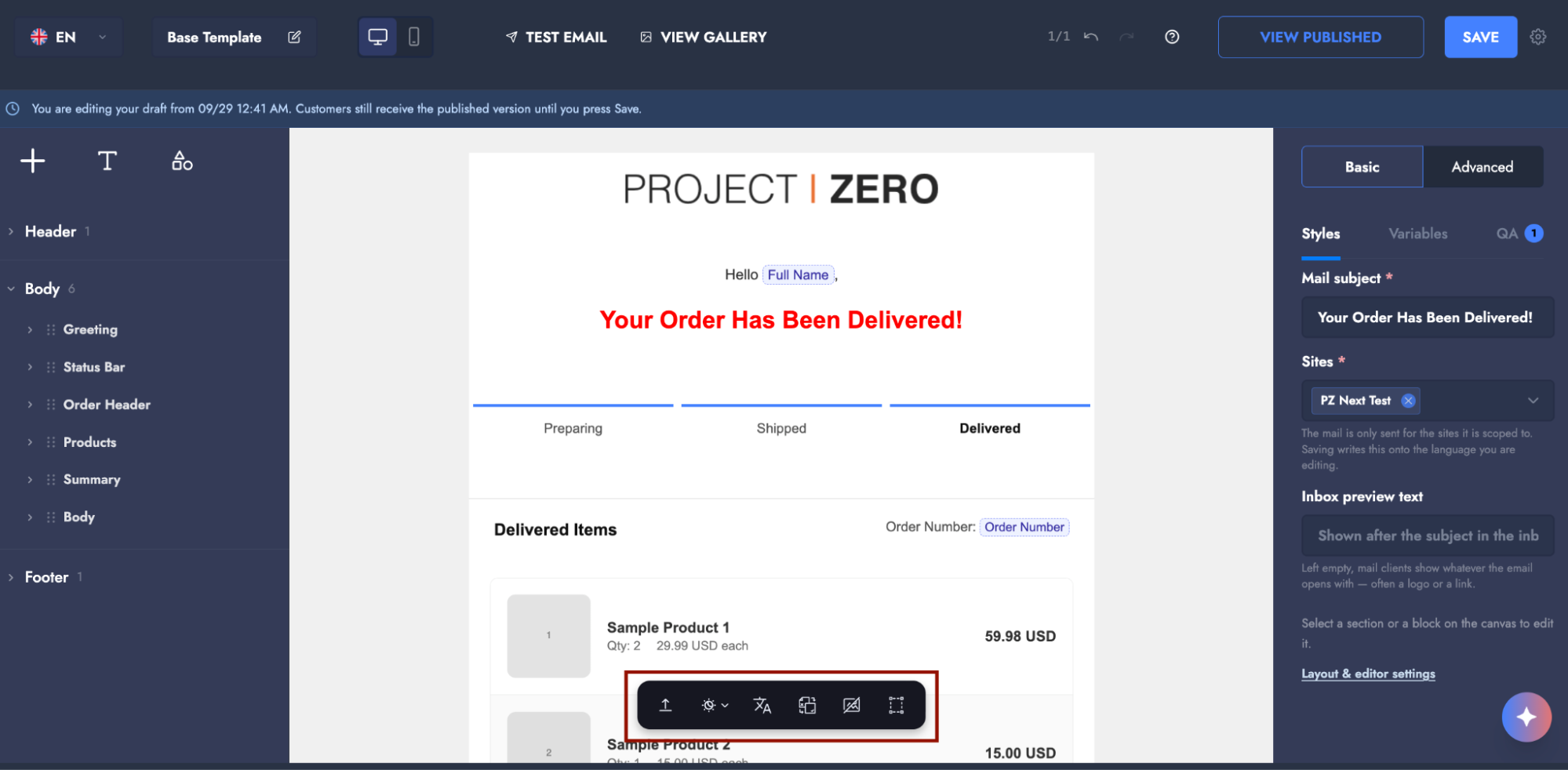
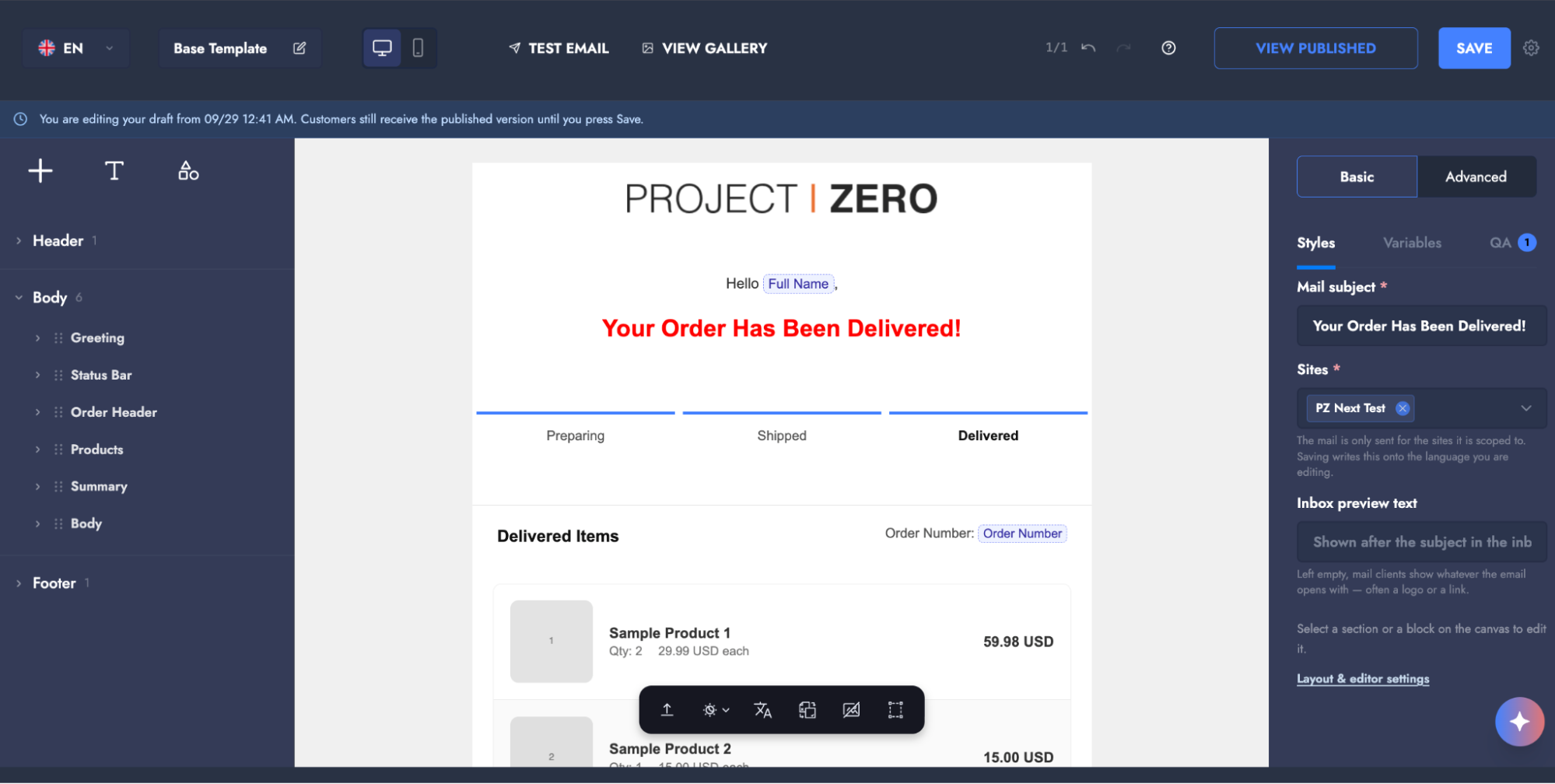
**Editor.** The main workspace where you customize a template.
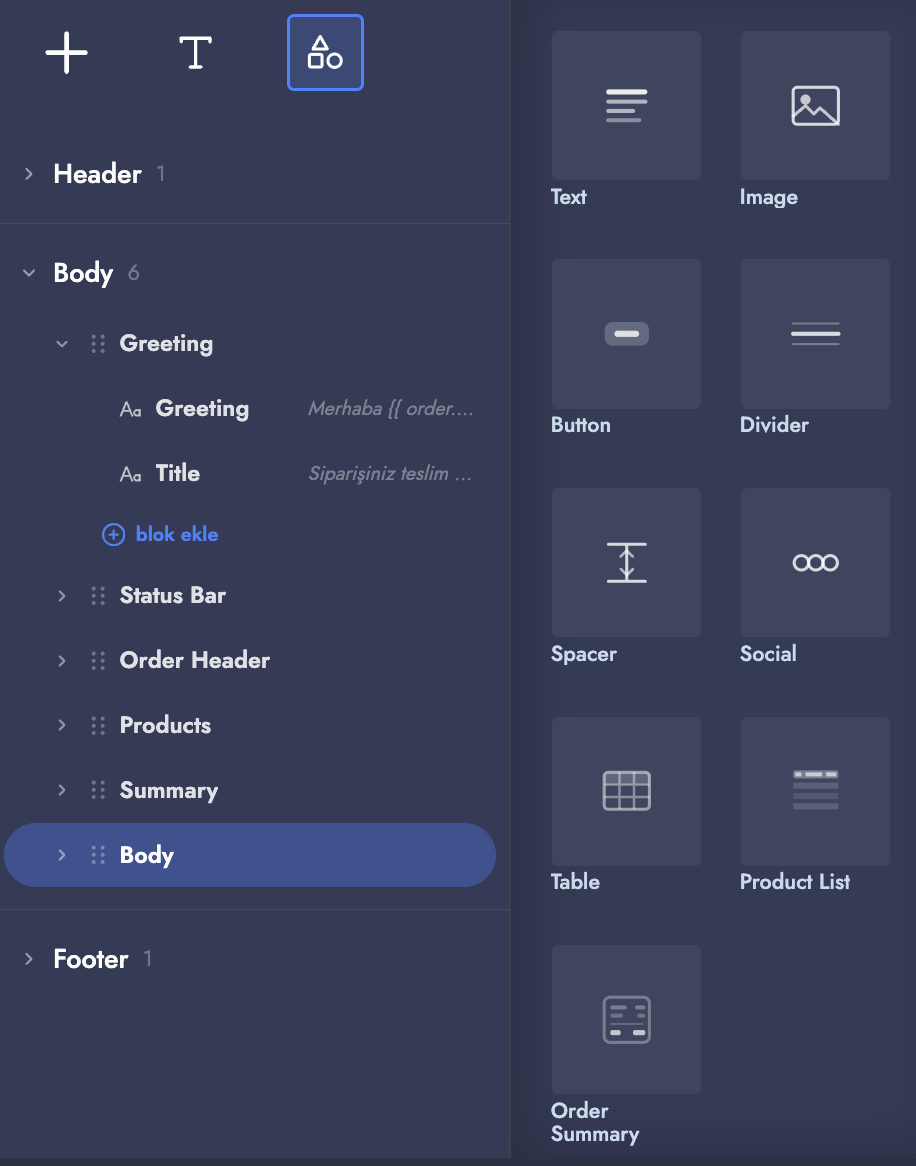
* **Left panel:** Shows the structure of the email from top to bottom. Each item is a section, such as header, greeting or order status. Selecting a section also opens the columns and blocks inside it for editing.
* **Middle area (canvas):** Shows the email as the customer will see it.
* **Right panel:** Holds the settings of whatever you selected (subject line, content width, font, colors and so on).
{% hint style="info" %}
Templates are bound to a sales channel. The same template type can be designed completely differently on another channel, so keep track of which channel you are working on while editing.
{% endhint %}
## Sites
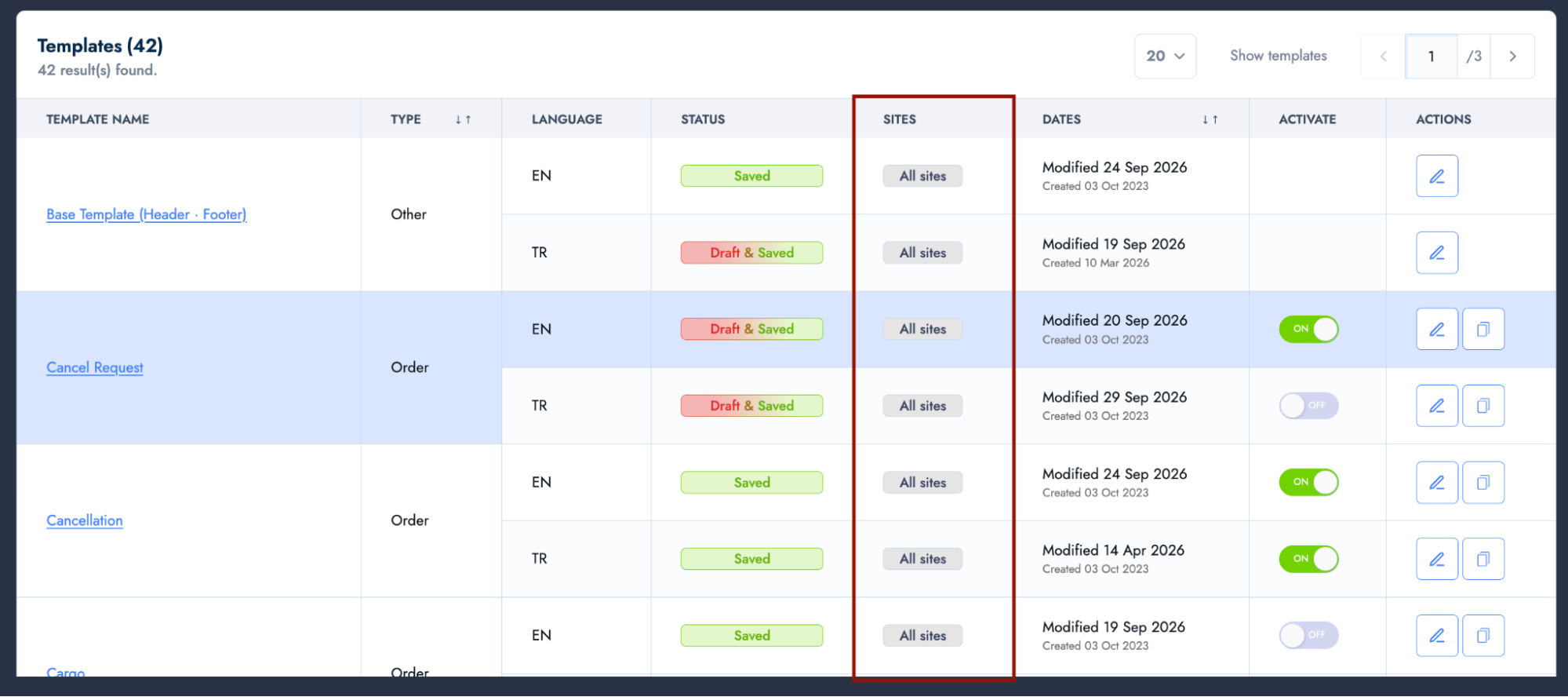
Beyond the sales channel, each template also carries its own record of which sites it is used on. The **Sites** column on the list screen shows the sites that version of the template is bound to. It reads **All sites** when the template is used everywhere.
You can change the site selection in two places:
* From the dialog that opens when you click the value in the **Sites** column on the list screen.
* From the **Sites** field in the right panel of the editor.
Either way, only the language you are currently editing is affected. The template's other languages keep their own site selections.
{% hint style="info" %}
The site selection is per language: the EN and TR versions of the same template can be bound to different sites.
{% endhint %}
{% hint style="warning" %}
The email is only sent for the sites it is scoped to. Saving a template writes the site selection onto the language you are editing.
{% endhint %}
## Why Emails Are Not Designed Like Web Pages
Email clients lag well behind browsers. Outlook still renders emails with an old word processor engine, and Gmail ignores many style (CSS) definitions. A design built to modern web standards can therefore arrive broken in the inbox.
Template Studio hides that technical complexity entirely. You create the design, and the system automatically converts it to classic but reliable table-based HTML, together with the compatibility fixes each email client needs.
That is also why the editor offers ready-made blocks and sections instead of a free-form design surface: every element it offers is guaranteed in advance to render correctly, whichever inbox it is opened in.
## Templates and Template Types
A template is bound to an **event**, not to a campaign. Templates are therefore never sent by hand. The platform triggers them automatically when the relevant event occurs.
For example, the Order Completed email is sent automatically by the platform the moment the customer places their order. Your job is not to send the email one by one, but to prepare in advance which design will reach the customer when that event fires. Every template works on the logic of **"when this event happens, send this design"**.
### Steps to Create a New Template
{% stepper %}
{% step %}
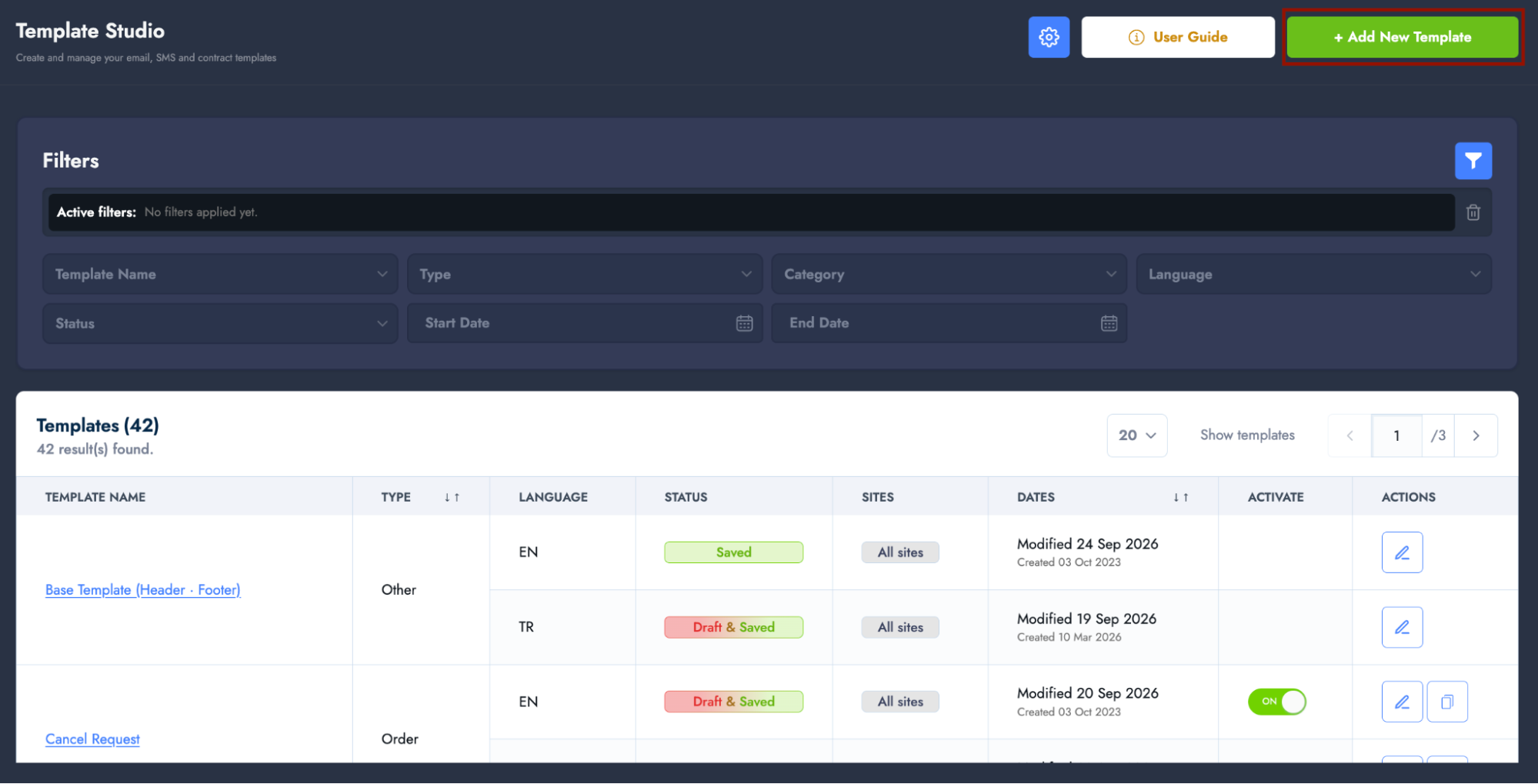
#### Click **+ Add New Template**
On the list screen, click **+ Add New Template**.
{% endstep %}
{% step %}
#### Choose the content and template type
Select the tab matching the content you are creating: **Email Templates**, **In-store SMS** or **Contracts**. Then choose the template type. The description under each name states when the platform sends that content.
{% endstep %}
{% step %}
#### Create the template
Click **Create**.
* If the selected type has not been created yet, the editor opens directly on the starter design prepared for that type.
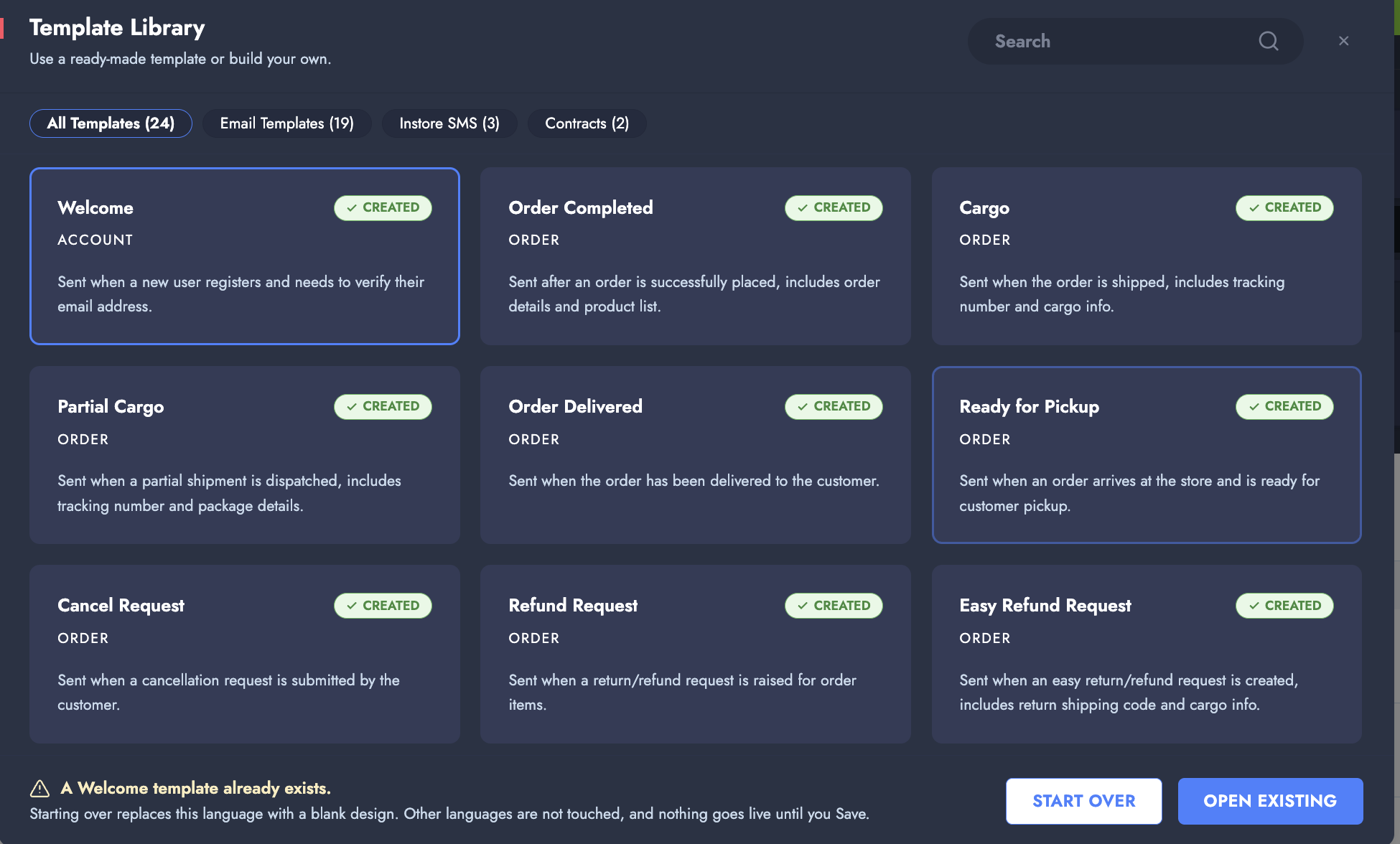
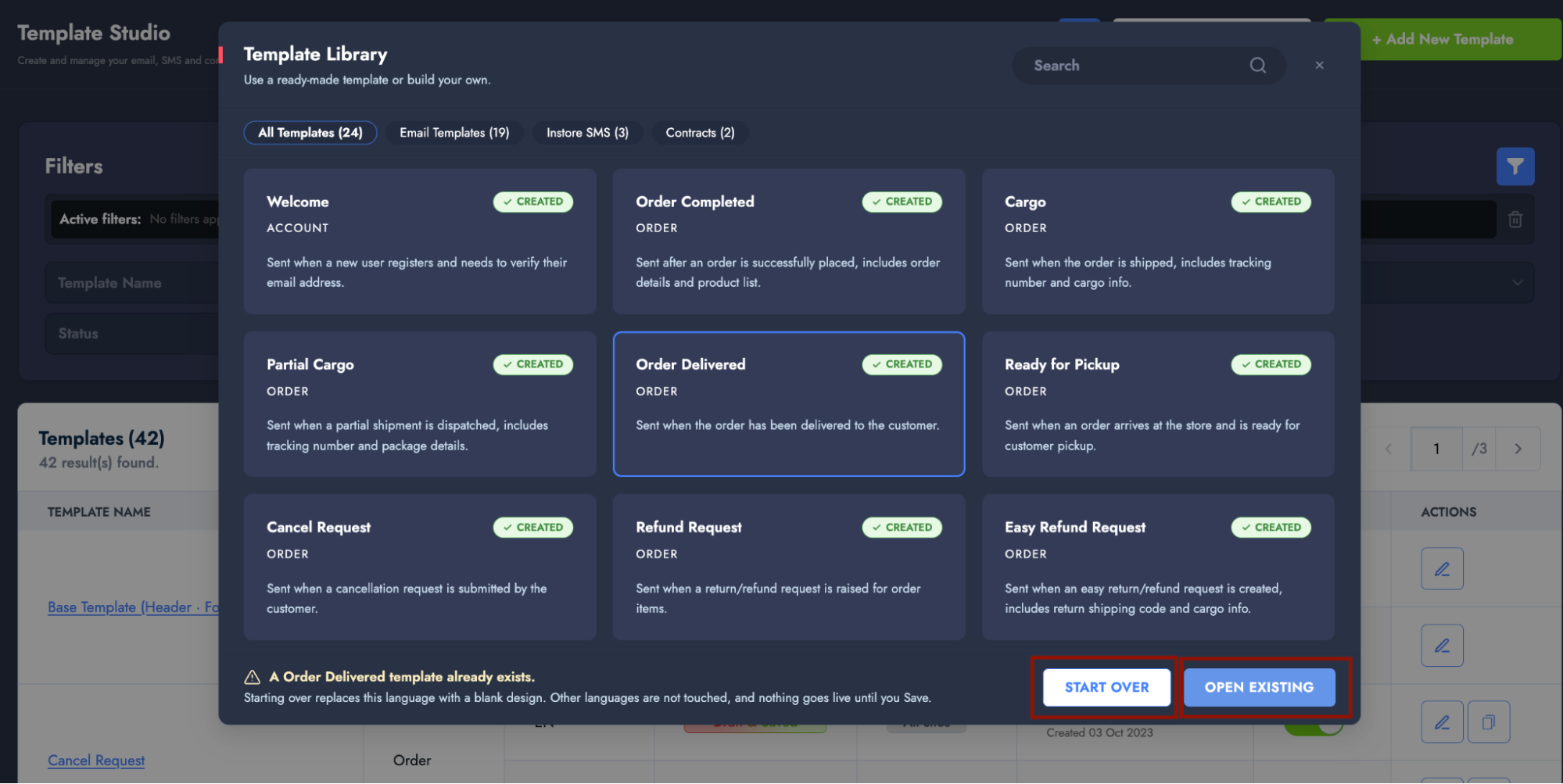
* If the selected type has been created before, an **Existing** label appears on the card. The system warns you (for example, "Welcome template already exists") and offers two options: **Open Existing** (keeps the existing template and the work on it) or **Reset and Create New** (wipes the existing template and starts from scratch).
{% endstep %}
{% endstepper %}
{% hint style="info" %}
Only one template of each type can exist per sales channel, per language and per site.
{% endhint %}
{% hint style="danger" %}
Resetting deletes all work in the existing template. Choose **Open Existing** unless you are certain.
{% endhint %}
### Activating and Deactivating
Every template in the list has an **Activate / Deactivate** control. Deactivating does not delete the design; it only stops that design from being used. Activate it again and the same design resumes where it left off.
{% hint style="warning" %}
What the platform sends in place of a deactivated template is not decided on this screen. It is configured on the backend. Before using deactivation as a rollback, confirm with the team that configured the email in the system.
{% endhint %}
### Using Your Existing HTML Templates
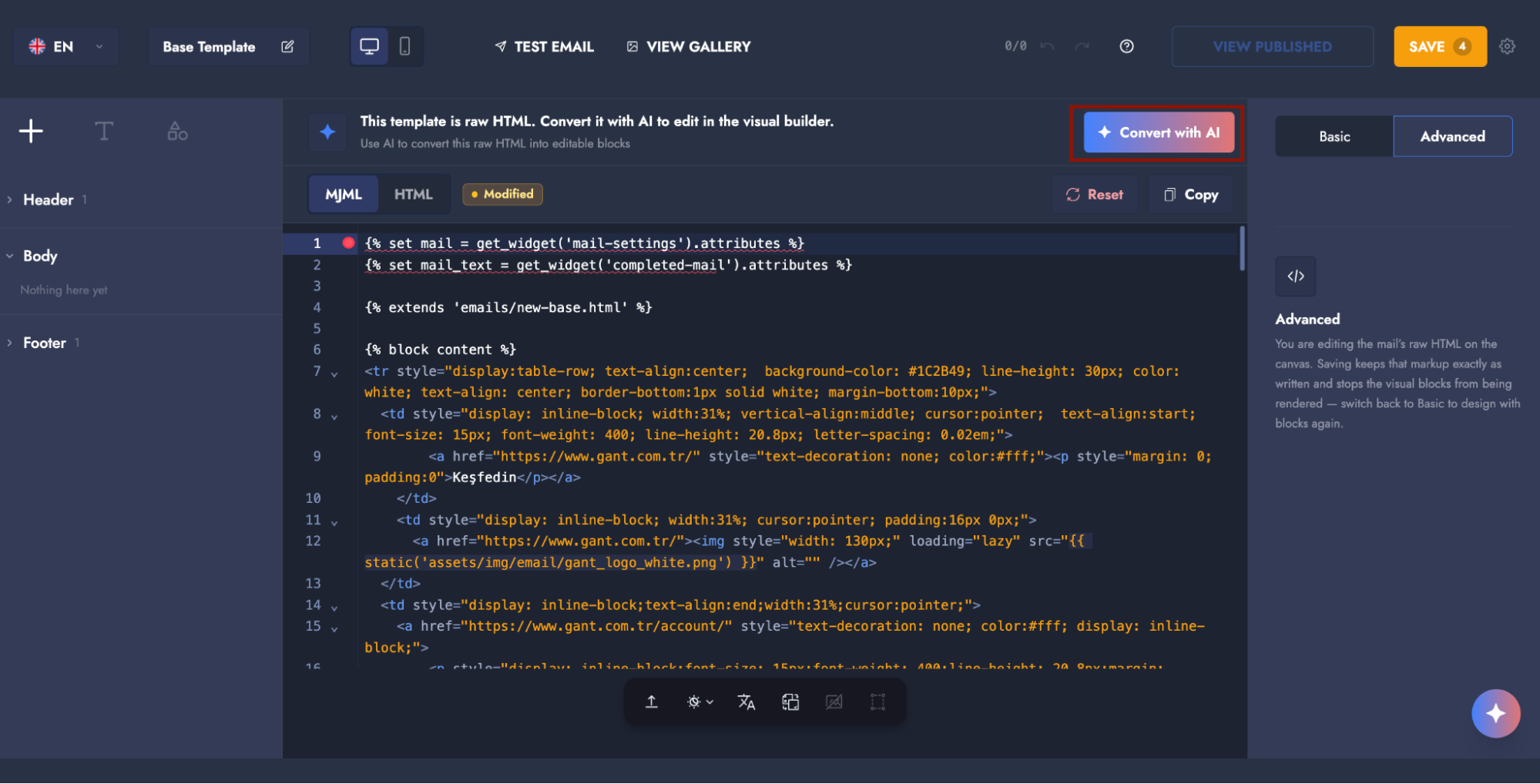
Existing email templates coming from Omnitron are imported into the system as raw HTML. In that case the editor opens in **Code** mode automatically and shows the notice *"This template is raw HTML. Convert it with AI to edit it in the visual editor"* at the top.
You have two options:
* Keep using the template as it is, in HTML/code form. Conversion is not mandatory if you don't need to make any changes.
* To edit the template in the visual editor (with the section, column and block structure), click **Convert with AI** at the top right. This turns the raw HTML into editable blocks.
Once conversion completes, the content is rebuilt as readable, editable sections, columns and blocks. Spacing and colors usually carry over correctly, but some details may not transfer exactly in complex or unconventional layouts. Compare the converted design against the original email before publishing.
{% hint style="info" %}
Operations that run on AI consume AI credit: HTML conversion, edits made through the AI button in the editor, and AI translation. You can follow your usage on the **AI Credit Management** screen.
{% endhint %}
For the legacy HTML-based flow, see [How to Manage Mailing Templates in Omnitron?](https://docs.akinon.com/tutorials/omnitron/sales-channels/content-management/how-to-manage-mailing-templates-in-omnitron).
### Supported Template Types
| Group | Templates | Description |
| -------------------- | ------------------------------------------------------------------------------------------------------------------------------------------------------------------------------------------------------------- | ------------------------------------------------------------------------------ |
| Order process emails | Order Completed, Cargo, Partial Cargo, Order Delivered, Ready for Pickup, Cancel Request, Refund Request, Easy Refund Request, Cancellation, Return Success, Direct Return Success, Out of Stock Cancellation | These templates follow the steps of an order and carry order and product data. |
| Standalone emails | Welcome, Coupon, Stock Alert, Unavailable Product Coupon, Price Alert, Email Confirmation, Password Reset | These templates are bound to a user or a product rather than to an order. |
| In-store SMS | SMS: Barcode, SMS: Checkout URL, SMS: Partial Cargo | Sent at the till or during an in-store process. |
| Contracts | Sales Contract, Information Contract | Displayed during checkout, not sent as email. |
## Using the Editor
* **Left panel (section structure):** Shows the layout of the email from top to bottom. Drag sections to reorder them and click to select them. The eye icon hides a section without deleting it. New blocks are also added from this panel.
* **Middle area (canvas):** Shows the email exactly as it will reach the customer, rendered by the same engine that produces the delivered HTML. Click anything on the canvas to select it.
* **Right panel (settings):** Contains every setting of the selected section, column or block. The tabs at the top switch between the selected element, template-wide settings, the variables list and the pre-publish checks.
* **Top panel (toolbar):** Holds the subject line, language tabs, undo/redo, image management, test email, base template access, the Visual/Code toggle, desktop/mobile preview and the **Save** button.
There is also a toolbar at the bottom of the canvas, holding six tools for checking, translating and exporting the design.
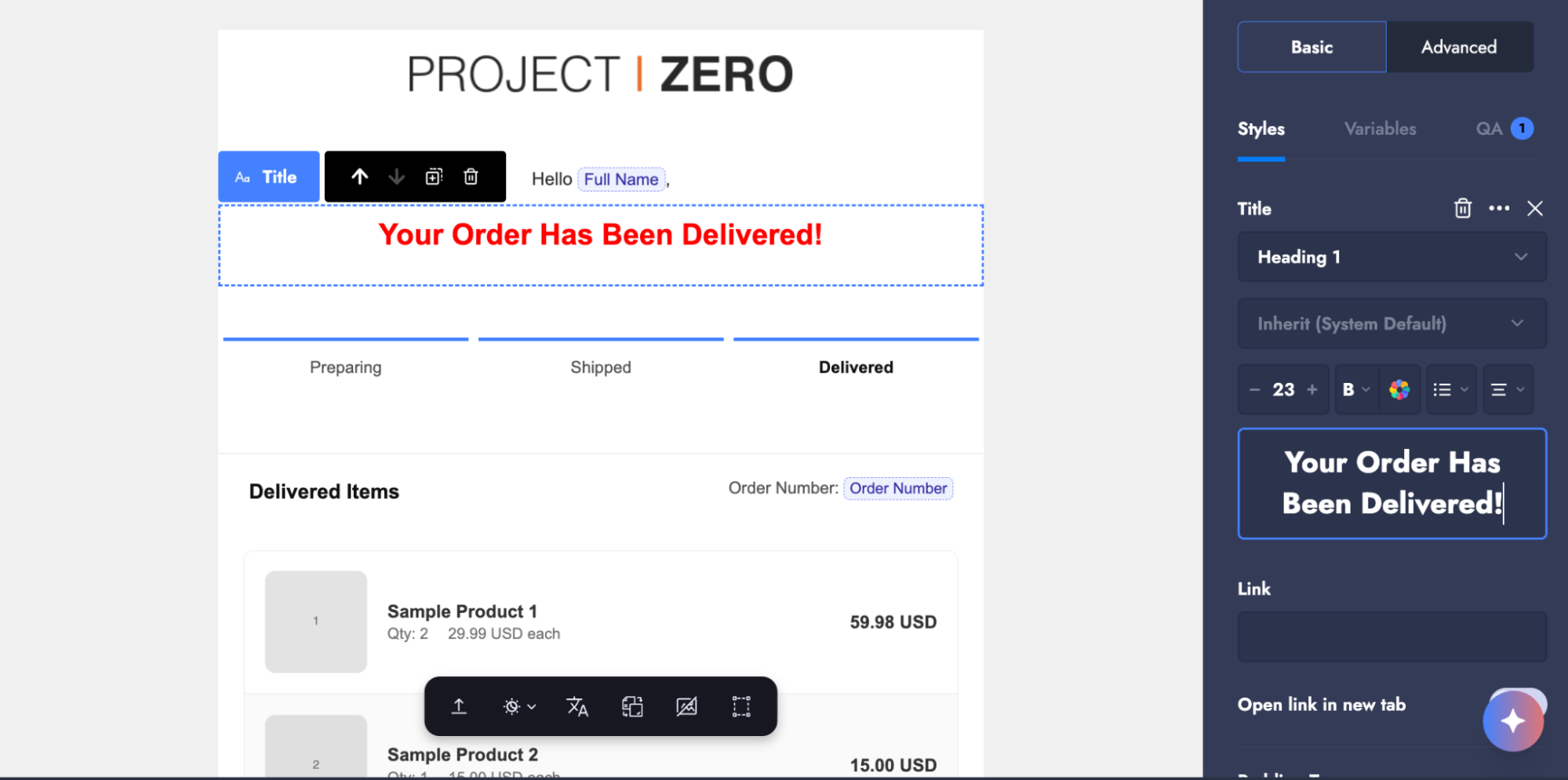
**AI button.** The AI button opens a chat window. Write your request in everyday language, for example *"make the heading red"*, *"move the price under the image"* or *"add a call-to-action button under the products"*. What you write is applied directly to the template.
### Selection Levels
Depending on where you click on the canvas, one of three selection levels applies, and that level decides the settings in the right panel:
* Clicking directly on content (a text or an image, for example) selects the **block**.
* Clicking the space around the content selects the **column**.
* Clicking around the column selects the **section**.
This distinction matters, because background color is defined at section level, padding at column level and font size at block level. If you select the wrong level, you won't reach the setting you are looking for.
### Mobile Preview
The **Mobile** button in the toolbar redraws the canvas at phone width, using exactly the same stacking rules as the delivered email. These emails are largely read on mobile devices, so check the mobile view before every publish. A two-column layout that looks balanced on desktop can turn into two disconnected blocks on a phone.
{% hint style="info" %}
Every change, including AI-assisted edits, is kept on an undo stack. A single undo reverts an entire AI message's worth of changes at once.
{% endhint %}
### Canvas Toolbar
The bar at the bottom of the canvas offers six tools for checking your design before you publish it, and for translating it into another language.
**Export / Import.** Exports the template as a file, or imports one. This is how a design is moved to another channel or tenant.
* **Export as JSON:** Every language of the template in a single file. The open language appears as it does on the canvas, the others as they are published, each with its header and footer. Record identifiers are not included in the file.
* **Import from JSON:** Select a file exported from Template Studio. The design arrives on the canvas as unpublished work. Nothing changes for customers until you click **Save**.
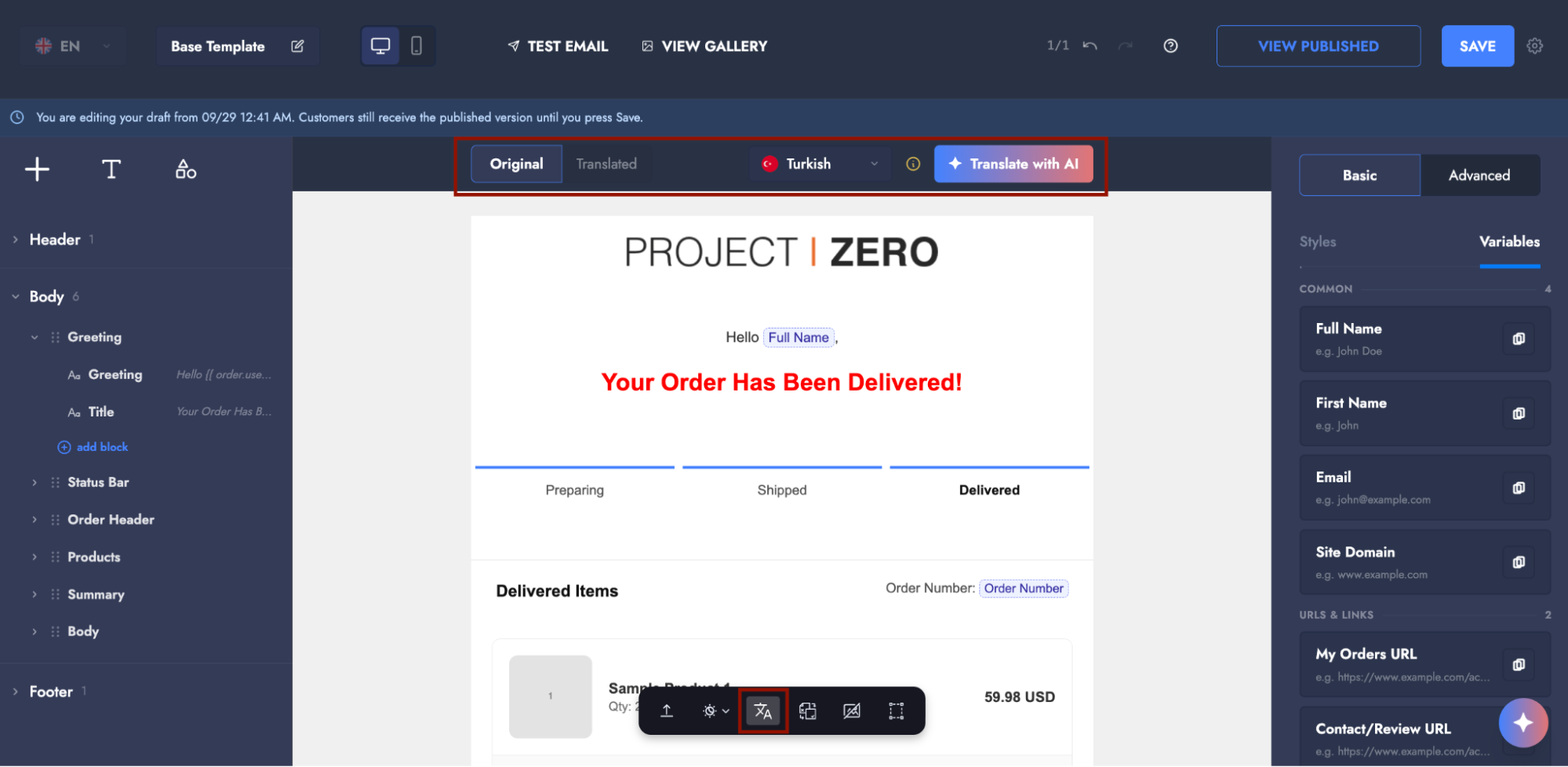
**Translate.** Translates the template into another language. A strip opens above the canvas with **Original / Translated** tabs and a language selector. Use the tabs to switch between the source text and the translation. See [Translating into Another Language with AI](#translating-into-another-language-with-ai) for details.
**View mode.** Decides which inbox the canvas imitates.
* **Dark mode:** Shows what a client that applies the design's dark theme (Apple Mail, Outlook.com) displays. If no theme is defined, those apps swap light and dark colors on their own.
* **Gmail dark mode:** Gmail ignores the theme and changes the colors itself. Light backgrounds darken, dark text lightens, and images are untouched. A logo or button label that disappears against a dark background becomes visible here.
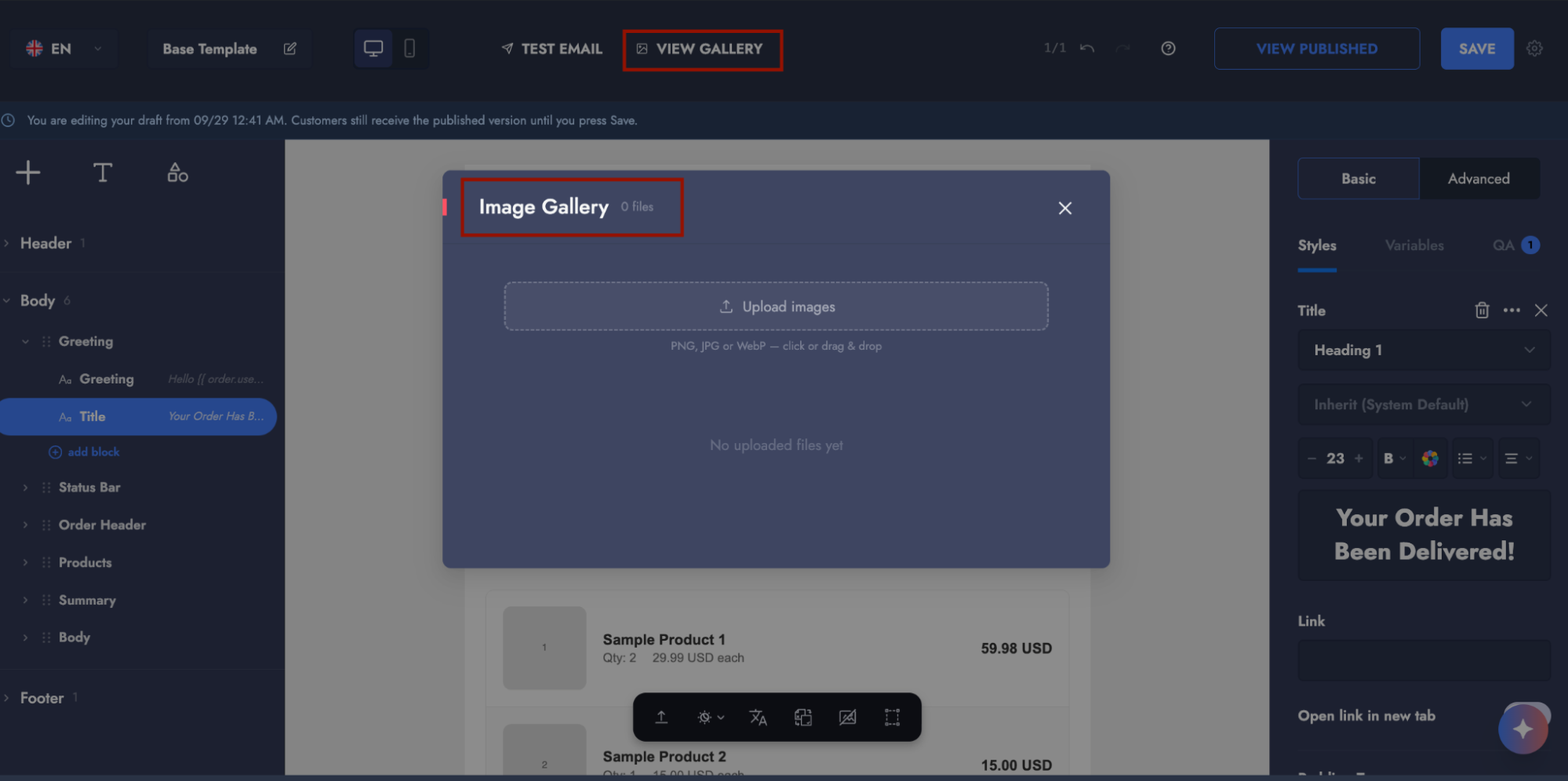
**Versions.** Lists every publish of this language, newest first. Restoring a version places it on the canvas as unpublished work. Nothing goes live until you click **Save**. If the **Also restore header and footer** switch in the dialog is on, the base template is restored at the next save too, which affects every email in that language.
**Images off.** Shows the email with images blocked. Outlook displays an email this way until the reader allows images: every image becomes a box carrying its alt text, and background images disappear. What remains has to still make sense.
**Spacing.** Measures whatever you point at on the canvas. It puts a measurement line and its value on every space around the element (padding, border, margin) and tells you which section or column the remaining space comes from. Hold the **Alt** key to take a quick look without switching the mode on.
## Sections, Columns and Layout
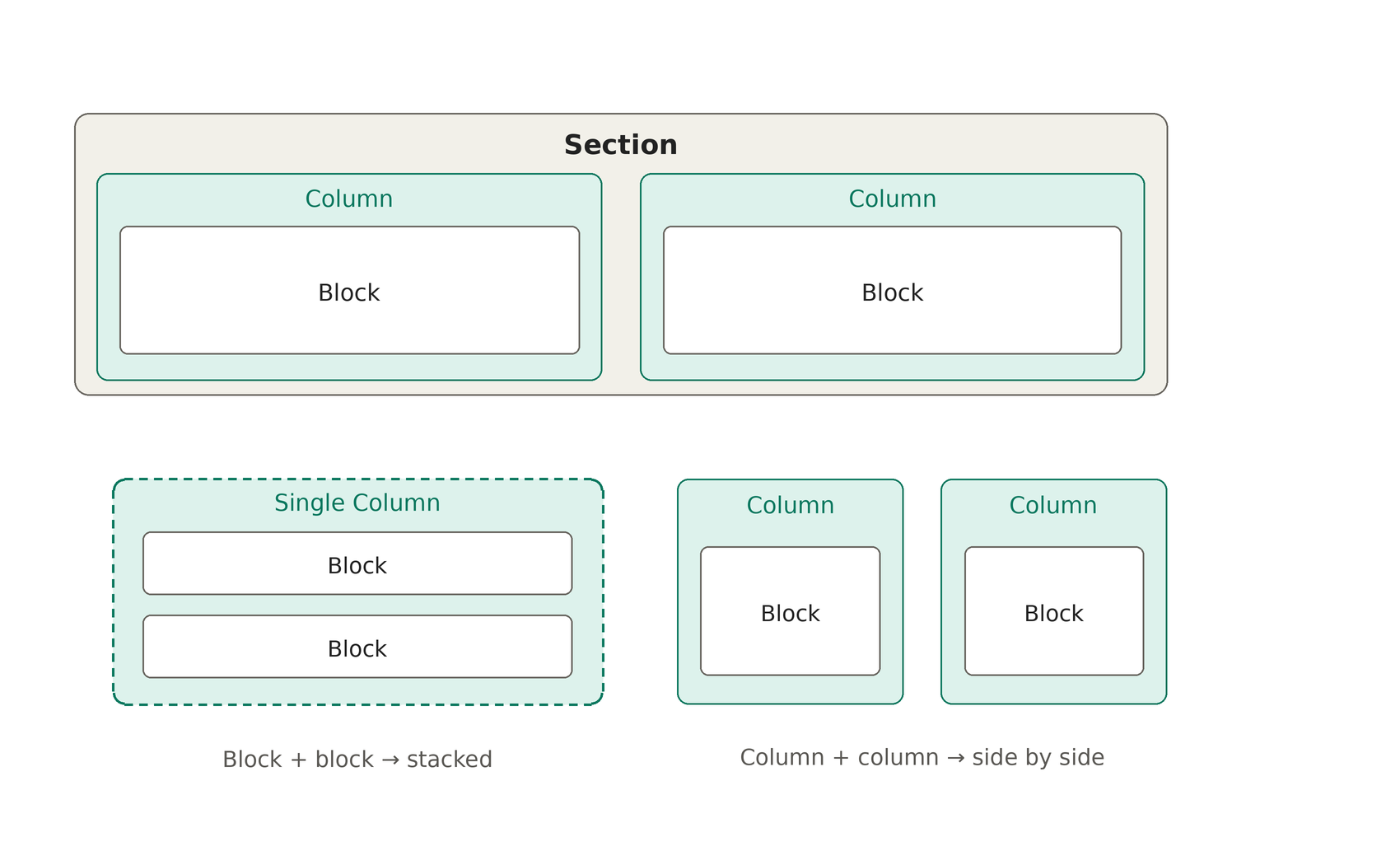
The whole structure of an email is defined by three layers: section, column and block. Everything else is styling.
An email consists of **sections** stacked on top of one another. Each section contains **columns** sitting side by side, and each column holds **blocks** stacked vertically.
* **Section:** A full-width band with its own background, border and padding.
* **Column:** A vertical slice of that band.
* **Block:** A concrete unit of content such as text, an image or a button.
{% hint style="info" %}
To place two elements side by side, add a second **column**. Adding two separate blocks will not produce that result, because blocks always stack one under the other.
{% endhint %}
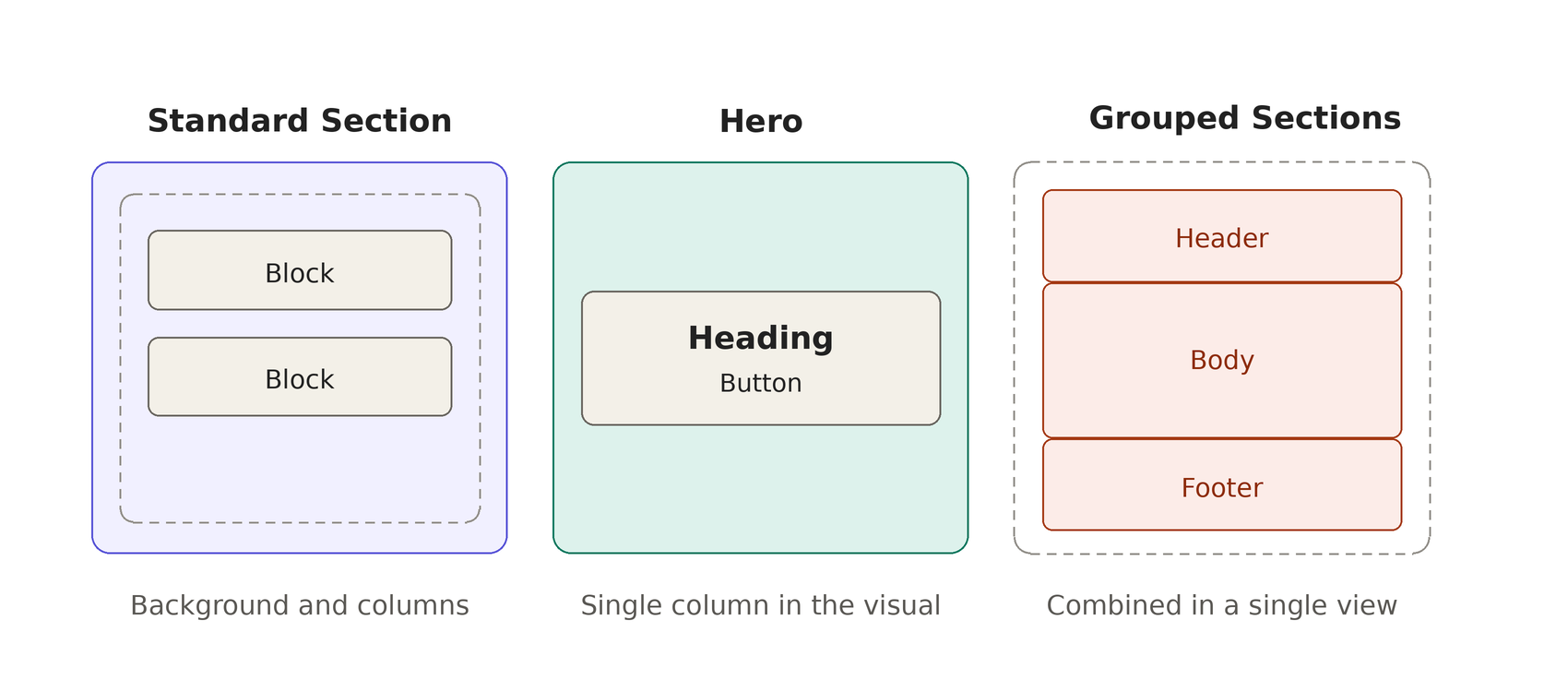
A section can be designed in three different forms:
* **Plain section:** The default structure, with its own background, border, padding and columns.
* **Hero:** Content placed on top of a background image. Its height is set by a defined measurement rather than by the content. Because a hero carries blocks directly, enabling it turns a multi-column section into a single column.
* **Grouped sections:** Several sections joined under one shared background and border, for example a framed card look where the header, body and footer are separate sections. Enable the **Join with the section above** option for this. The group's overall appearance is defined on the first section of the run.
### Full Width and Presets
A section normally ends at the content width (600px by default). The **Full Width** option lets the background run edge to edge while keeping the content centered. It is the standard way to create a colored top band.
The add-section dialog offers ready-made layouts (headers, hero bands, product rows, footers and so on). You can also save a section you have designed as your own preset for use in other templates later.
## Block Reference
Blocks are the email content itself. Add them from the **+** icon on a column in the left panel. Every block preview is produced by the same engine that renders the delivered email, using the default values a new block receives, so what you see on the canvas is exactly what the email will look like.
| Block | What it does |
| ------------- | ------------------------------------------------------------------------------------------------------------------------------------------------------------------ |
| Text | Paragraphs, headings and rich text. Typography is fully customizable, and variables can be inserted anywhere in the text. |
| Image | A photo or graphic, optionally linked. An image whose source comes from a variable shows a defined fallback image instead of a broken one when the value is empty. |
| Button | The call-to-action element. When its background is made transparent, it turns into an inline text link while keeping the click area of a real button. |
| Divider | A horizontal rule. Its color, thickness and surrounding space are customizable. |
| Spacer | Vertical space defined in pixels. More predictable across email clients than margins on a text block. |
| Social | A row of social media icons. Known platforms come with their own icon; others can be added with a custom icon and link. |
| Table | A grid you fill in manually. Cells accept inline HTML and variables. Suitable for fixed-shape content such as shipping details or size charts. |
| Product List | Lists every product in the order. Four layout options, each with its own colors, image size and column structure. |
| Order Summary | Shows subtotal, shipping, discount, tax and grand total rows. Each row can be switched off individually and each label renamed. |
{% hint style="warning" %}
**Alt text on images is mandatory.** Many email clients block images until the user allows them, and some users never do. In that case the alt text becomes the only thing carrying the image's information. An email whose only call to action sits inside an image, for example, can become completely unreadable without it.
{% endhint %}
## Overall Look, Fonts and Images
When no element is selected, the right panel shows the settings that apply to the whole email:
* Page background
* Content width
* Font family
* Body padding
* Mobile breakpoint
* Inbox preview text
Every block inherits these settings, so decide them before you start designing.
### Fonts
You can choose fonts from the Google Fonts library, and they are declared for the clients that support them. Outlook and some other clients, however, do not load web fonts and fall back to a system font automatically. Choose a font that still looks acceptable in its fallback state, and do not let brand recognition depend on typography alone.
### Managing Images
{% stepper %}
{% step %}
#### Upload and manage images
Upload and manage the files your store uses in emails from the **Images** tab in the toolbar.
{% endstep %}
{% step %}
#### Select an image
Pick an image from the gallery, or paste any public URL directly into an image block.
{% endstep %}
{% step %}
#### Optimize image files
Keep images under roughly 1 MB and narrower than 1200 px. Email clients do not support lazy loading, and mobile data use affects the reader directly.
{% endstep %}
{% step %}
#### Set the image width
Set the image width on the block rather than uploading a differently sized file. That way the same file serves both device widths.
{% endstep %}
{% endstepper %}
{% hint style="warning" %}
Deleting an image from the gallery does not automatically update the templates using it. Those blocks show a broken image icon until they are pointed at another image.
{% endhint %}
## Variables Used in Emails
A variable is a placeholder the platform fills with real data at the moment the email is sent. While designing, you insert a variable such as **Order Number**. When the email is sent to the customer, that field is replaced with the customer's actual order number (for example, PZ-100482). One design therefore reaches every customer personalized with their own information.
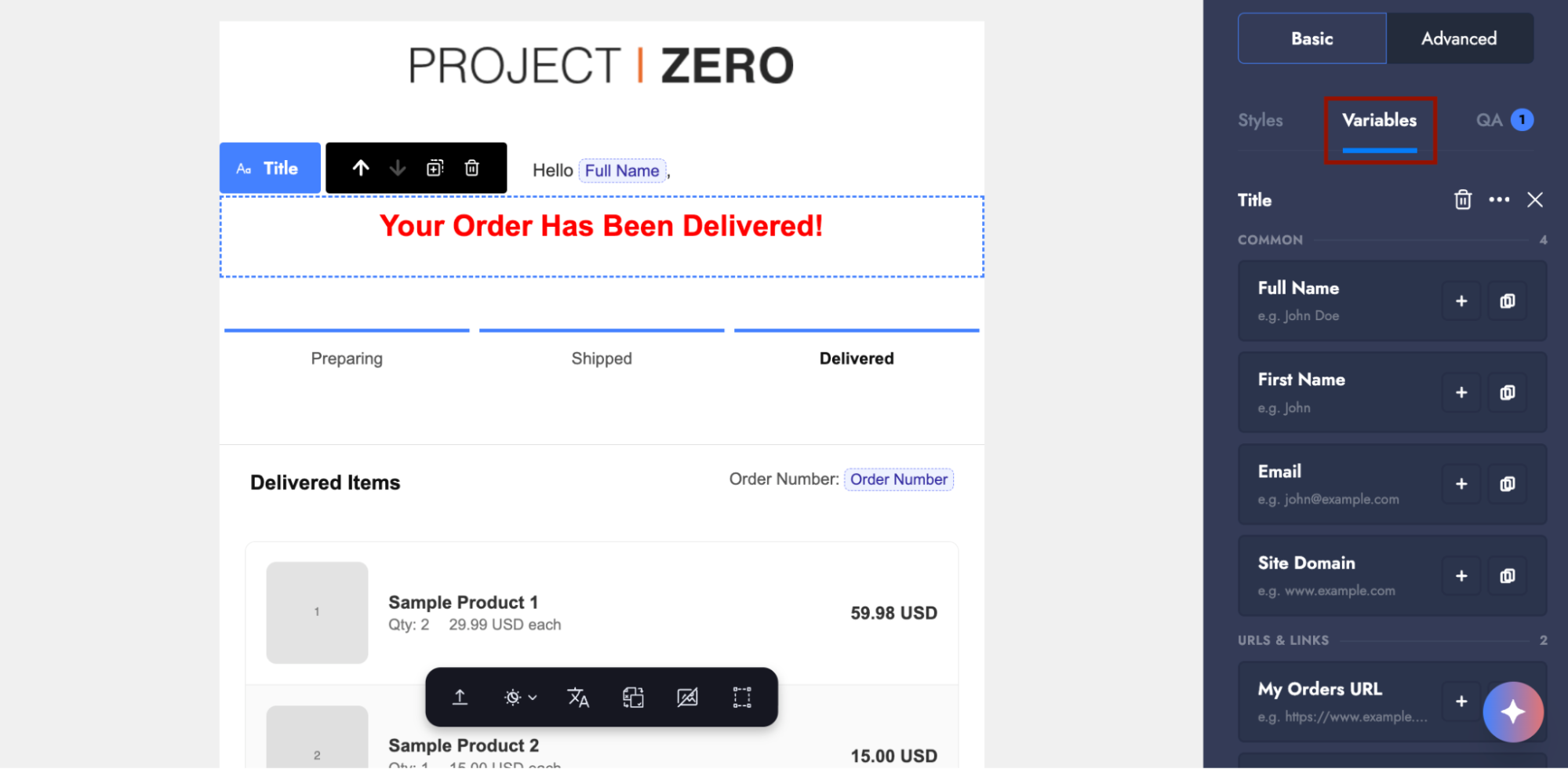
You never need to see or write the code behind a variable. The panel lists each variable under a readable name (**Order Number**, **Order Date**, **Order Total**) with a sample value underneath showing what kind of data it returns.
### Inserting a Variable
{% stepper %}
{% step %}
#### Place the cursor
Place the cursor where the value should appear.
{% endstep %}
{% step %}
#### Open the Variables tab
Open the **Variables** tab in the right panel. Variables are grouped under category headings such as **Common** and **URLs & Links**.
{% endstep %}
{% step %}
#### Insert or copy the variable
Click the **+** button on the card of the variable you want. It is inserted directly at the cursor position. To copy it to the clipboard for use elsewhere, use the copy button on the same card.
{% endstep %}
{% endstepper %}
The sample values under the cards let you tell similar variables apart. For example, comparing the samples on **Order Total** and **Shipping Cost** shows at a glance which returns what.
Variables can be used in all of these places:
* In the email body
* In the subject line
* In a button link
* In an image source
* In a table cell
{% hint style="warning" %}
Every template type has its own variables. The **Variables** tab only lists the data that email carries. If you can't find a variable there, that email is not sent with that data.
{% endhint %}
## Header and Footer Areas
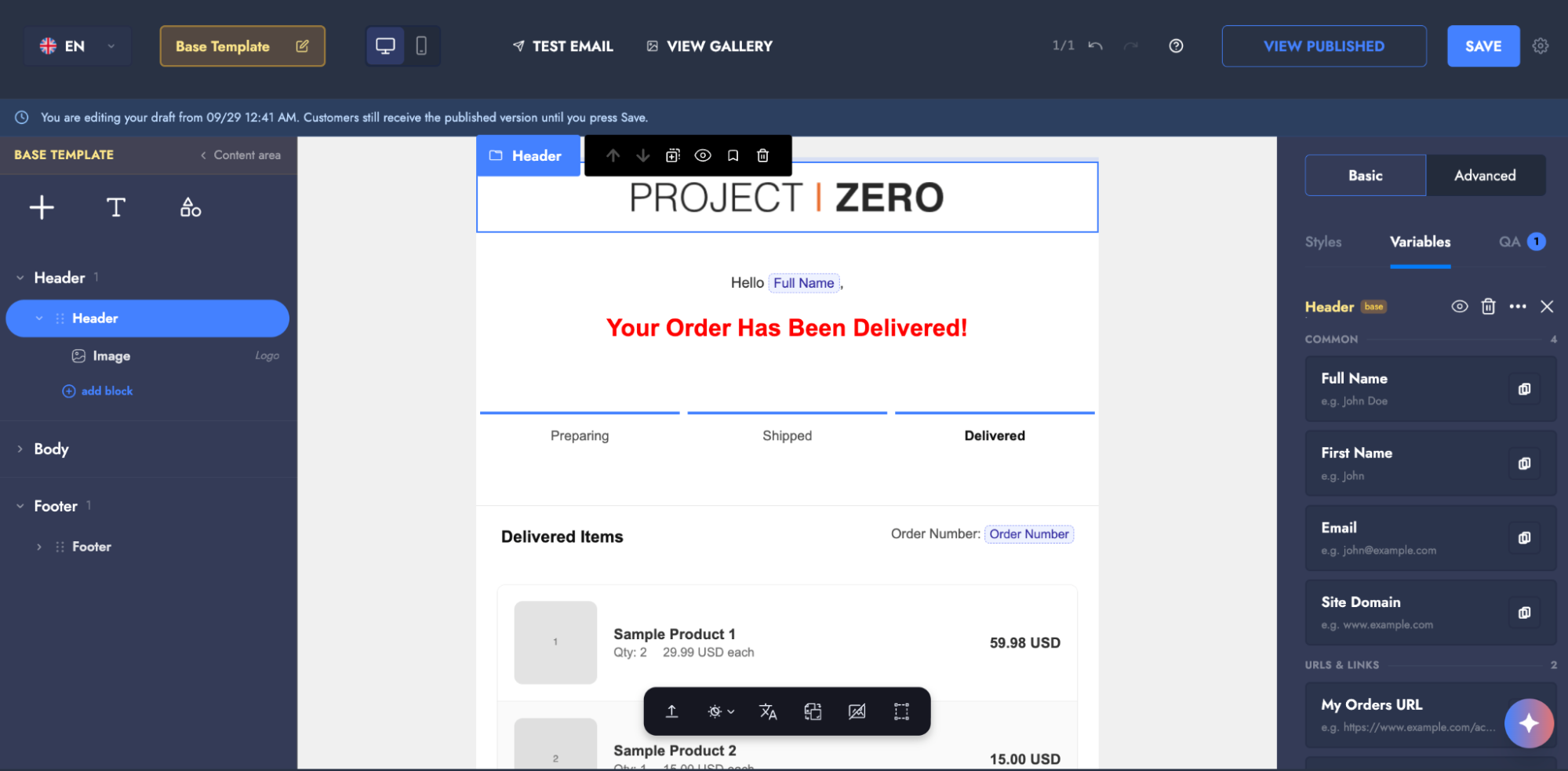
Header and footer areas do not belong to a single template. They are defined in a shared base template that every email inherits. Thanks to this, a logo change or a new address added to the footer reaches every email your store sends with a single edit.
### Editing the Base Template
{% stepper %}
{% step %}
#### Open the base template
Click the **Base Template** button in the toolbar. The editor switches to editing the shared frame, and the content area on the canvas is dimmed so it is clear which part is being edited.
{% endstep %}
{% step %}
#### Edit the header and footer
Edit the **Header** and **Footer** sections exactly like any other section.
{% endstep %}
{% step %}
#### Save your changes
Confirm your changes with **Save**. Click the **Base Template** button again to return to the previous template.
{% endstep %}
{% endstepper %}
{% hint style="danger" %}
The base template is the shared frame of every email in that language. A mistake here reaches all emails at once. Test your changes on more than one template before publishing.
{% endhint %}
## Multi-Language Support
The language tabs in the toolbar carry a separate design variant for each project language. These variants are not translations of one another but independent designs, because a language can differ not only at word level but structurally too, in writing direction for instance.
Complete the design in one language first, then move to the other. Rather than building the second language from scratch, the fastest route is to start it from the source language with AI translation. The layout decisions are already made, and you only review the wording.
### Translating into Another Language with AI
Instead of designing a template from scratch, you can start from the version in the language you have open and have it translated. Translation is done from the **Translate** tool on the canvas toolbar.
{% stepper %}
{% step %}
#### Open Translate
Click the **Translate** tool on the canvas toolbar. A strip opens above the canvas.
{% endstep %}
{% step %}
#### Choose the target language
Choose the target language from the list in the strip. A language that is already published is marked **already live**.
{% endstep %}
{% step %}
#### Translate with AI
Click **Translate with AI**. The translation runs immediately and appears on the canvas.
{% endstep %}
{% step %}
#### Compare the versions
Compare the source text with the translation using the **Original** and **Translated** tabs.
{% endstep %}
{% endstepper %}
Only the words are translated. Variables, links, images and prices are left exactly as they are. If the email has a product list block, the ⓘ icon in the strip points this out: that block's column headings (Item(s), Qty, Price) are printed by the email template itself and stay in English.
After translating, check the **Sites** field of the new language, because the email is only sent for the sites it is scoped to.
{% hint style="warning" %}
Nothing goes live when the translation finishes. The result sits on the canvas as unpublished work. To publish it, choose **Save and publish**.
{% endhint %}
{% hint style="info" %}
Each language has its own base template. An update made to the English footer does not affect the Turkish footer.
{% endhint %}
## Pre-Publish Checks
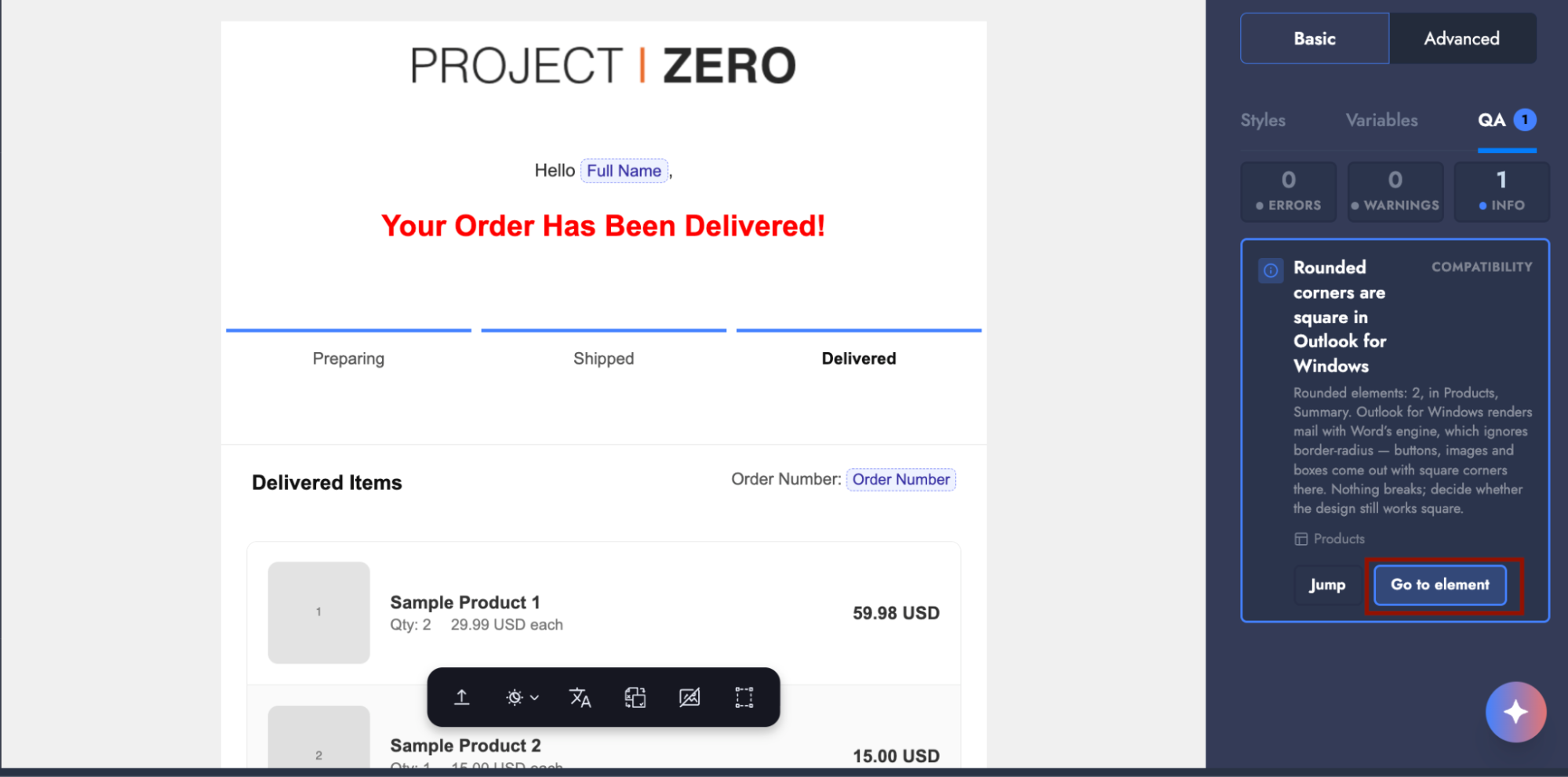
The **QA** tab in the right panel scans the template continuously and lists anything faulty or suspicious. Each finding offers a **Go to element** button that selects the relevant block directly, so you don't have to search for faulty content manually.
The checks scan for the following:
* **Missing content:** Text boxes with nothing written in them, image areas with no image selected, buttons with no label or link, entirely empty columns, and templates with no subject line.
* **Broken structure:** Cases where the design shown in the editor and the code produced behind it don't match, such as formatting on a text (bold, italic) left half-applied, a table whose rows contain different numbers of cells, or a section built incorrectly underneath. These usually appear after a manual edit made in Code mode.
* **Delivery risks:** Missing alt text, font sizes under 12pt, hidden sections, and script snippets embedded in the email. Email clients strip all of these automatically when the email is sent, or block them for security reasons.
* **Variable mistakes:** Product data used outside a repeating section (which arrives empty), and repeating sections bound to no product data at all (in which case every product row in the list looks exactly the same).
{% hint style="info" %}
Findings in the QA tab do not block publishing. You can go live with open findings, because they are warnings rather than gates. An unbalanced variable tag, however, causes a real error on the backend, so clear findings of that kind before publishing.
{% endhint %}
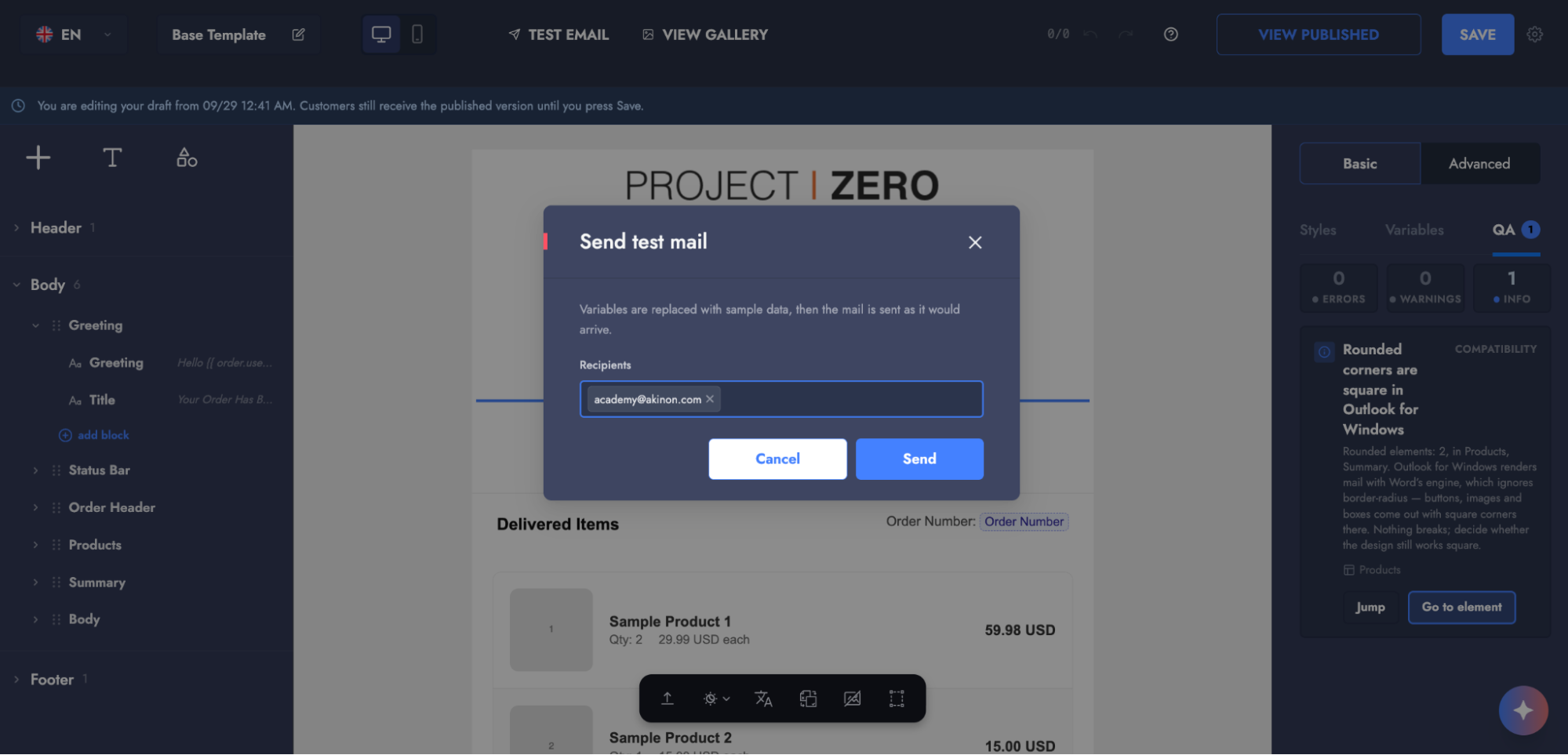
## Sending a Test Email
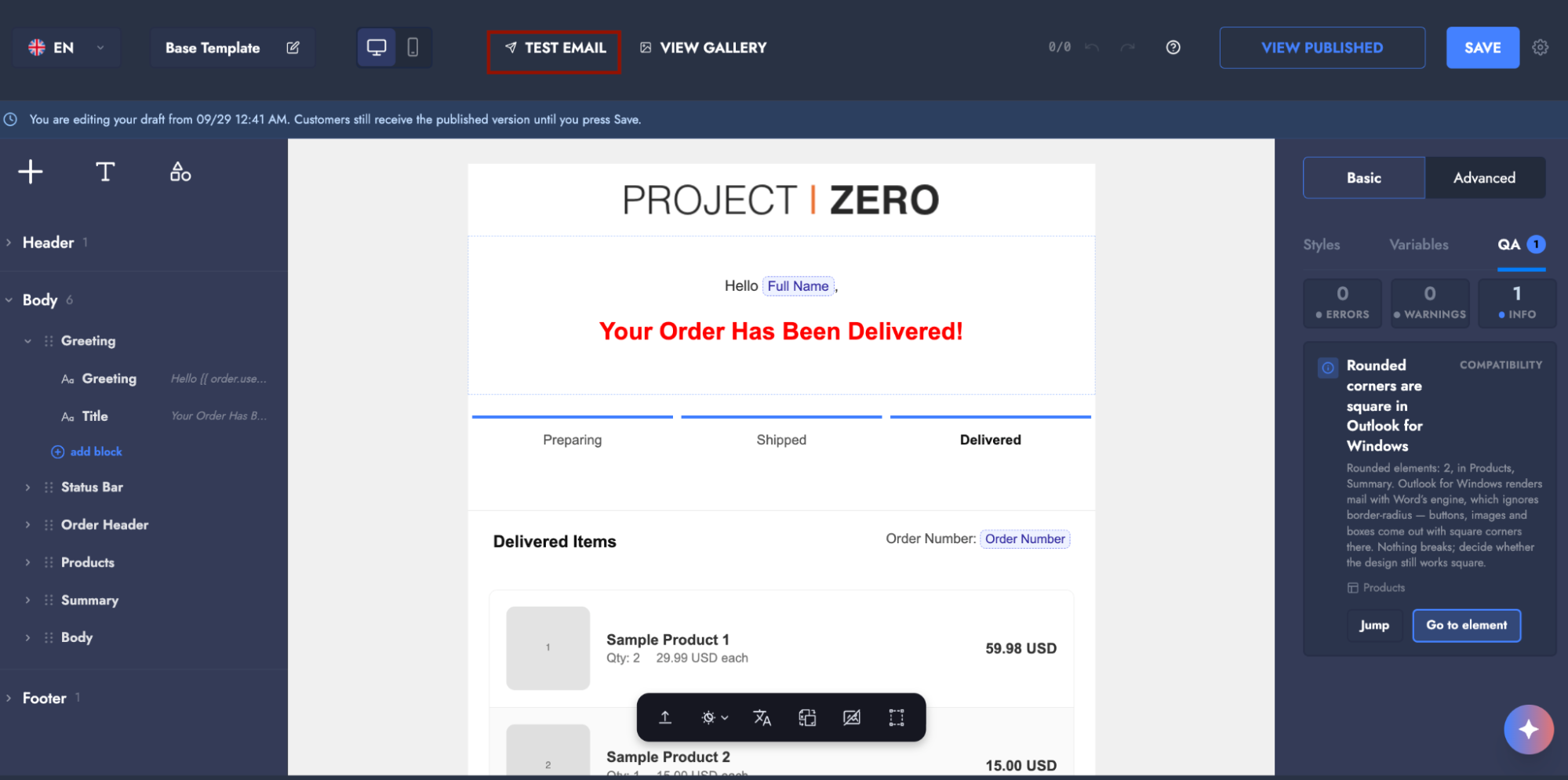
The canvas preview shows you a general reflection of the design, but it cannot guarantee exactly how a real email program such as Outlook will render it. That is why the **Test mail** feature matters: it sends your current design to the addresses you choose, with variables filled with sample data, in the exact format the email will be delivered in.
{% stepper %}
{% step %}
#### Send a test email
Click **Test mail** in the toolbar.
{% endstep %}
{% step %}
#### Enter email addresses
Enter one or more email addresses separated by commas and click **Send**.
{% endstep %}
{% step %}
#### Review the email
Open the email on a phone and in a widely used desktop email program (Outlook, for example) to check it.
{% endstep %}
{% endstepper %}
What to check in the test email:
* Do the subject and preview line read clearly in the list, before the email is opened?
* Does the email still make sense when images are blocked?
* Does the button stay visible in dark mode?
* Is anything cut off at mobile width?
{% hint style="info" %}
The test email is sent with sample data, not a real customer's order details. The name, product name or amount you see inside is not real. When reviewing the email, focus on the layout and readability rather than the numbers.
{% endhint %}
## Drafts and Publishing
Nothing you change reaches a customer until you click **Save**.
**Draft (automatic).** Your edits are saved automatically in the background a few seconds after you stop typing. These drafts are stored on the server, so they are kept if you sign in from another device and survive a closed tab. A draft save has no effect on the live email being sent to customers.
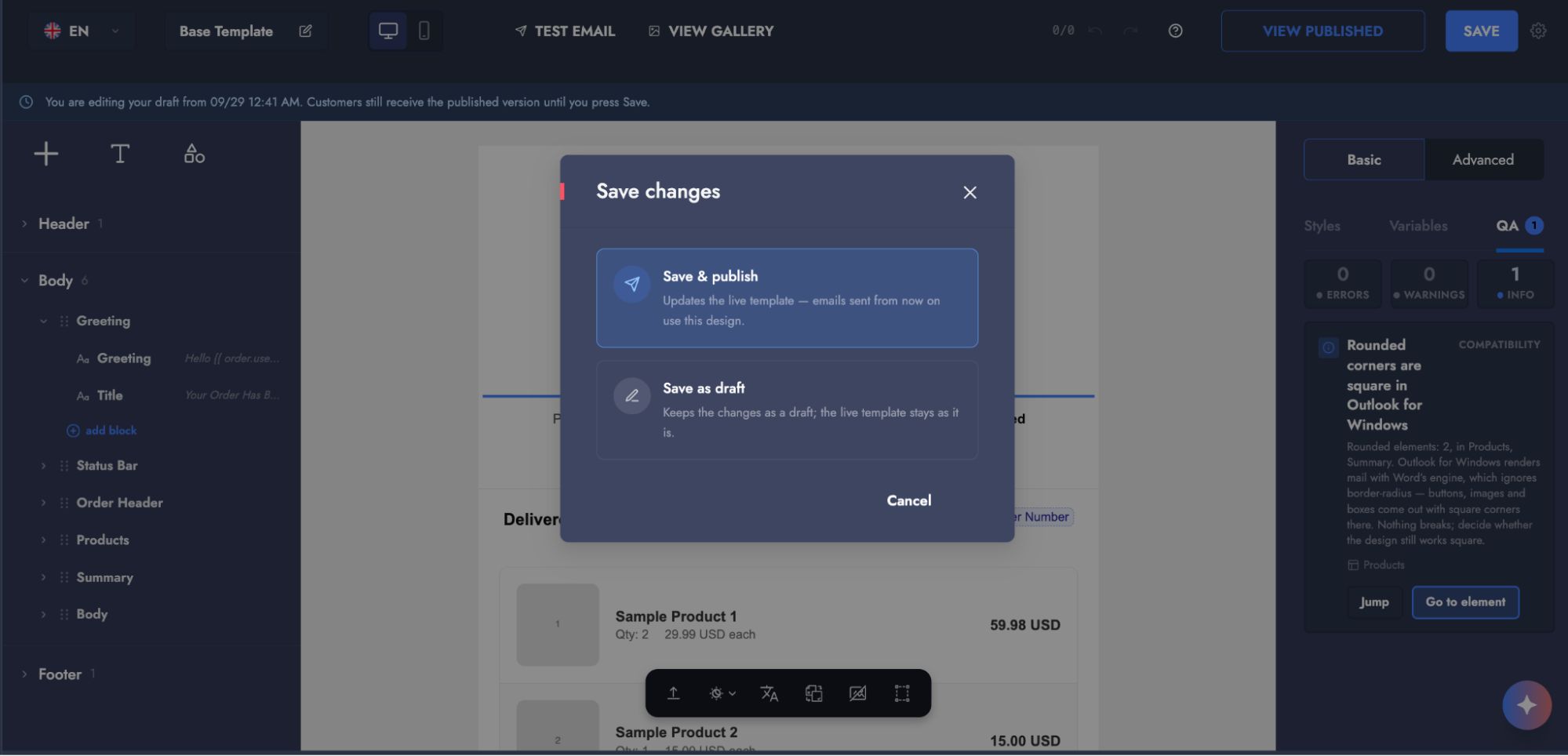
**Publishing (with the Save button).** Clicking **Save** opens the **Save changes** dialog with two options:
* **Save and publish:** The live template is updated. Every email sent from then on uses this design.
* **Save as draft:** The changes are kept as a draft. The published template stays unchanged.
Clicking **Save** on its own therefore does not publish. To go live, choose **Save and publish** in the dialog. **Cancel** closes the dialog and returns you to editing.
{% hint style="info" %}
The toolbar shows which state you are in. If it says "Draft saved", the email reaching customers is still the previous design. The **Draft** badge on the list screen likewise reminds you that a template has unpublished work.
{% endhint %}
When you reopen a template that has a draft, the system asks whether you want to restore the draft or discard it and return to the last published design. Discarding only deletes the unpublished edits. Either way, the live email going to customers stays unchanged.
## Related Pages
* [E-mail Templates](https://docs.akinon.com/technical-guides/commerce/e-mail-templates)
* [How to Manage Mailing Templates in Omnitron?](https://docs.akinon.com/tutorials/omnitron/sales-channels/content-management/how-to-manage-mailing-templates-in-omnitron)
---
# Agent Instructions
This documentation is published with GitBook. GitBook is the documentation platform designed so that both humans and AI agents can read, navigate, and reason over technical content effectively. Learn more at gitbook.com.
## Querying This Documentation
If you need additional information that is not directly available in this page, you can query the documentation by asking a question.
Perform an HTTP GET request on the following URL with the `ask` and `goal` query parameters:
```
GET https://docs.akinon.com/tutorials/akinon-ai-features/akinon-template-studio.md?ask=&goal=
```
`ask` is the immediate question: it should be specific, self-contained, and written in natural language.
`goal` is what the user is ultimately trying to achieve, the reason they need the answer. Sharing it helps GitBook give you a better, more relevant answer. A goal is most helpful when it describes the outcome the user wants rather than restating the question. For example, with `ask=how do I create an API token`, a goal like `automate deployments from our CI pipeline` lets GitBook tailor the answer to that use case.
The response will contain a direct answer to the question and relevant excerpts and sources from the documentation.
Use this mechanism when the answer is not explicitly present in the current page, you need clarification or additional context, or you want to retrieve related documentation sections.