> For the complete documentation index, see [llms.txt](https://docs.akinon.com/llms.txt). Markdown versions of documentation pages are available by appending `.md` to page URLs; this page is available as [Markdown](https://docs.akinon.com/tutorials/commerce/how-to-verify-guest-phone-numbers-at-checkout.md).
# How to Verify Guest Phone Numbers at Checkout
This guide explains how to require a **guest** at checkout to prove that the phone number they typed is really theirs, by entering a one-time code sent to it by text message.
The check is optional and off by default. Customers who are signed in are never affected, and neither is a guest who leaves the phone number blank.
## 1. Overview
The phone number a guest enters at checkout is how the order is communicated: delivery notifications, courier calls, and the messages a customer relies on to know where their parcel is. A mistyped number sends all of that to a stranger, and a deliberately false one turns your checkout into a way of texting people who never asked to hear from you. Asking for a code proves the number reaches the person placing the order.
Because a guest has no account, this is not the same as the identity check used for account changes — there is no password involved and nothing to sign in to. It is only proof of ownership of one number.
What this feature does:
* **Asks only when it matters.** Only a guest, and only when they enter a phone number. Signed-in customers go through checkout unchanged.
* **Sends the code to the number being verified.** There is no account record to read a destination from, so the code goes to the number the guest typed. For the same reason the channel is fixed to text message and cannot be changed.
* **Remembers a number once verified.** A guest who goes back and forward again with the same number is not asked twice; changing the number requires a new code.
* **Cannot be skipped.** While the number is unverified, the checkout step counts as incomplete, so jumping ahead to a later step returns the guest to the beginning of checkout.
* **Can be placed behind a reCAPTCHA.** Because the flow is open to visitors who are not signed in, it can be protected without putting a captcha in front of anyone else.
**Settings used in this guide**
| What it controls | Setting | Where | Section |
| ----------------------------------------------------- | ------------------------------ | ----------------------------- | ------------------ |
| Turning the check on, and the optional reCAPTCHA | `VERIFICATION_TOKEN_CONF` | Dynamic Settings, section 142 | [2.1](#id-2-setup) |
| Code lifetime, wrong-guess limit, resend waiting time | `OTP_PURPOSE_SETTINGS` | Dynamic Settings, section 141 | [2.2](#id-2-setup) |
| Delivery of the codes | `SMS_GATEWAY`, `SMS_GATEWAYS` | Dynamic Settings | [2.3](#id-2-setup) |
| reCAPTCHA keys and token lifetime | `REGISTER_FORM_RECAPTCHA_CONF` | Dynamic Settings | [2.1](#id-2-setup) |
Both dynamic settings are documented in [Dynamic Settings](https://docs.akinon.com/technical-guides/commerce/dynamic-settings).
## 2. Setup
### 2.1. Turning the check on
1. Log in to **Omnitron** using your own credentials.
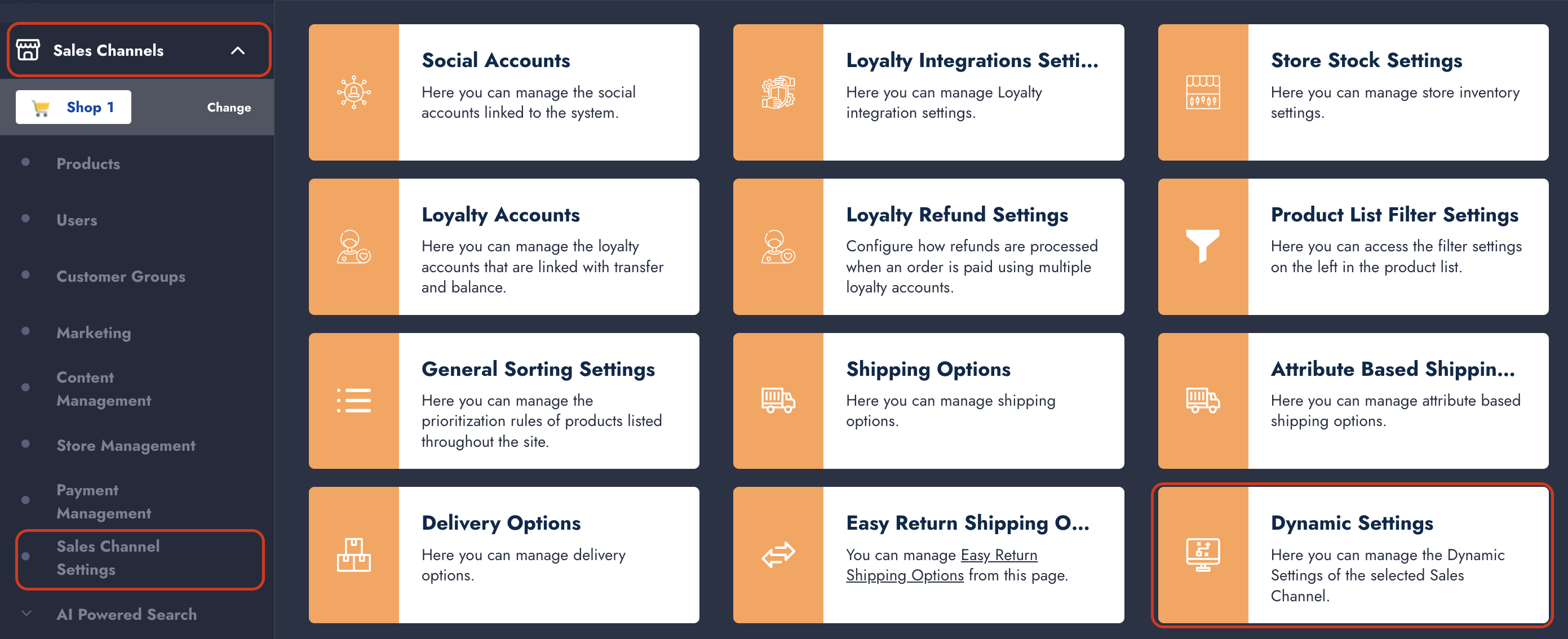
2. Go to **Sales Channels → Sales Channel Settings → Dynamic Settings**.
3. Type **VERIFICATION\_TOKEN\_CONF** in the search box and click it in the list.
4. Add a `checkout-phone` section to the configuration and save. If the setting already holds other sections — for example for account changes — keep them and add this one alongside.
```json
{
"checkout-phone": {"enabled": true, "recaptcha_required": true}
}
```
| Key | What it means |
| -------------------- | ---------------------------------------------------------------------------------------------------------------------------------------------------------------------- |
| `enabled` | Whether a guest must verify the phone number they enter. |
| `recaptcha_required` | Whether a reCAPTCHA has to be solved before a code is sent. Recommended here, because the flow is open to visitors who are not signed in. |
| `token_ttl_seconds` | How long the completed verification stays valid, in seconds. In practice, how long the guest has to finish the checkout step after entering the code. Defaults to 600. |
`allowed_channels` has no effect on this action: it is fixed to text message, because verifying a number means nothing if the code went somewhere else.
For the accepted values and defaults, see section 142 of [Dynamic Settings](https://docs.akinon.com/technical-guides/commerce/dynamic-settings).
{% hint style="warning" %}
Every code sent is a text message you pay for, and this flow can be started by anyone who reaches your checkout — no account needed. Turning `recaptcha_required` on, and setting a resend waiting time in [section 2.2](#id-2-setup), are what keep that cost bounded.
{% endhint %}
{% hint style="danger" %}
If you turn `recaptcha_required` on, make sure `RECAPTCHA_SECRET_KEY` is configured first. Without it every request for a code is rejected as a failed reCAPTCHA, so no guest who enters a phone number can finish checkout.
{% endhint %}
### 2.2. Adjusting the code itself
How long a code is valid, how many wrong guesses are allowed, and how soon a new one can be requested come from a separate setting, `OTP_PURPOSE_SETTINGS`, using the same `checkout-phone` name. On the same **Dynamic Settings** screen, search for it and save a value such as:
```json
{
"default": {"max_attempts": 5},
"checkout-phone": {"max_attempts": 3, "expire_time": 300, "resent_time_gap": 60}
}
```
Here a guest gets three attempts instead of five, the code expires after 5 minutes, and a new code cannot be requested more often than once a minute. See section 141 of [Dynamic Settings](https://docs.akinon.com/technical-guides/commerce/dynamic-settings) for every field and its fallback.
### 2.3. Checking the SMS gateway
The codes are delivered through the gateway configured in the `SMS_GATEWAY` and `SMS_GATEWAYS` dynamic settings. Confirm it is set up and working before turning the check on: with no working gateway a guest who enters a phone number never receives a code and cannot get past that step. They would have to clear the field and continue without a phone number, which is the outcome this feature exists to avoid.
## 3. What the guest experiences
1. The guest enters their email address and phone number on the first checkout step.
2. The storefront asks for a code to be sent to that number, and shows a field for it.
3. The code arrives by text message. The guest enters it.
4. The storefront submits the checkout step, and it is accepted.
If the guest changes the number afterwards, they are asked to verify the new one. If they go back and continue with the same number, they are not asked again.
{% hint style="info" %}
The whole flow is tied to the guest's browsing session. A code requested in one browser cannot be used to complete checkout in another, or after the session has been replaced — the guest simply starts again.
{% endhint %}
## 4. Notes for the storefront team
The storefront makes two calls before submitting the checkout step, then passes the result along with it. The request and response details are in the **Users** OpenAPI specification under *API Reference → Commerce OpenAPIs → Users*, and the checkout step itself in the **Checkout** specification.
1. Ask for the code, naming the purpose `checkout-phone`, the channel `sms`, and the number the guest typed as the target.
2. Send the code the guest entered back for verification, repeating the same number. A guest session has no phone number on file, so the number has to be repeated here for the code to be matched.
3. Submit the checkout step with the resulting token in the `X-Verification-Token` header.
{% hint style="danger" %}
**The token has to travel in the header.** The checkout endpoint does not read it from the request body, unlike the verification endpoints themselves. A token placed in the body is ignored and the step is refused as unverified.
{% endhint %}
{% hint style="danger" %}
**An unverified number is reported with HTTP 200, not an error status.** The checkout response carries `errors.verification_token` and leaves the phone number unset. A storefront that only checks the status code will look like it succeeded while the order has no phone number on it. Always inspect the `errors` field on a checkout response and send the guest back to the code step when that key is present.
{% endhint %}
{% hint style="info" %}
The token is used up only when the checkout step actually succeeds. If the step fails for some other reason — an invalid email address, for example — the token is still good, and the guest can correct the other field without asking for a new code.
{% endhint %}
{% hint style="info" %}
While the number is unverified, the first checkout step counts as neither valid nor complete. A request for a later step therefore comes back on the first step instead of moving forward — this is the intended guard, not an error to report to the guest.
{% endhint %}
## 5. Checking your setup
Go through checkout as a guest and confirm each of the following:
1. Leaving the phone number blank lets the step through unchanged.
2. Entering a phone number without verifying it stops the step, and the response carries `errors.verification_token`.
3. The code arrives at the number that was typed.
4. Entering the code lets the step through.
5. Going back and re-submitting the **same** number does not ask for a new code; changing the number does.
6. Requesting a code again immediately is refused, and accepted once the waiting time you set in [section 2.2](#id-2-setup) has passed. If you left that value unset, expect no waiting time at all.
7. A signed-in customer goes through the same step with no code requested at all.
8. With the check turned off again, a guest can enter a phone number and continue without a code — so nobody is blocked if you switch it off.
---
# Agent Instructions
This documentation is published with GitBook. GitBook is the documentation platform designed so that both humans and AI agents can read, navigate, and reason over technical content effectively. Learn more at gitbook.com.
## Querying This Documentation
If you need additional information that is not directly available in this page, you can query the documentation dynamically by asking a question.
Perform an HTTP GET request on the current page URL with the `ask` query parameter, and the optional `goal` query parameter:
```
GET https://docs.akinon.com/tutorials/commerce/how-to-verify-guest-phone-numbers-at-checkout.md?ask=&goal=
```
`ask` is the immediate question: it should be specific, self-contained, and written in natural language.
`goal` is optional and describes the broader end goal you are ultimately trying to accomplish on behalf of the user. GitBook uses it to tailor the answer towards what is most useful for that goal.
The response will contain a direct answer to the question and relevant excerpts and sources from the documentation.
Use this mechanism when the answer is not explicitly present in the current page, you need clarification or additional context, or you want to retrieve related documentation sections.