> For the complete documentation index, see [llms.txt](https://docs.akinon.com/llms.txt). Markdown versions of documentation pages are available by appending `.md` to page URLs; this page is available as [Markdown](https://docs.akinon.com/tutorials/instore/create-customer-account.md).
# Create Customer Account
This tutorial will guide you through the process of creating new customer accounts and completing the sales process with the Akinon Instore application. By following these steps, store employees can effectively manage customer accounts and improve the overall shopping experience.
## Step 1: Accessing the Customer Account Creation
* Open the Akinon Instore application.
* Click on the **Select a Customer** button located in the header.
* From the **Select a Customer** option, you will be directed to the "Search by Member Information" screen.
## Step 2: Creating a New Customer Account
On the "Search by Member Information" screen, begin the process of creating a new customer account:
* Click on the **Create a New Customer** button.
{% hint style="info" %}
If `VERIFY_REGISTER=True` is defined in the settings file, SMS verification will be performed, and SMS settings must also be configured. OTP can be used for creating a new customer and selecting a registered customer.
{% endhint %}
## Step 3: Entering Customer Information
To successfully create a new customer account, relevant customer information needs to be provided:
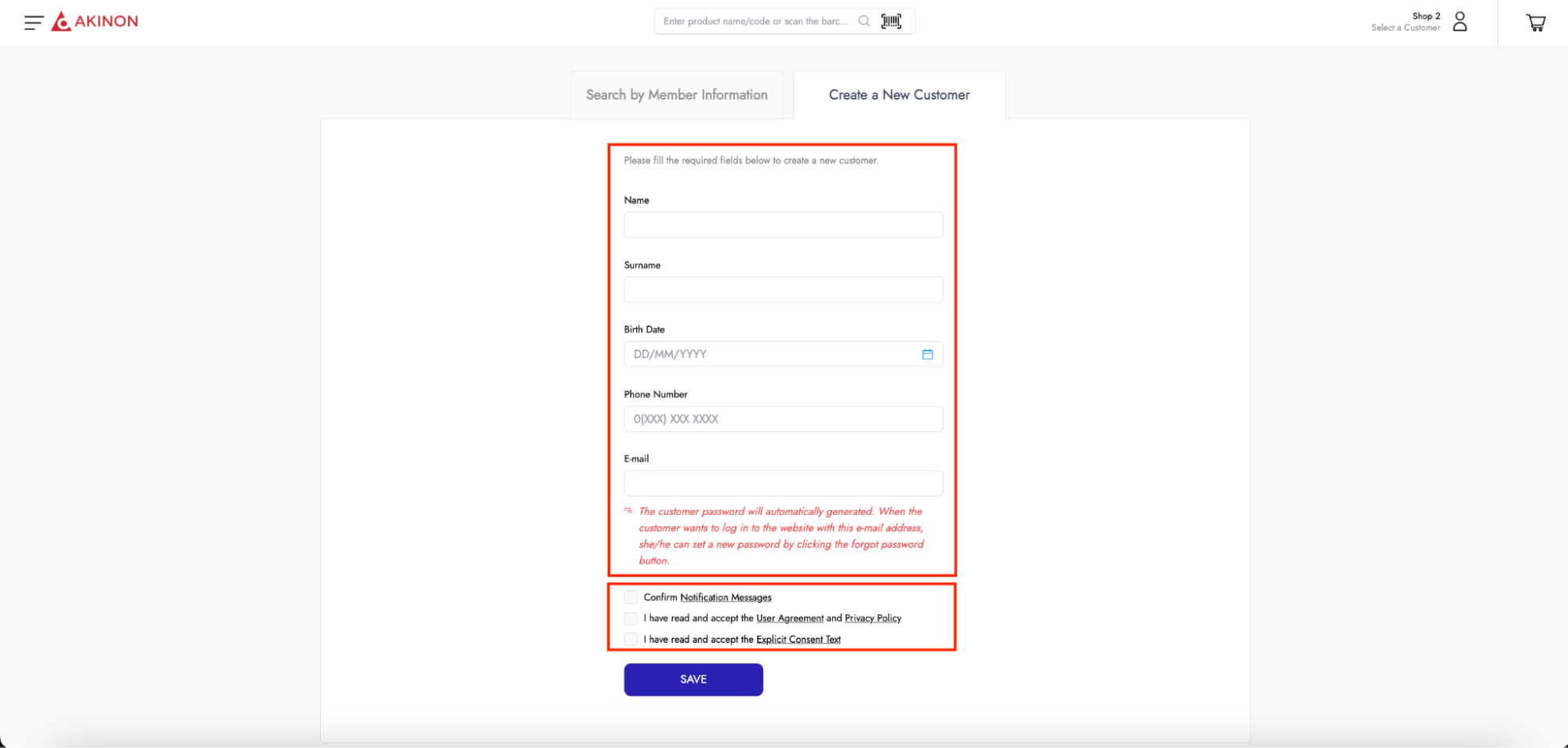
* On the "Create a New Customer" screen, fill in the required details for the new customer account, including:
* Customer's full name
* Customer's surname
* Customer's date of birth
* Customer's phone number
* Customer's email address
## Step 4: Confirming Agreements
Before finalizing the new customer account, ensure that the customer agrees to any necessary terms and conditions:
* Prompt the customer to confirm any required agreements for account creation.
## Step 5: Saving the Customer Account
Once the customer has confirmed the necessary agreements, proceed with saving the new customer account:
* Click the **Save** button on the "Create a New Customer" form.
* The Akinon Instore application will process the information and create the new customer account.
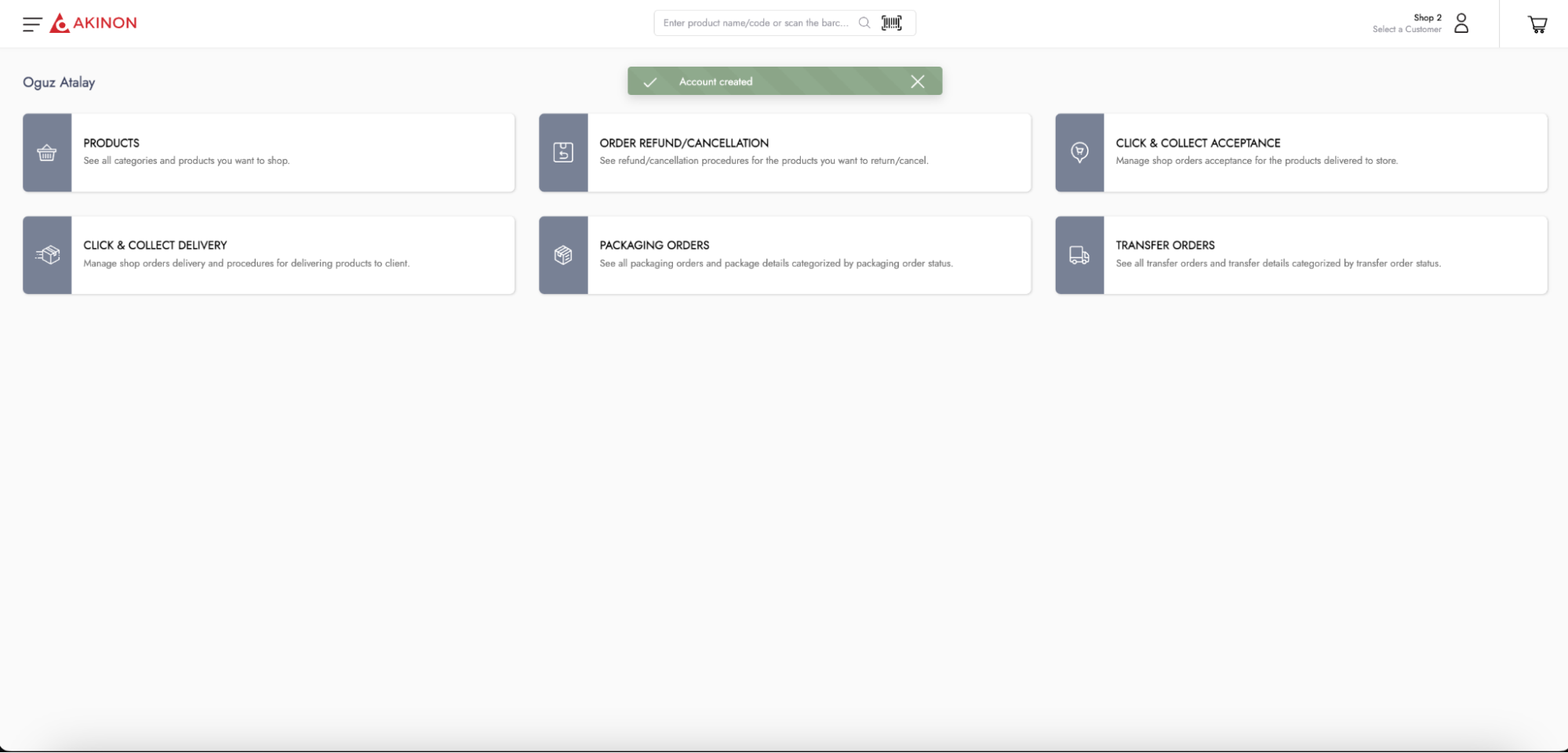
* When the account creation is successful, the Akinon Instore application will automatically redirect you to the homepage, and a notification will confirm that the "Account Created" successfully.
### Customer Account Login
To initiate the sales process using the newly created customer account, follow these steps:
* On the Akinon Instore application, find and click on the **Customer Login** option.
* Enter the customer's registered email address in the provided field.
* As the Instore application automatically generates the password and doesn't share it with the customer, there is no need to enter a password for login.
* After entering the email address, click the **Login** button to access the customer's account.
### Accessing Other Brand Platforms
Customers can use the newly created account across all platforms of the brand. To access the brand's other platforms (e.g., website, mobile application) using this account information, they should follow these steps:
* To access the brand's other platforms (website, mobile application, etc.) using this account information, the customer needs to use the **Forgot Password** feature available on those platforms to create a new password.
---
# Agent Instructions
This documentation is published with GitBook. GitBook is the documentation platform designed so that both humans and AI agents can read, navigate, and reason over technical content effectively. Learn more at gitbook.com.
## Querying This Documentation
If you need additional information that is not directly available in this page, you can query the documentation by asking a question.
Perform an HTTP GET request on the following URL with the `ask` and `goal` query parameters:
```
GET https://docs.akinon.com/tutorials/instore/create-customer-account.md?ask=&goal=
```
`ask` is the immediate question: it should be specific, self-contained, and written in natural language.
`goal` is what the user is ultimately trying to achieve, the reason they need the answer. Sharing it helps GitBook give you a better, more relevant answer. A goal is most helpful when it describes the outcome the user wants rather than restating the question. For example, with `ask=how do I create an API token`, a goal like `automate deployments from our CI pipeline` lets GitBook tailor the answer to that use case.
The response will contain a direct answer to the question and relevant excerpts and sources from the documentation.
Use this mechanism when the answer is not explicitly present in the current page, you need clarification or additional context, or you want to retrieve related documentation sections.