> For the complete documentation index, see [llms.txt](https://docs.akinon.com/llms.txt). Markdown versions of documentation pages are available by appending `.md` to page URLs; this page is available as [Markdown](https://docs.akinon.com/tutorials/instore/customize-widgets.md).
# Customize Widgets
To enable customization of the images and the inclusion of user agreements for display in Instore, the Widget structure present in Omnitron needs to be utilized. For this purpose, appropriate Widget Schemas should be defined as a priority, followed by adding the content to these Widgets.
## Defining Widget Schema
To enable customization of the homepage and login screens in the Instore application, as well as to add sales agreements that customers need to approve when the online sales feature is active, Widget Schema definition should be performed in Omnitron.
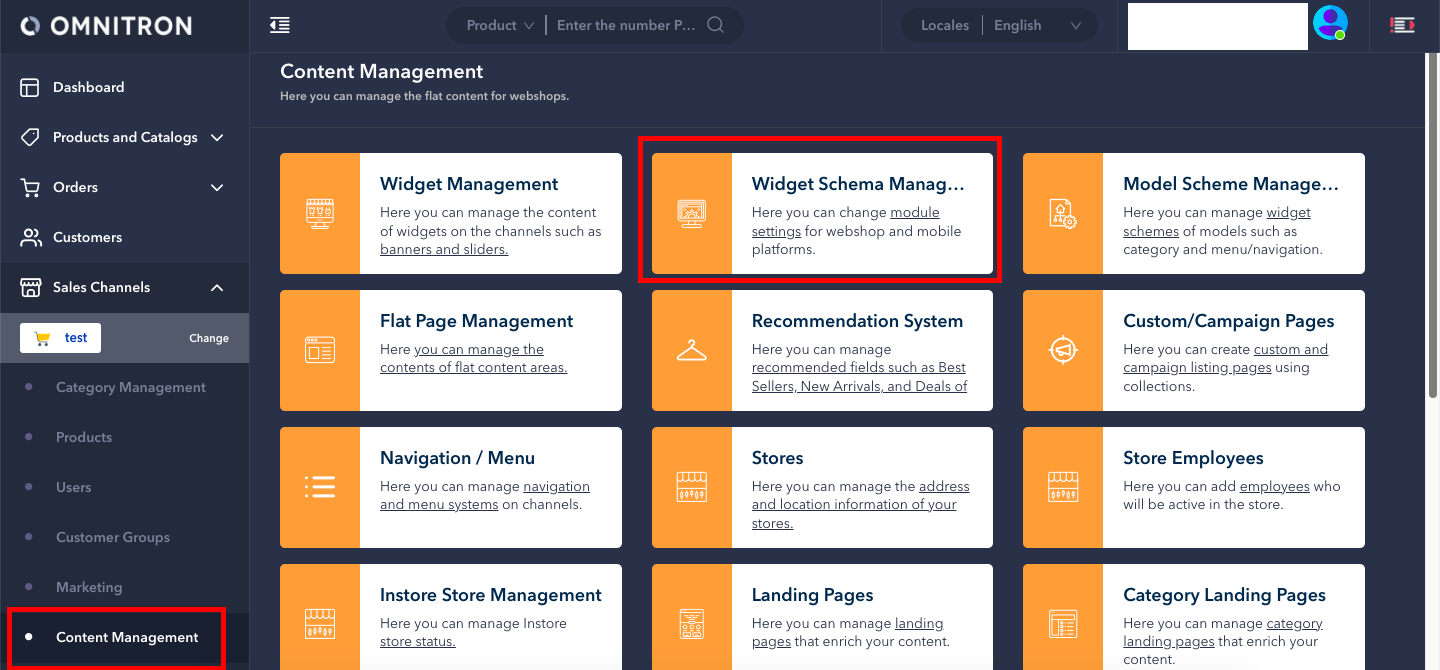
Navigate to **Content Management > Widget Schema Management** screen within Omnitron.
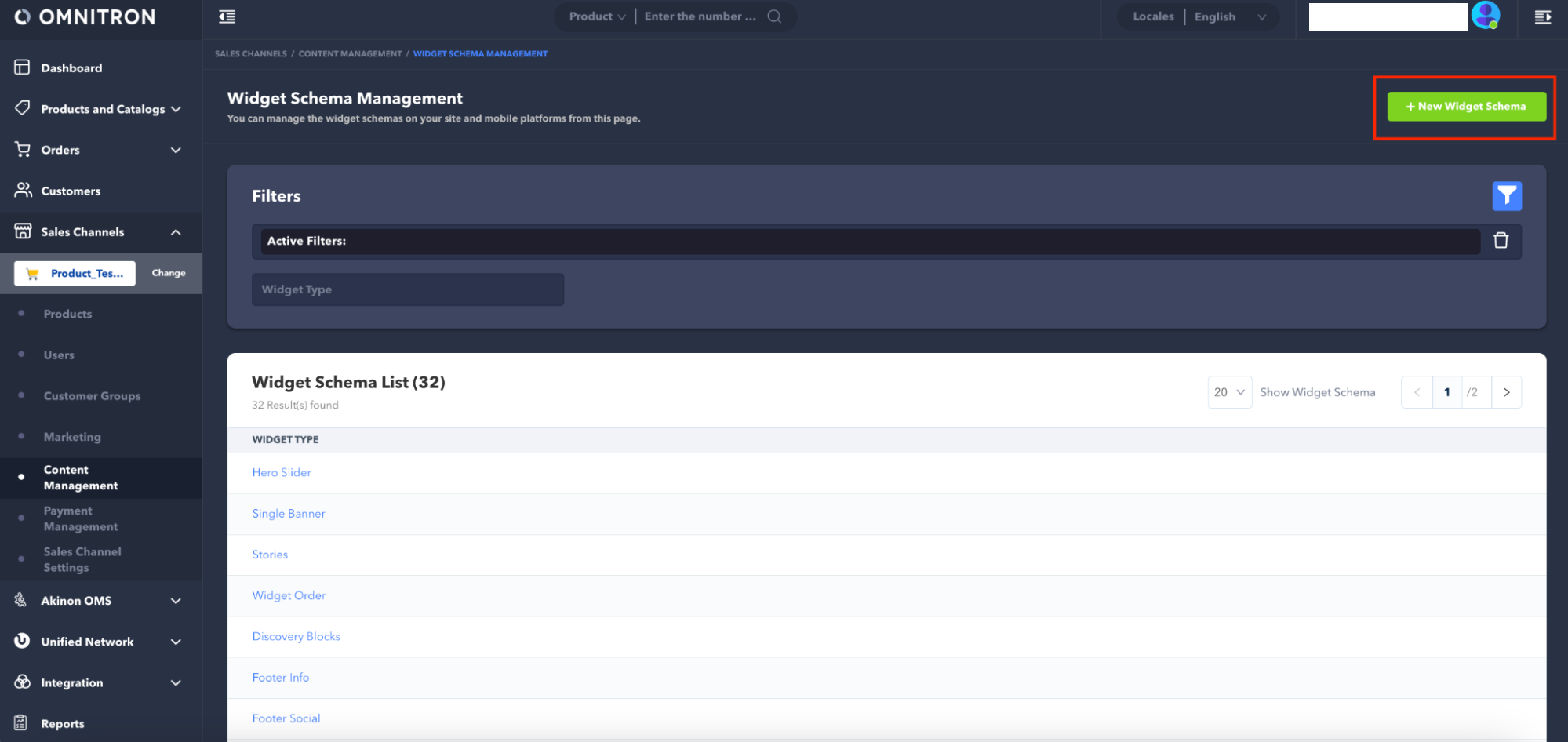
On the opened screen, all the previously added Widgets in Omnitron will be listed. If a Widget Schema has not been added for Instore before, click on the **New Widget Schema** button.
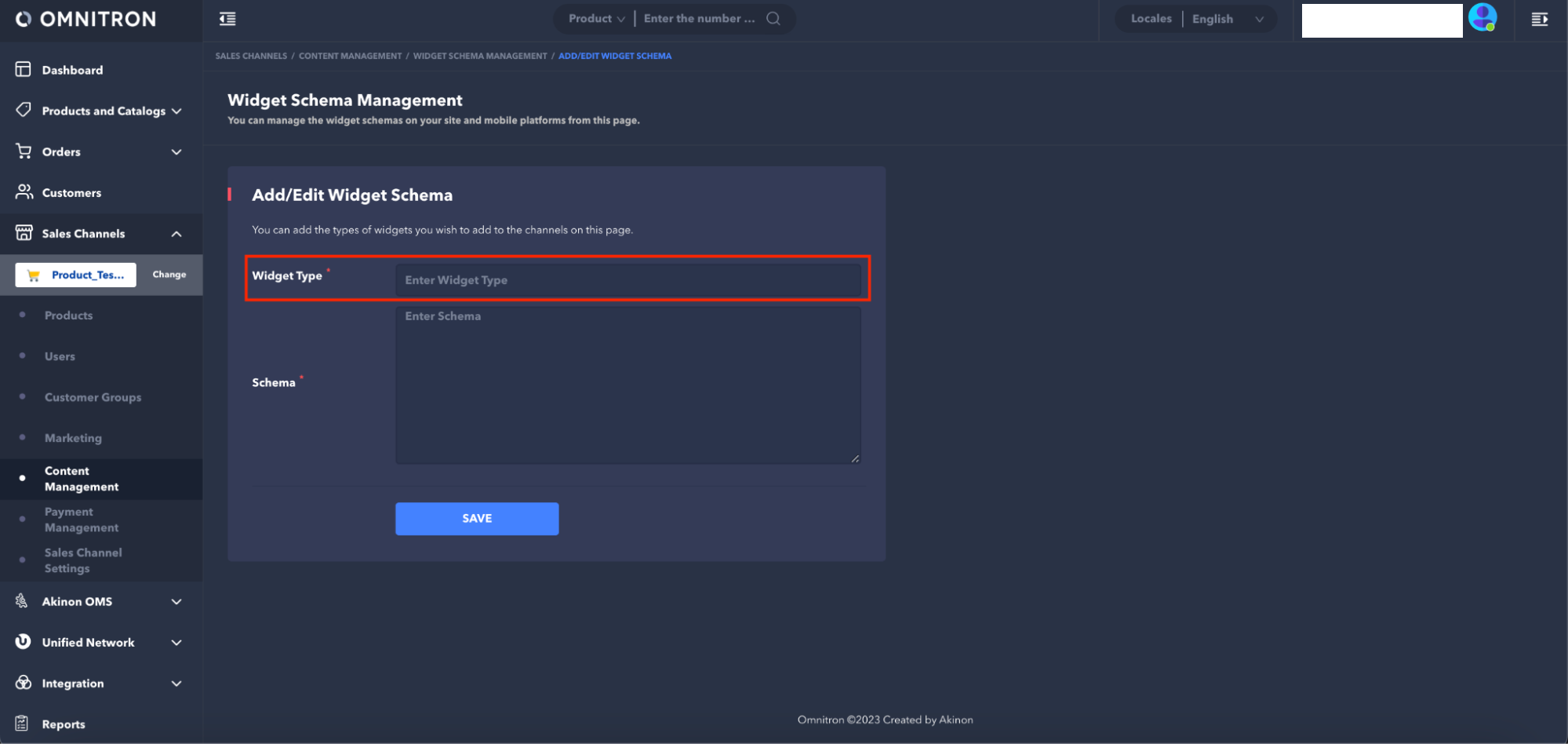
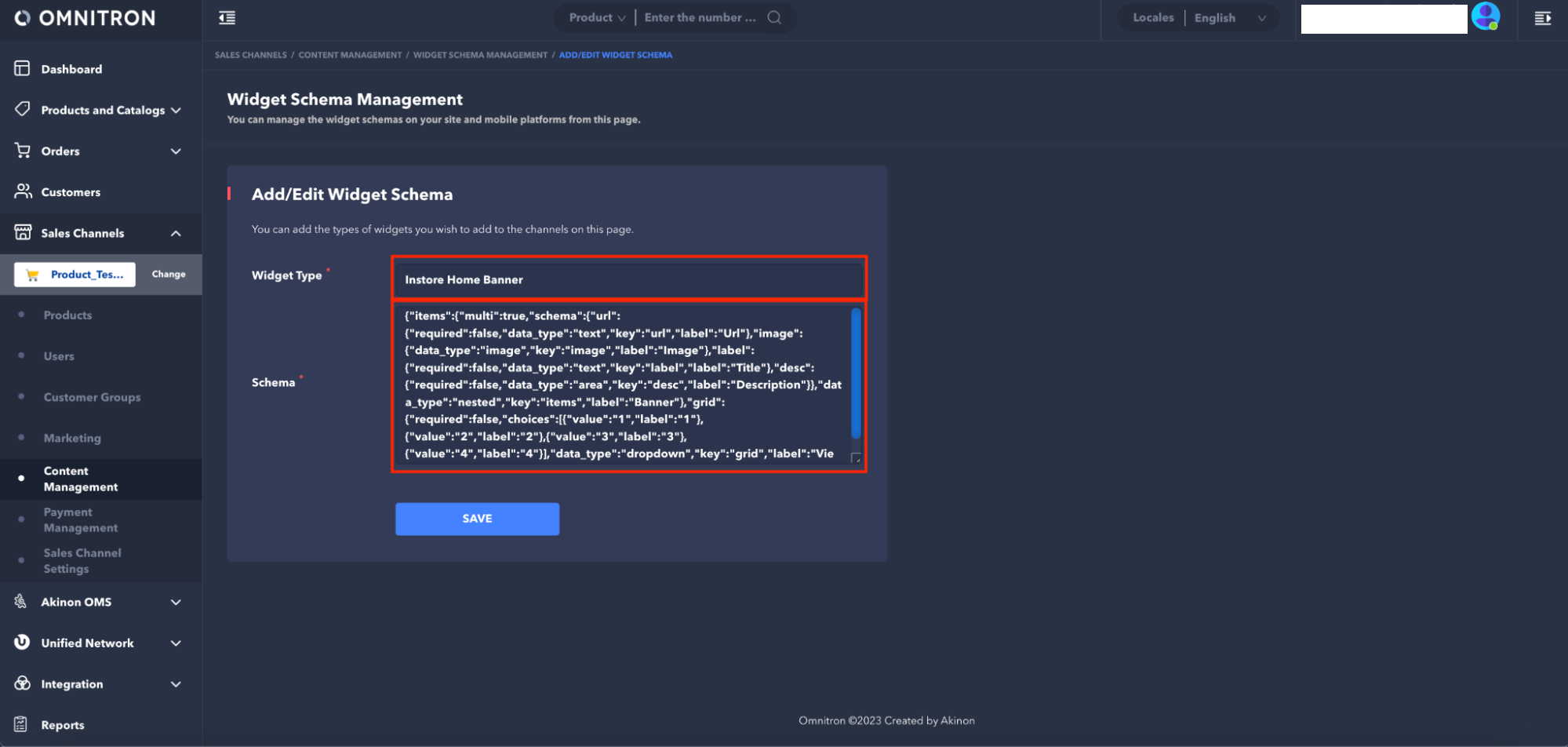
Four Widget Schemas can be defined under the names *Instore Home Banner,* *Instore Login Banner*, *Instore Widgets Widget Type*, and *Instore Agreements*. These schema names are not customizable and must be entered in the *Widget Type* field.
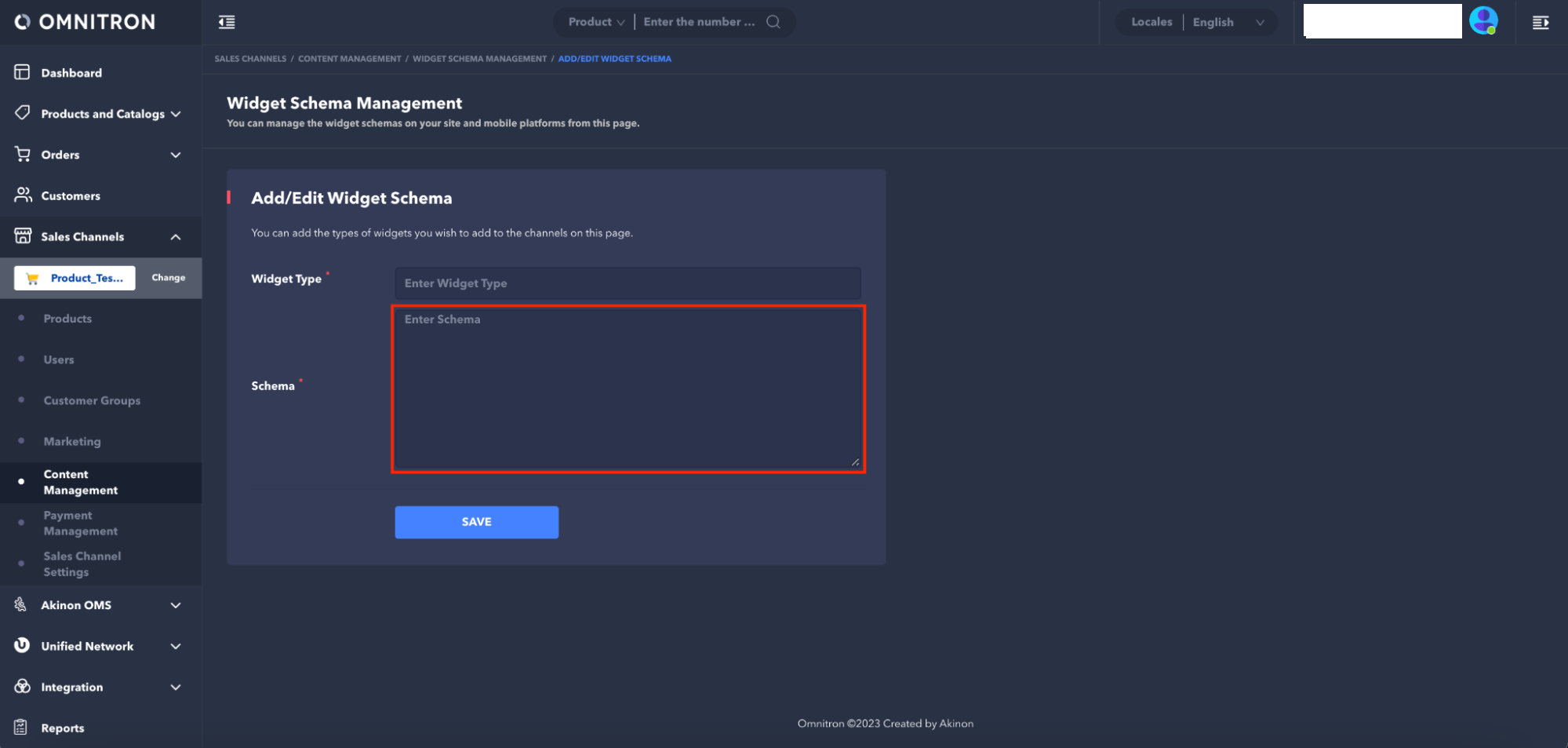
After entering the schema names into the *Widget Type* field, the script that contains the schema content must be entered into the *Schema* field. Once these two pieces of information required to create the schema are added to the *Add/Edit Widget Schema* page, click on the **Save** button to define the desired schema.
The following are the Widget Schema contents that allow customization of Instore's homepage and login screens and the addition of customer agreements:
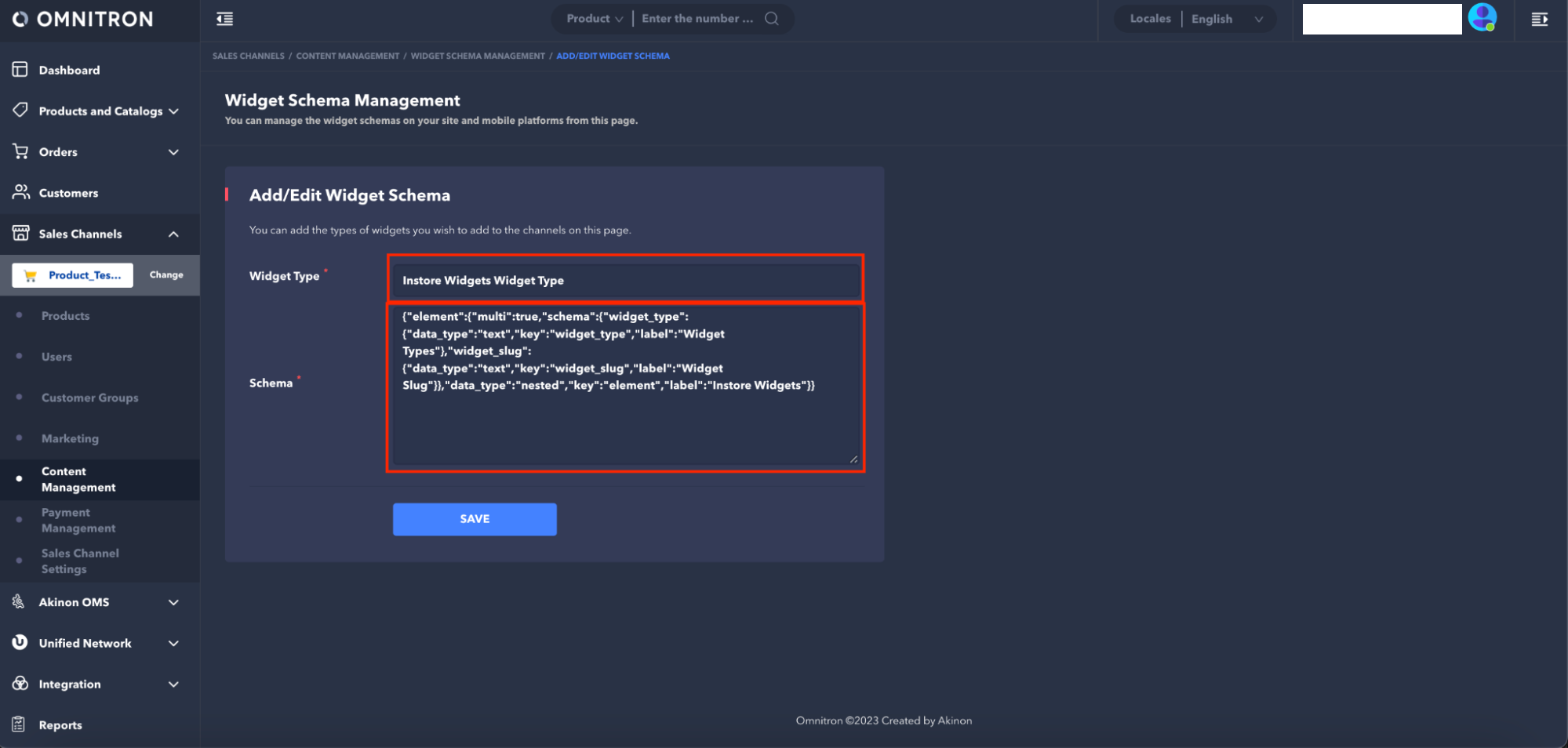
* **Instore Widgets Widget Type:** The "Instore Widgets Widget Type" schema is the schema required for adding any schema to Instore. (If any Widget Schema is to be added, this schema must be added first.)
**Widget Type:** Instore Widgets Widget Type
**Schema:**
```
{"element":{"multi":true,"schema":{"widget_type":{"data_type":"text","key":"widget_type","label":"Widget Types"},"widget_slug":{"data_type":"text","key":"widget_slug","label":"Widget Slug"}},"data_type":"nested","key":"element","label":"Instore Widgets"}}
```
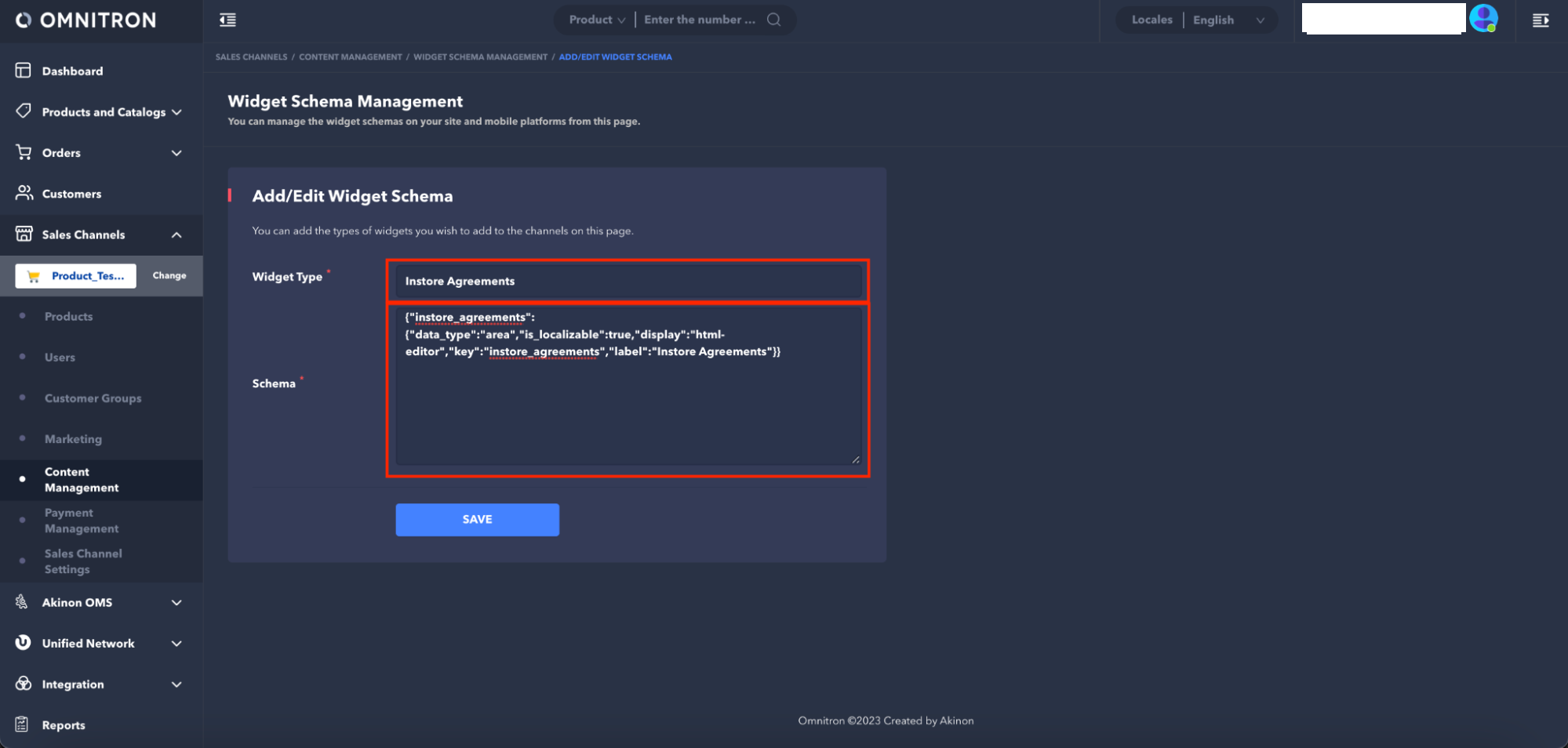
* **Instore Agreements**: The "Instore Agreements" schema is the schema that allows the addition of agreements that customers will approve during online sales made through the Instore application.
**Widget Type:** Instore Agreements
**Schema:**
```
{"instore_agreements":{"data_type":"area","is_localizable":true,"display":"html-editor","key":"instore_agreements","label":"Instore Agreements"}}
```
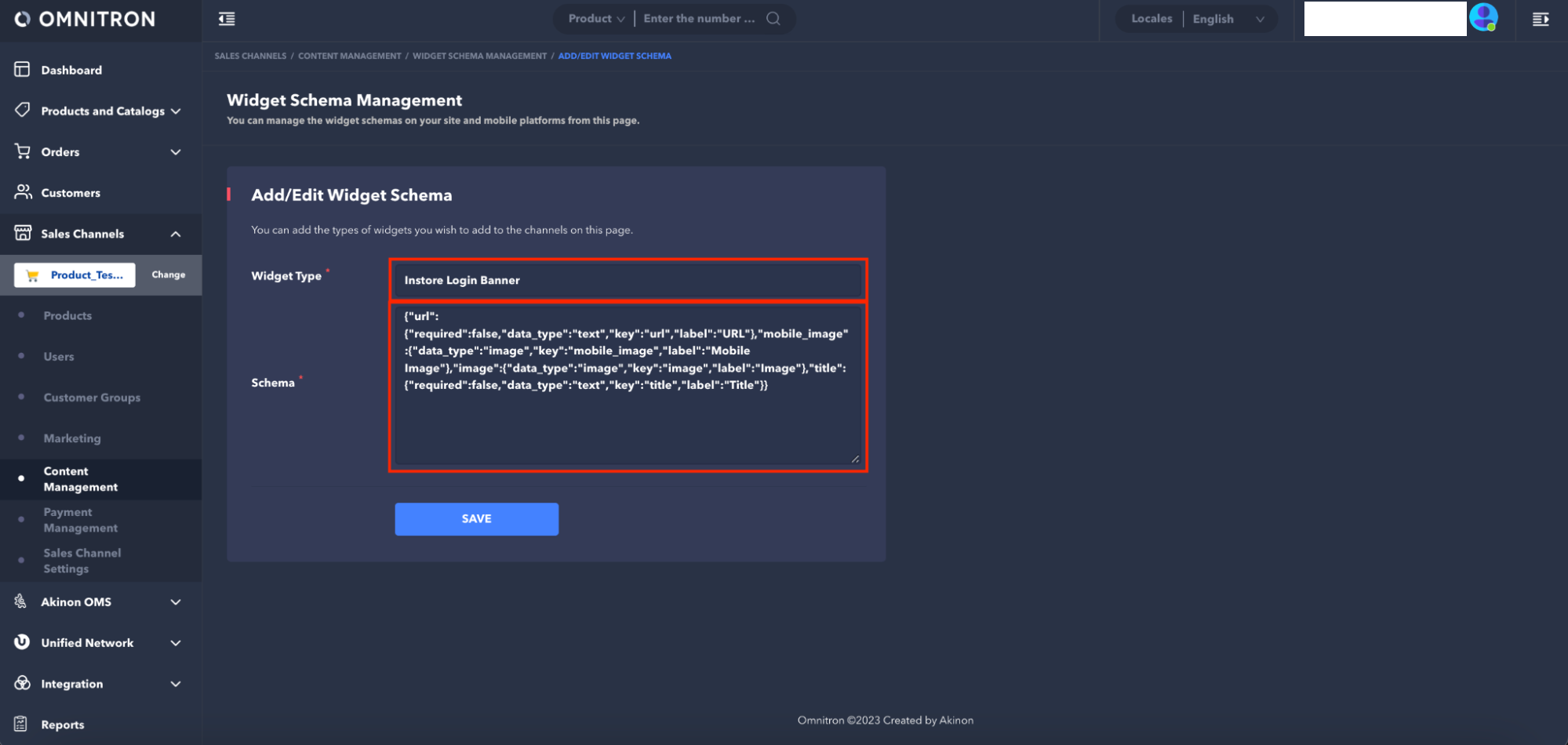
* **Instore Login Banner**: The "Instore Login Banner" schema is the schema that adds the image displayed at the top of the password screens during login to the Instore application.
**Widget Type:** Instore Login Banner
**Schema:**
```
{"url":{"required":false,"data_type":"text","key":"url","label":"URL"},"mobile_image":{"data_type":"image","key":"mobile_image","label":"Mobile Image"},"image":{"data_type":"image","key":"image","label":"Image"},"title":{"required":false,"data_type":"text","key":"title","label":"Title"}}
```
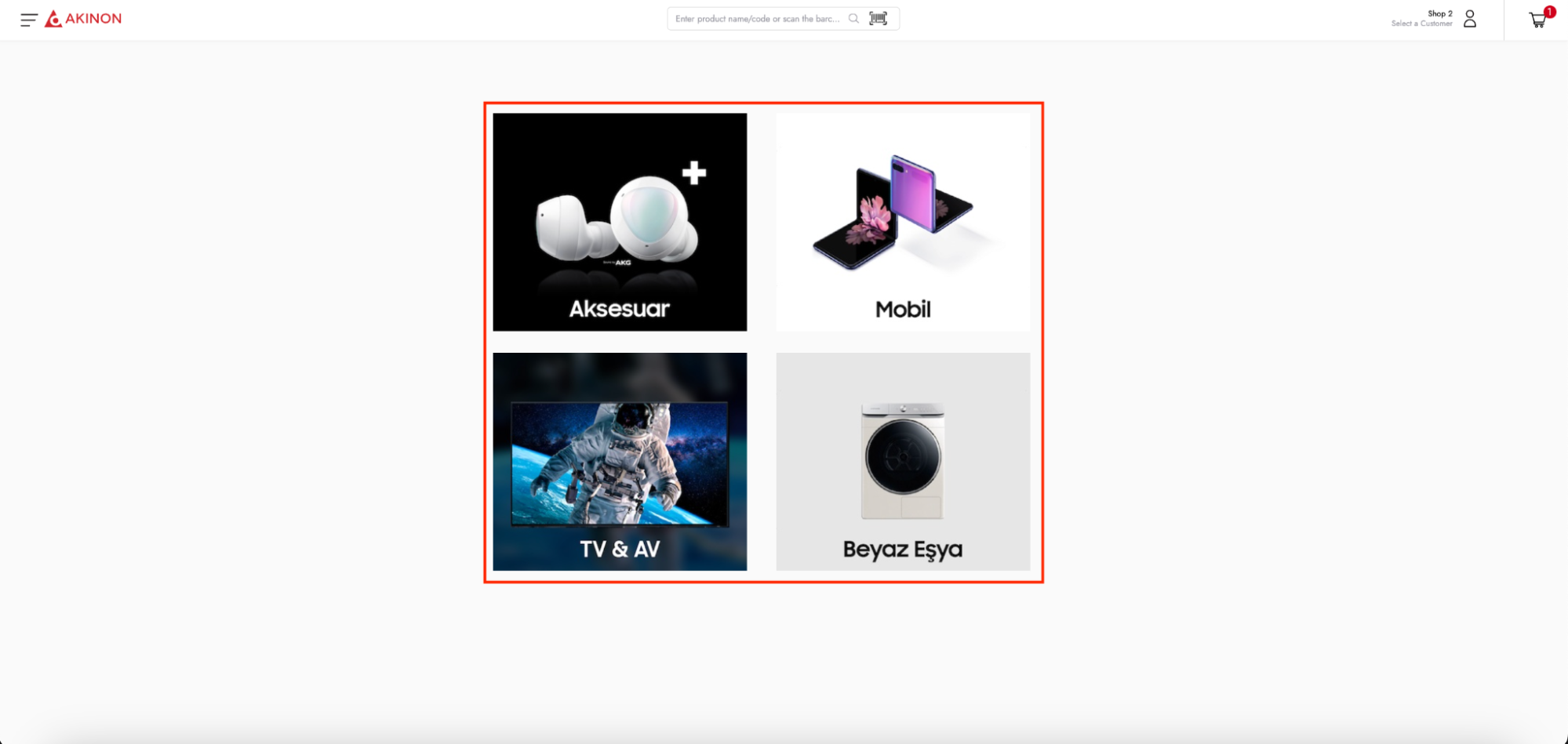
* **Instore Home Banner**: The "Instore Home Banner" schema is the schema that allows the addition of widget images that enable easy access to product categories in the Instore application when the online sales function is used.
**Widget Type:** Instore Home Banner
**Schema:**
```
{"items":{"multi":true,"schema":{"url":{"required":false,"data_type":"text","key":"url","label":"Url"},"image":{"data_type":"image","key":"image","label":"Image"},"label":{"required":false,"data_type":"text","key":"label","label":"Title"},"desc":{"required":false,"data_type":"area","key":"desc","label":"Description"}},"data_type":"nested","key":"items","label":"Banner"},"grid":{"required":false,"choices":[{"value":"1","label":"1"},{"value":"2","label":"2"},{"value":"3","label":"3"},{"value":"4","label":"4"}],"data_type":"dropdown","key":"grid","label":"View"},"title":{"required":false,"data_type":"text","key":"title","label":"Title"}}
```
## Adding Widget Schema
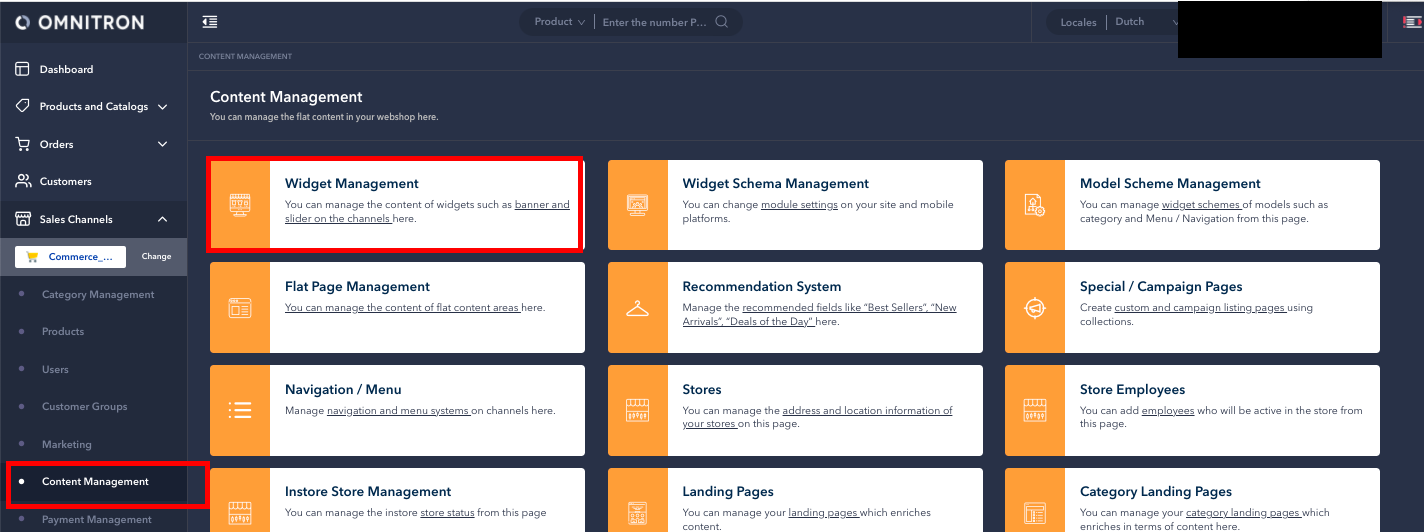
After defining the schemas on the *Widget Schema Management* screen, the desired widgets must be added using the *Widget Management* screen for the features to be available.
Widgets for Instore are added by clicking on the **Add New Widget** button in the *Widget Management* screen according to the defined schemas.
The widget contents that can be added for the Widget Schemas defined in the previous section are listed below:
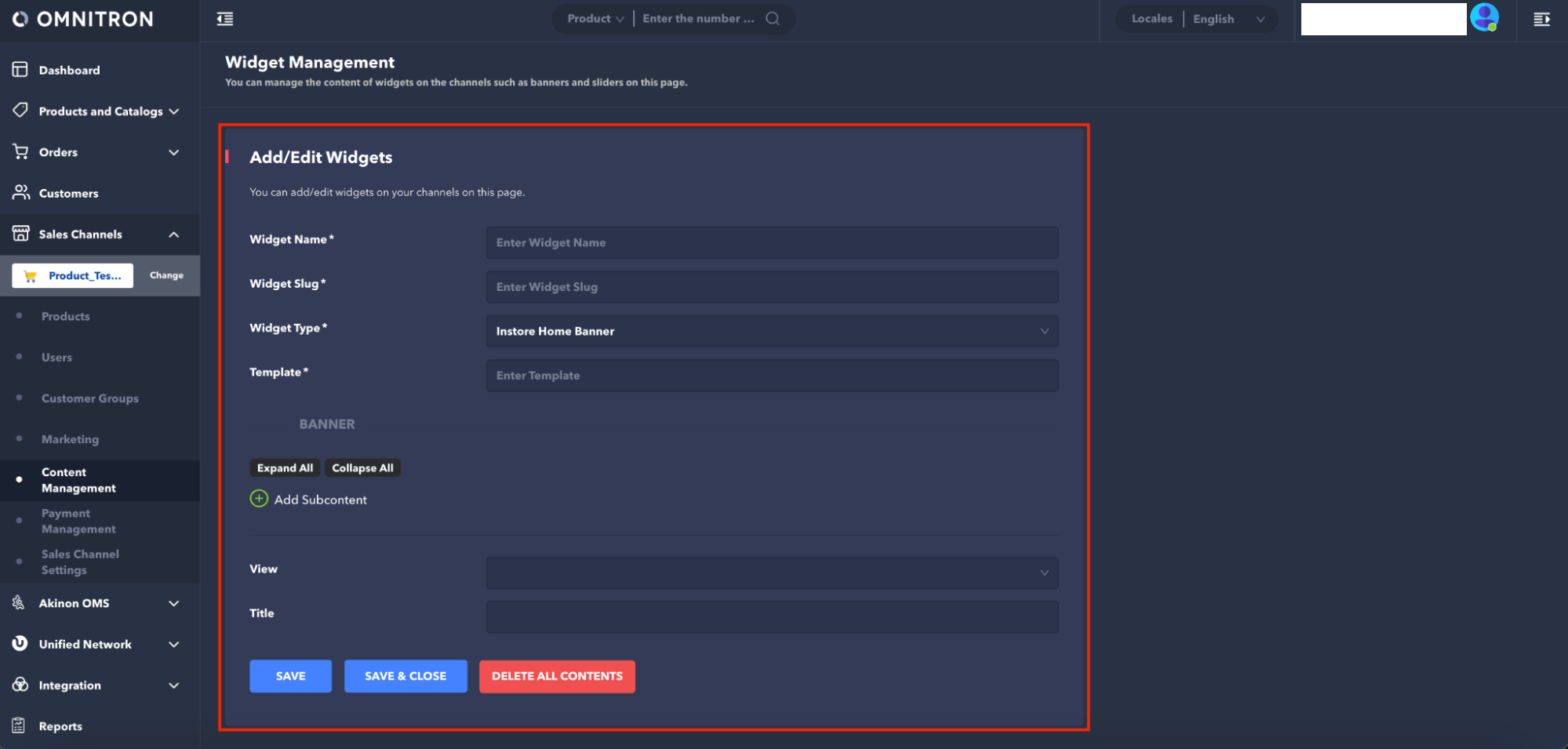
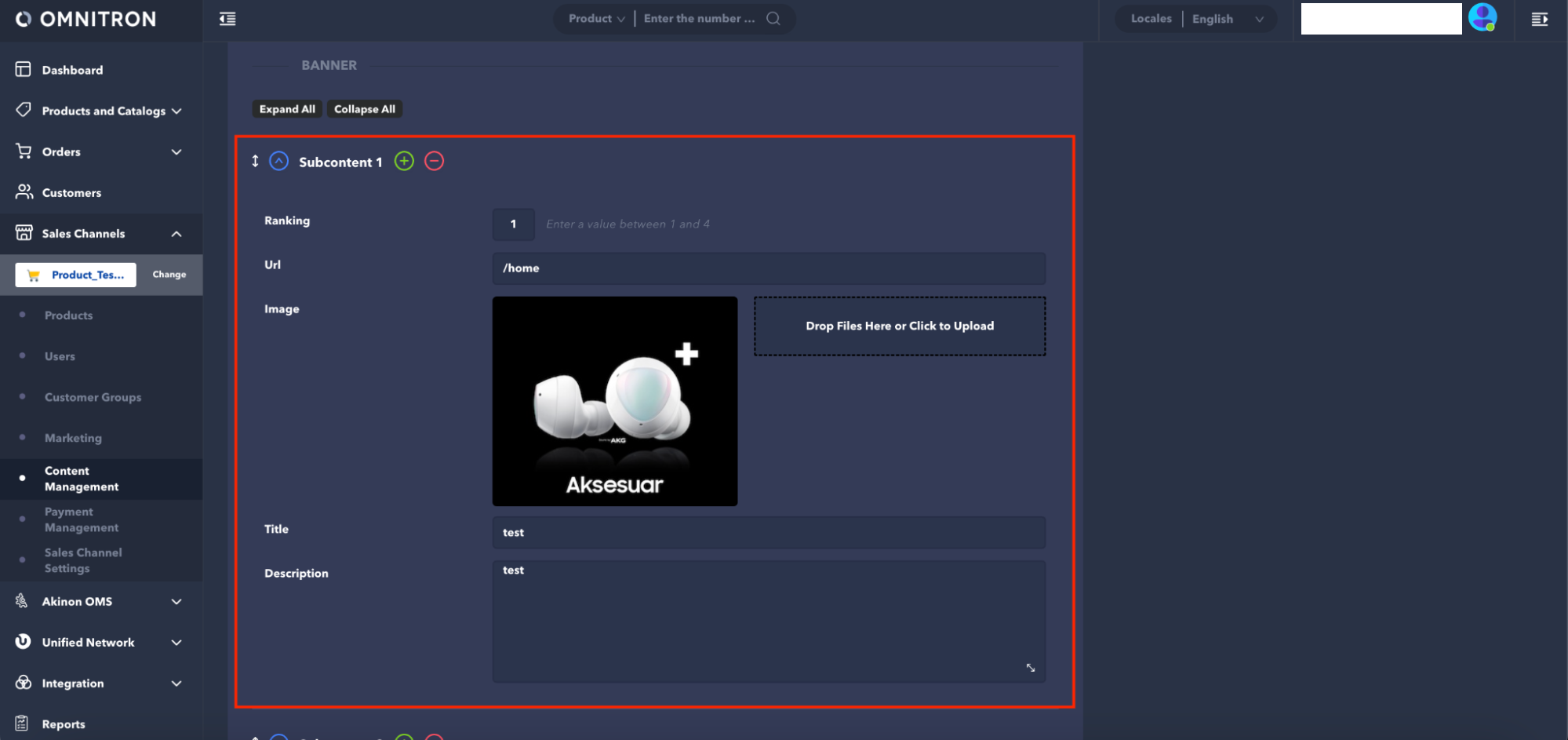
* **Instore Home Banner**: The form that opens for adding home page widget images must be filled with appropriate information. A maximum of 4 banner images can be added to this field. To add multiple home page widget images, click on the **+ Add Subcontent** button.
The information that needs to be entered in the "Instore Home Banner" form, shown in the images above, is listed below:
| **Field Name** | **Status** | **Description** | **Example Value** |
| -------------- | ------------ | ----------------------------------------------------------- | --------------------- |
| Widget Name | Required | Widget Name | instore-home-banner-1 |
| Widget Slug | Required | Widget Slug | instore-home-banner-1 |
| Widget Type | Required | Widget type to be selected according to the defined scheme. | Instore Home Banner |
| Template | Required | A draft link, if available | / |
| Banner | Required | Field with subtitle consisting of URL and image | |
| URL | Required | Category name when you click on the image | /clothing |
| Image | Required | Image desired to appear in Instore | .png |
| View | Not Required | Default entered as 1 | 1 |
| Title | Not Required | Brand’s name | Lorem Impulse Store |
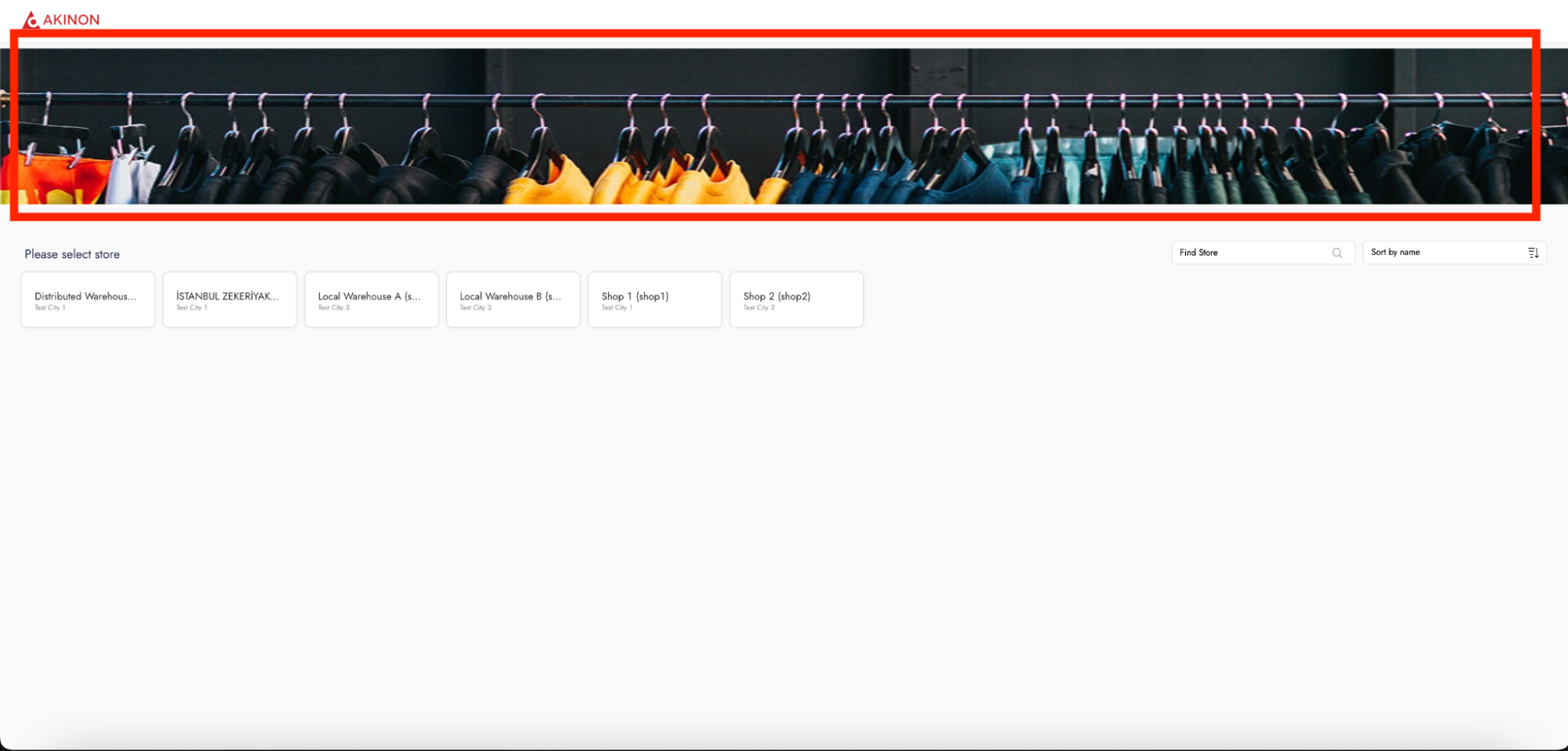
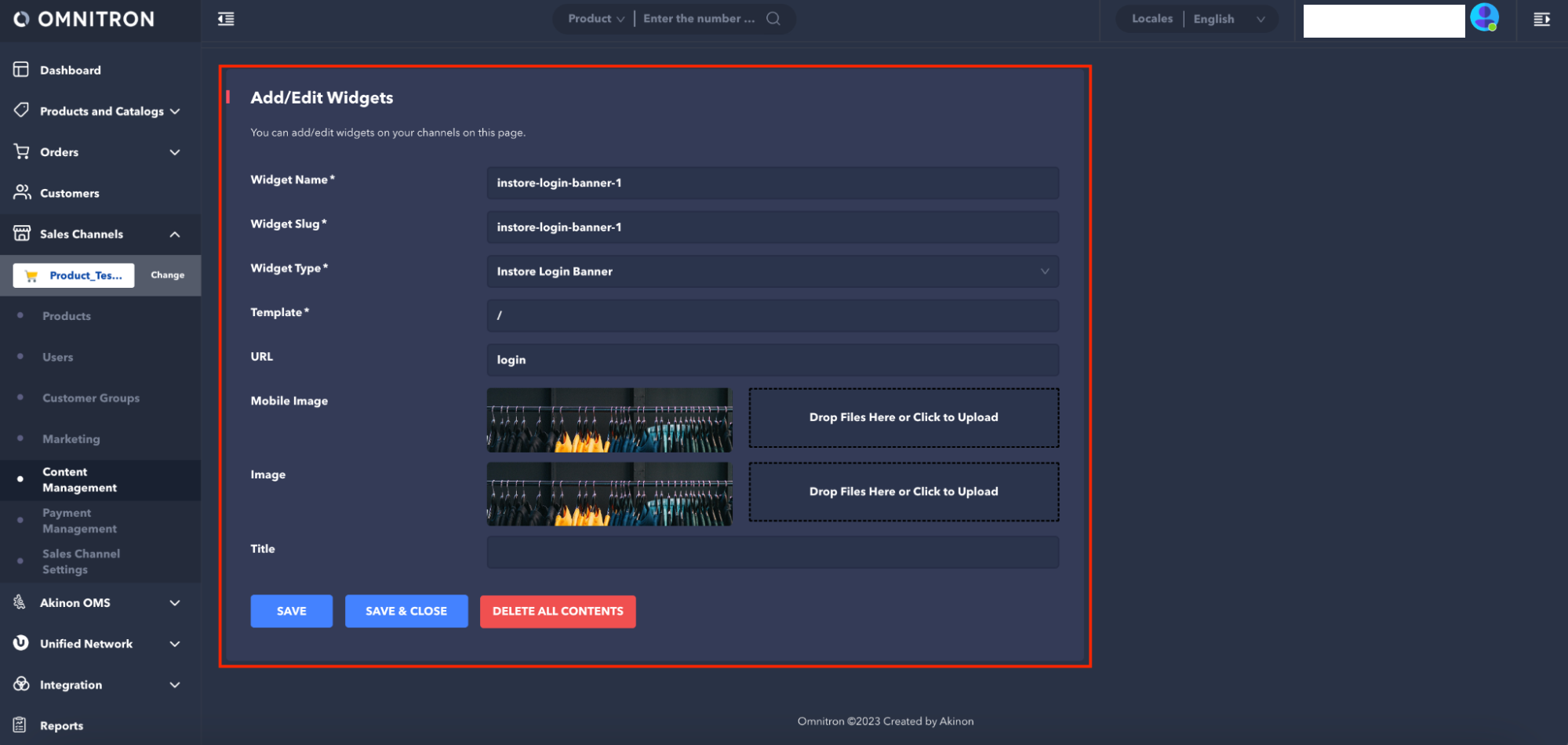
* **Instore Login Banner:** To add widget images to the login page, the form that appears should be filled out with the appropriate information. In this field, a maximum of 1 banner image can be added. The size of the image to be added for the widget should be 1024x215 pixels.
The information to be entered in the "Instore Login Banner" form shown in the image above is as follows:
| **Field Name** | **Status** | **Description** | **Example Value** |
| -------------- | ------------ | ---------------------------------------------------------- | ---------------------- |
| Widget Name | Required | Widget Name | instore-login-banner-1 |
| Widget Slug | Required | Widget Slug | instore-login-banner-1 |
| Widget Type | Required | Widget type to be selected according to the defined scheme | Instore Login Banner |
| Template | Not Required | A draft link, if available | / |
| URL | Not Required | Instore page link when you click on the image | |
| Image | Required | Image desired to appear in Instore | .png |
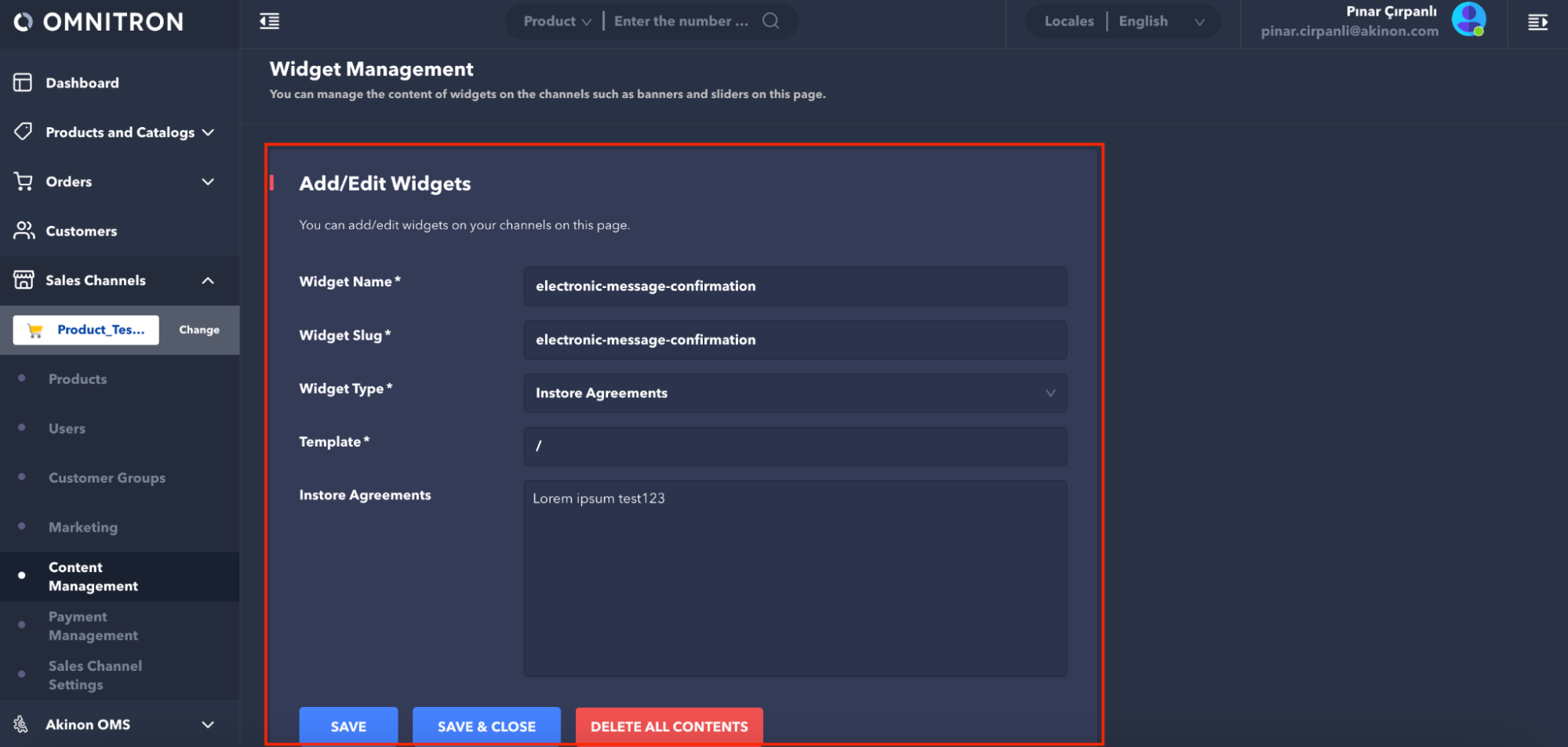
* **Instore Agreements:** The "Electronic Message Confirmation," "User Agreement," "Privacy Policy," and "Express Written Consent" agreements that are obtained during the creation of a new customer account on the Instore application must be created from the *Widget Management* screen. The name and slug information to be used for the documents are as follows:
Privacy Policy: **instore-privacy-policy**
Electronic Message Confirmation: **electronic-message-confirmation**
User Agreement: **user-agreement**
Express Consent Text: **express-consent-text**
The necessary information to be entered into the "Instore Agreements" form shown above is listed below:
| **Field Name** | **Status** | **Description** | **Example Value** |
| ------------------ | ------------ | ---------------------------------------------------------- | ------------------------------- |
| Widget Name | Required | Widget name | electronic-message-confirmation |
| Widget Slug | Required | Widget slug | electronic-message-confirmation |
| Widget Type | Required | Widget type to be selected according to the defined scheme | Instore Agreements |
| Template | Not Required | A draft link, if available | / |
| Instore Agreements | Required | Document content is entered | |
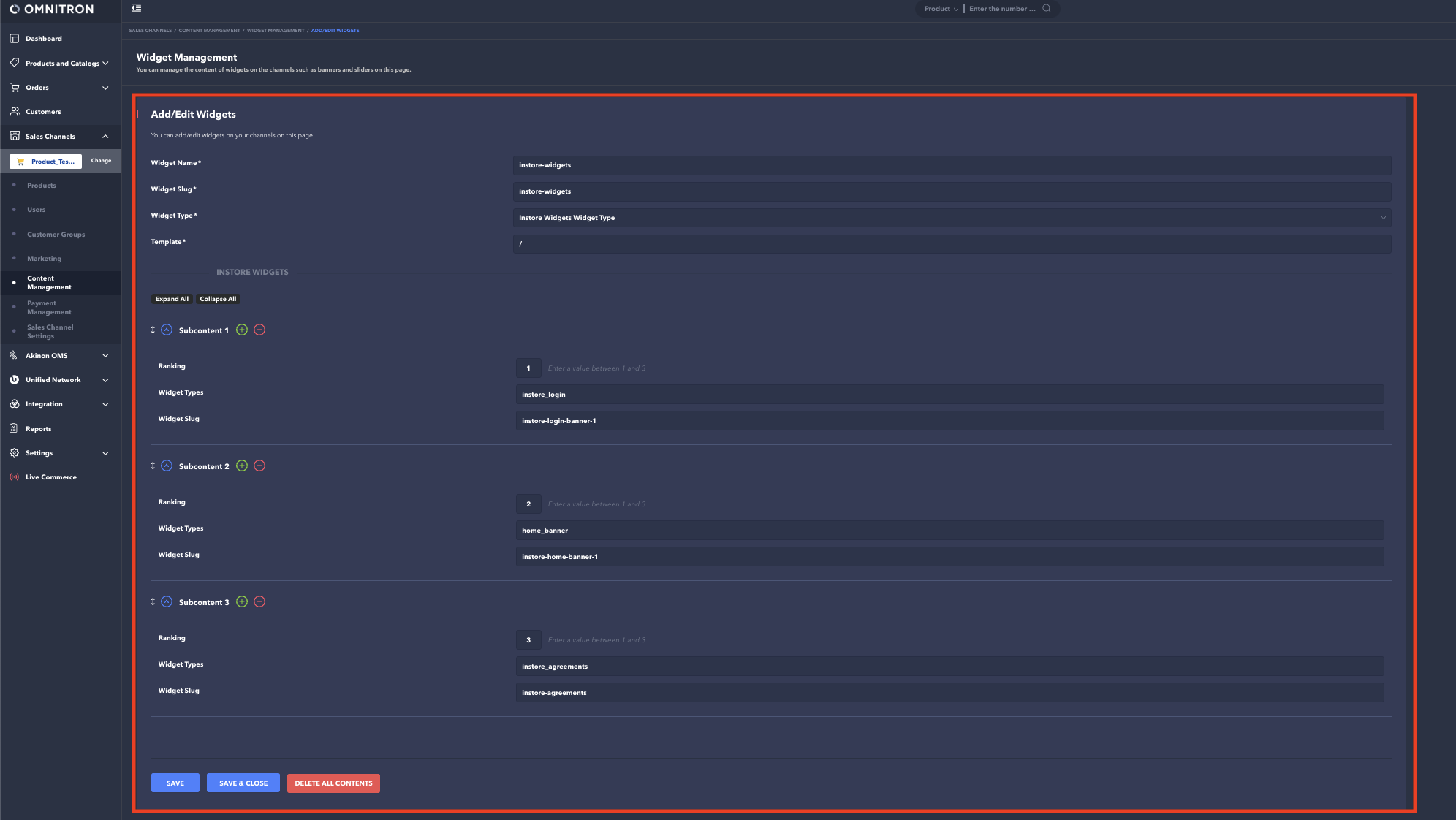
* **Instore Widgets Widget Type**: In order to complete the installation process after the above-mentioned addition procedures of Instore Agreements, Instore Login Banner, and Instore Home Banner widgets that are desired to be displayed in Instore, they also need to be added to Instore Widgets Widget Type. Widgets that are not added to Instore do not have to be added to Instore Widgets Widget Type. To complete the widget addition process, the form that is opened must be filled out with appropriate information. Up to 3 Instore widgets can be added to this area. If multiple widgets are desired to be added, they can be added by clicking the **+ Instore Widgets** button.
The information to be entered in the "Instore Widgets Widget Type" form shown above is listed below:
| **Field Name** | **Status** | **Description** | **Example Value** |
| -------------- | ------------ | ------------------------------------------------------------------- | --------------------------- |
| Widget Name | Required | Widget name | instore-widgets |
| Widget Slug | Required | Widget slug | instore-widgets |
| Widget Type | Required | Widget type to be selected according to the defined scheme | Instore Widgets Widget Type |
| Template | Not Required | A draft link, if available | / |
| Instore Widget | Required | Widgets that are requested to be forwarded to the Instore are added | |
| Widget Type | Required | Widget type to be selected according to the defined scheme | |
| Widget Slug | Required | Widget slug | |
---
# Agent Instructions
This documentation is published with GitBook. GitBook is the documentation platform designed so that both humans and AI agents can read, navigate, and reason over technical content effectively. Learn more at gitbook.com.
## Querying This Documentation
If you need additional information that is not directly available in this page, you can query the documentation by asking a question.
Perform an HTTP GET request on the following URL with the `ask` and `goal` query parameters:
```
GET https://docs.akinon.com/tutorials/instore/customize-widgets.md?ask=&goal=
```
`ask` is the immediate question: it should be specific, self-contained, and written in natural language.
`goal` is what the user is ultimately trying to achieve, the reason they need the answer. Sharing it helps GitBook give you a better, more relevant answer. A goal is most helpful when it describes the outcome the user wants rather than restating the question. For example, with `ask=how do I create an API token`, a goal like `automate deployments from our CI pipeline` lets GitBook tailor the answer to that use case.
The response will contain a direct answer to the question and relevant excerpts and sources from the documentation.
Use this mechanism when the answer is not explicitly present in the current page, you need clarification or additional context, or you want to retrieve related documentation sections.