> For the complete documentation index, see [llms.txt](https://docs.akinon.com/llms.txt). Markdown versions of documentation pages are available by appending `.md` to page URLs; this page is available as [Markdown](https://docs.akinon.com/tutorials/instore/instore-settings-on-omnitron.md).
# Instore Settings on Omnitron
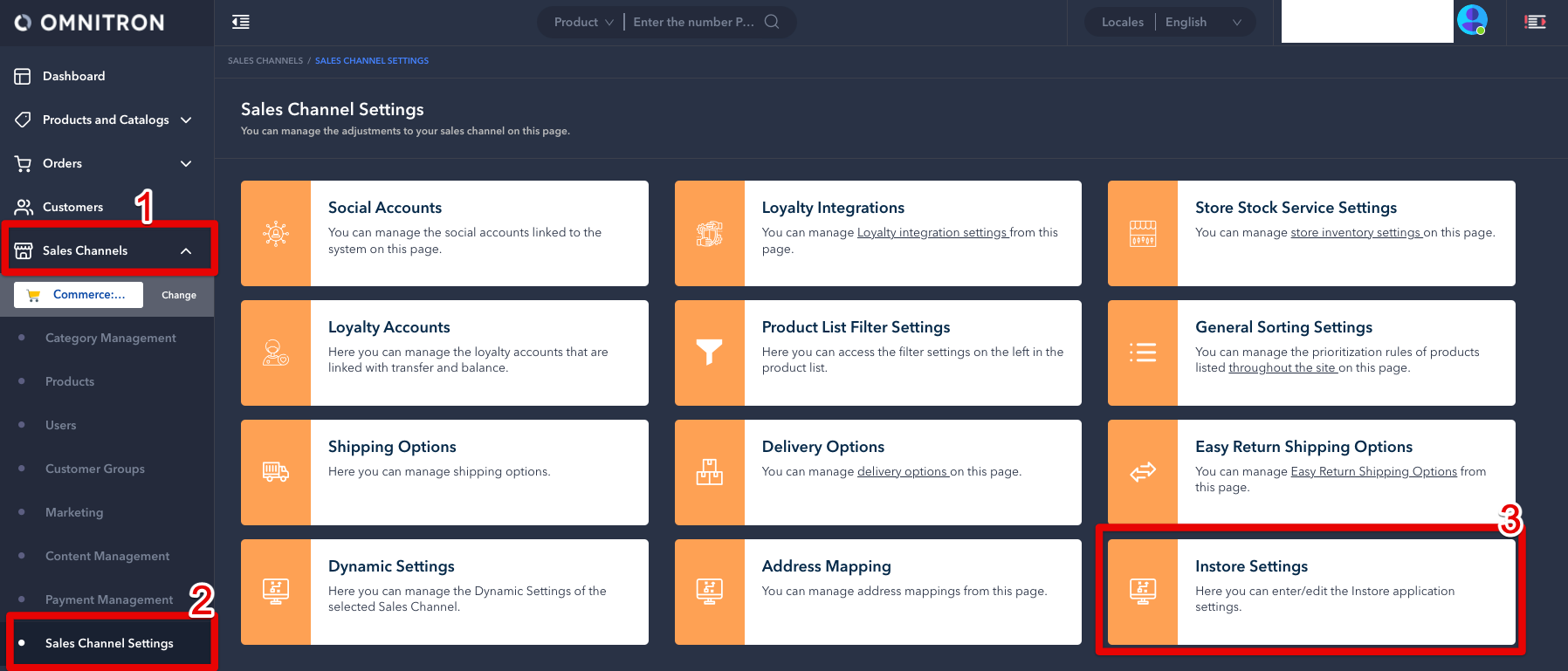
The settings of Instore, which are completed through ACC, can be configured from the Instore Settings screen located under **Sales Channels > Sales Channel Settings** in the left menu of the Omnitron user panel. Through these settings, the desired functions of Instore can be enabled, Instore pages that store employees want to use can be made visible, and visually, Instore can be customized.
When settings are entered or changed in the *Instore Settings* screen, it may take up to 5 minutes for the changes to reflect in the Instore application. In order to see the updated settings, you should log out of the application and then log back in before using the application again.
## Application Settings
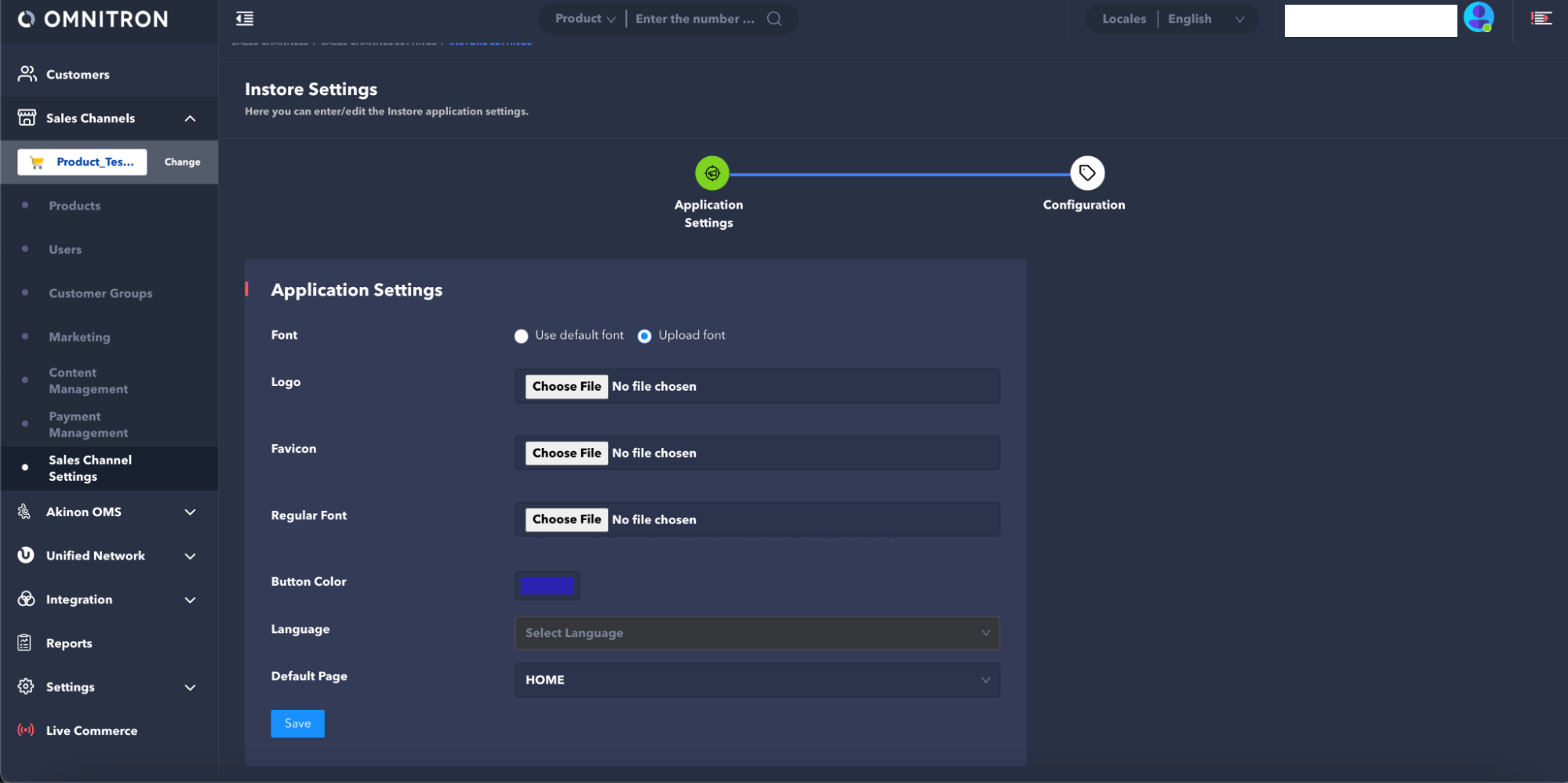
When entering the Instore Settings screen, the first screen that opens is called *Application Settings*. From this screen, you can configure settings that customize the front-end of the application.
The following settings are available for customization on the front-end:
**Font**: In Instore, there is a default font and this property is selected by default on the screen. However, if a custom font is desired, the desired font can be uploaded as a ".ttf" file to the *Regular Font* field.
**Logo:** In the Instore application, there are fields where the brand logo is displayed. The brand logo to be displayed in these fields should be uploaded to the *Logo* field in ".svg" format.
**Favicon:** The brand logo image that is desired to be displayed in the favicon areas of the Instore application should be uploaded to the *Favicon* field in ".ico" format and 16 x 16 size.
**Button Color:** This is the field where the colors of the buttons in Instore are determined. The desired color can be selected from the color palette or a previously determined button color can be used by entering the color code.
**Language:** This is the field where the interface language of Instore is determined. There are two options available, English and Turkish. It sets the interface language for all stores and users in Instore that are dependent on the sales channel.
**Default Page:** This is the field where the page that will appear when the user logs into the Instore application is determined.
When the **Save** button is clicked, the specified settings are saved and the second step, the *Configuration* screen, is entered after the *Instore Settings* screen.
## Config Settings
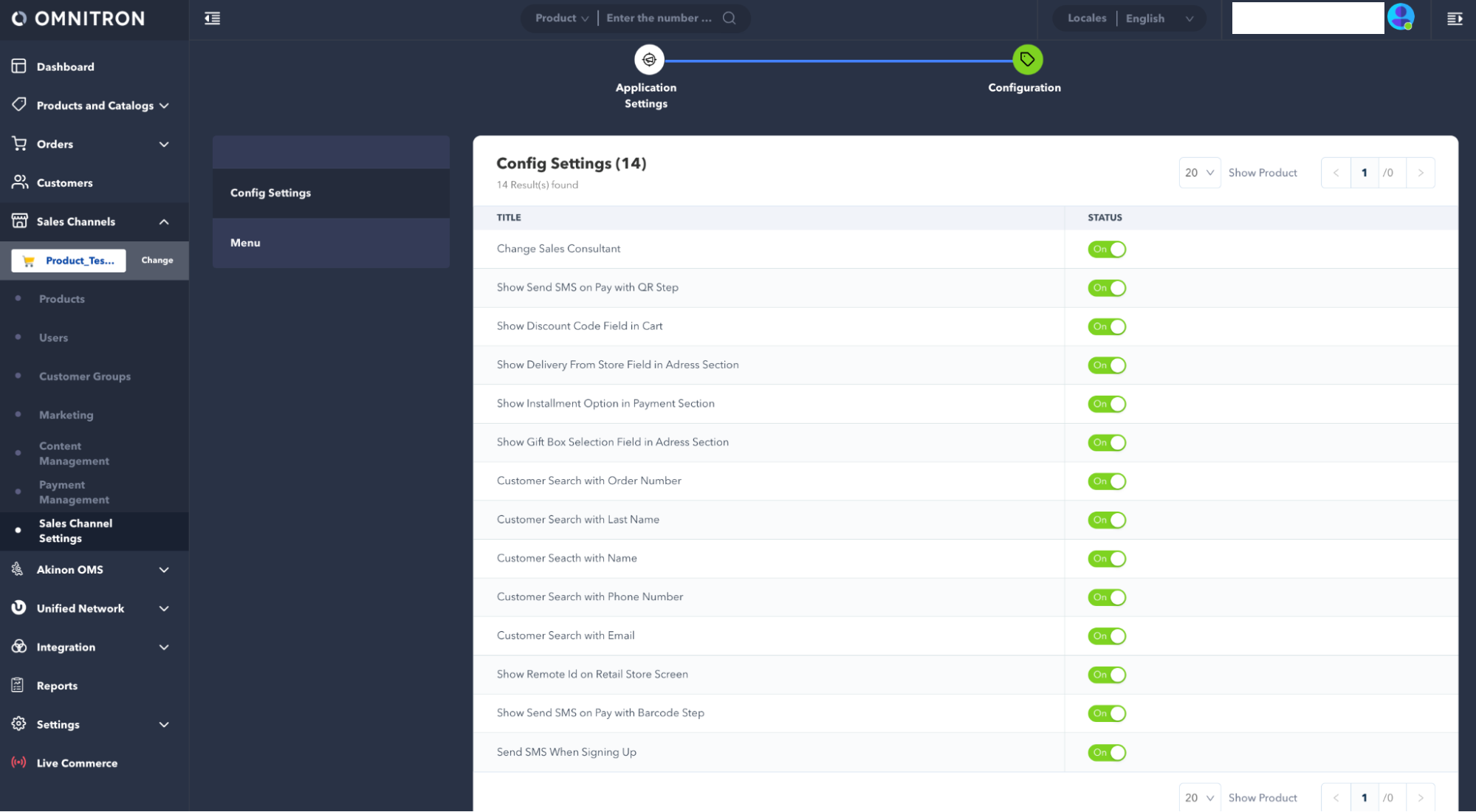
Config Settings lists all the features available in the application and enables their control. The desired features can be activated by setting their status to **On**. Conversely, unwanted features can be deactivated by setting their status to **Off**.
The following options are available for customization in Omnitron's *Config Settings* screen:
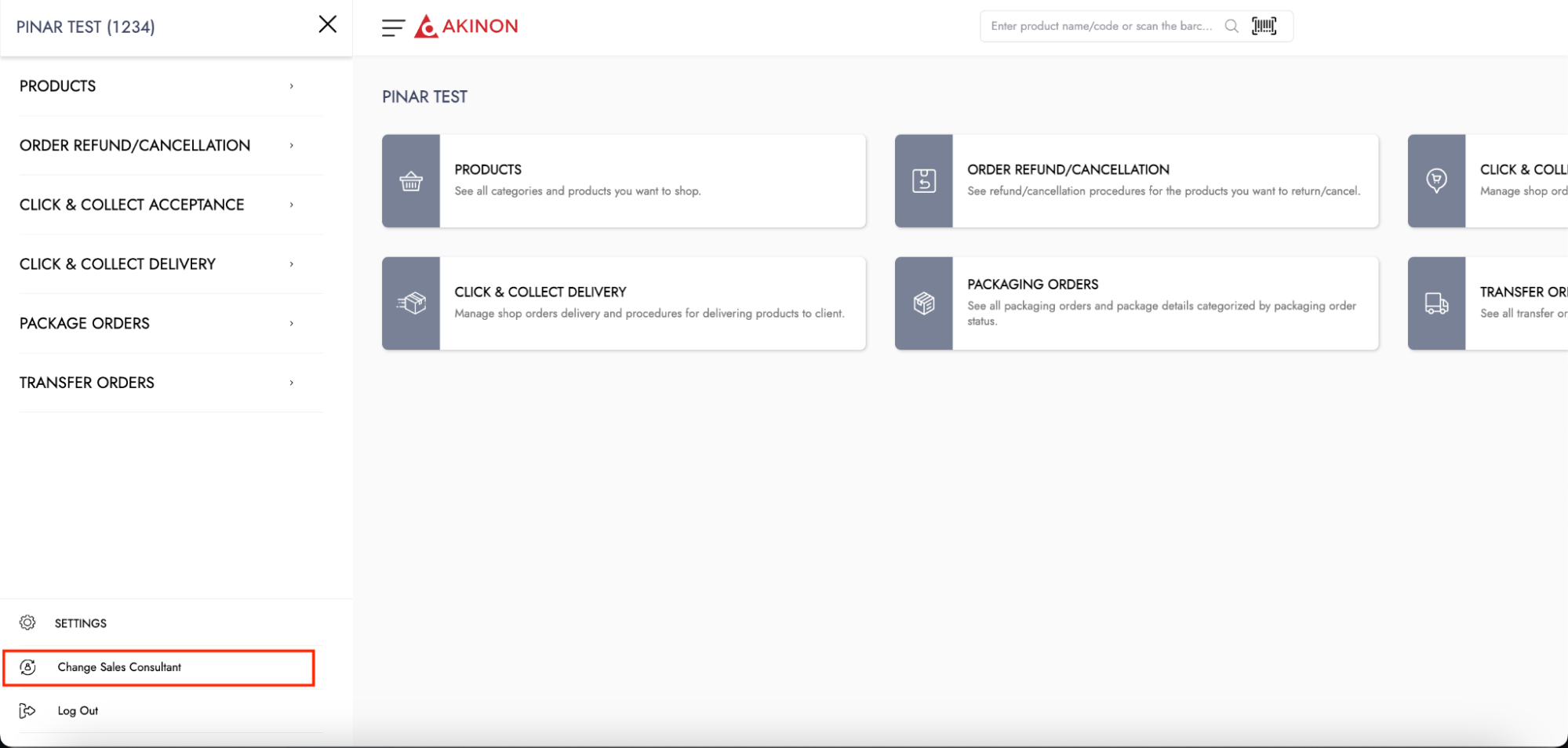
**Change Sales Consultant:** This setting enables a button to easily change the sales consultant added to the Instore menu screen.
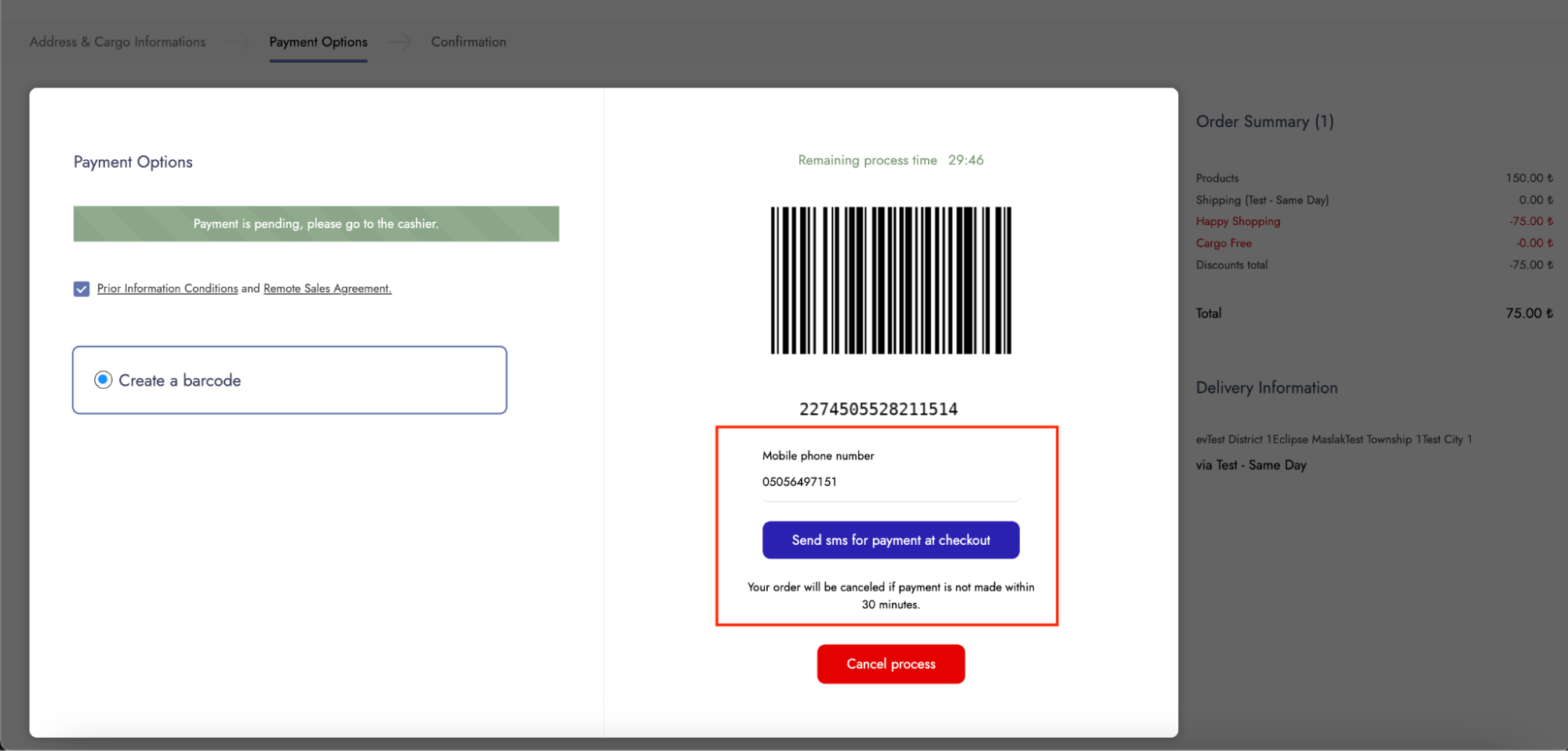
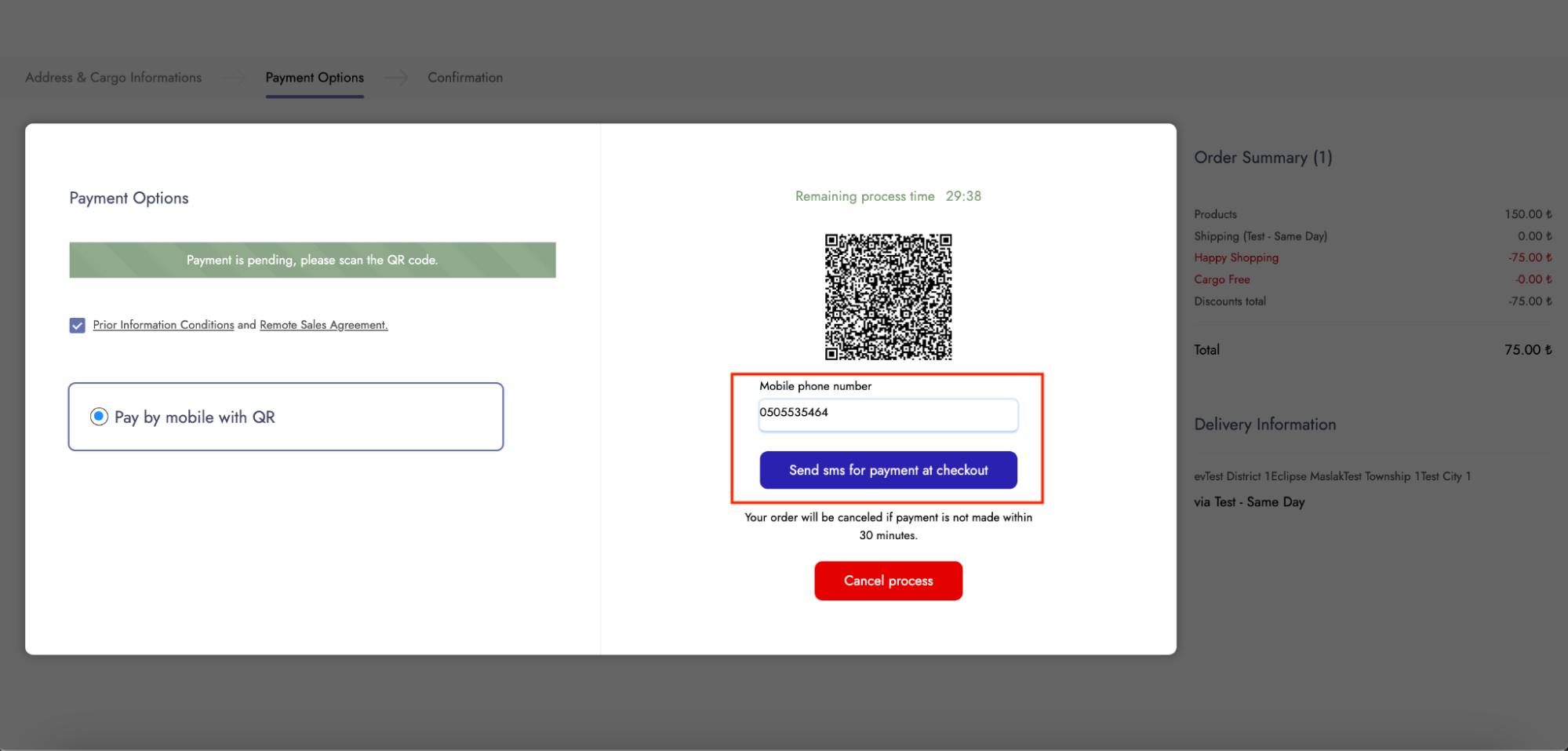
**Show Send SMS on Pay with QR Step**: This setting enables the button that allows sending the QR link to the customer during the payment process with QR.
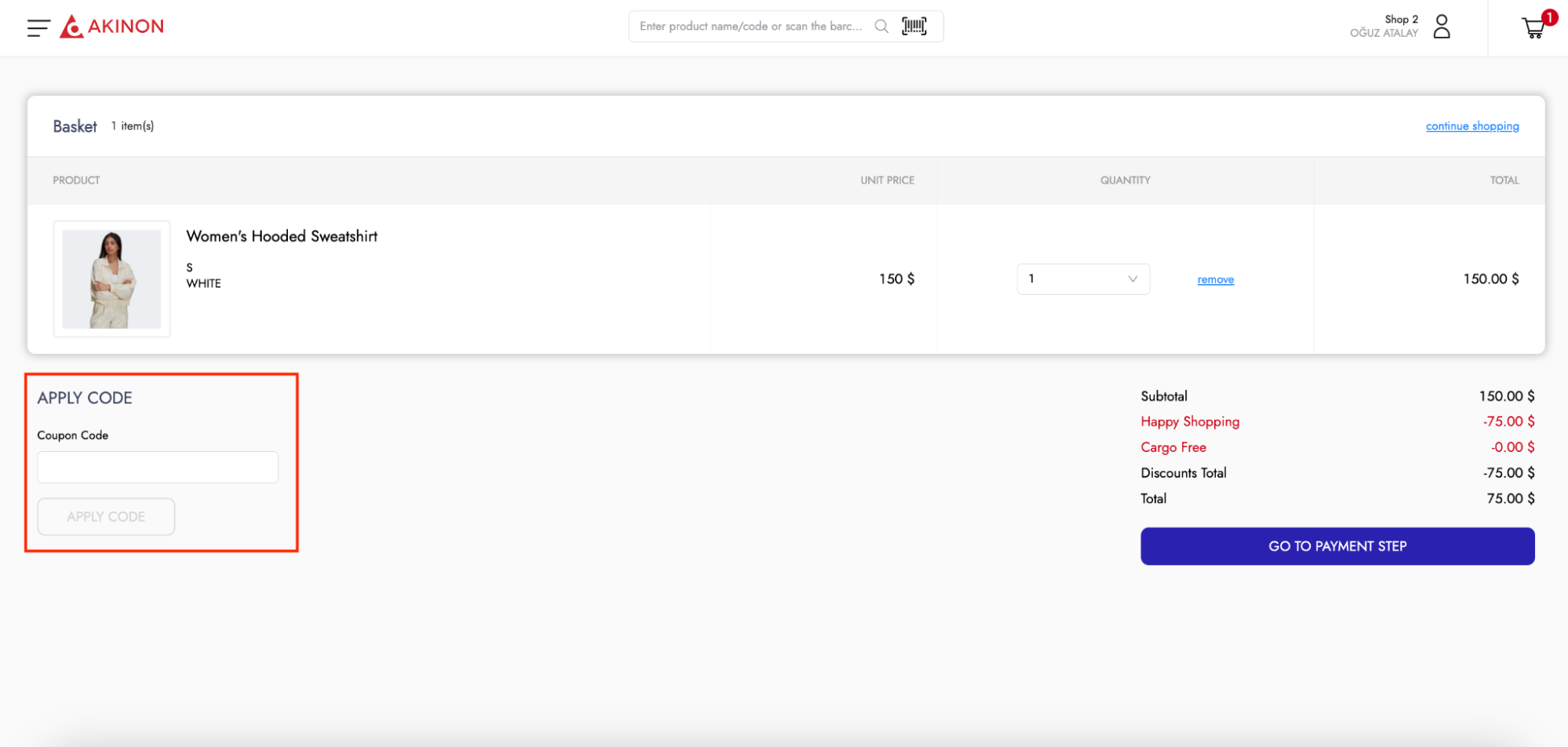
**Show Discount Code Field in Cart:** This setting enables the field where customers can enter their discount code in the shopping cart.
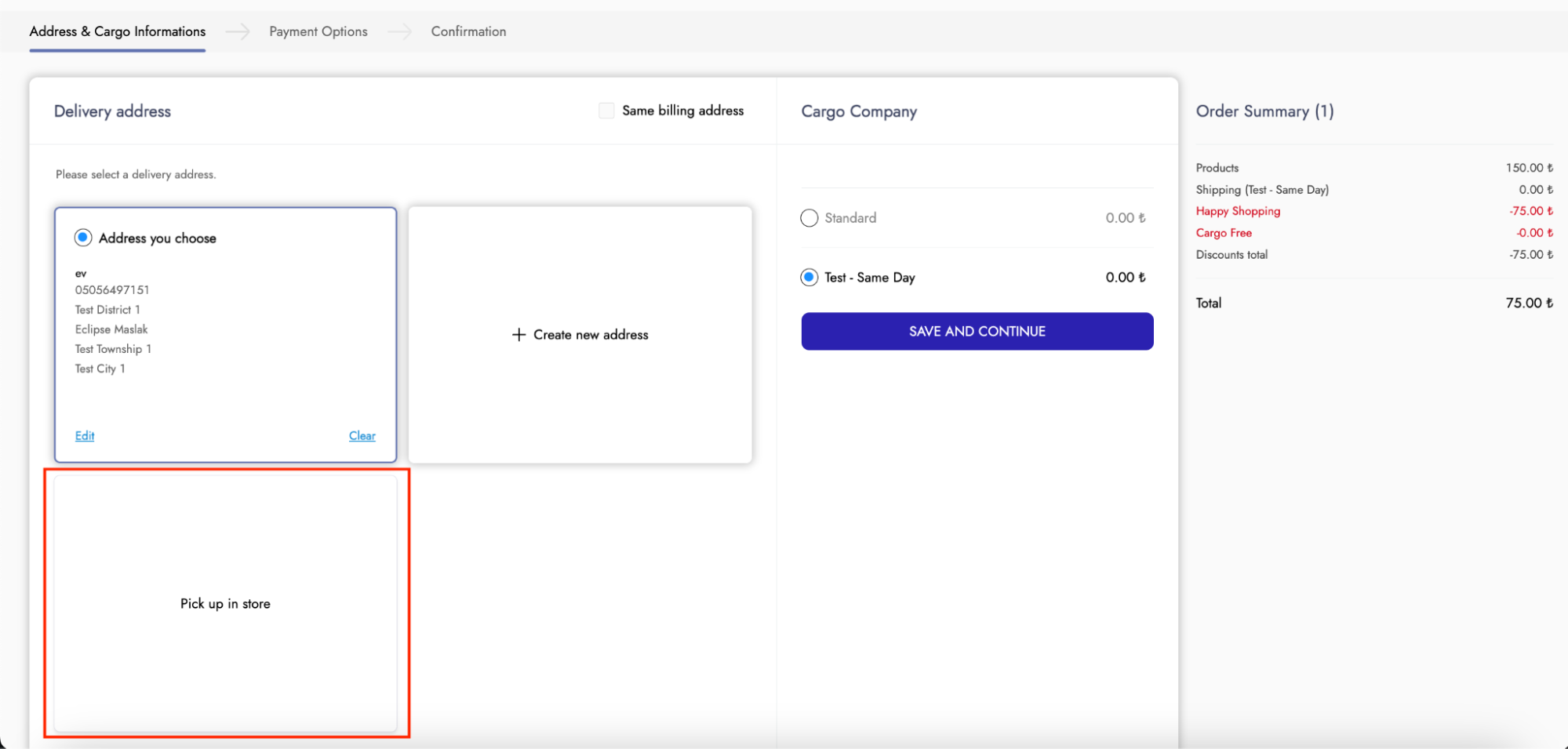
**Show Delivery From Store Field in Address Section:** This setting activates the field in the address section that allows customers to select in-store pickup for their orders placed through Instore.
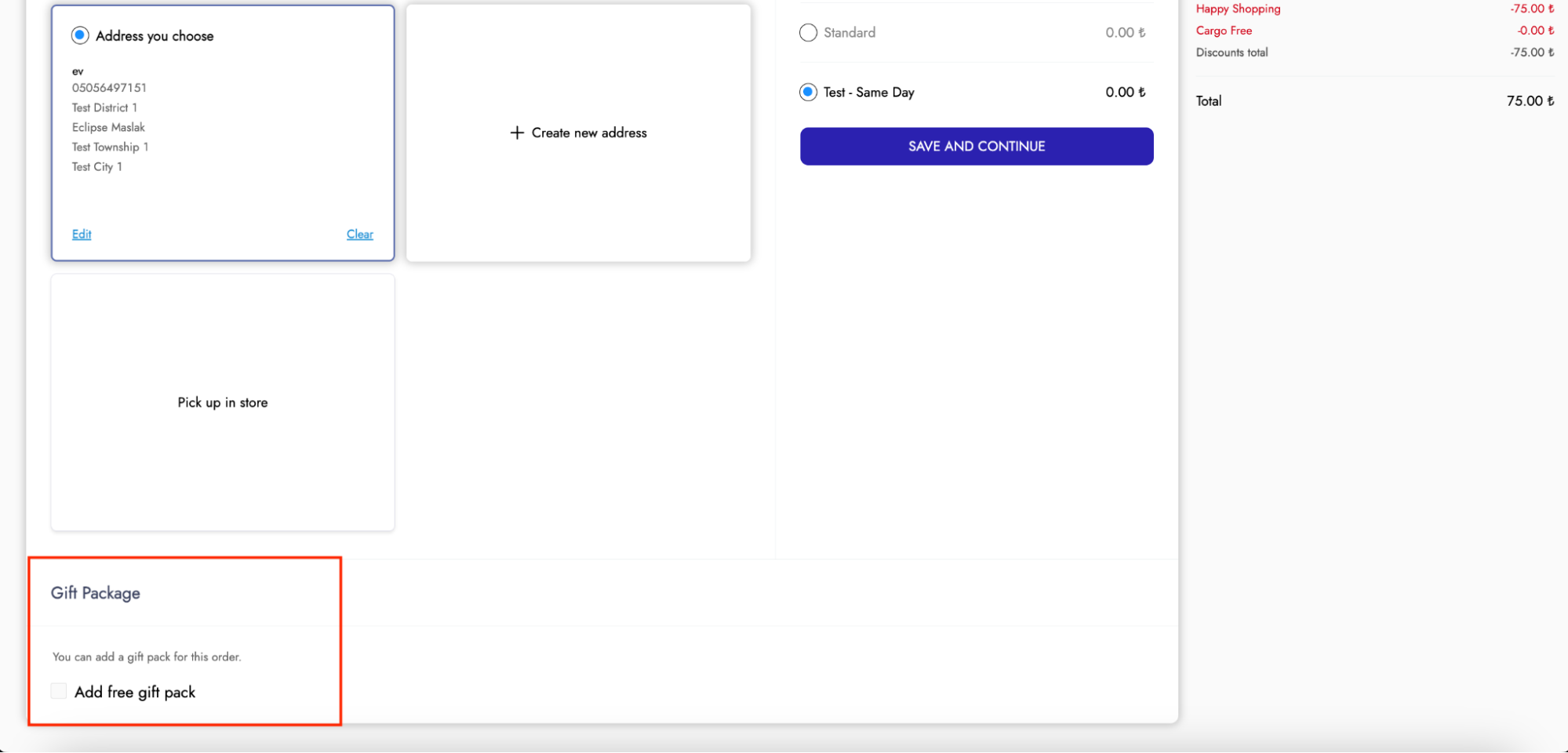
**Show Gift Box Selection Field in Address Section:** The setting that enables the field for selecting a gift box to be added to orders placed through Instore in the checkout page.
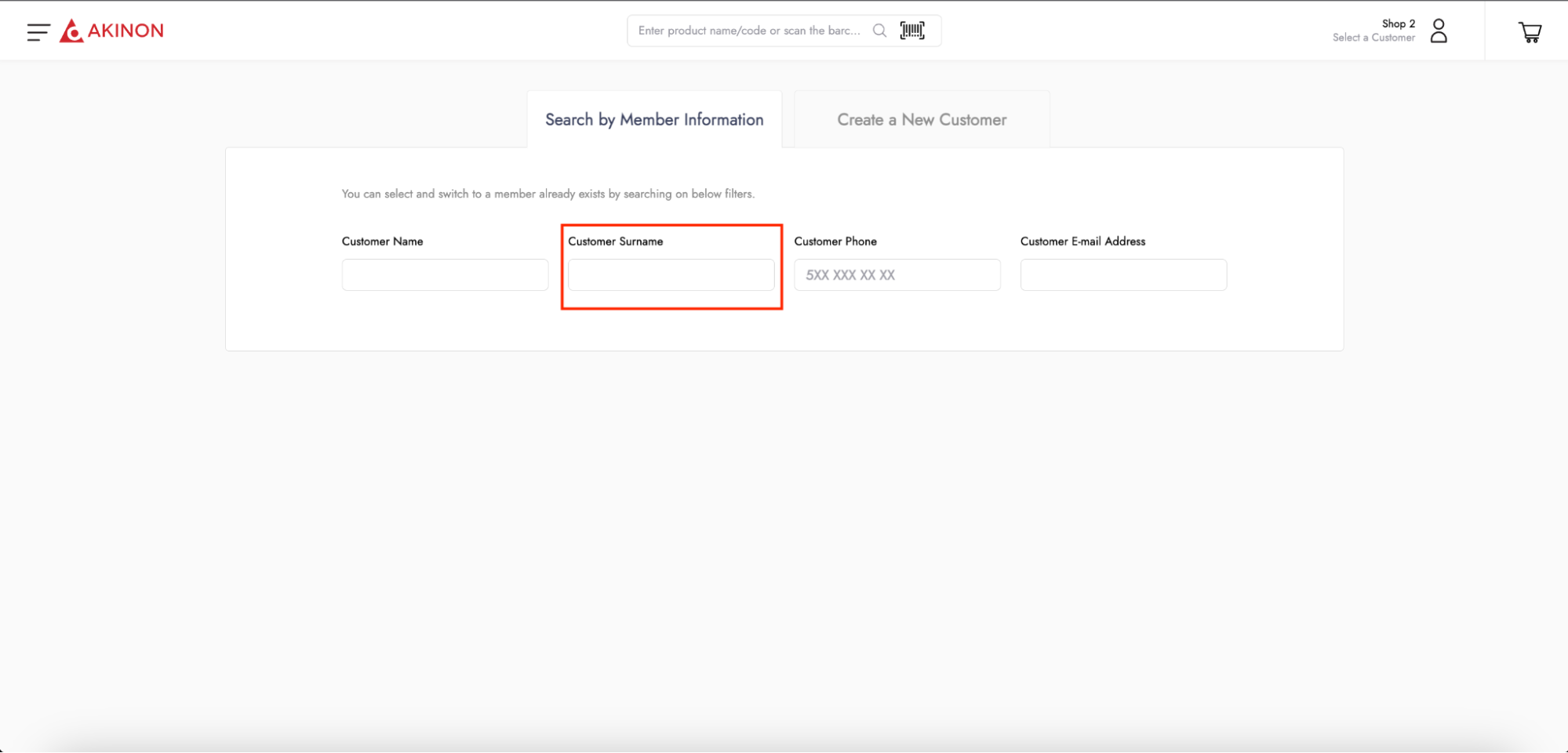
**Customer Search with Last Name:** This setting enables the search field to be used for searching existing customers by their last name.
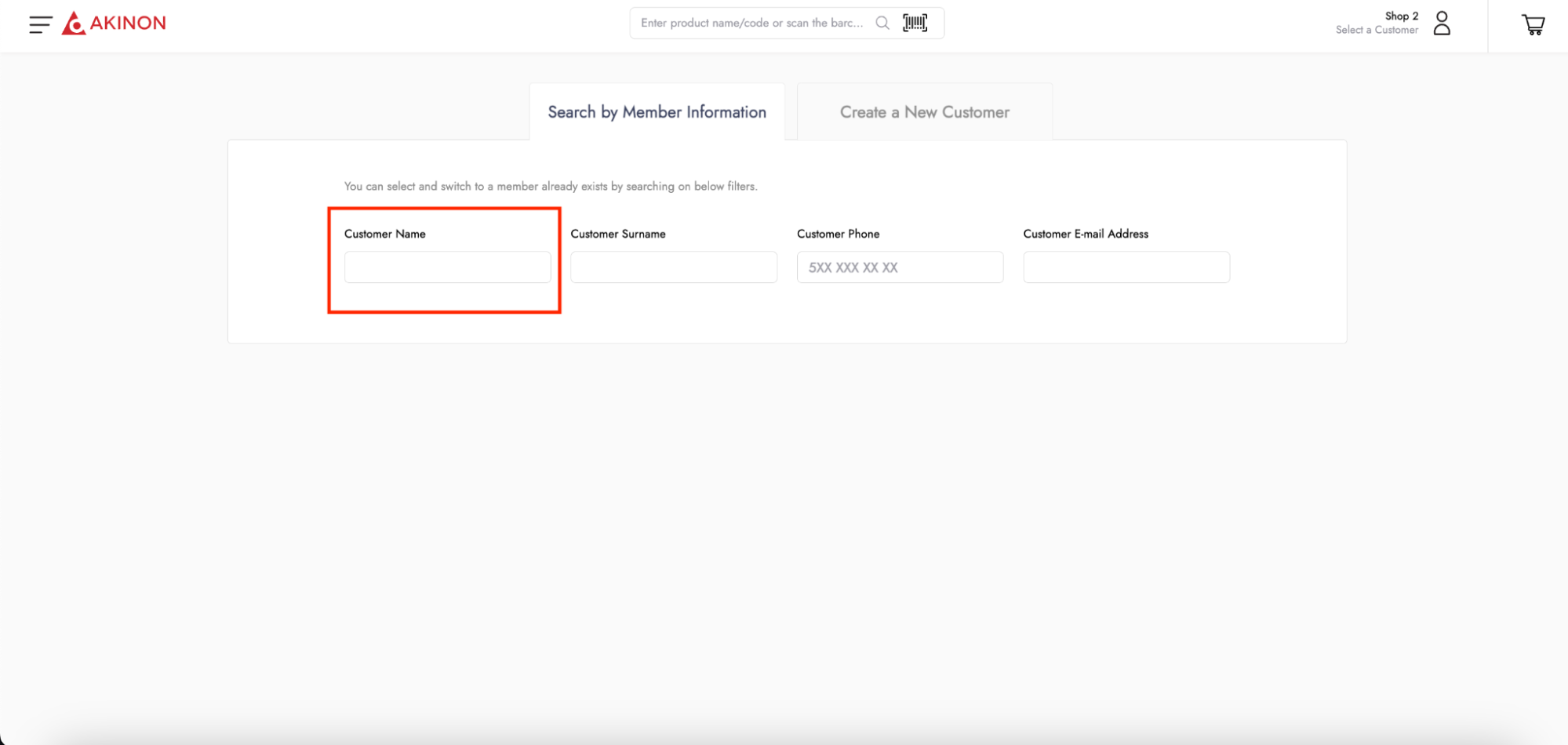
**Customer Search with Name:** The setting that enables the field for searching existing customers by name on the screen used for customer search.
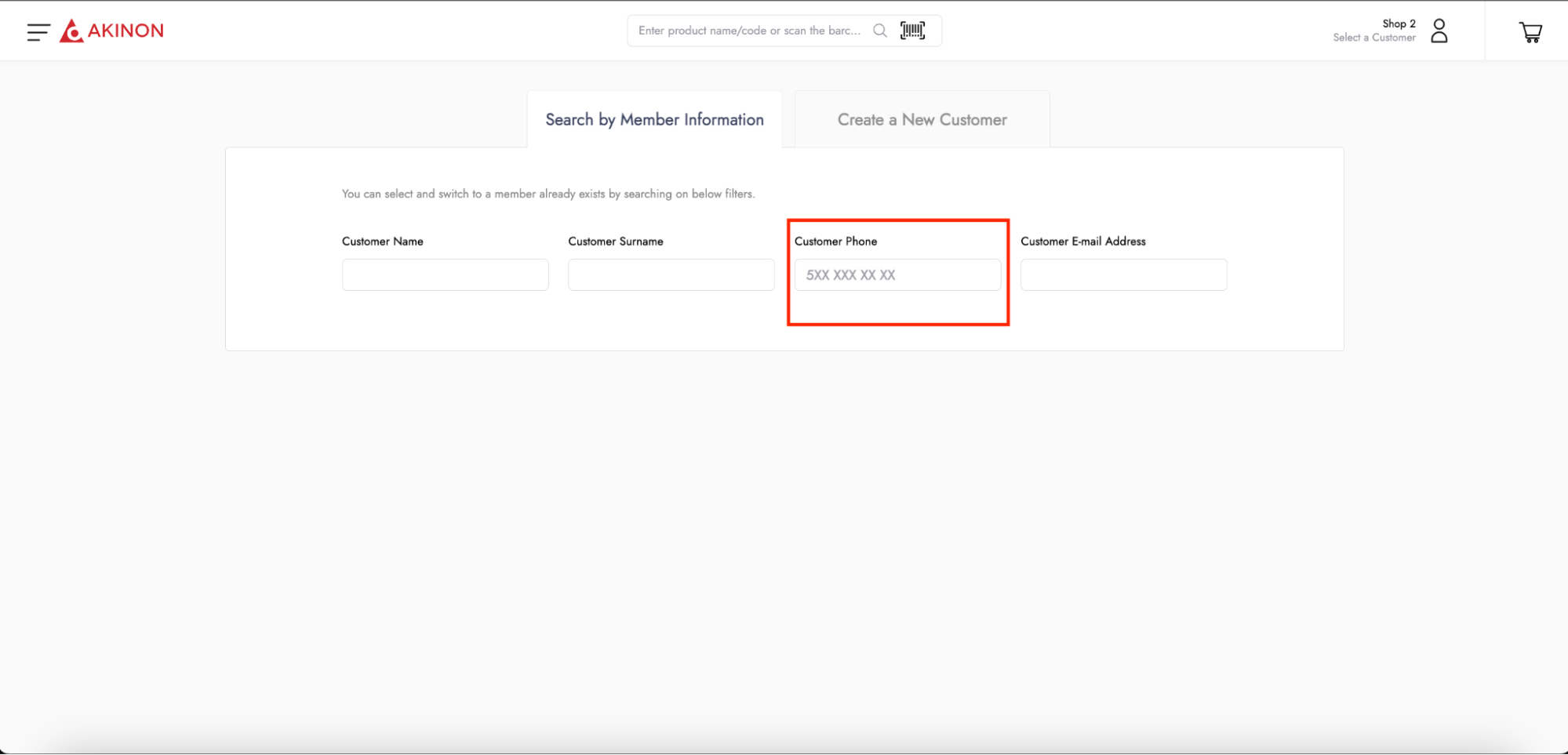
**Customer Search with Phone Number:** An option that enables the search of an existing customer by phone number in the customer search screen.
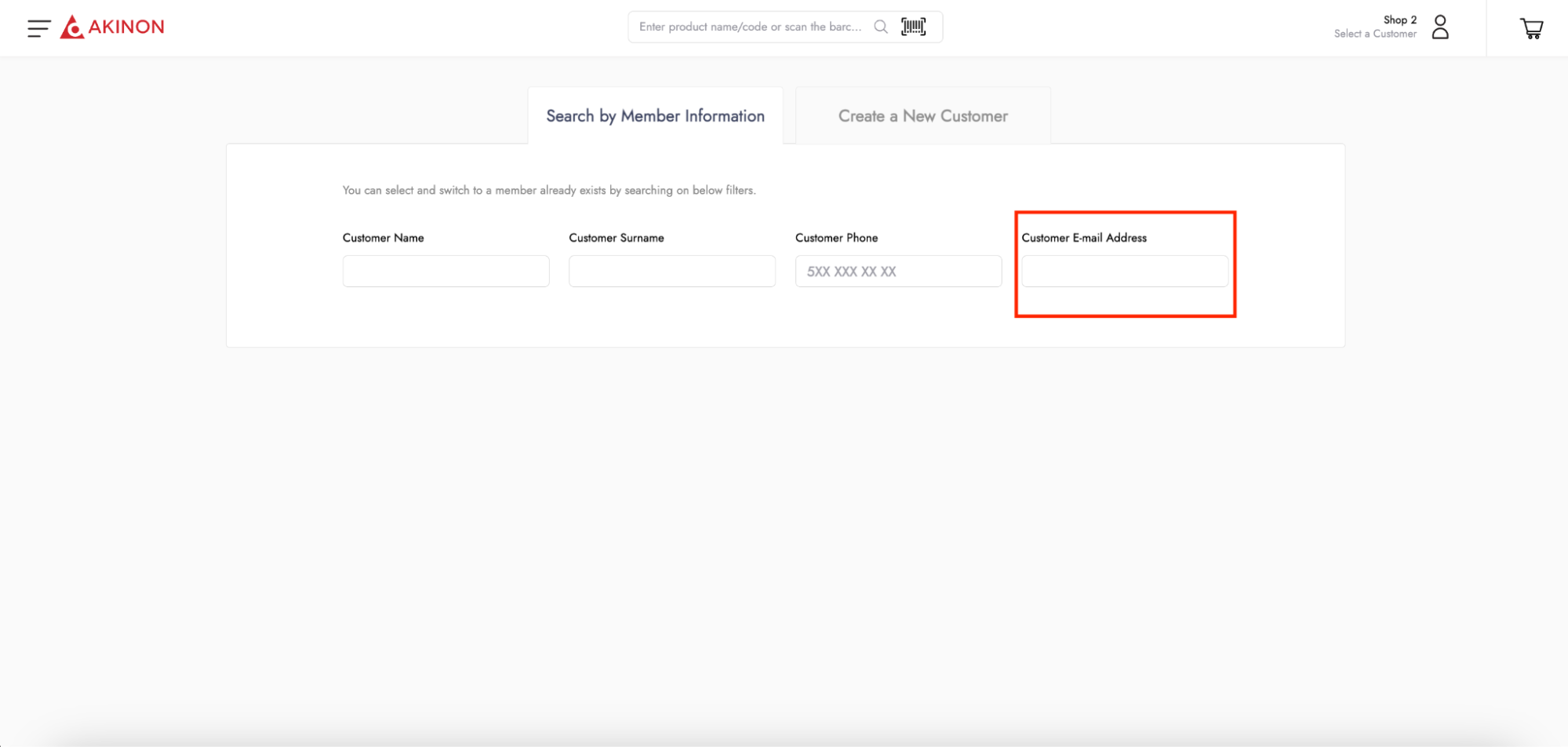
**Customer Search with Email:** An option in the customer search screen that enables searching for an existing customer by their email address.
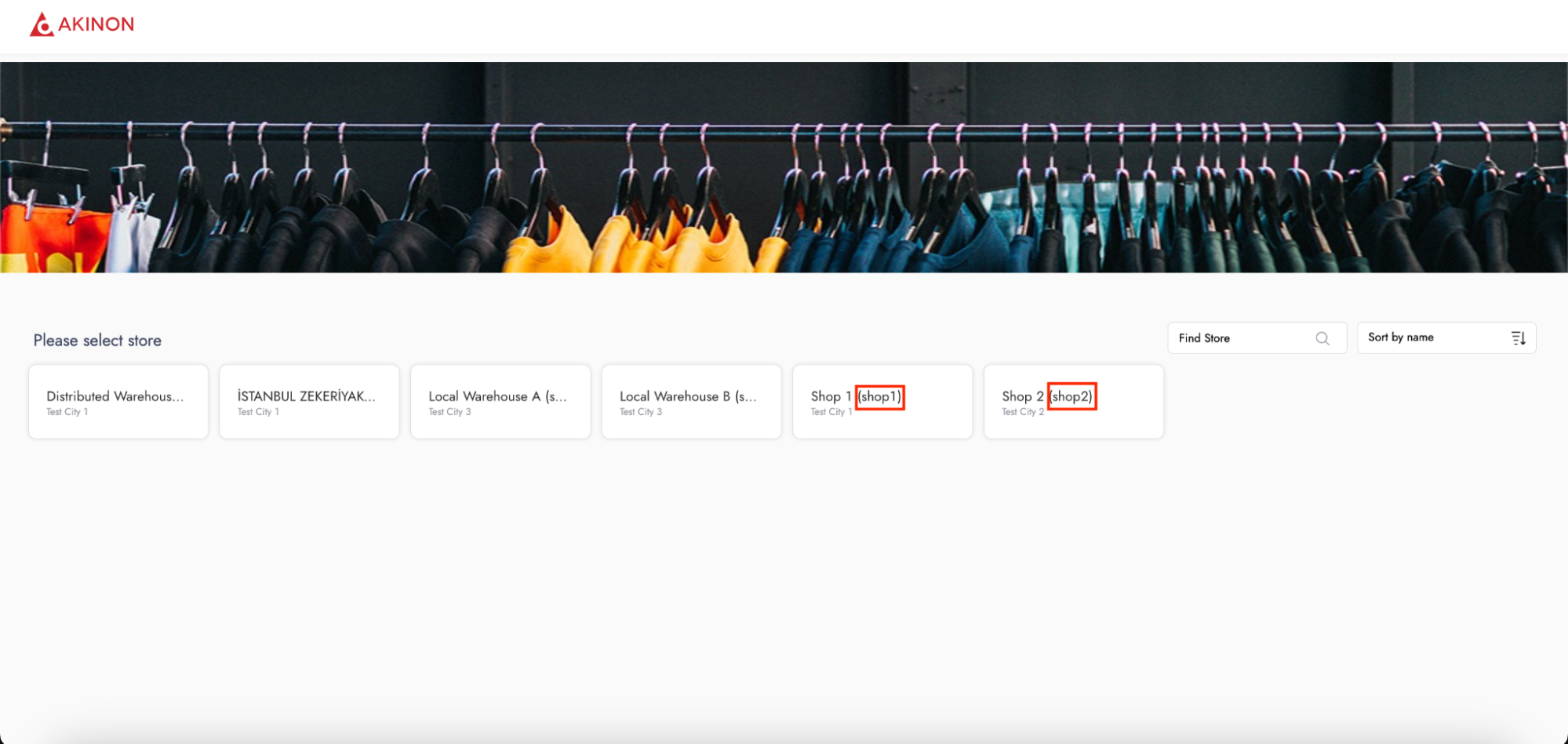
**Show Remote ID on Retail Store Screen:** This setting enables the display of store codes on the entry screen where stores are located.
**Show Send SMS on Pay with Barcode Step:** This setting enables the button that allows sending the barcode link to the customer during the payment with barcode step.
### Menu Settings
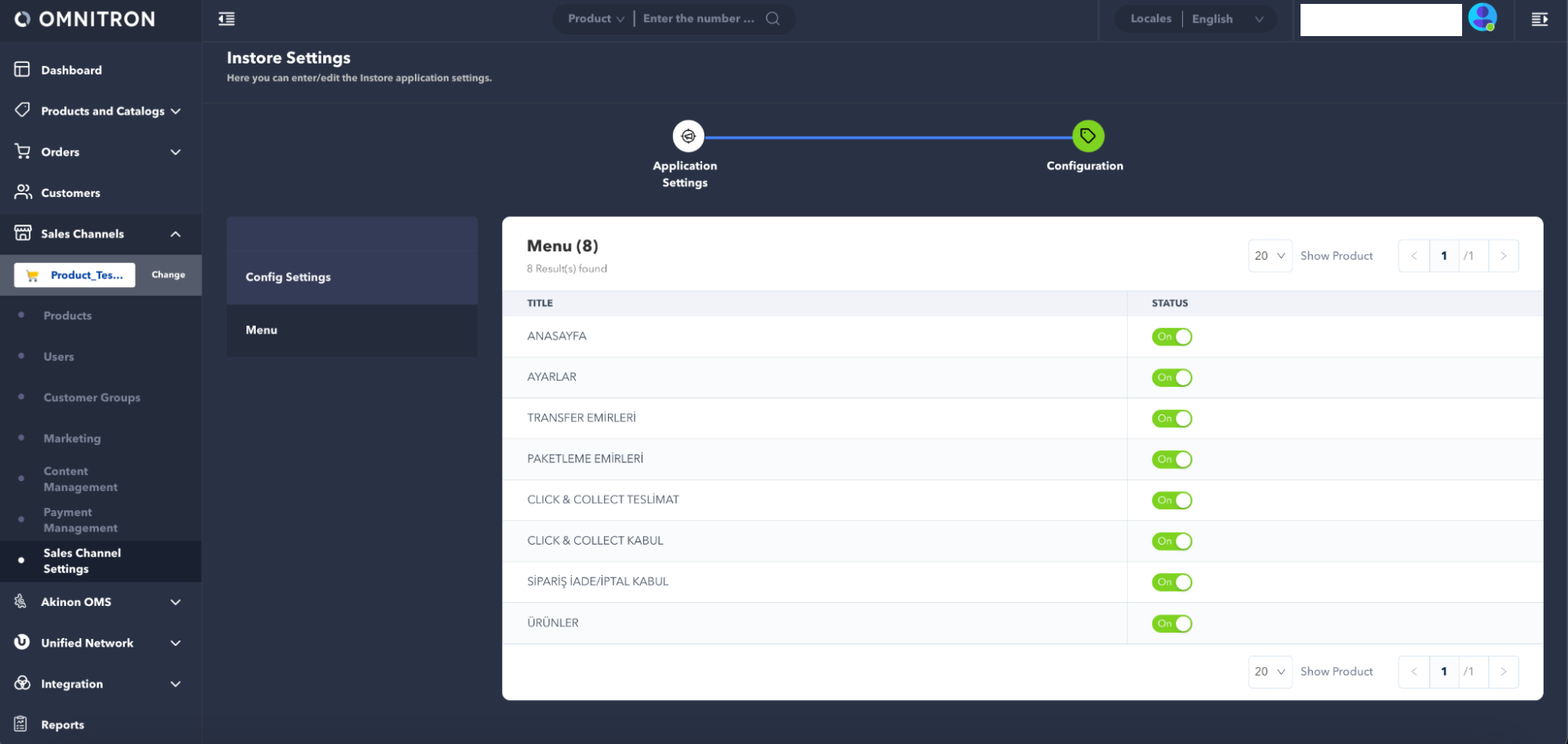
The Menu screen lists the menu items to be displayed in the Instore application's menu and the pages that users can access through the application. It allows for control and customization of these elements. The desired menu items and pages to be shown can be activated by setting their status to **On**. Unwanted menu items and pages can be deactivated by setting their status to **Off**.
---
# Agent Instructions
This documentation is published with GitBook. GitBook is the documentation platform designed so that both humans and AI agents can read, navigate, and reason over technical content effectively. Learn more at gitbook.com.
## Querying This Documentation
If you need additional information that is not directly available in this page, you can query the documentation by asking a question.
Perform an HTTP GET request on the following URL with the `ask` and `goal` query parameters:
```
GET https://docs.akinon.com/tutorials/instore/instore-settings-on-omnitron.md?ask=&goal=
```
`ask` is the immediate question: it should be specific, self-contained, and written in natural language.
`goal` is what the user is ultimately trying to achieve, the reason they need the answer. Sharing it helps GitBook give you a better, more relevant answer. A goal is most helpful when it describes the outcome the user wants rather than restating the question. For example, with `ask=how do I create an API token`, a goal like `automate deployments from our CI pipeline` lets GitBook tailor the answer to that use case.
The response will contain a direct answer to the question and relevant excerpts and sources from the documentation.
Use this mechanism when the answer is not explicitly present in the current page, you need clarification or additional context, or you want to retrieve related documentation sections.