> For the complete documentation index, see [llms.txt](https://docs.akinon.com/llms.txt). Markdown versions of documentation pages are available by appending `.md` to page URLs; this page is available as [Markdown](https://docs.akinon.com/tutorials/instore/manage-store-and-staff.md).
# Manage Store & Staff
The addition and management of the stores to be displayed in the Instore application are carried out on Omnitron. In addition, the identification of store employees who will have access to Instore is also controlled through the screens located on Omnitron.
## Creating a Store on Omnitron
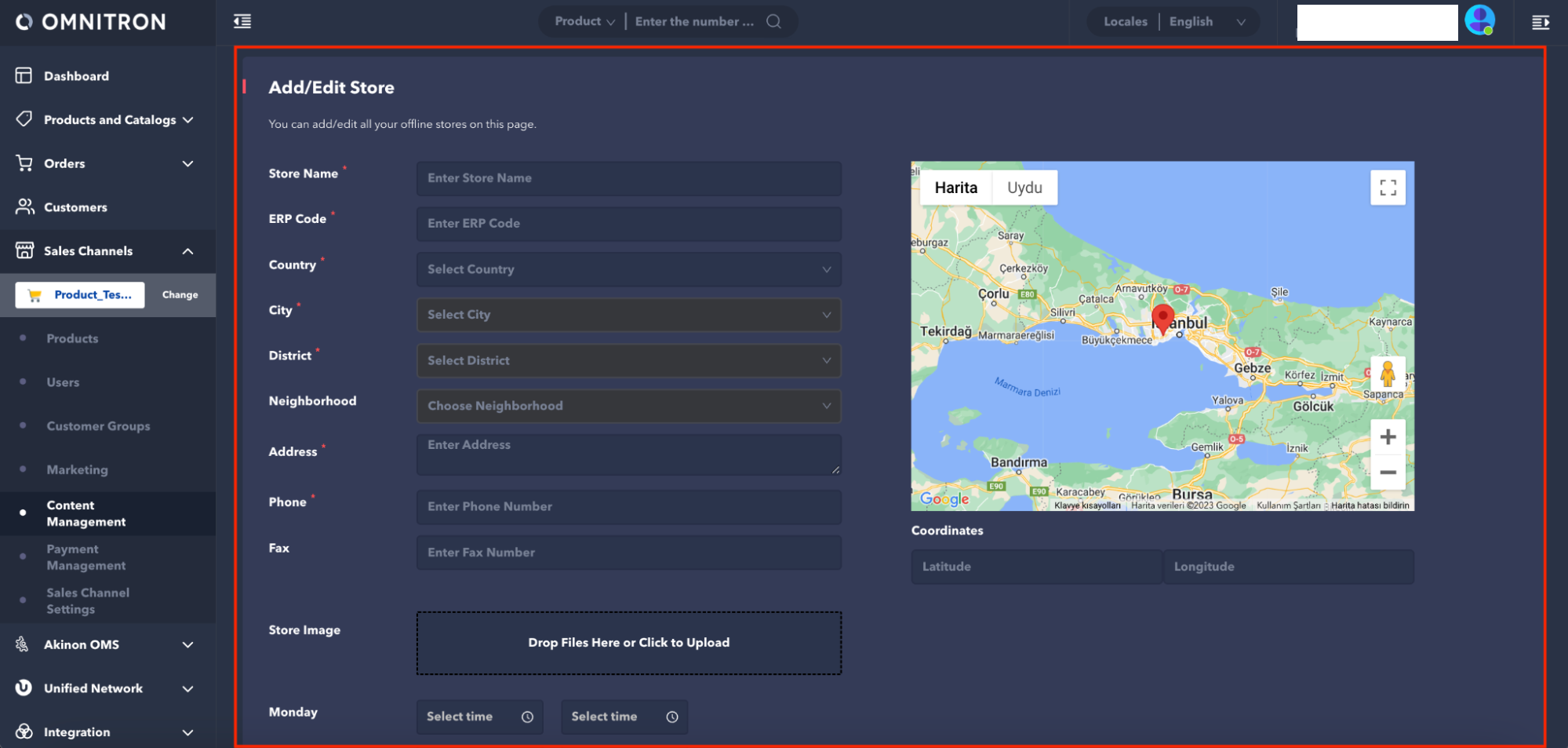
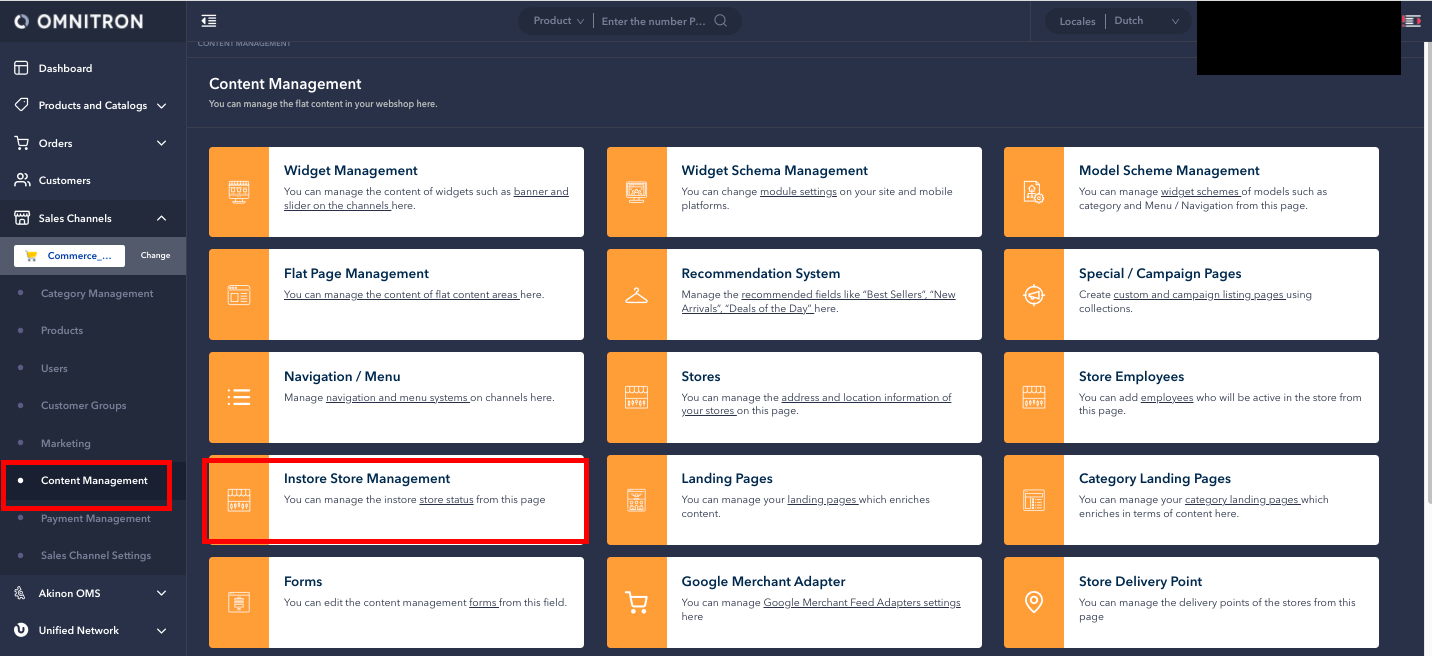
Adding and managing the stores that are desired to be displayed in the Instore application is carried out on Omnitron. To add a store to Instore, it is necessary to create stores on the sales channel connected to Instore in Omnitron first. This process can be performed using the Content Management > Stores screen in Omnitron.
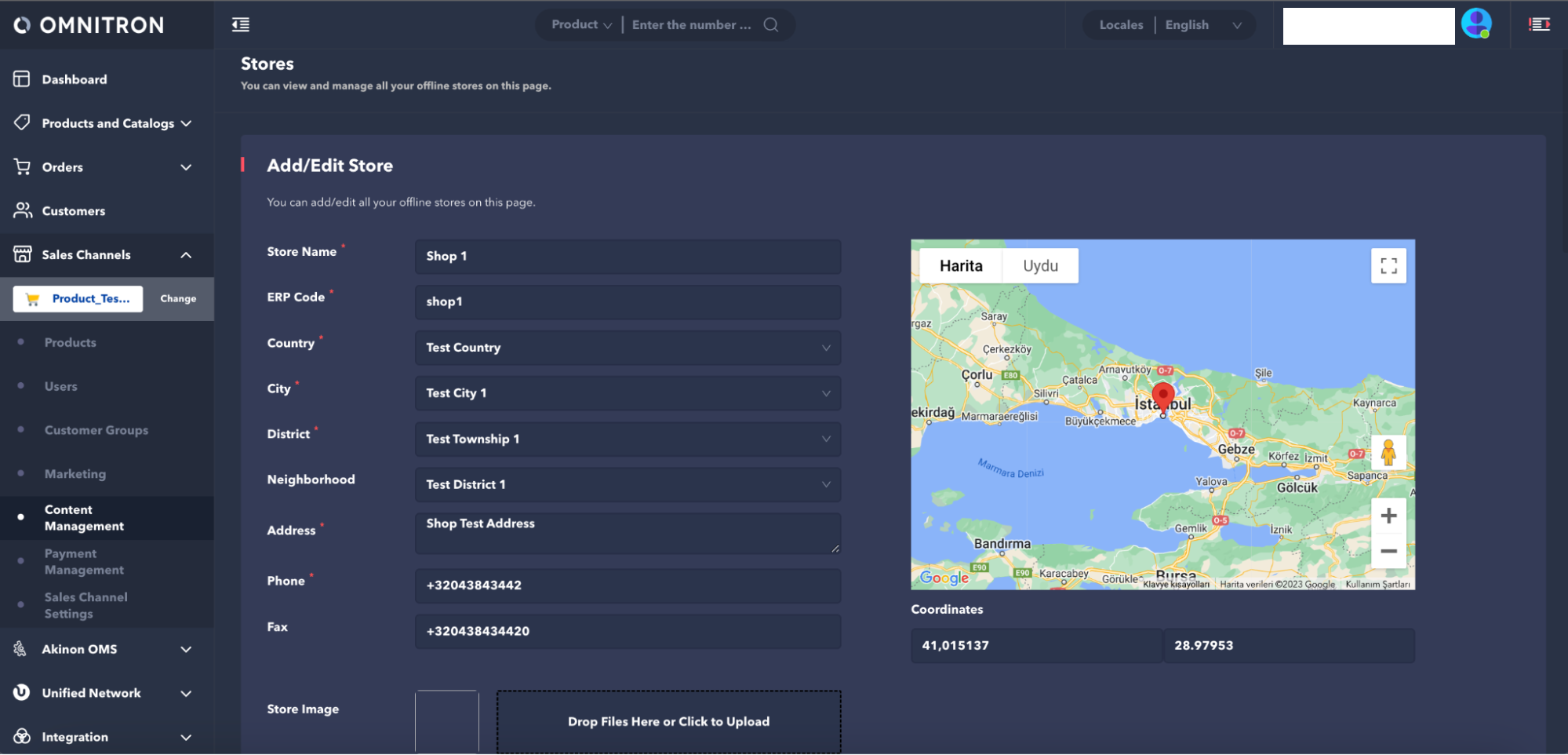
By clicking on the **New Store** button located on the *Stores* screen, adding a new store is accomplished through the store addition form.
When a new store is created on the *Stores* screen, Omnitron automatically adds this new store to the *Instore Store Management* screen as well. The *Instore Store Management* screen is used to check whether the stores will appear on the Instore application or not.
To be able to list the stores that are already listed on the *Stores* screen but not listed on the *Instore Store Management* screen, a minor update needs to be made to the store information. For this, click on the relevant store on the *Stores* screen and open the screen where the store information is located. When any update is made and the **Save** button is clicked, the store will automatically be listed on the Instore Store Management screen.
## Store Management
The determination and visibility of the stores that can be accessed through the Instore application are managed through the **Content Management > Instore Store Management** screen.
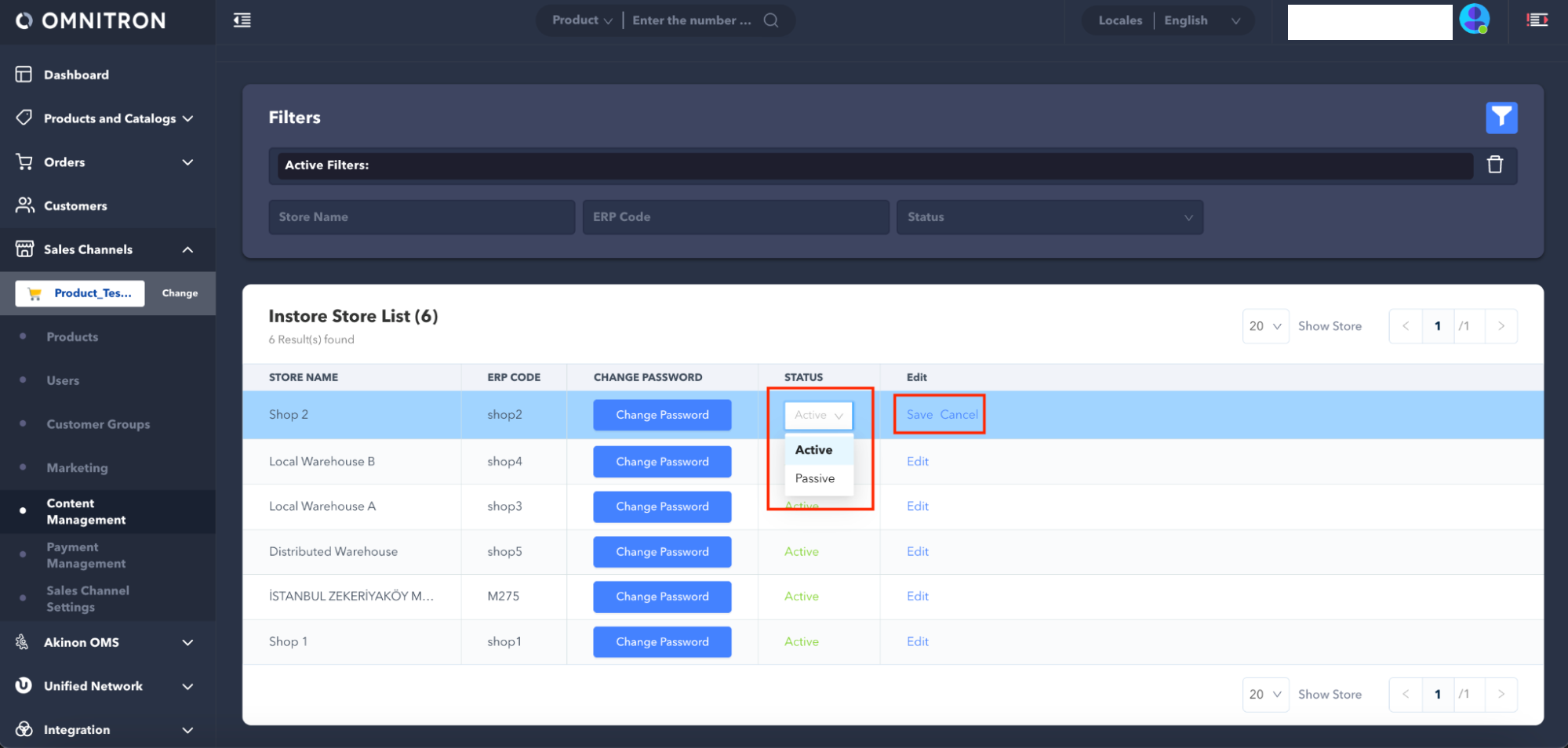
Each store created from the *Stores* screen is automatically listed on the Instore *Store Management* screen with its visibility on the Instore application being passive. The activity status of the store can be changed through the **Edit** button located in the row where the information of the listed store is available.
By default, the store's ERP code is defined as the store password for the stores listed on the Instore *Store Management* screen. With this defined password, it is possible to log in to the store account via the Instore application. If the store password needs to be changed, the **Change Password** button in the row containing the information of the relevant store can be used.
## Staff Management
The creation and management of personnel accounts associated with stores in the Instore application are carried out through the **Content Management > Store Employees** screen on Omnitron.
To create a new employee associated with the store, you need to click the **New Employee** button on the *Store Employees* screen.
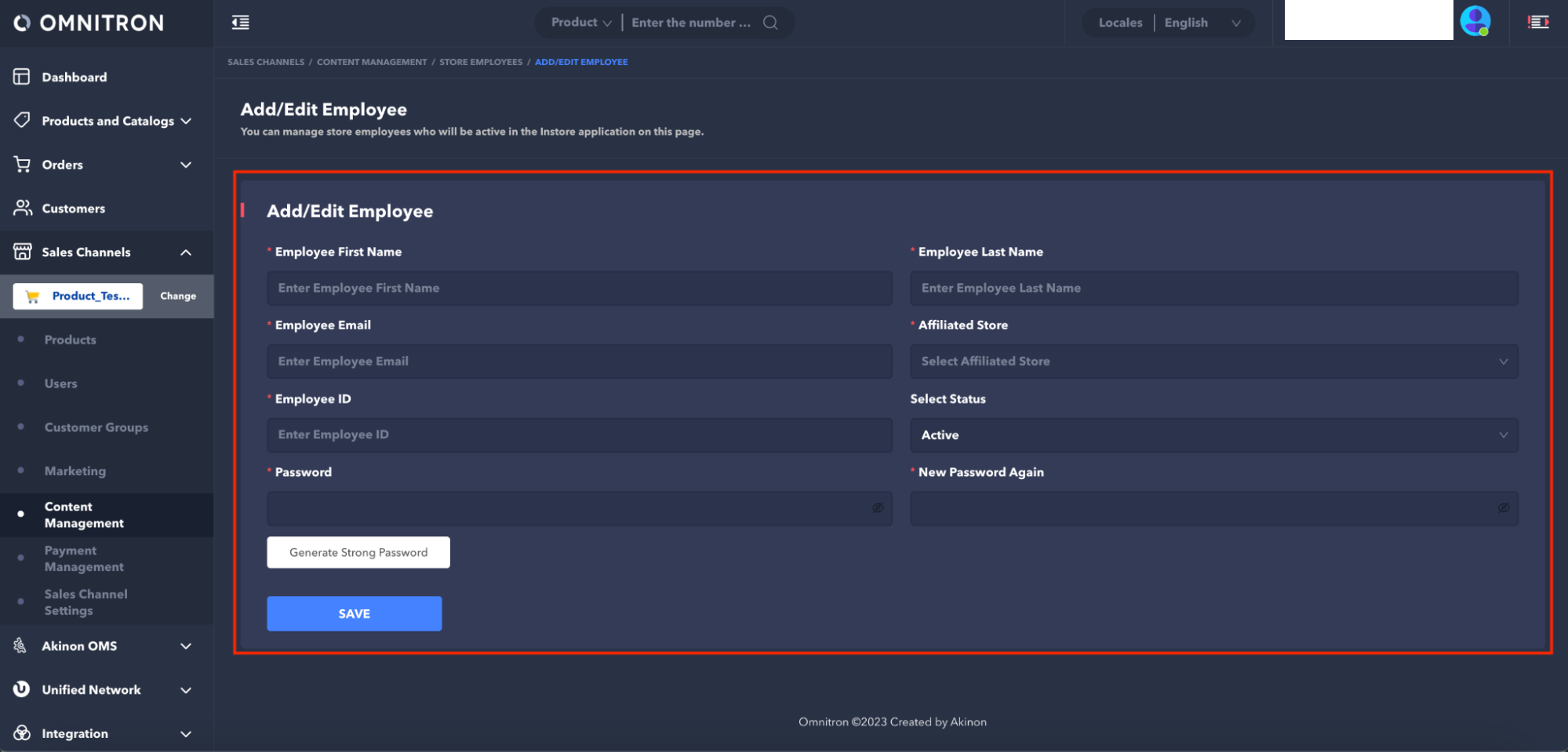
The personal information of store personnel (Employee First Name, Employee Last Name, Employee Email) is filled out in the form displayed on the screen. The affiliated Instore store is selected in the *Affiliated Store* field. A unique identification number is assigned to the store employee using the Employee ID, and the password for the employee's account is determined. Each store personnel is assigned a unique Employee ID, and the same ID cannot be assigned to multiple store personnel.
To change the information of a store employee or their account password, you need to click on the row where the employee's information is listed on the *Store Employees* screen or use the **Change Password** button located on the same row.
When a store employee leaves their job, their store employee account should be disabled or suspended by setting the *Select Status* field in the form where store employee information is located to Passive.
---
# Agent Instructions
This documentation is published with GitBook. GitBook is the documentation platform designed so that both humans and AI agents can read, navigate, and reason over technical content effectively. Learn more at gitbook.com.
## Querying This Documentation
If you need additional information that is not directly available in this page, you can query the documentation by asking a question.
Perform an HTTP GET request on the following URL with the `ask` and `goal` query parameters:
```
GET https://docs.akinon.com/tutorials/instore/manage-store-and-staff.md?ask=&goal=
```
`ask` is the immediate question: it should be specific, self-contained, and written in natural language.
`goal` is what the user is ultimately trying to achieve, the reason they need the answer. Sharing it helps GitBook give you a better, more relevant answer. A goal is most helpful when it describes the outcome the user wants rather than restating the question. For example, with `ask=how do I create an API token`, a goal like `automate deployments from our CI pipeline` lets GitBook tailor the answer to that use case.
The response will contain a direct answer to the question and relevant excerpts and sources from the documentation.
Use this mechanism when the answer is not explicitly present in the current page, you need clarification or additional context, or you want to retrieve related documentation sections.