> For the complete documentation index, see [llms.txt](https://docs.akinon.com/llms.txt). Markdown versions of documentation pages are available by appending `.md` to page URLs; this page is available as [Markdown](https://docs.akinon.com/tutorials/oms/transfer-scenarios.md).
# Transfer Scenarios
This tutorial provides step-by-step instructions on how to create or edit transfer scenarios within OMS. Transfer scenarios are essential for managing the movement of items within the system efficiently.
## Step 1: Access Transfer Scenarios
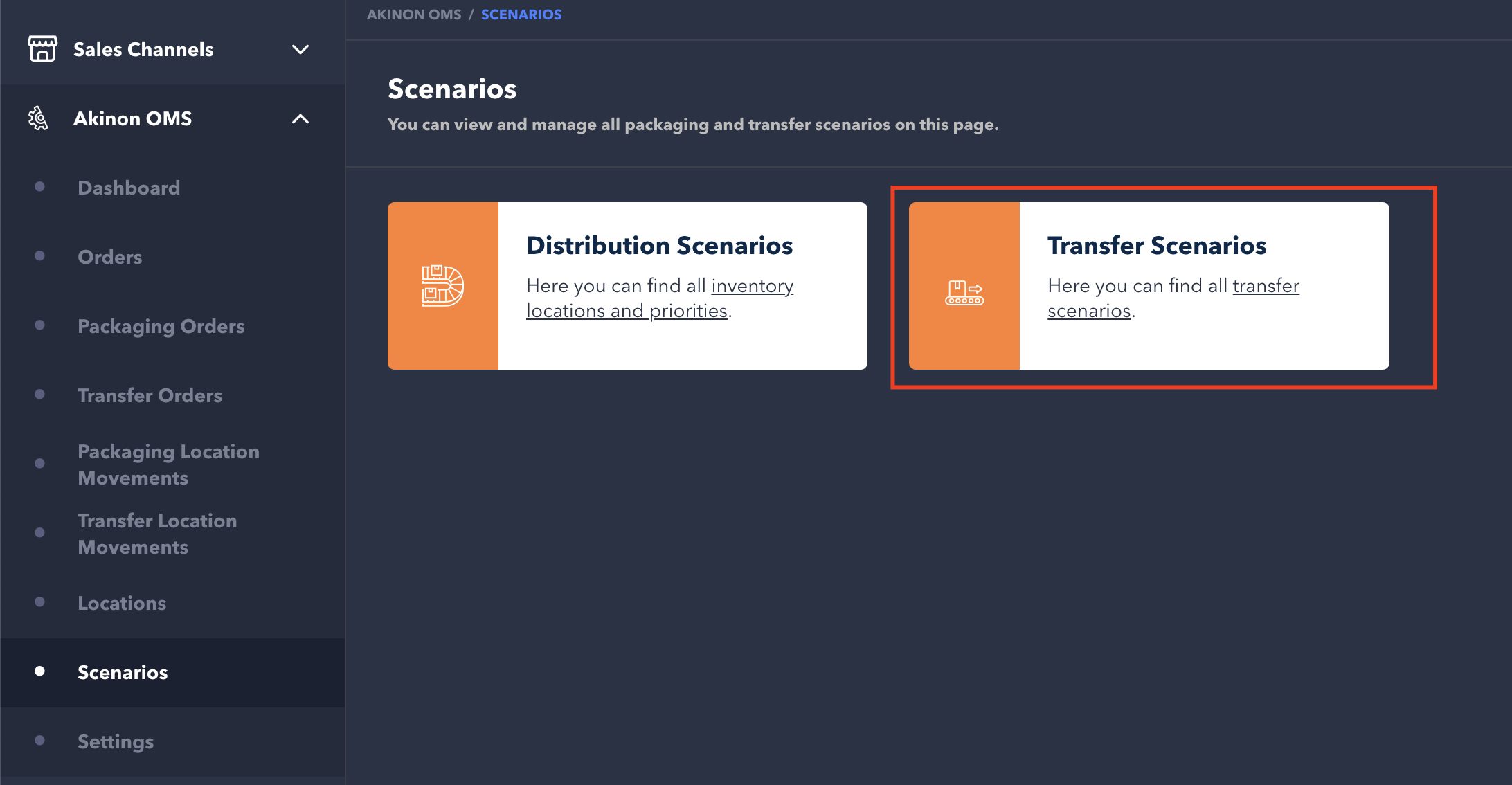
* To add a new transfer scenario, navigate to the Akinon OMS menu and select the **Scenarios** tab.
* Next, click on **Transfer Scenarios**.
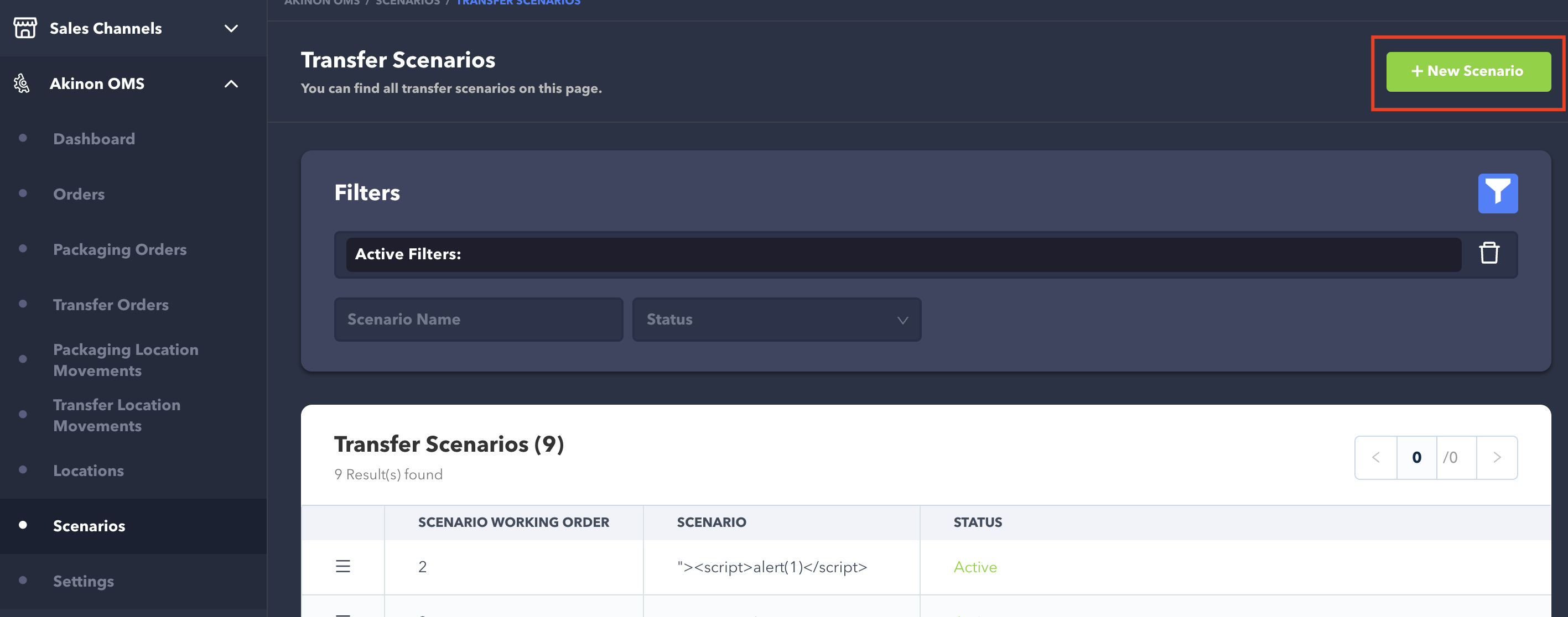
* Click on the **+New Scenario** button to begin creating a new transfer scenario.
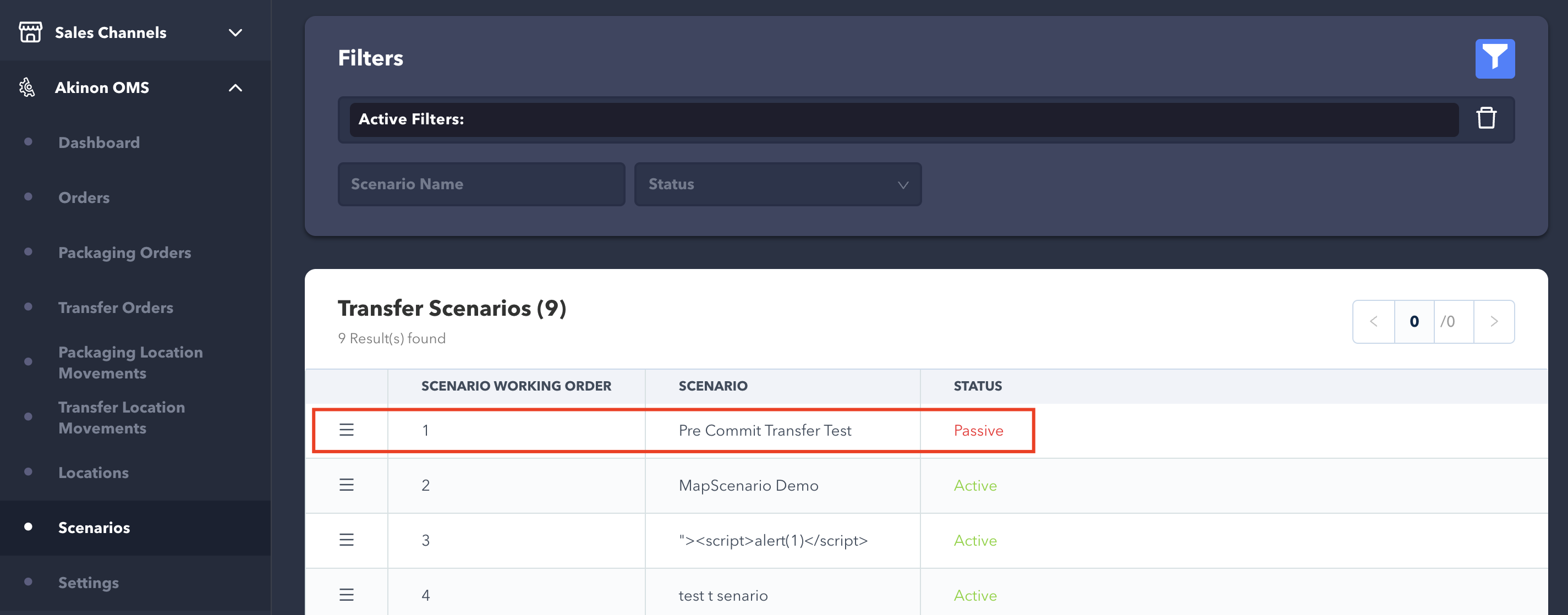
* To edit an existing transfer scenario, follow the same steps to access **Transfer Scenarios** under the **Scenarios** tab. Select the scenario you want to edit from the list and navigate to its details.
## Step 2: Create a Transfer Scenario
When creating a transfer scenario, you need to provide the following details:
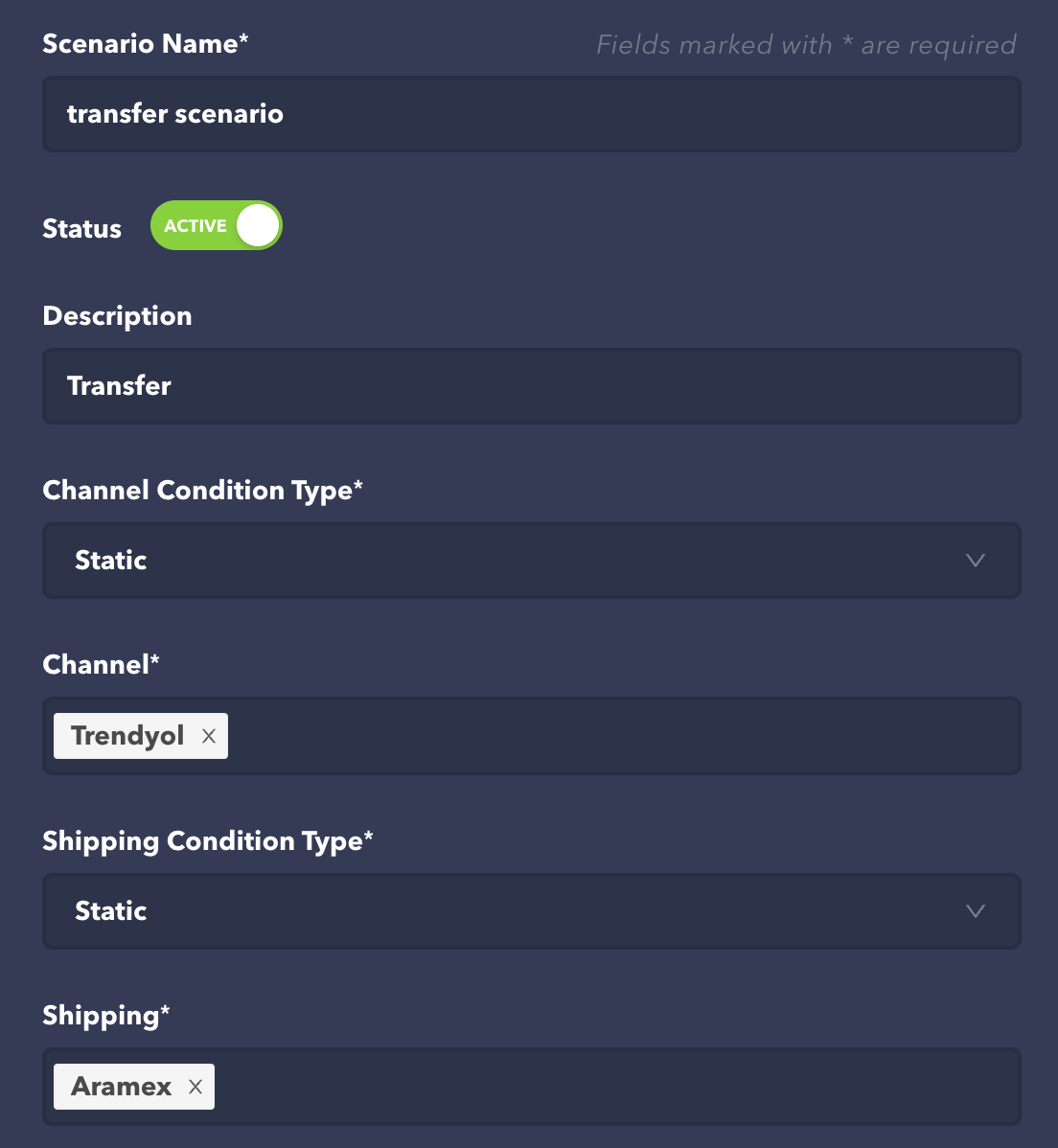
* **Scenario Name**: Enter a name for the scenario. This name will appear in the scenario list and is mandatory.
* **Status**: Manage the scenario's active/passive status. Only active scenarios are used in the planning stage.
* **Description**: Add a description for the scenario (optional).
* **Channel Condition Type**: Select the type of value to enter in the channel field. **Static** allows you to select channels from a list, while **Dynamic** enables customized queries with a builder.
* **Channel**: Filter the channel(s) on which the scenario will be applied.
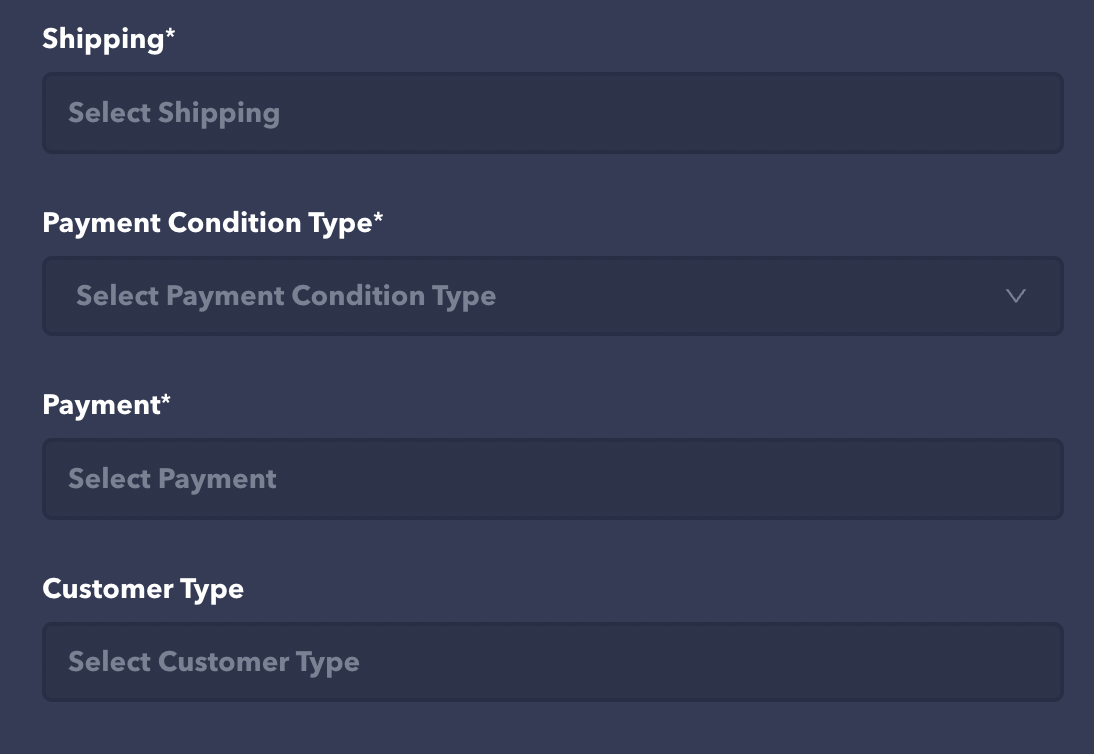
* **Shipping Condition Type**: Similar to the channel, select the type of value for shipping.
* **Shipping**: Filter the shipping(s) for this scenario.
* **Payment Condition Type**: Similar to the channel, select the type of value for payment.
* **Payment**: Filter the payment(s) for this scenario.
* **Customer Type**: Use this for scenarios based on customer types.
## Step 3: Add a Package Rule
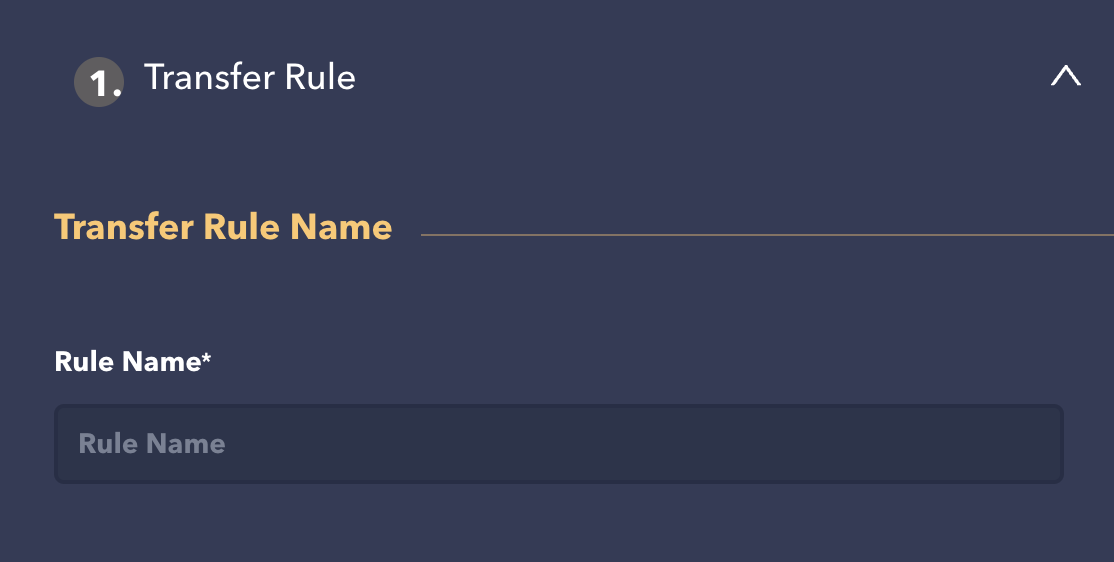
* When adding a package rule, start by entering the rule's name and adding prerequisites.
* Prerequisites allow you to run the scenario based on specific package's location. For example, you can create rules like 'If the package's location is the X store'.
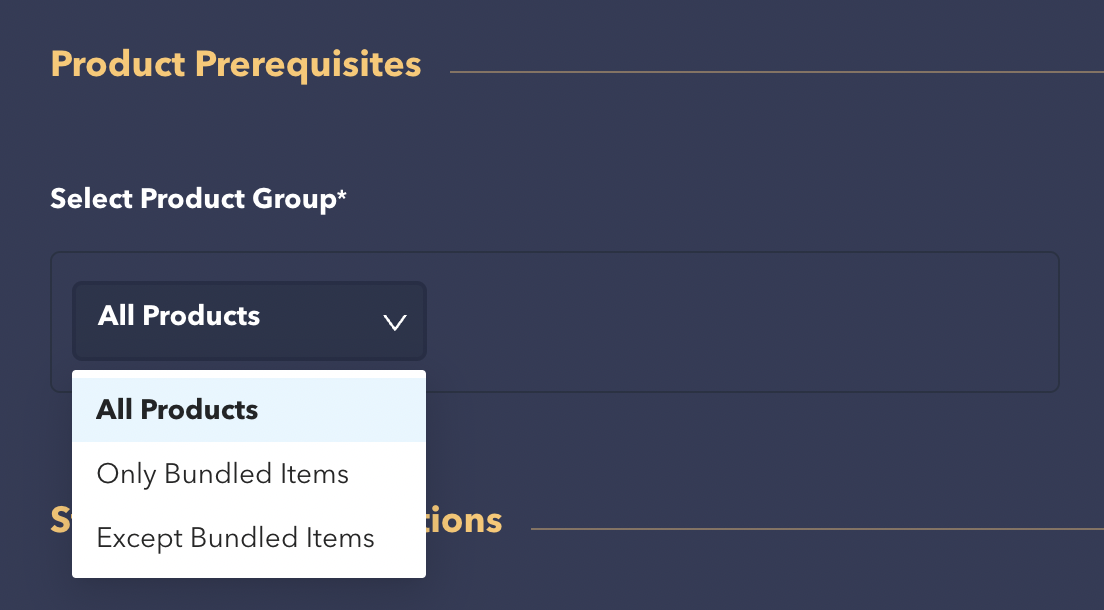
#### Product Prerequisites
Product prerequisites can be added, offering three options:
* **All Products**: Prevents processing bundled products in the order.
* **Only Bundled Items**: Runs the rule if there's a bundled product in the order.
* **Except Bundled Items**: Runs the rule if there's no bundled product in the order.
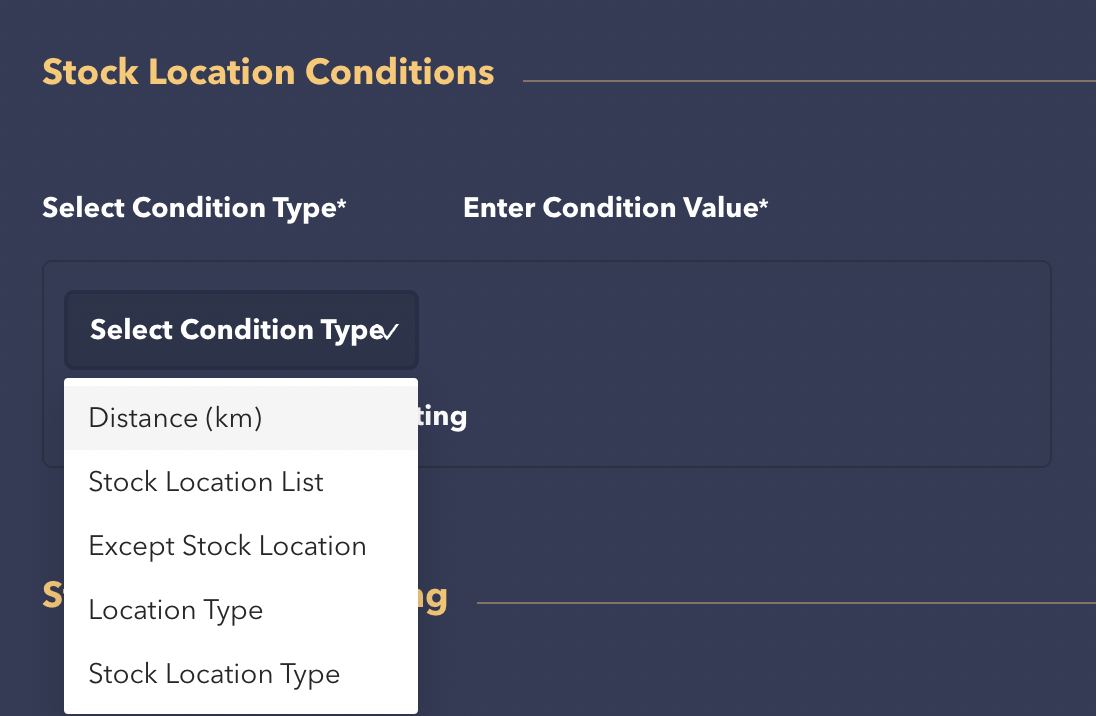
#### Stock Location Conditions
* Determine the stock location criteria for creating transfer packages. There are five options:
* **Distance (km)**: Generates transfer packages in locations with distances matching the prerequisite value from the order address.
* **Stock Location List**: Enter desired stock locations where transfer packages should be created. Multiple stock locations can be entered, as seen in the example below.
* **Except Stock Location List**: Specify stock locations where transfer packages should not be created. In this case, transfer packages are created in locations other than the stock locations entered in the condition value.
* **Location Type**: Assigns packages to stock locations based on conditions like City, District, Neighborhood, or Country at the order address.
* **Stock Location Type**: Creates transfer packages at stock locations of the selected type; Warehouse or Store.
* Multiple conditions can be added by clicking the **Add New Location Setting** button and remove undesired conditions using the **Remove** button.
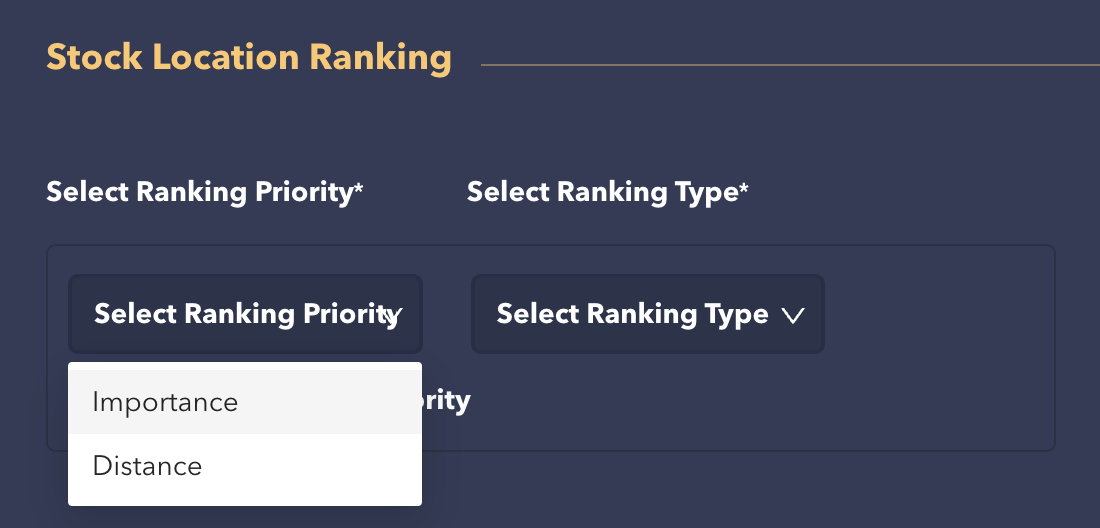
#### Stock Location Ranking
* Define the sorting order for stock locations when creating packages. Select from two ranking types:
* **Importance**: Sorts stock locations based on Priority values in ascending or descending order.
* **Distance**: Sorts stock locations by their distance from the order address in increasing or decreasing.
* Multiple sorting priorities can be added by clicking **Add New Ranking Priority**, and remove undesired priorities with the **Remove** button.
* Once the fields have been filled in the rule panels, save the rule by clicking **Save Rule**.
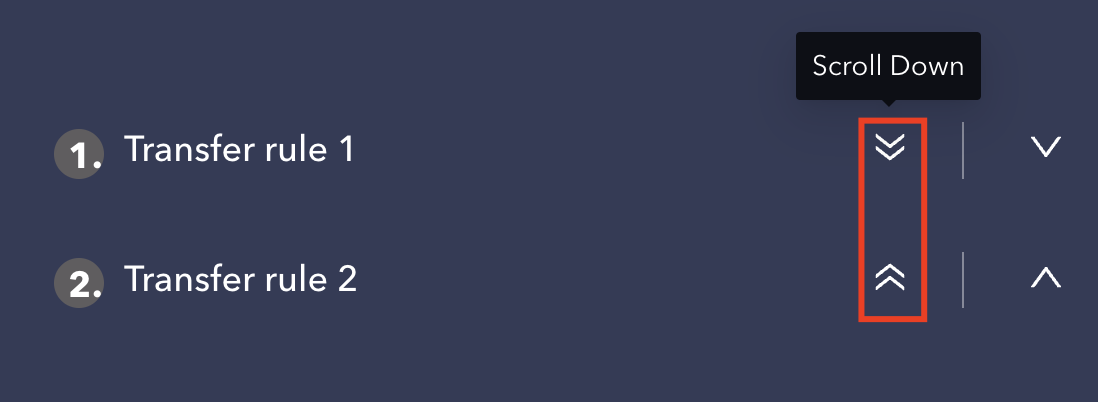
* After adding the rule, adjust rule priorities using the scroll buttons on the rule panels. Higher priority rules are processed first.
* To complete the edit, click **Save Scenario** button.
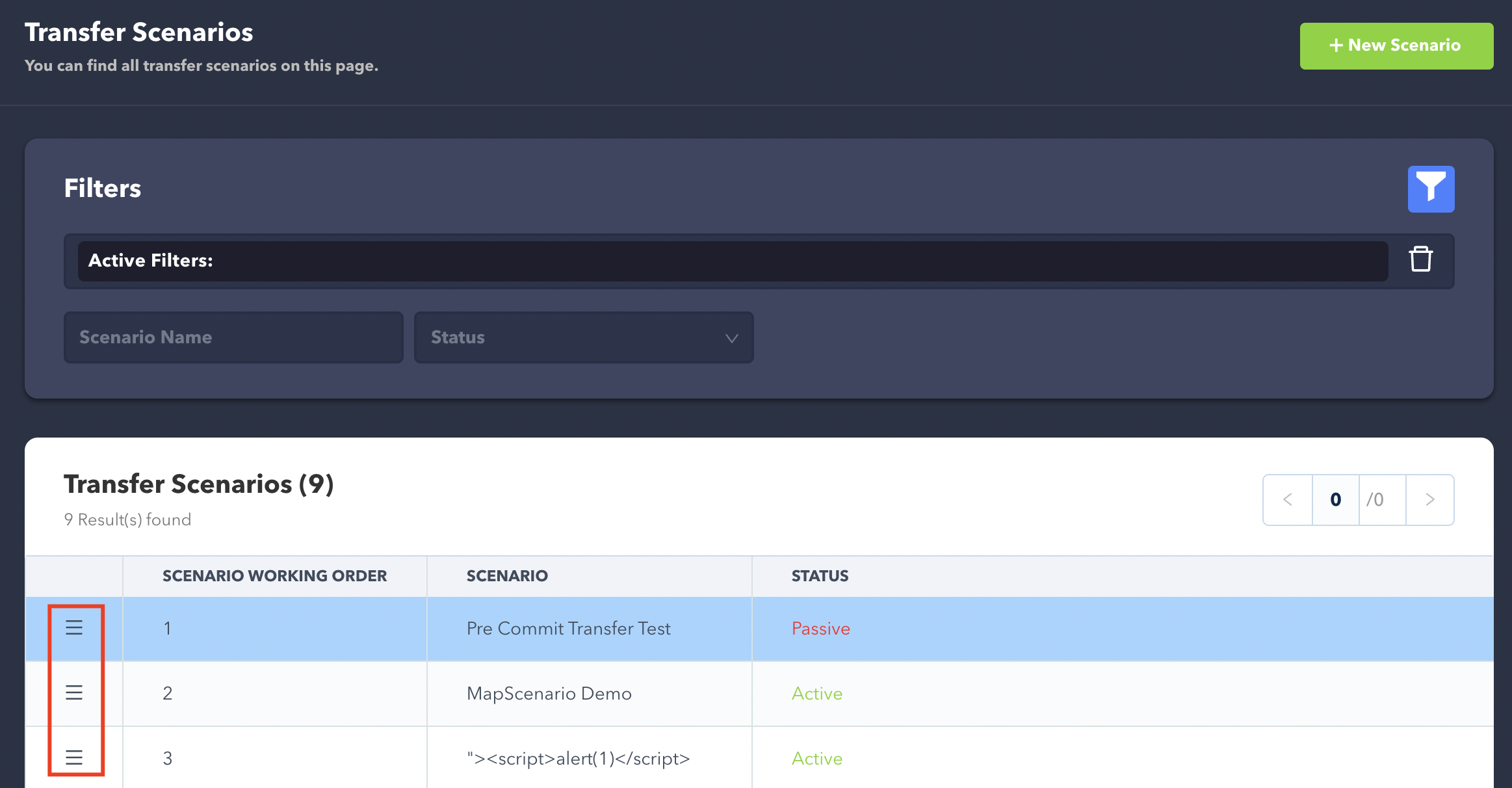
* The scenario order can be changed by dragging and repositioning scenario lines, so the working order also changes.
### Scenario Adding Example
The above example scenario is set to run for:
1. Orders from the Trendyol channel.
2. Orders shipped by Aramex.
---
# Agent Instructions
This documentation is published with GitBook. GitBook is the documentation platform designed so that both humans and AI agents can read, navigate, and reason over technical content effectively. Learn more at gitbook.com.
## Querying This Documentation
If you need additional information that is not directly available in this page, you can query the documentation by asking a question.
Perform an HTTP GET request on the following URL with the `ask` and `goal` query parameters:
```
GET https://docs.akinon.com/tutorials/oms/transfer-scenarios.md?ask=&goal=
```
`ask` is the immediate question: it should be specific, self-contained, and written in natural language.
`goal` is what the user is ultimately trying to achieve, the reason they need the answer. Sharing it helps GitBook give you a better, more relevant answer. A goal is most helpful when it describes the outcome the user wants rather than restating the question. For example, with `ask=how do I create an API token`, a goal like `automate deployments from our CI pipeline` lets GitBook tailor the answer to that use case.
The response will contain a direct answer to the question and relevant excerpts and sources from the documentation.
Use this mechanism when the answer is not explicitly present in the current page, you need clarification or additional context, or you want to retrieve related documentation sections.