> For the complete documentation index, see [llms.txt](https://docs.akinon.com/llms.txt). Markdown versions of documentation pages are available by appending `.md` to page URLs; this page is available as [Markdown](https://docs.akinon.com/tutorials/seller-center/email-masking-feature-for-mpos.md).
# Email Masking Feature for MPOs
The Email Masking feature is designed to protect customer email addresses by replacing the original email with a masked/generated email address throughout the system.
When enabled for sellers by setting the `email_domain` value, the system automatically converts customer email addresses into a secure format using the following structure:
`{order_number}@{configured_email_domain}`
This ensures that:
* Sensitive customer email information is hidden from sellers and integrations.
* Operational processes can continue without interruption.
* Orders and communications remain traceable using the generated masked email.
**Example:**
Original email:
`customer@example.com`
Masked email:
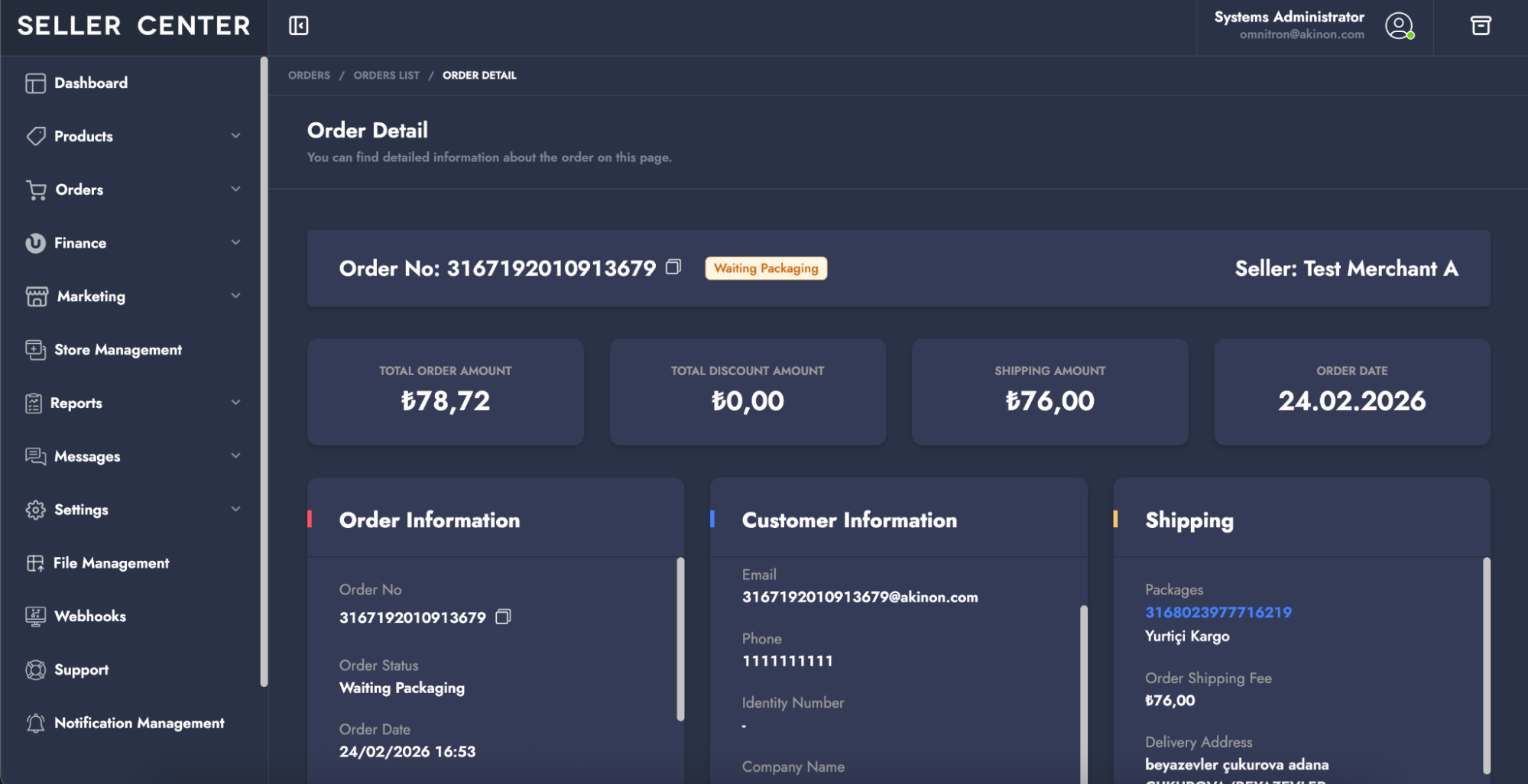
`3167192010913679@akinon.com`
## Configuration Steps
{% stepper %}
{% step %}
#### Enable Email Masking
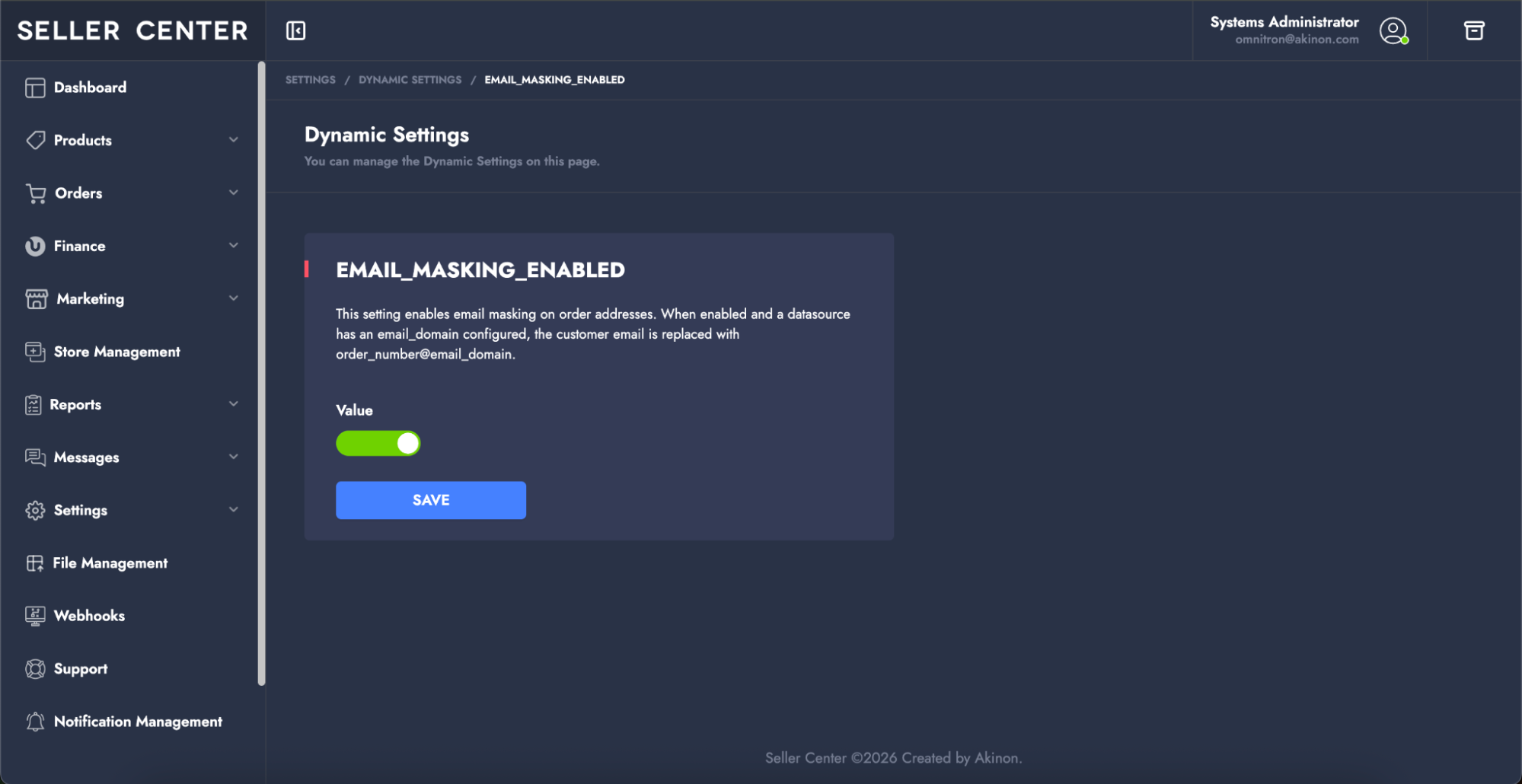
* Navigate to **Settings > Dynamic Settings**
* Find `EMAIL_MASKING_ENABLED`. This setting enables email masking on order addresses. When enabled and a datasource has an email domain configured, the customer email is replaced automatically.
* Turn the toggle **ON**
* Click **Save**
{% endstep %}
{% step %}
#### Configure Seller Email Domain
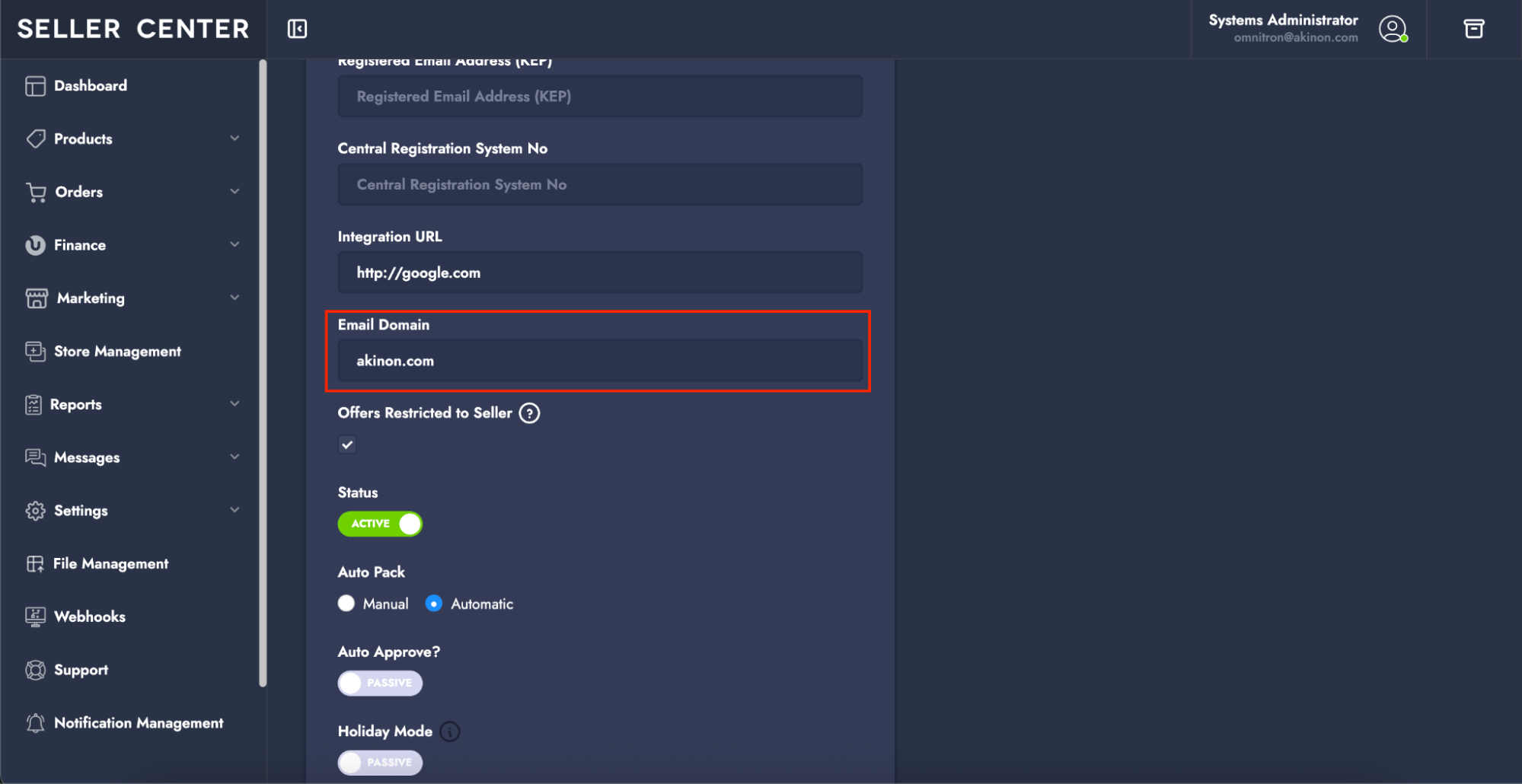
* Navigate to **Finance > Seller Management > Seller Management Detail** page.
* Locate the `Email Domain` field.
* Enter the domain. Example: [akinon.com](https://www.google.com/url?q=http://akinon.com\&sa=D\&source=editors\&ust=1777452041345119\&usg=AOvVaw15qS0MU88EvW89I27xd9Np). This domain will be used to generate the masked email.
* After entering the domain, save the datasource. **Example result:** `3167192010913679@akinon.com`
{% endstep %}
{% step %}
#### Use Email Masking Through i2 Services
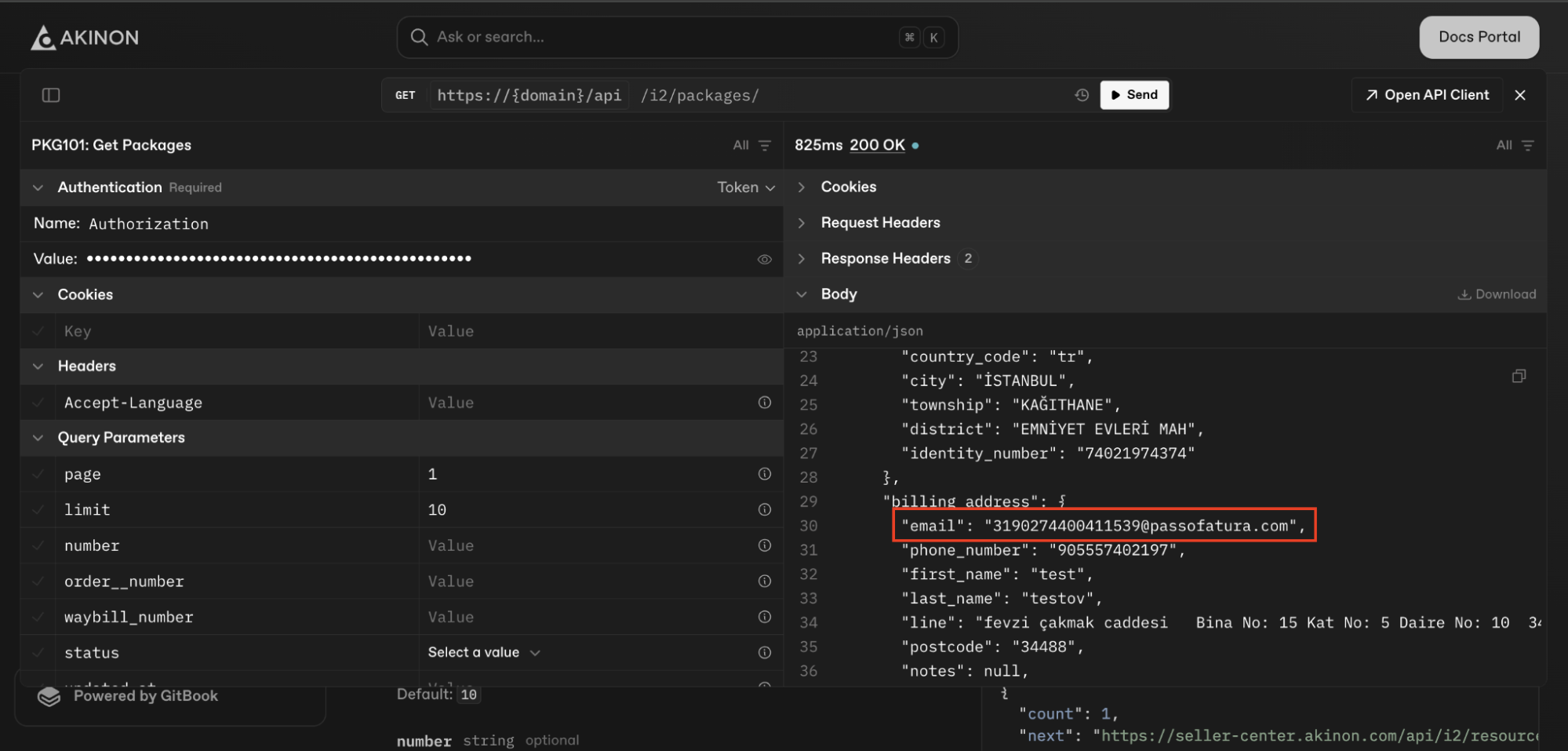
When sellers use i2 services, they will receive the masked information only. If the real customer email is needed, only MPOs/superusers can use a forwarder service to resolve the masked email through the following endpoint:
`i2/packages/order-address-emails/?order_number=xxx&datasource=xxx`
1. Replace the first xxx with the order number
2. Replace the second xxx with the datasource name or identifier.
This is required for superusers to retrieve the correct record from the related datasource.
{% endstep %}
{% endstepper %}
---
# Agent Instructions
This documentation is published with GitBook. GitBook is the documentation platform designed so that both humans and AI agents can read, navigate, and reason over technical content effectively. Learn more at gitbook.com.
## Querying This Documentation
If you need additional information that is not directly available in this page, you can query the documentation dynamically by asking a question.
Perform an HTTP GET request on the current page URL with the `ask` query parameter, and the optional `goal` query parameter:
```
GET https://docs.akinon.com/tutorials/seller-center/email-masking-feature-for-mpos.md?ask=&goal=
```
`ask` is the immediate question: it should be specific, self-contained, and written in natural language.
`goal` is optional and describes the broader end goal you are ultimately trying to accomplish on behalf of the user. GitBook uses it to tailor the answer towards what is most useful for that goal.
The response will contain a direct answer to the question and relevant excerpts and sources from the documentation.
Use this mechanism when the answer is not explicitly present in the current page, you need clarification or additional context, or you want to retrieve related documentation sections.