> For the complete documentation index, see [llms.txt](https://docs.akinon.com/llms.txt). Markdown versions of documentation pages are available by appending `.md` to page URLs; this page is available as [Markdown](https://docs.akinon.com/tutorials/omnitron/sales-channels/how-to-manage-registered-users-based-on-sales-channel.md).
# How to Manage Registered Users Based on Sales Channel?
This tutorial explains how to track registered user information by sales channel from the Users page and how to update them. Additionally, it details how to access detailed user information and perform various actions.
## Step 1: Navigate to the Users Page
* Follow the **Sales Channels** sidebar and click the **Users** page.
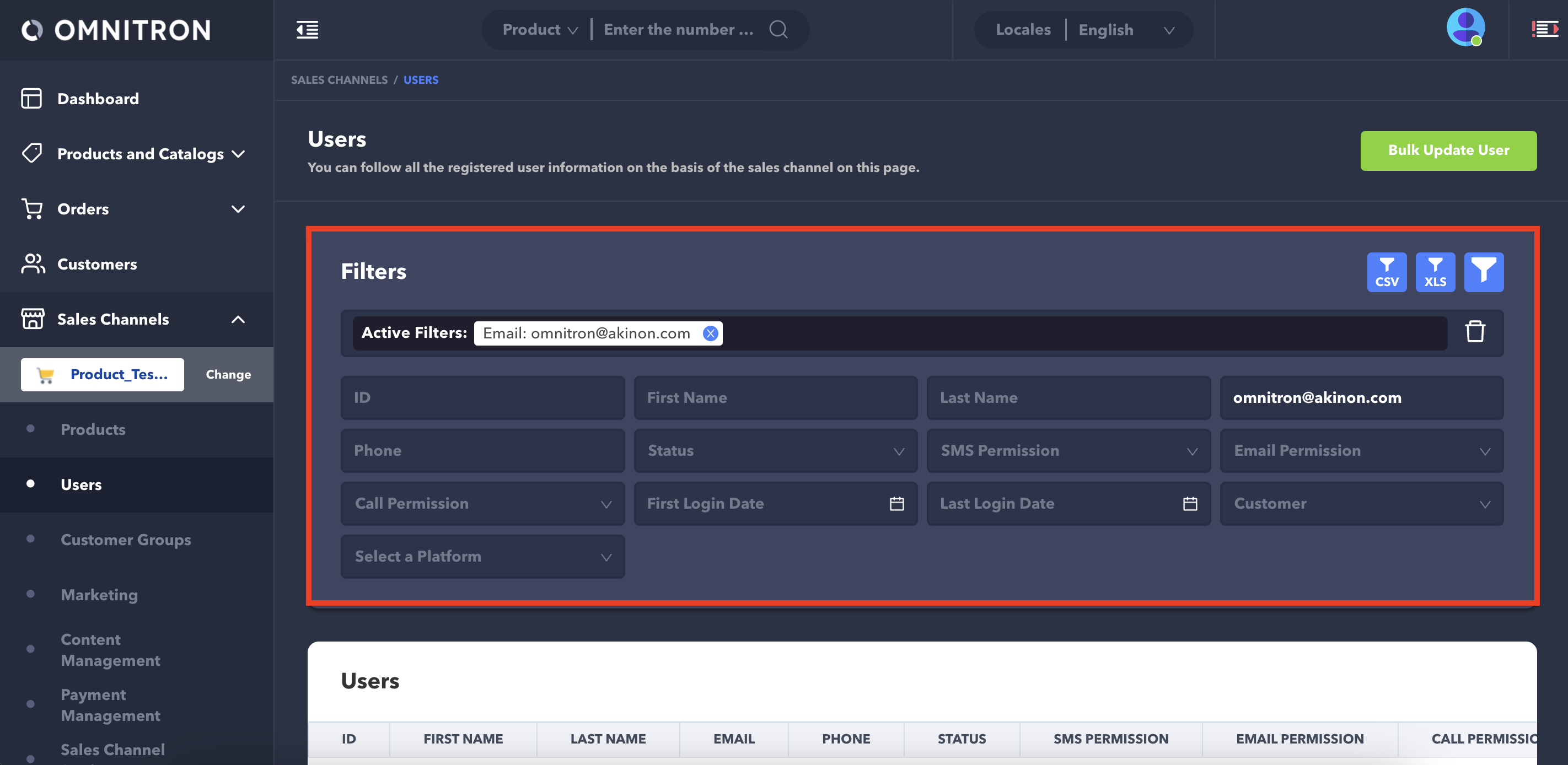
* On the Users page, users can use the filters at the top, labeled user properties, to narrow down the results as needed.
* The selected filters is displayed in the **Active Filters** row.
## Step 2: Updating Users
To bulk update users, follow these steps:
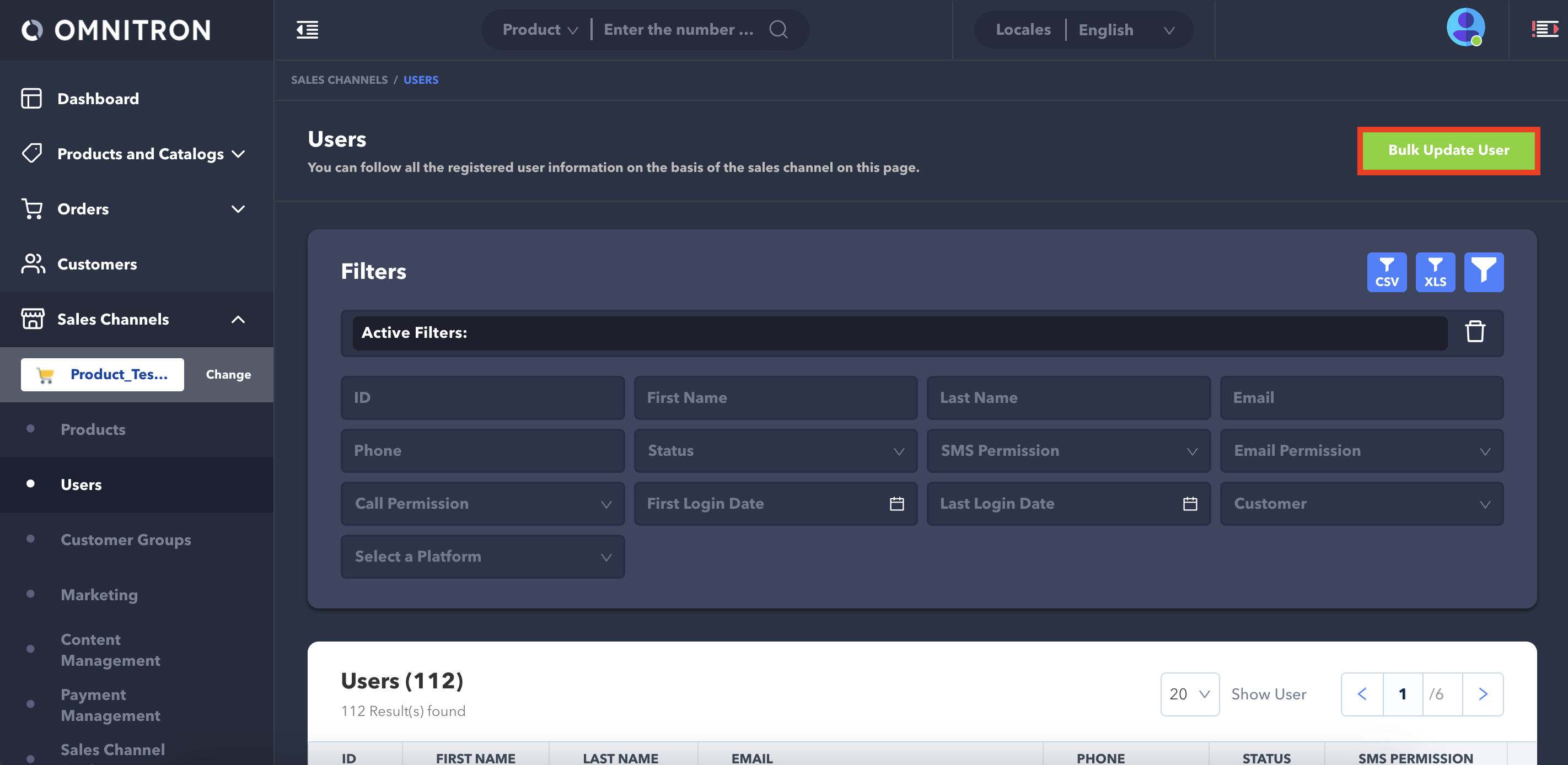
* Click the **Bulk Update User** button located in the upper-right corner.
* Clicking this button opens a pop-up displaying local files. Select an Excel file from your local and upload it.
{% hint style="info" %}
You can download an example Excel template by clicking the **Download Bulk User Update Template** button at the bottom of the screen.
{% endhint %}
## Step 3: Accessing User Details
To access detailed user information;
* Click on the user's name in the list of users.
* A new screen opens displaying the user's information and a list of their previous orders.
* Clicking on one of the listed orders opens a detailed order view.
## Step 4: Updating User Permissions
To update user permissions or membership information;
* Navigate to the user's detail page.
* Go to the section related to permissions.
* Make the necessary updates by clicking **Enable** or **Remove permission** button as needed.
## Step 5: Other Settings
To access additional user information or perform certain actions;
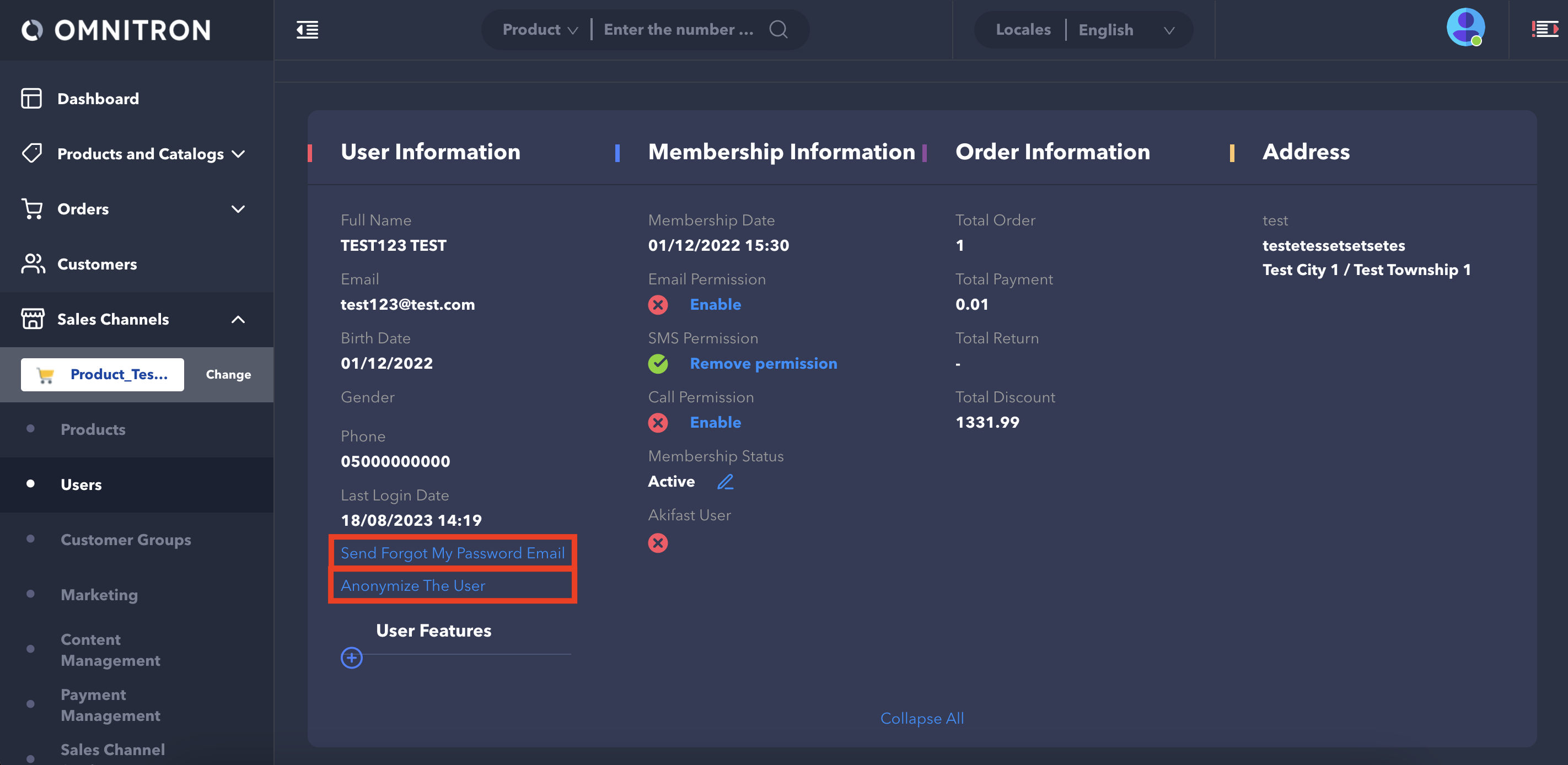
* Click the **Expand All** button on the detail page to view more user information.
* To send a password reset email to the user, click the **Send Forgot My Password Email** button.
* To anonymize the user, click the **Anonymize The User** button.
---
# Agent Instructions
This documentation is published with GitBook. GitBook is the documentation platform designed so that both humans and AI agents can read, navigate, and reason over technical content effectively. Learn more at gitbook.com.
## Querying This Documentation
If you need additional information that is not directly available in this page, you can query the documentation dynamically by asking a question.
Perform an HTTP GET request on the current page URL with the `ask` query parameter, and the optional `goal` query parameter:
```
GET https://docs.akinon.com/tutorials/omnitron/sales-channels/how-to-manage-registered-users-based-on-sales-channel.md?ask=&goal=
```
`ask` is the immediate question: it should be specific, self-contained, and written in natural language.
`goal` is optional and describes the broader end goal you are ultimately trying to accomplish on behalf of the user. GitBook uses it to tailor the answer towards what is most useful for that goal.
The response will contain a direct answer to the question and relevant excerpts and sources from the documentation.
Use this mechanism when the answer is not explicitly present in the current page, you need clarification or additional context, or you want to retrieve related documentation sections.

 {% endhint %}
## Step 3: Accessing User Details
To access detailed user information;
* Click on the user's name in the list of users.
* A new screen opens displaying the user's information and a list of their previous orders.
* Clicking on one of the listed orders opens a detailed order view.
{% endhint %}
## Step 3: Accessing User Details
To access detailed user information;
* Click on the user's name in the list of users.
* A new screen opens displaying the user's information and a list of their previous orders.
* Clicking on one of the listed orders opens a detailed order view.